
How to Send Texts with SMS
Text your contacts from your own sender name. Trigger texts from your CRM, send broadcasts to a list, and manage credits, opt-outs and delivery.
SMS lets your organization send text messages from its own sender name, such as TESTFLOW, instead of a phone number. Texts go out in two ways:
- From your CRM. When something happens in your CRM, such as an application being received, it tells ChatFlow and the contact gets a text from a template you wrote.
- As a broadcast. You send one message to a list of contacts, now or at a time you schedule.
Every text is logged with its delivery status, and anyone who opts out is never texted again.
Plan, role and coverage
SMS is included in the Enterprise plan and available as an add-on on Growth, switched on by our team. It is open to Supervisors, Admins, and Owners, because the message log contains recipients' phone numbers. Only Admins and Owners can send broadcasts, add credits, and change settings.
SMS currently sends to Jamaican mobile numbers (area codes 876 and 658) on Digicel and Flow. Texts are one-way: recipients see your sender name and cannot reply to it.
Open SMS
Select SMS in the sidebar (under BOTS & AGENTS). The section has six tabs: Overview, Triggers, Broadcasts, Messages, Opt-outs, and Settings.
The Overview shows texts sent, delivered and failed this month, the credits used, and your Text credits balance.
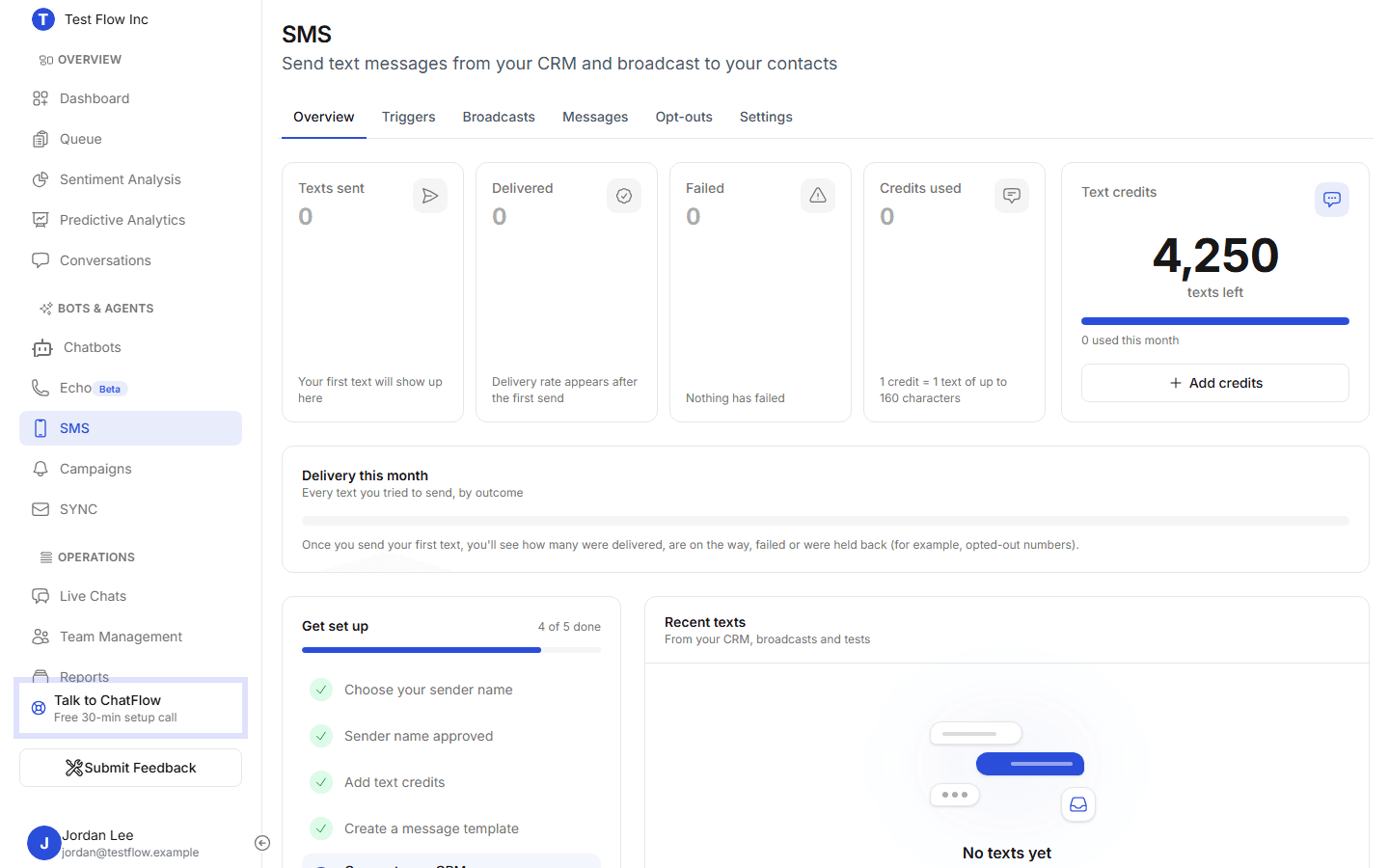
Further down, the Get set up checklist tracks the five steps to your first live text, and Recent texts lists the latest texts from your CRM, broadcasts and tests.
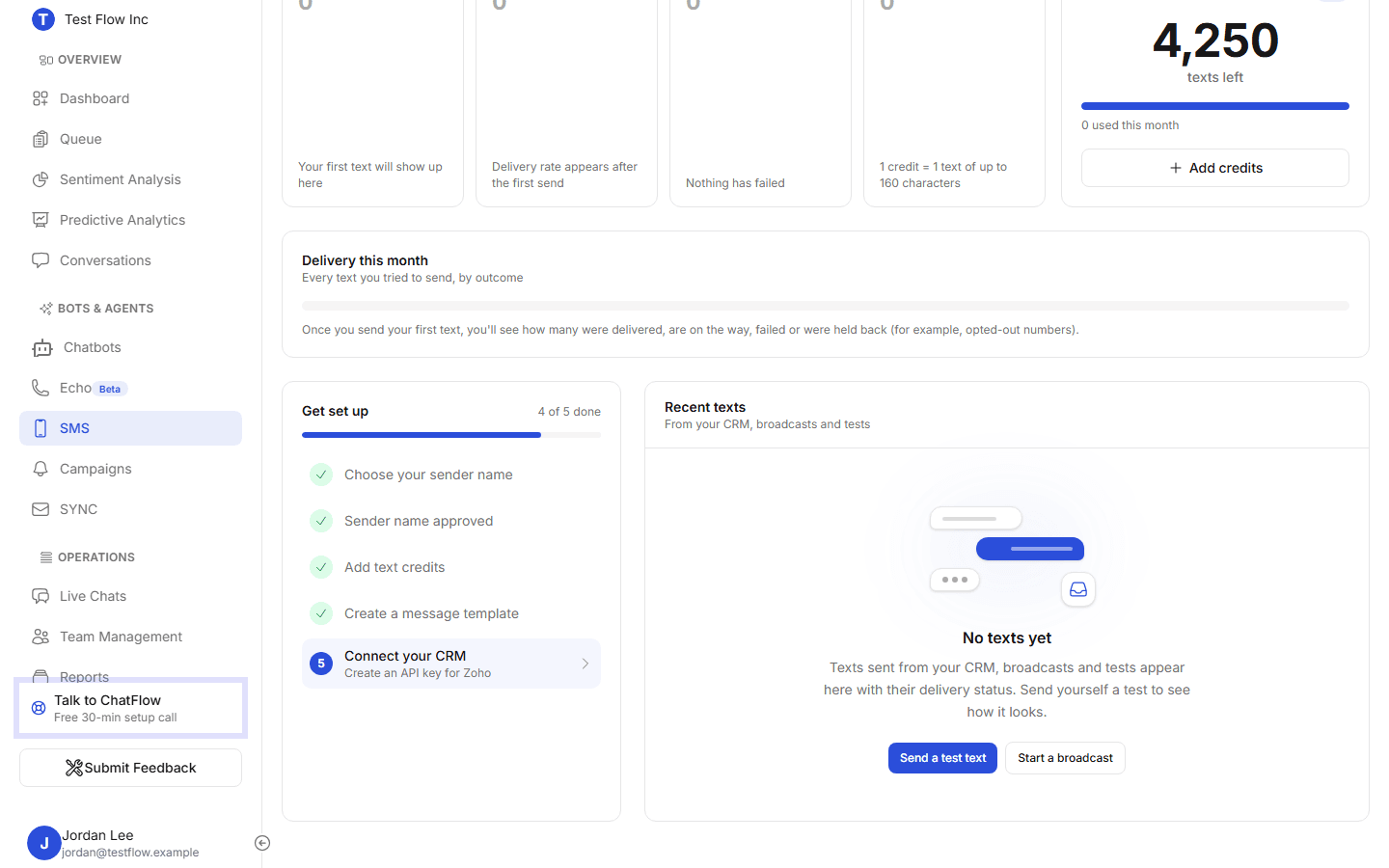
Choose your sender name
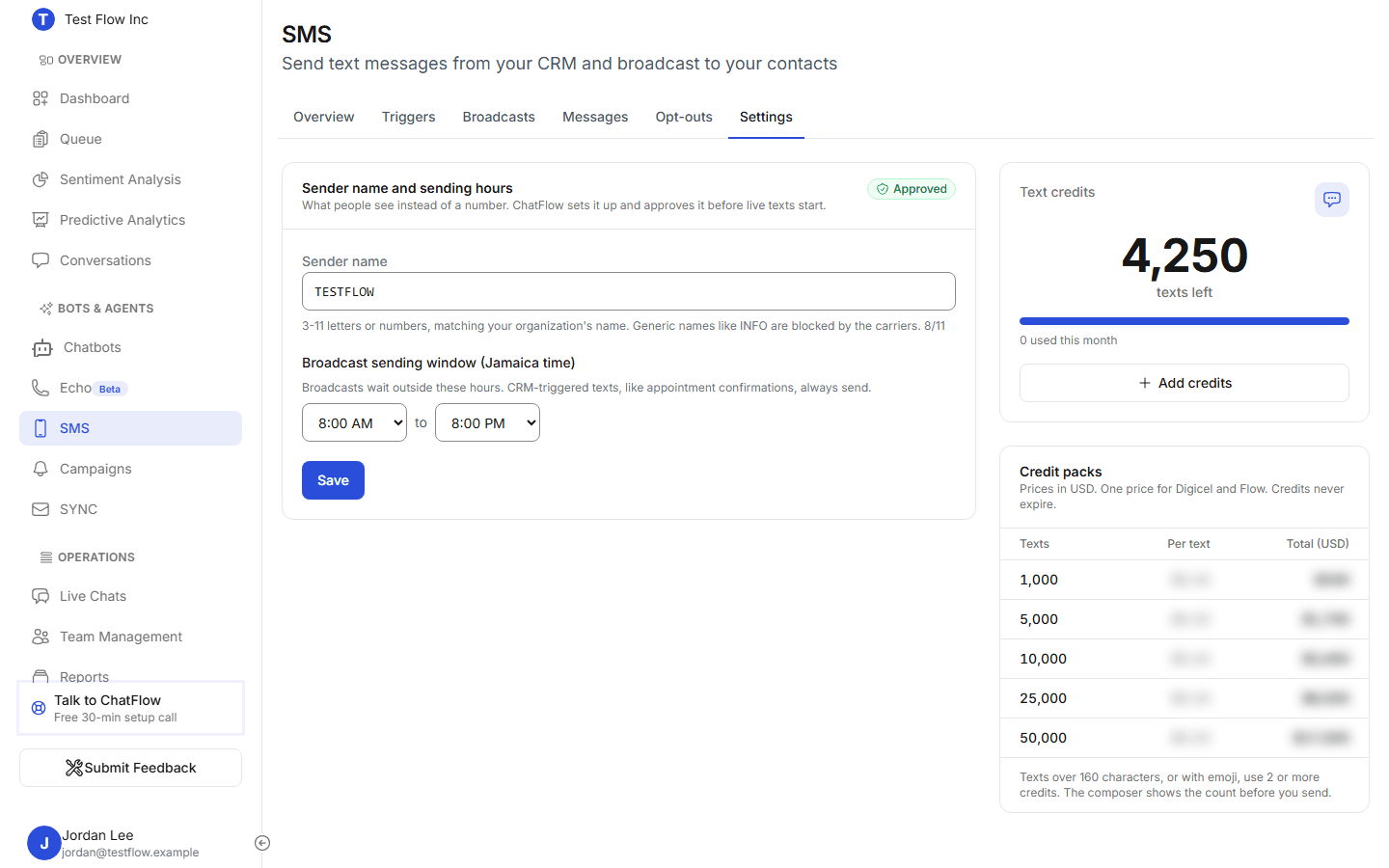
Open Settings. Under Sender name and sending hours, enter the name people will see instead of a number:
- 3 to 11 letters or numbers, matching your organization's name.
- Generic names such as INFO are blocked by the carriers.
ChatFlow registers the name and approves it before live texts start; the card shows Approved once it is ready. Changing the name later means it has to be approved again.
Set the broadcast sending window
Also in Settings, Broadcast sending window (Jamaica time) sets the hours broadcasts may go out, for example 8:00 AM to 8:00 PM. Outside those hours a broadcast waits, and carries on when the window opens again. Texts triggered by your CRM, such as appointment confirmations, always send straight away.
Add text credits
SMS uses prepaid credits. One credit sends one text to any Digicel or Flow number. Texts longer than 160 characters, or with emoji, use 2 or more credits; the composer shows the count before you send.
Select Add credits
On the Overview or in Settings, select Add credits on the Text credits card.
Choose a credit pack
Pick a pack. The price per text and the total are shown for each one, and Settings lists every pack under Credit packs.
Request the invoice
Select Request invoice. We email the invoice within one business day, and the credits are added once it is paid.
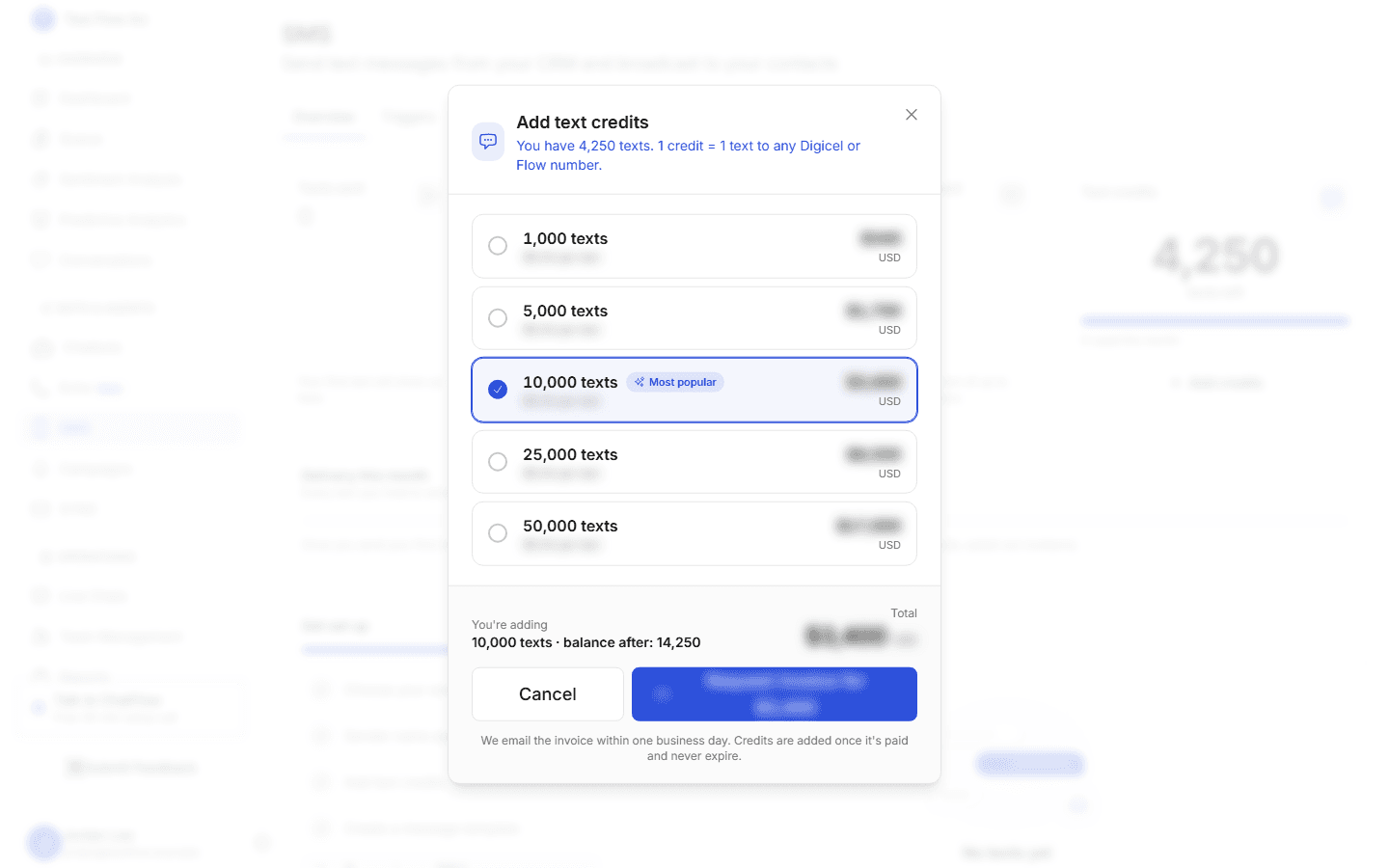
Credits never expire. When a broadcast is sending, the credits it needs are reserved so your CRM texts cannot use them up halfway; anything unused comes back. The card warns you when you are running low, that is, when less than half of what you used this month is left.
Create message templates
Open Triggers. A template is the text your CRM sends for one event. Create one per event:
| Field | What to enter |
|---|---|
| Template name | A name your team recognizes, for example Application received. |
| CRM event name | The event your CRM will send, for example application_received. |
| Message | The text, with fields in double braces such as {{first_name}}. Your CRM sends the values with each event. |
| Promotional | Turn on for marketing texts. It adds an opt-out link to each text, as the law requires. Leave it off for service texts. |
| Active | Turn off to stop a template without deleting it. |
Select New template to write your own, or Add a ready-made template to start from an example.

If a text uses a field your CRM did not send, ChatFlow does not send it, so nobody receives a message with a blank where their name should be.
Trigger texts from your CRM
Each event your CRM sends becomes one text: the CRM fires the event, ChatFlow picks the matching template and fills in the contact's details, and the contact gets the text from your sender name.
Create a webhook key
In Triggers, under your CRM connection, set up event triggers and select Create webhook key. Copy the URL to notify, the Header name and the Header value straight away; for security, the key is only shown once.
Add a webhook in your CRM
In Zoho CRM, go to Setup › Automation › Actions › Webhooks and configure a webhook that sends a POST to the URL you copied, with your key as the Authorization header (Bearer, a space, then the key).
Send the right fields
Add these parameters to the webhook:
event: the template's CRM event name, for exampleapplication_received.phone: the contact's mobile number.record_id: the record ID. It stops the same event from texting someone twice.- Any field your template uses, for example
first_name.
Attach it to a workflow rule
In Setup › Automation › Workflow Rules, choose when the rule fires (for example, when an application is created) and add the webhook as an instant action. Use one webhook per event.
Test it
Trigger the rule once, then check the Messages tab for the text.

Any system that can send a web request works the same way: POST to the URL with the key in the header and the fields as form data or JSON.
Send a test
Before going live, use Send a test on the Triggers tab to send one text to your own phone and check the sender name and wording. A test uses credits like any other text.
Send a broadcast
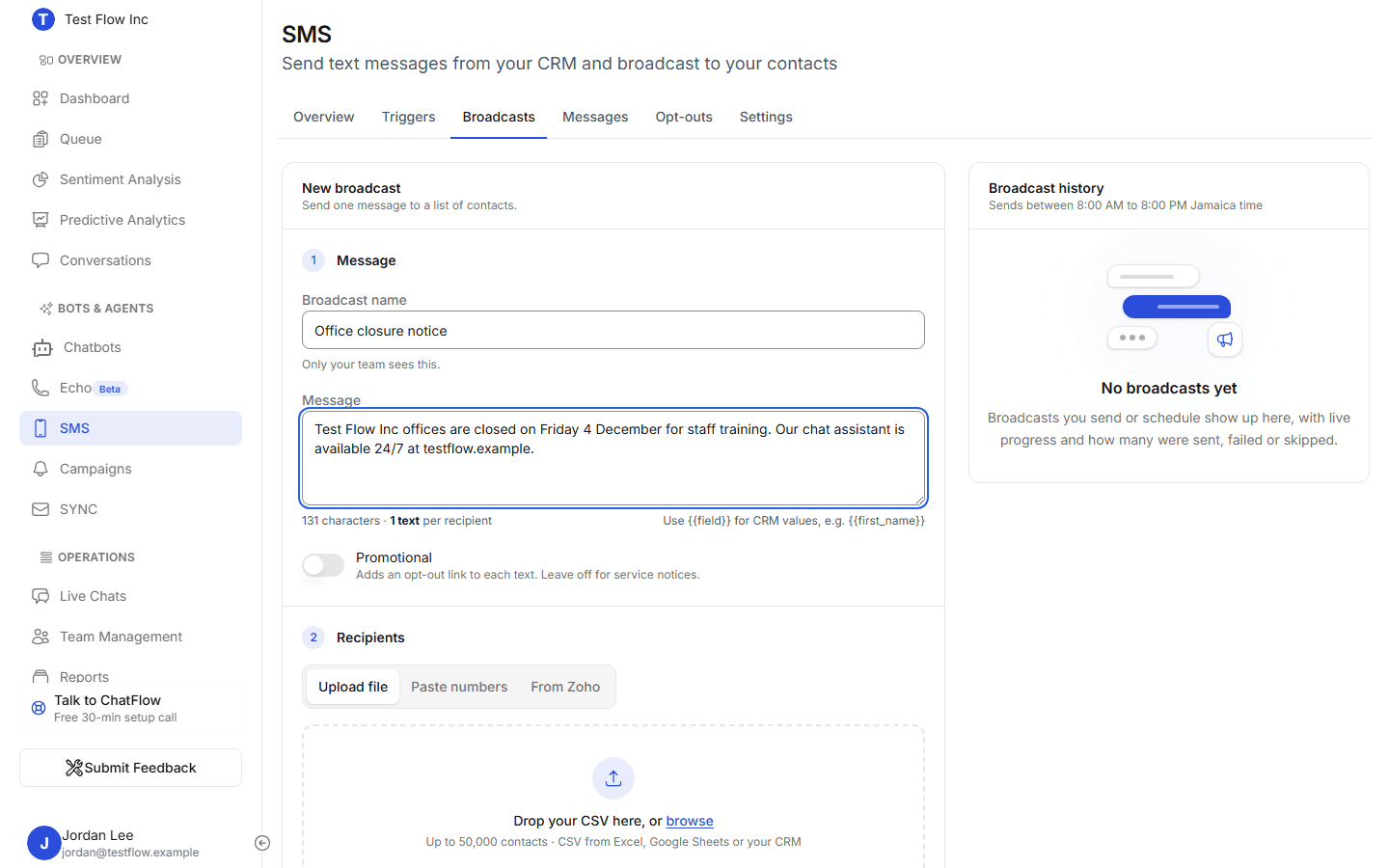
Open Broadcasts to send one message to a list of contacts.
Write the message
Give the broadcast a name (only your team sees it) and write the message. Fields such as {{first_name}} are filled in from your list. Turn on Promotional for marketing messages to add an opt-out link; leave it off for service notices.
Add recipients
Choose how to add them:
- Upload file: a CSV of up to 50,000 contacts, from Excel, Google Sheets or your CRM. The first row is the header and only
phoneis required;first_name,last_nameandrefbecome fields. Select Download template for the format. - Paste numbers: one number per line, or CSV with a header row.
- From Zoho: import a Zoho CRM list (Contacts or Leads). This needs Zoho CRM added under Connections first.
Duplicates and non-Jamaican numbers are removed automatically, and opted-out numbers are skipped.
Review and send
Confirm that these recipients agreed to receive messages from us, as Jamaica's Data Protection Act 2020 requires. Check Credits needed against You have, choose Schedule for later if you want to pick a time, and send.
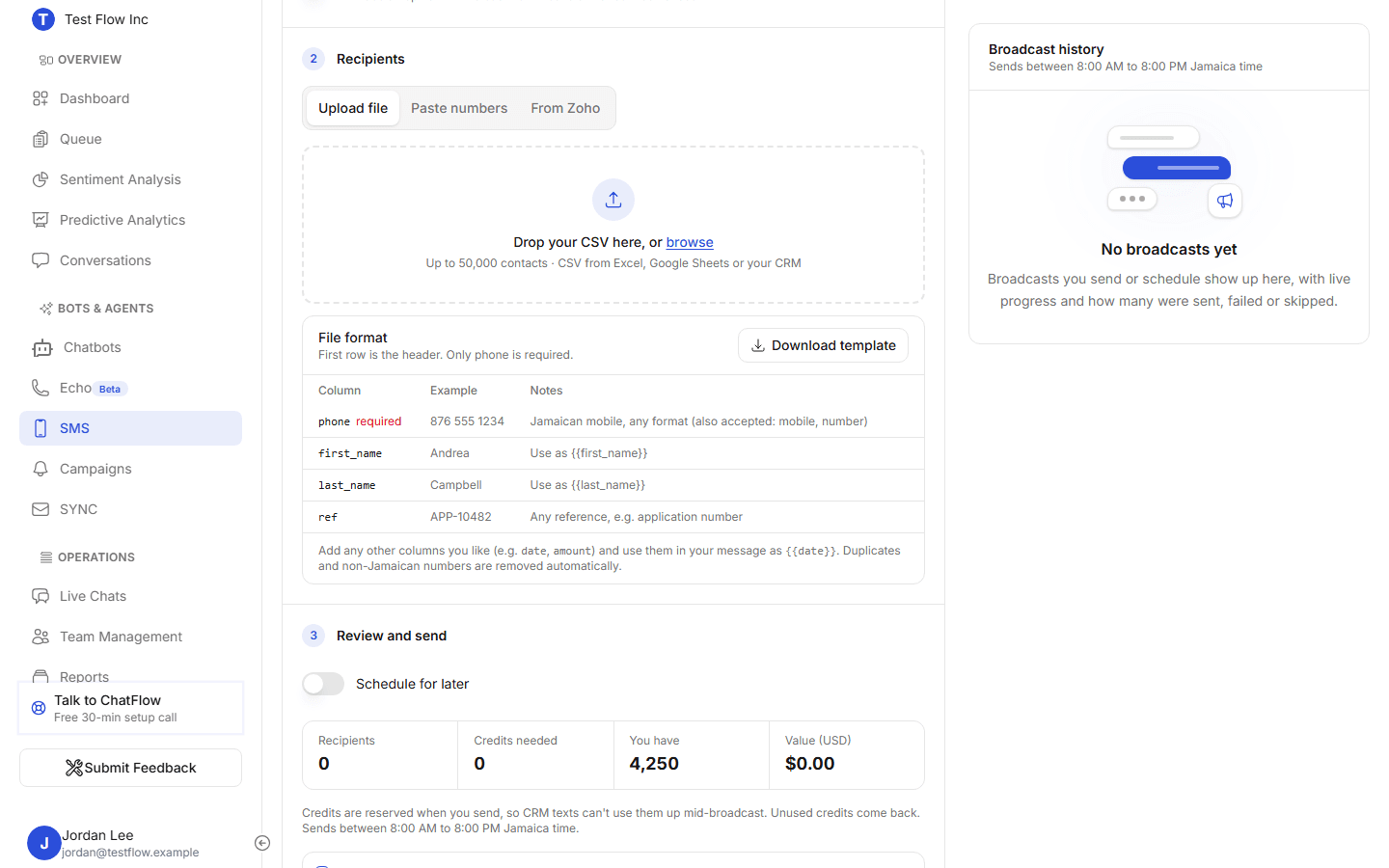
Broadcast history shows every broadcast with live progress and how many texts were sent, failed or skipped. Admins and Owners can Cancel a broadcast that is scheduled or still sending: texts already sent stay sent, and the credits for the rest are returned. Supervisors can follow progress but cannot send or cancel.
Check the message log
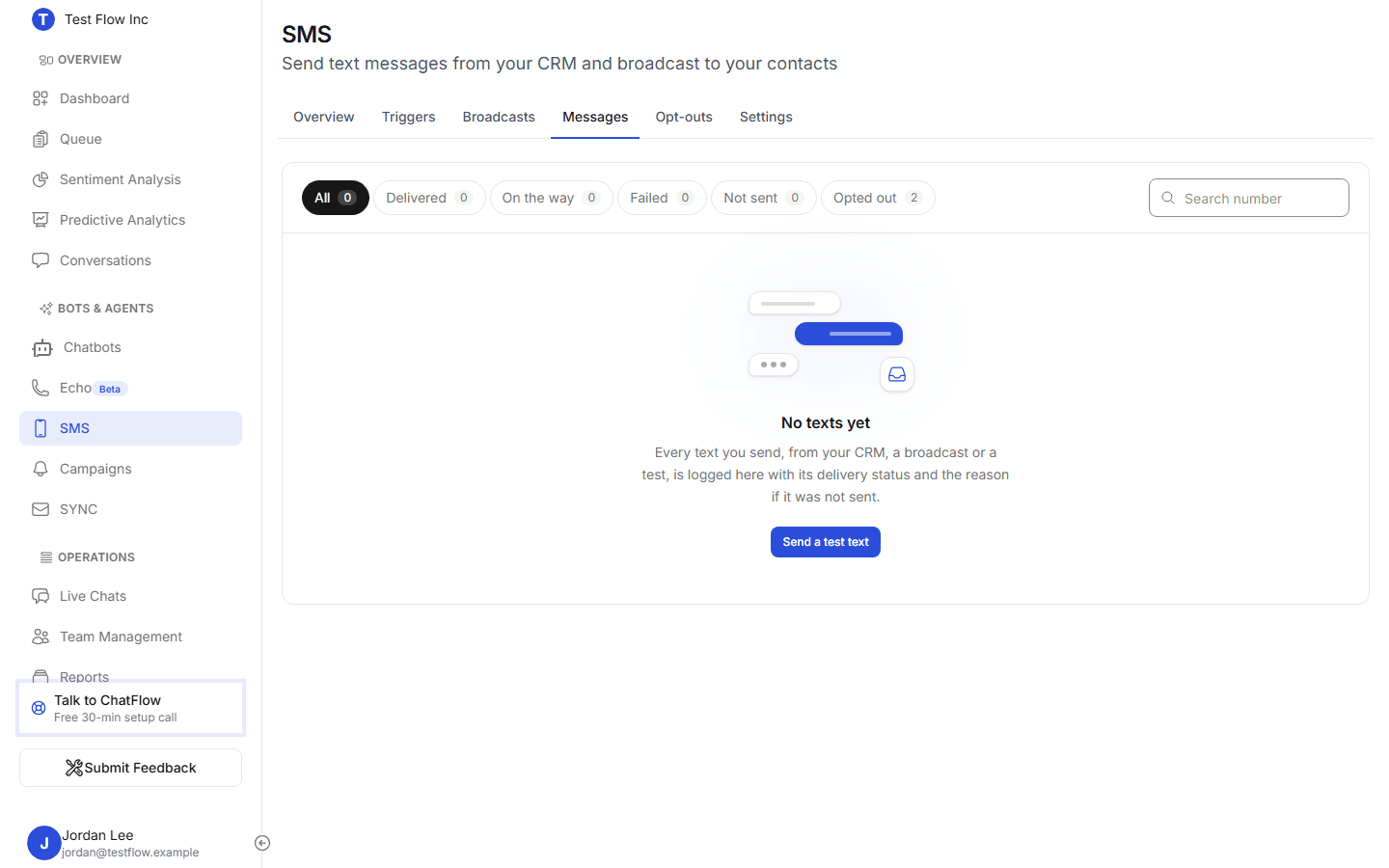
Open Messages to see every text you sent, from your CRM, a broadcast or a test, newest first. Search by phone number (the last four digits are enough) or filter by status:
| Status | What it means |
|---|---|
| Delivered | The carrier confirmed the text reached the phone. |
| On the way | Handed to the carrier, waiting for confirmation. Most confirm within a minute. |
| Failed | The carrier rejected the text. The reason is shown. |
| Not sent | ChatFlow held the text back, for example for an invalid number or not enough credits, so you can fix the cause. |
| Opted out | The number is on your do-not-text list, so it was not texted. |
Manage opt-outs
Jamaican numbers cannot reply to business texts, so "Reply STOP" does not work. Instead, promotional texts end with a short link: one tap and the number is added to your do-not-text list. Numbers on the list never receive a text from you again, from any source, including service texts such as appointment reminders.
Open Opt-outs to see the list, with how each number got there: Used the opt-out link, Added by your team, or Imported. To add someone who asked by phone or email, enter their number under Add a number and select Add to do-not-text list.
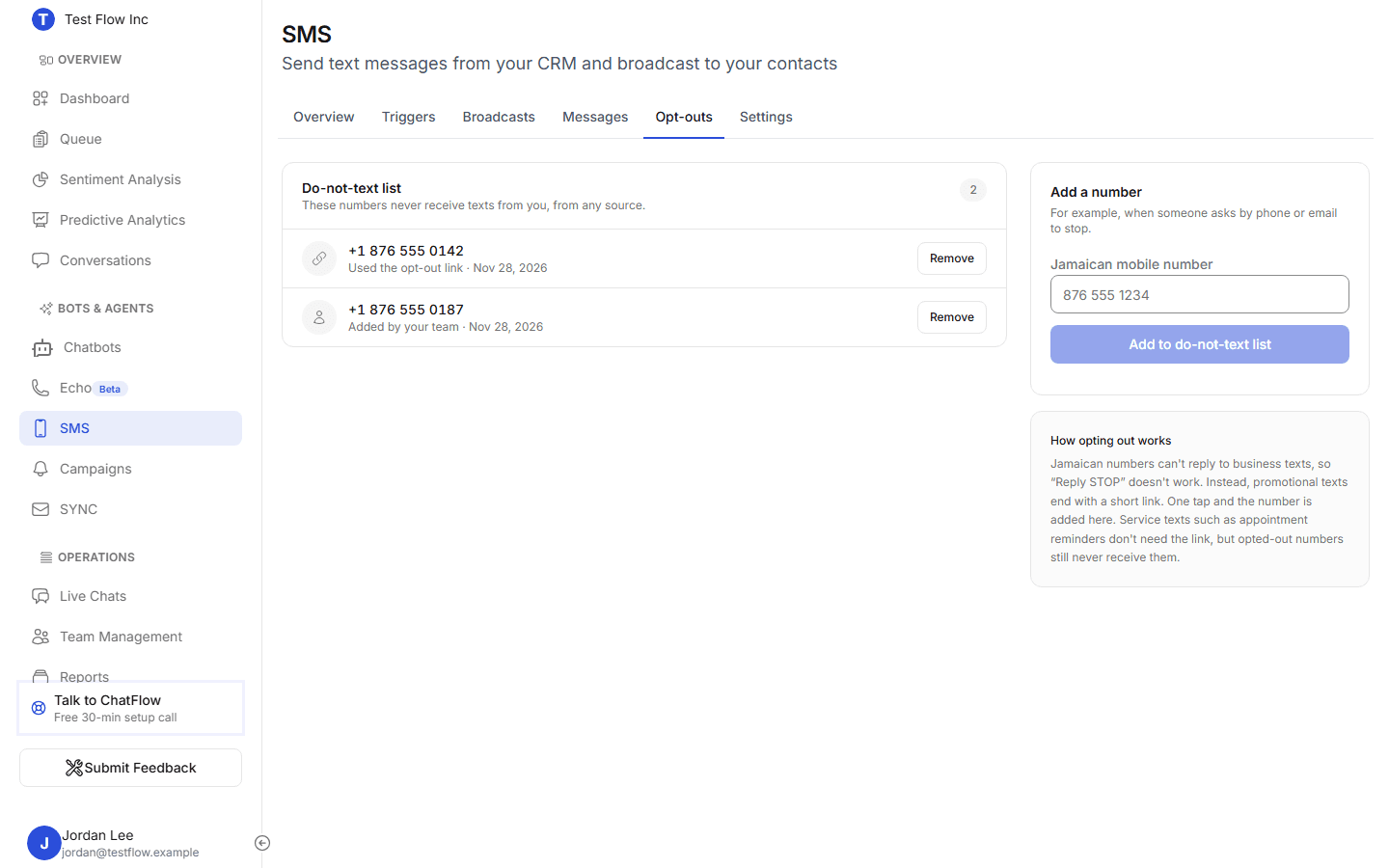
Only remove a number if the person has asked to receive texts again. Texting someone who opted out can breach the Data Protection Act.
Verify it's working
- On the Overview, confirm every step of Get set up is done.
- Send yourself a test from Triggers and confirm it arrives from your sender name.
- Trigger one event in your CRM and confirm the text shows as Delivered in Messages.
Troubleshooting
I do not see SMS in the sidebar
SMS needs the Enterprise plan, or the SMS add-on on Growth, and a Supervisor role or above. See Subscription settings or ask an Owner.
Texts show as Not sent
Check the reason in Messages. The usual causes are no credits left, a number that is not a Jamaican mobile, a number on the do-not-text list, or a template field your CRM did not send.
My CRM event did not send a text
Confirm the template's CRM event name matches the event your CRM sends exactly, the template is Active, and the webhook sends the key in the Authorization header. Each record_id sends once, so a repeat of the same event for the same record is ignored.
My broadcast is paused
Broadcasts only send inside the sending window in Settings. Outside those hours they wait and continue automatically.