
How to Add FAQs
Train your chatbot with question-and-answer pairs so it answers your most common questions accurately and consistently.
Before you begin
FAQs are question-and-answer pairs you write by hand. They are the most direct way to control how your chatbot answers your most common questions: the bot matches a visitor's question to the closest FAQ and replies with your exact answer.
Plan and access
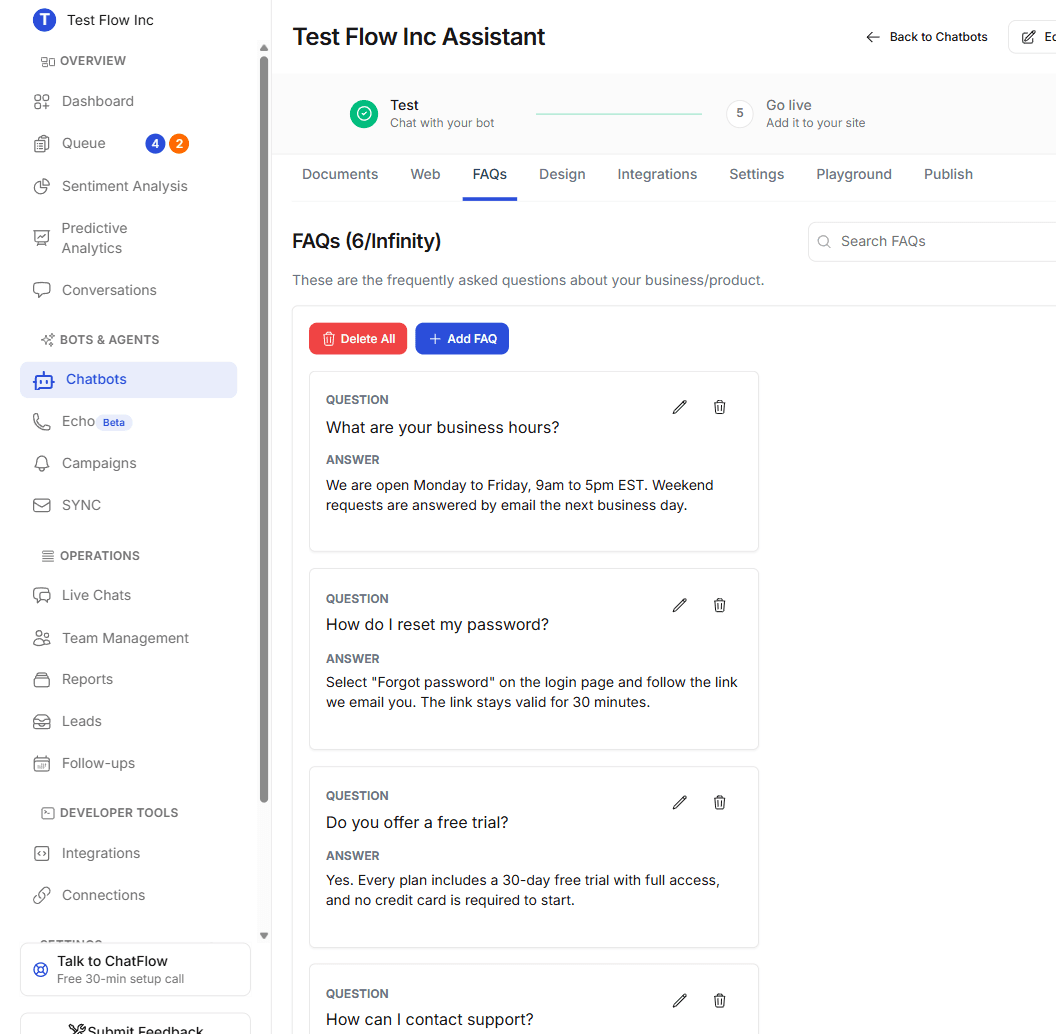
FAQs are available on every plan, including the free trial. How many you can store depends on your plan (Solo 2, Essential 8, Growth 50, Enterprise unlimited; the trial allows 4 per chatbot). The heading shows your current count, for example FAQs (6/Infinity).
Open the FAQs tab
- Go to Chatbots in the sidebar and open your chatbot.
- Select the FAQs tab.
Your FAQs appear as cards. When you have more than three, a Search FAQs box appears so you can filter by question or answer text. Select any card (or hover it) to expand it and read the full question and answer.
Add an FAQ
Select Add FAQ
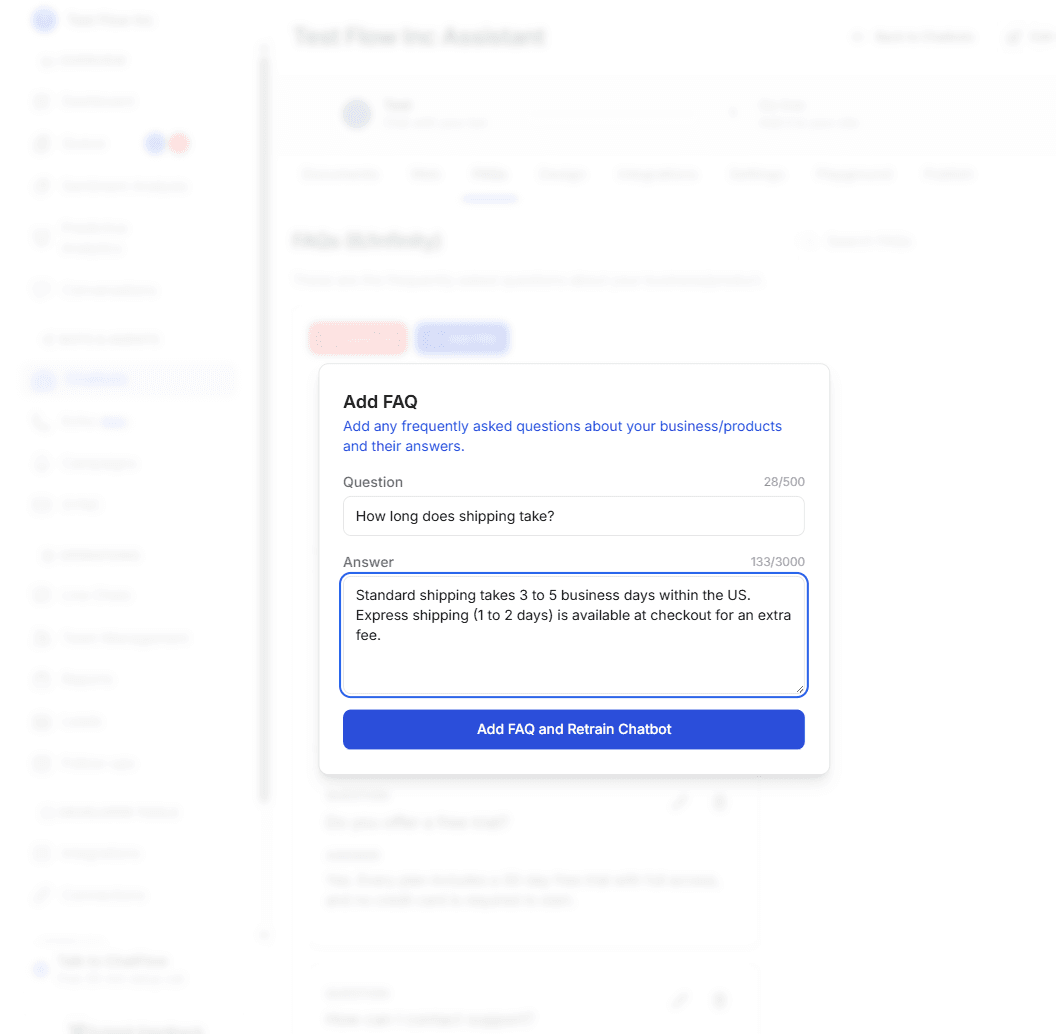
Select Add FAQ in the top left of the card grid. A dialog opens with a question and answer field, each with a live character counter.
Enter the question and answer
| Field | What to enter | Limit |
|---|---|---|
| Question | The question as a customer would actually ask it, for example What are your business hours? | 500 characters |
| Answer | The exact reply you want the chatbot to give, for example We're open Monday to Friday, 9am to 5pm EST. | 3000 characters |
The counter turns red as you approach a limit.
Save and retrain
Select Add FAQ and Retrain Chatbot. ChatFlow saves the FAQ and updates the chatbot so it can use the new answer right away. You will see a "FAQ added successfully" confirmation.
One at a time
FAQs are added individually, there is no bulk paste or import, and ChatFlow does not auto-generate FAQs. For larger bodies of content, upload a document or crawl your website instead, and use FAQs for the specific questions you want answered a specific way.
Edit or remove FAQs
Each FAQ card has two icon buttons:
- The edit (pencil) icon opens an Update FAQ dialog pre-filled with the question and answer. Save with Update FAQ and Retrain Chatbot.
- The delete (trash) icon removes that FAQ after a confirmation.
To clear everything and start over, select Delete All.
Delete All is permanent
Delete All removes every FAQ for this chatbot and cannot be undone. Note any answers you want to keep first.
Write FAQs that work
- Phrase questions the way customers do. Use
How do I reset my password?rather thanPassword reset. The bot matches on meaning, so natural phrasing helps it connect more questions to the right answer. - Keep answers specific and self-contained. Include the real detail (hours, prices, links, steps) instead of pointing elsewhere.
- Add one FAQ per distinct question. If two questions need different answers, write two FAQs.
- Start with your top questions. Business hours, contact details, pricing, shipping and returns, and account help are good first entries.
Verify it's working
- Open the Playground tab.
- Ask a question in different words than your FAQ, for example ask
When are you open?for aWhat are your business hours?FAQ. - Confirm the chatbot replies with your answer. Because matching is based on meaning, it should recognize reworded questions.
Troubleshooting
The bot is not using my FAQ
Matching is based on meaning, not exact wording, but a very short or vague FAQ can be missed. Rephrase the question the way a customer would ask it, and make the answer clearly relevant. If two questions are close, keep the wording distinct.
I reached my FAQ limit
The heading shows your count against your plan's limit (for example 6/50), and the Add FAQ button is disabled at the limit. Remove FAQs you no longer need, or upgrade your plan (see Manage Your Subscription) to add more.
My FAQ was blocked when I saved it
FAQ content is checked against the acceptable-use policy. If a save is blocked, the message explains why; reword the entry and try again.