
How to Use Live Chats
Handle customer conversations as a live agent, take over from the AI, reply in real time, and hand back when you're done.
Before you begin
Live Chats is where your agents take over conversations from the AI and talk to customers in real time. You pick up a chat, reply, add notes, and hand it back to the AI when the customer is sorted.
Who can use this
Live Chats is the agent workspace, so it is available to every agent role and above: Support Agents, Agents, Account Managers, Supervisors, Admins, and Owners. It is the one operations area regular agents can open.
Before you can take chats
A chat only reaches you once a few things are in place. The first two are one-time admin setup; the last one is yours, every shift. For the whole setup in one place, see Set Up to Take Live Chats.
Human support is enabled on the chatbot (admin)
An admin turns on human support for the chatbot and picks a trigger, the built-in keyword phrases or a message count, so customers can ask for a person. See Enable Human Support.
Your agent settings are configured (admin)
In Manage Agent Settings, an admin sets your chat limit, the chatbots you cover, your working hours, and turns Accepting Chats on. You only receive chats from chatbots you are assigned to, within your hours, and while under your limit.
You set yourself Available (you)
Open Live Chats and set your status to Available (see Set Your Agent Status). Chats route only to agents who are Available, so this is the first thing to do at the start of a shift.
When all three are true and a customer asks for a person, ChatFlow sends the chat to an Available agent who is within working hours, under their limit, and assigned to that chatbot, picking by priority. If no one is free, it waits in the Queue until an agent opens up.
Open Live Chats
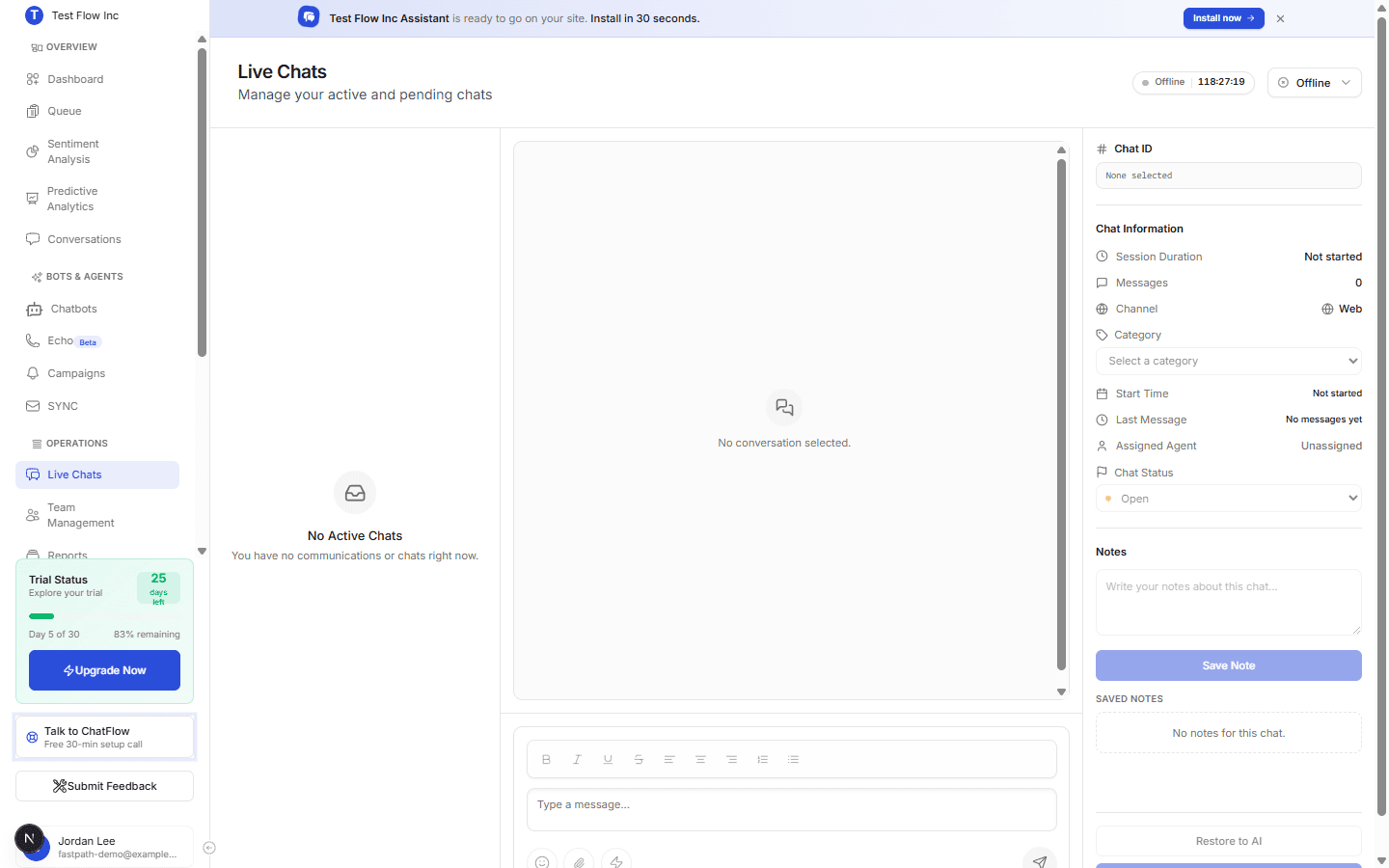
Select Live Chats in the sidebar (under OPERATIONS).
Go online
Set your status to online using the status control at the top right. You need to be online (and assigned to the chatbot) for new chats to route to you. While offline, you will not be assigned conversations.
Handle a conversation
Open a chat
Active and pending chats appear in the list on the left. Select one to open it. You can see the customer's earlier exchange with the AI, so read it first and avoid asking what they already answered.
Reply to the customer
Type in the message composer at the bottom and send. The composer supports basic formatting and attachments.
Use the Chat Information panel
The panel on the right shows the Channel (Web, WhatsApp, Instagram, or Messenger), the Assigned Agent, and the Chat Status. Set a Category, and use Notes to leave context for your team (select Save Note).
Hand back to the AI
When the customer is taken care of, select Restore to AI so the chatbot resumes the conversation, or set the Chat Status to close it out.
Verify it's working
- Set yourself online and make sure you are assigned to the chatbot in agent settings.
- From that chatbot, request a human in the Playground or on your site.
- Confirm the chat appears in your list and that your replies reach the customer.
Troubleshooting
I am not receiving chats
Confirm you are online, that human support is enabled on the chatbot, that you are assigned to it, and that you are not already at your chat limit. See Manage Agent Settings.
I cannot see a chat I expect
Only agents assigned to a chatbot see its conversations. Check your assigned chatbots, and that the chat is not filtered out of the current view.