
How to Use Sentiment Analysis
See how customers feel across their chats, track sentiment, CSAT, and resolution rate, read the correlation between resolution and sentiment, and act on individual conversations.
Before you begin
Sentiment Analysis shows you how customers actually feel, not just how many chats happened. It tracks overall sentiment, satisfaction (CSAT), and resolution rate over time, shows how resolution and sentiment move together, and lets you act on the conversations that need a follow-up.
Plan and access
Sentiment Analysis is available on the Growth and Enterprise plans, and during the free trial. Who can open it: Account Managers, Supervisors, Admins, and Owners (regular Agents do not see it). It needs analyzed conversations, so a brand-new account has nothing to show yet.
Open Sentiment Analysis
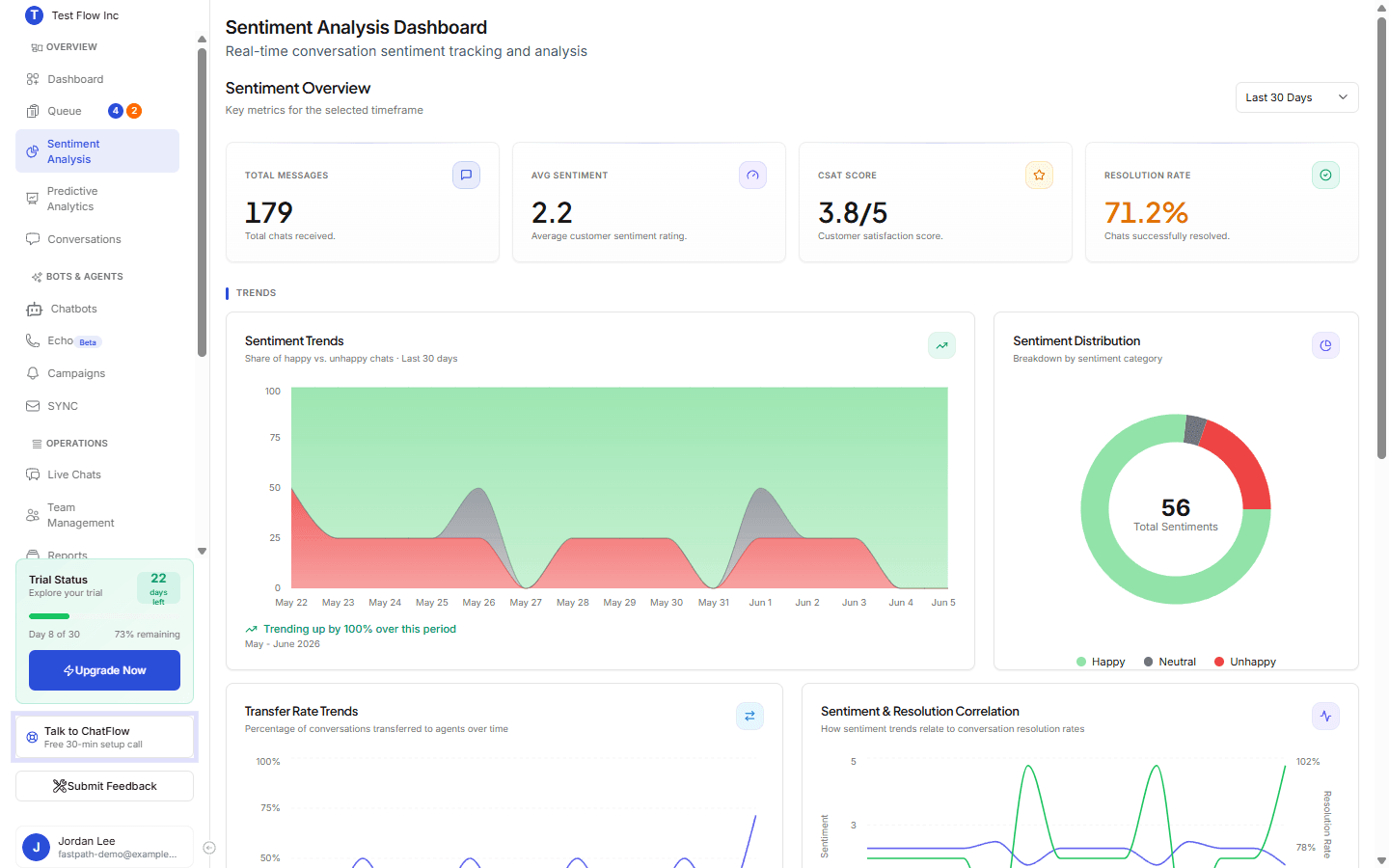
Select Sentiment Analysis in the sidebar (under OVERVIEW). At the top right, set the period with the timeframe dropdown (Last 24 Hours, Last 7 Days, Last 30 Days, or All Time). You can also narrow to a channel with the platform filter (for example Web or WhatsApp).
The KPI cards
Four cards summarize the selected period. When the timeframe is not All Time, each card also shows the change versus the previous period.
| Card | What it shows |
|---|---|
| Total Messages | How many chat messages were received. |
| Avg Sentiment | Average sentiment score on a 1 to 5 scale where lower is better (1-2 happy, 3 neutral, 4-5 unhappy). A figure near 2 means most customers left happy. |
| CSAT Score | Customer satisfaction out of 5, from post-chat feedback. Here, higher is better. |
| Resolution Rate | The share of conversations resolved. It turns green at 80%+, amber in between, and red below 50%. |
Two scales, opposite directions
Avg Sentiment uses 1-5 where lower is happier. CSAT uses 1-5 where higher is happier. So a healthy dashboard shows a low Avg Sentiment next to a high CSAT.
The charts
Sentiment Trends
A stacked area chart of happy vs. neutral vs. unhappy chats over time, so you can see the mix shift day to day and whether sentiment is trending up.
Sentiment Distribution
A donut breaking the period into Happy / Neutral / Unhappy, with the total in the center. It is the fastest read on overall mood.
Transfer Rate Trends
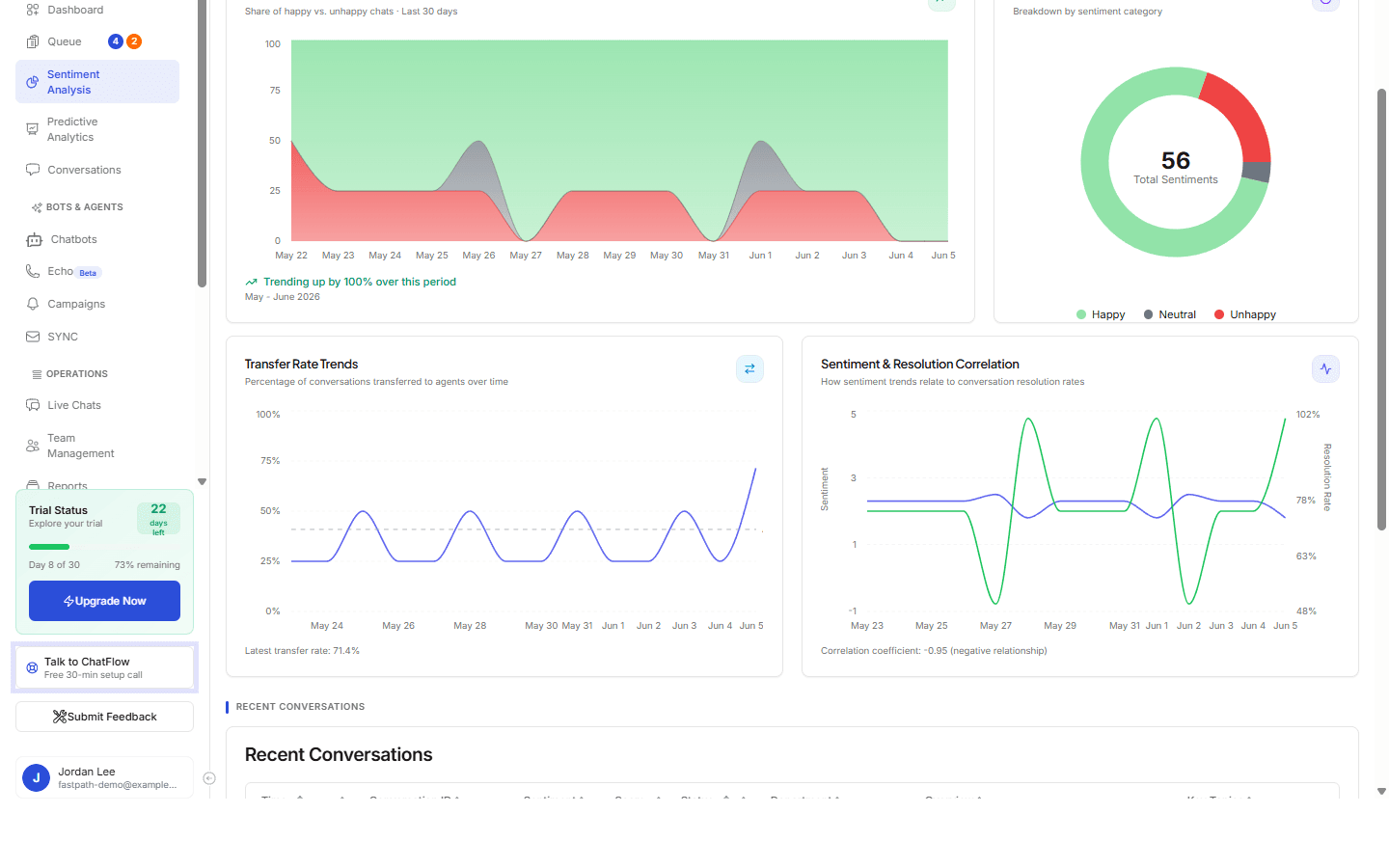
The percentage of conversations handed off to a human over time, with an average reference line. Rising transfers can signal where the AI needs more training.
Sentiment & Resolution Correlation
This is the chart that answers "does resolving conversations keep customers happy?" It plots Avg Sentiment Score (left axis) and Resolution Rate (right axis) over time, and shows a correlation coefficient in the footer.
Reading the coefficient
Because lower sentiment scores mean happier customers, a negative coefficient is the good result: it means higher resolution rates line up with happier (lower-score) sentiment. A strong value like -0.95 says the two move together almost perfectly, resolving chats is keeping customers happy. A coefficient near zero means resolution and sentiment are not closely related in this period.
Recent Conversations
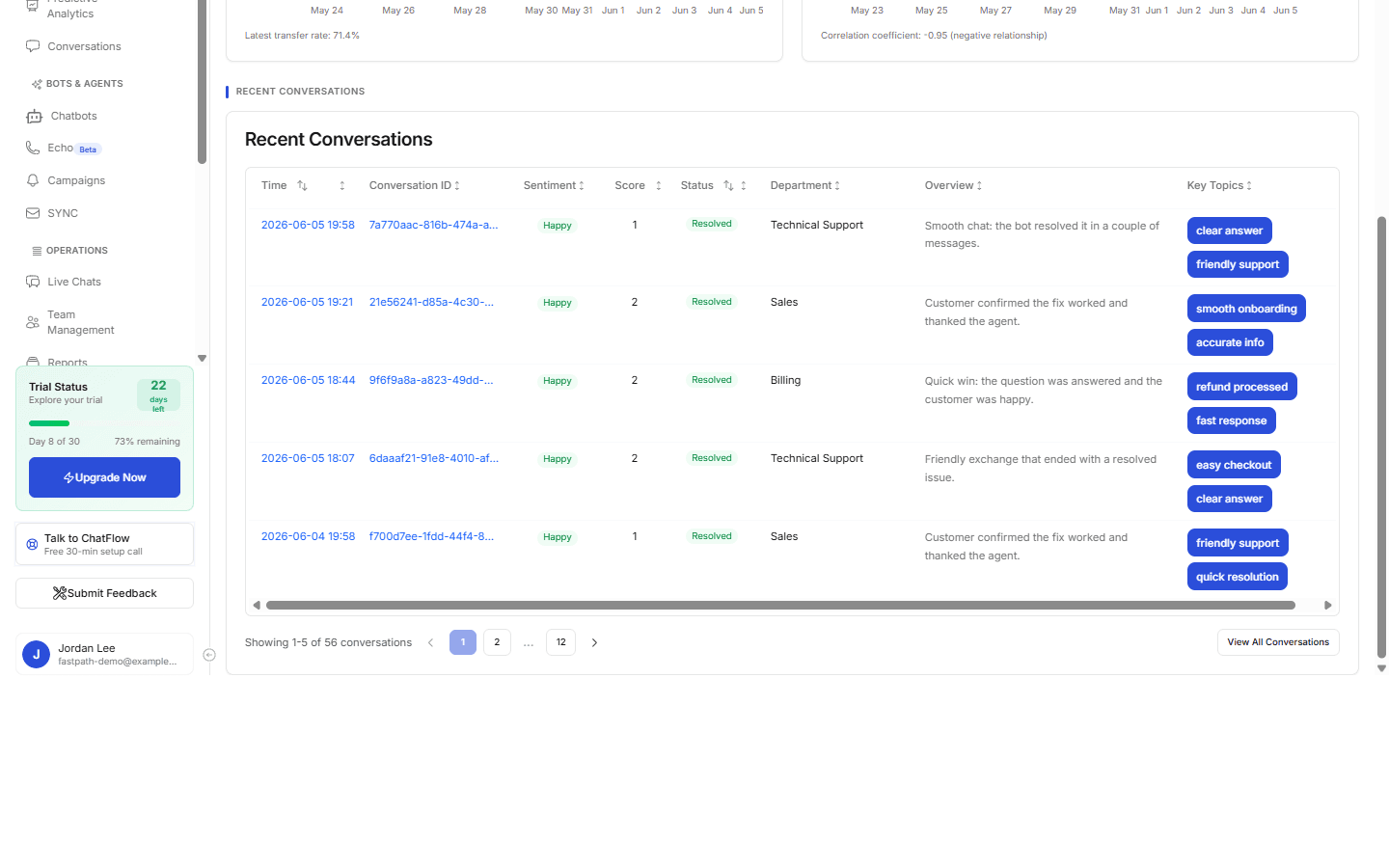
The table at the bottom lists individual conversations with their sentiment so you can act on specific ones.
| Column | What it shows |
|---|---|
| Time | When the chat happened (sortable). |
| Conversation ID | A link to open the full conversation. |
| Sentiment | A Happy / Neutral / Unhappy badge. |
| Score | The 1-5 sentiment score (sortable). |
| Status | Resolved, Closed, Abandoned, Pending, or Active, plus an Escalated flag where relevant. |
| Department | The area the AI classified the chat into. |
| Overview | A one-line summary of the conversation. |
| Key Topics | The themes pulled from the chat. |
Sort by any sortable column, page through with the controls, or select View All Conversations to jump to the full Conversations list.
Open a conversation for the full analysis
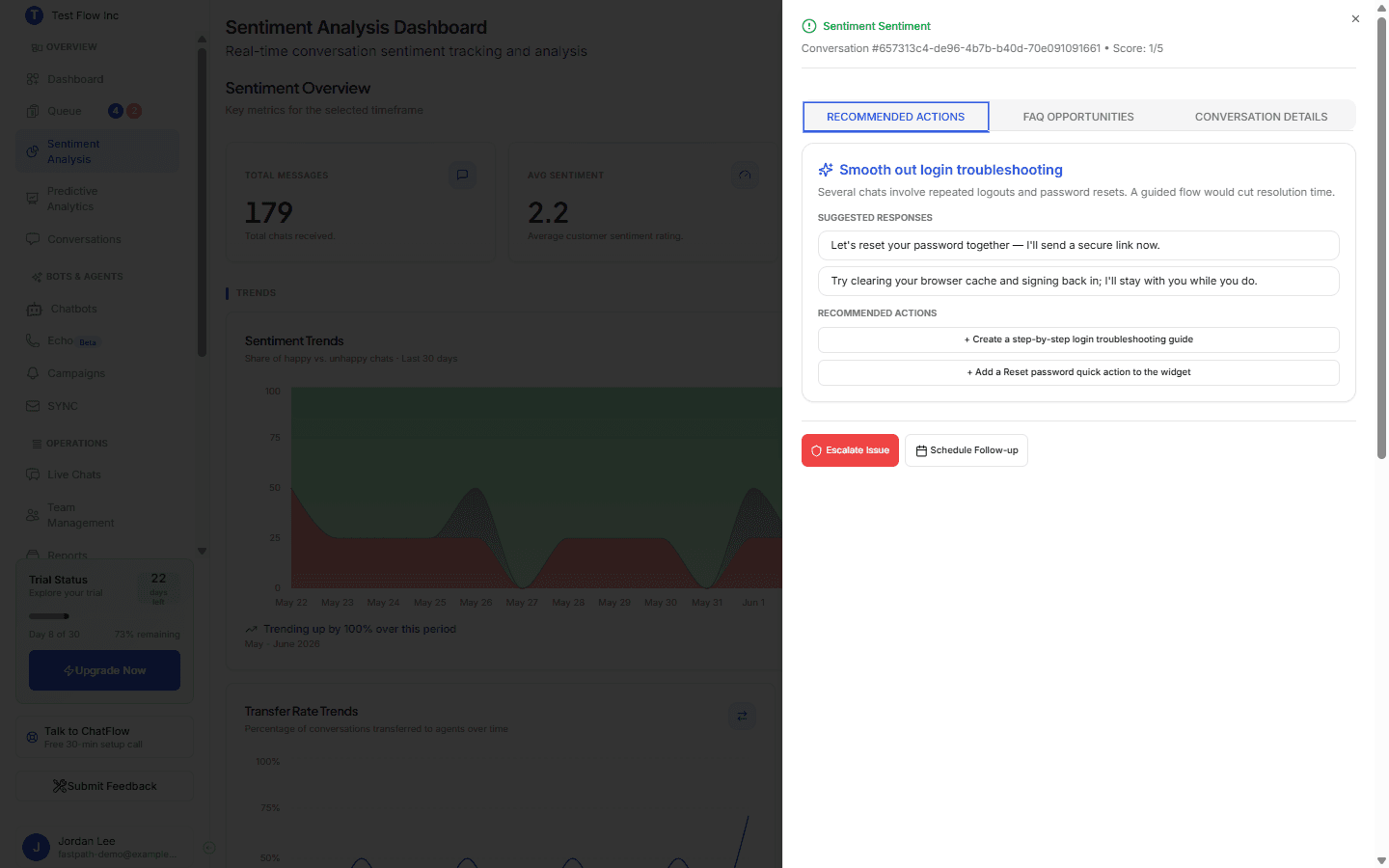
Select a conversation's time to open its analysis panel, which has three tabs.
Recommended Actions
Concrete suggestions to improve future chats, each with Suggested Responses (wording your agents can reuse) and Recommended Actions (changes to make, like adding a guide or quick action).
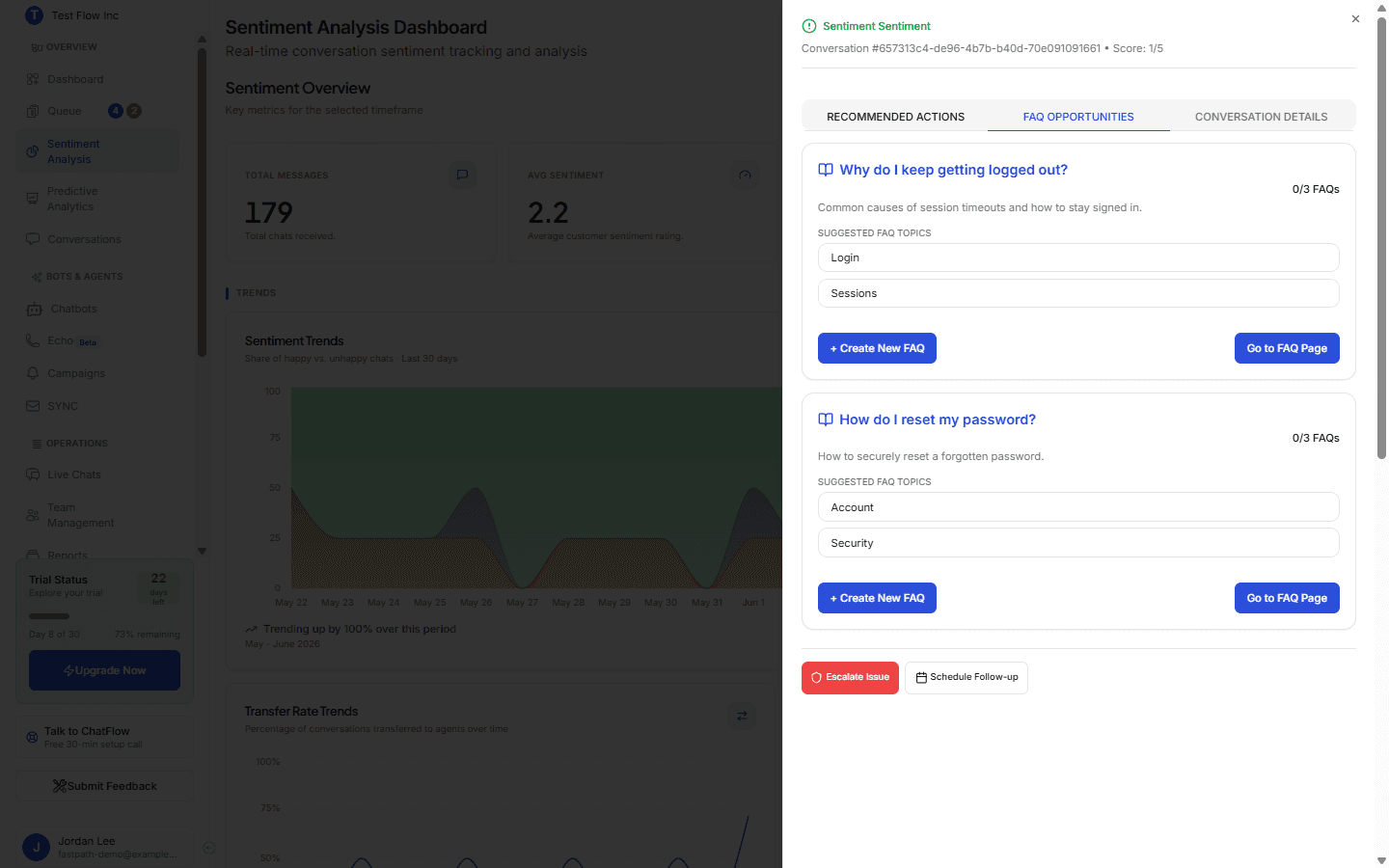
FAQ Opportunities
Questions worth turning into FAQs, each with suggested topics and a Create New FAQ button (and a shortcut to the FAQ page) so you can deflect the same question next time.
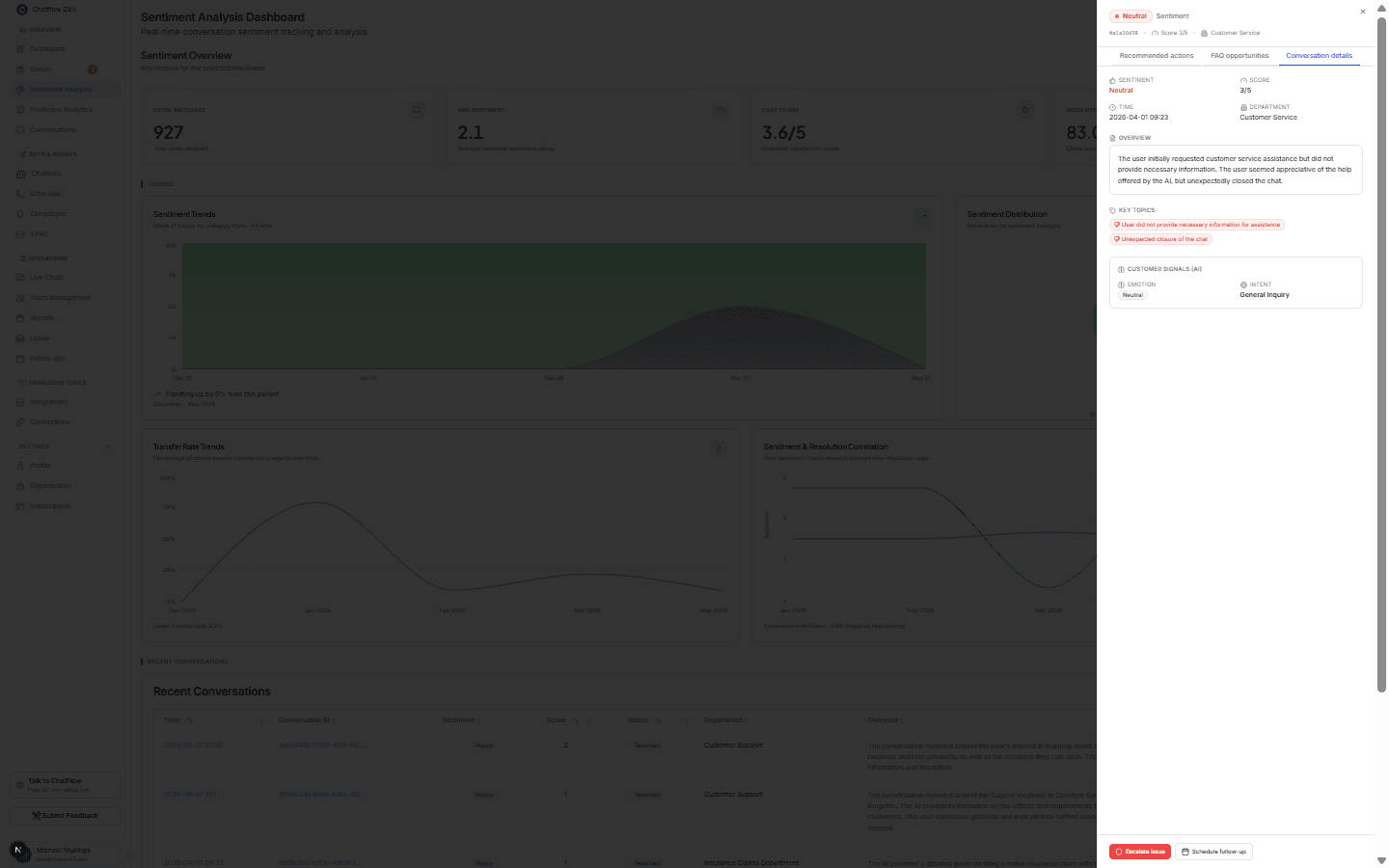
Conversation Details
The at-a-glance read: the conversation's Sentiment, Score, Time, Department, a short Overview, and Key Topics (the positive and negative themes pulled from the chat).
Below that, Customer signals (AI) adds a deeper read of the customer's messages:
| Signal | What it shows |
|---|---|
| Emotion | The dominant emotion across the chat (for example grateful, confused, frustrated, anxious), beyond the simple happy/neutral/unhappy rating. |
| Intent | What the customer was trying to do, in plain language (for example "inquire about loans", "dispute a charge", "cancel account"). |
| Peak frustration | The highest frustration level reached in the conversation, shown as a percentage with a colored meter. A high value flags a chat worth reviewing. |
| Extracted entities | The specific kinds of detail the customer mentioned, grouped by type with a count (for example order number 2, email 1, organization 1). Hover any tag to see what the type means. |
These signals are for your team only
Customer signals are internal. They are never shown to the customer and never change the bot's reply. The actual extracted values (names, emails, order numbers) are encrypted at rest; the panel only shows the type and how many were found, never the raw value.
The signals appear once a conversation has been analyzed. Conversations analyzed before this feature shipped show the rest of the panel without the Customer signals section until they are re-analyzed.
From any of these tabs you can Escalate Issue (creates a high-priority follow-up) or Schedule Follow-up (pick a date, time, notes, and assignee). Both appear on the Follow-ups page.
Where the data comes from
Sentiment is generated per conversation by AI. Open a conversation in Conversations and run Analyze Sentiment; the score, rating, summary, topics, recommended actions, and FAQ opportunities then feed the dashboard. The more conversations you analyze, the richer the trends and correlation become.
Verify it's working
- Change the timeframe and confirm the cards and charts update.
- Analyze a conversation, then confirm Total Messages and the sentiment numbers reflect it.
- Open a conversation and confirm you see Recommended Actions and FAQ Opportunities.
- Schedule a follow-up and confirm it appears on the Follow-ups page.
Troubleshooting
Everything shows 0
There is nothing analyzed yet. Make sure your chatbot is published and getting conversations, then run Analyze Sentiment on a few of them.
Avg Sentiment looks "low" but customers seem happy
That is expected, lower is better on the 1-5 sentiment scale. Read it alongside CSAT (where higher is better) and the Distribution donut.
The numbers do not match what I expect
Check the timeframe dropdown and the platform filter. The dashboard only reflects conversations analyzed within the selected period and channel.
Use Sentinel
Sentinel scores signups for fraud risk. Call its API with an email, domain, or IP and get back an allow, challenge, or block decision before a fake account reaches your product.