
How to Manage Your Chatbot
Create a chatbot and work through every tab in its workspace, Documents, Web, FAQs, Design, Integrations, Settings, Playground, and Publish, plus what each plan unlocks.
Before you begin
A chatbot is the AI assistant that answers your visitors. Each chatbot has its own workspace, a set of tabs where you train it, style it, connect channels, set its behavior, test it, and publish it. This guide creates a chatbot and walks through every tab, then shows what each plan unlocks. For the guided first-time setup, see Set Up Your First Chatbot.
Plan and access
Chatbots are on every plan, including the free trial. How many you can run and which tabs you can open depends on your plan (see Features by plan below). During the trial you get full, Enterprise-level access so you can try everything.
Create a chatbot
Open Chatbots in the sidebar and select Add Chatbot in the top right. (If the button is unavailable, you have hit your plan's chatbot limit, upgrade or delete one you no longer use.)
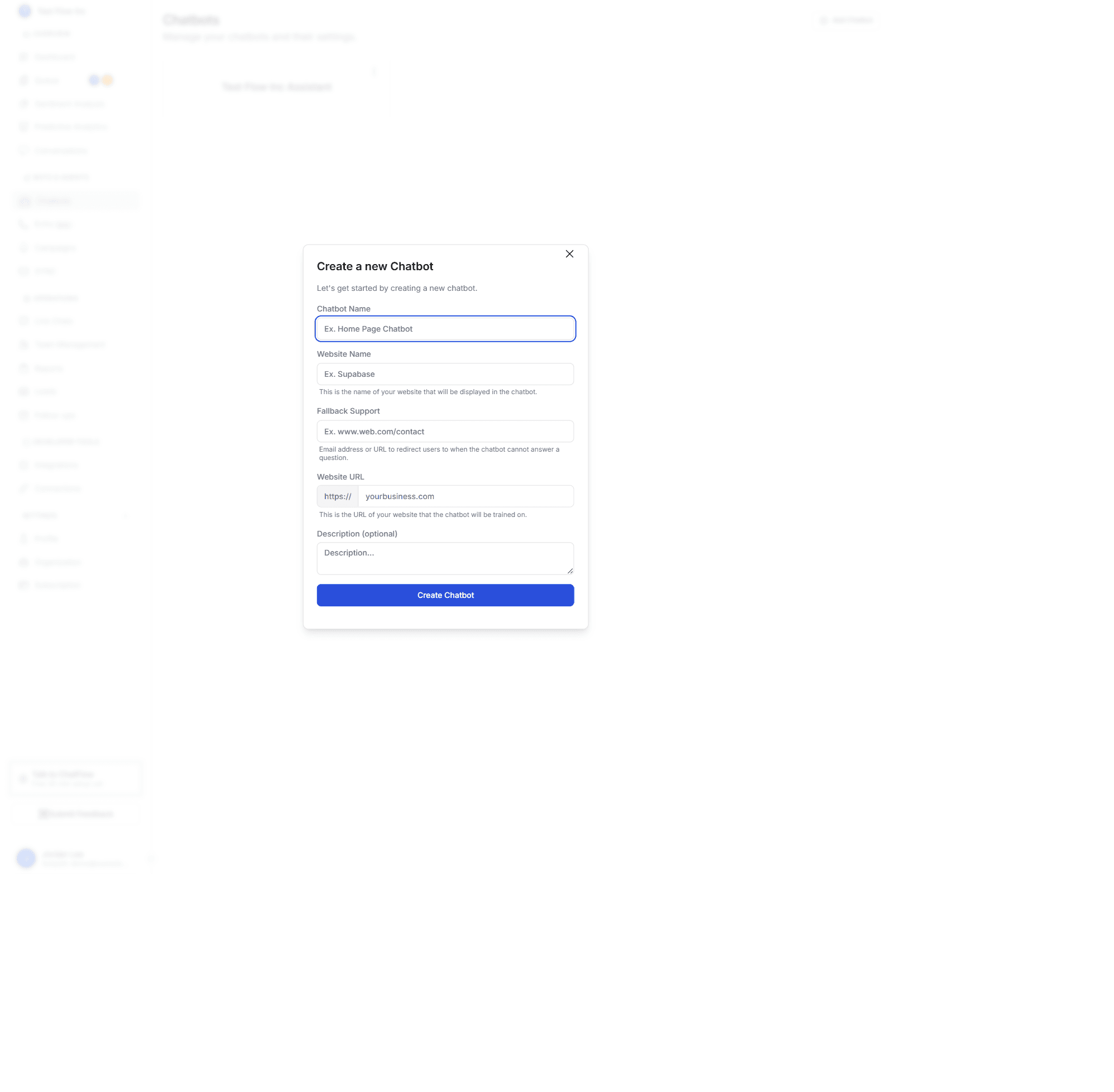
| Field | Required | What to enter |
|---|---|---|
| Chatbot Name | Yes | A friendly name to identify this chatbot inside ChatFlow. |
| Website Name | Yes | Your business or site name. The chatbot uses it to refer to your business. |
| Fallback Support | No | An email address or URL to send people to when the chatbot cannot answer. |
| Website URL | No | Your site address. If you add it, ChatFlow can crawl your pages to train the chatbot. |
| Description | No | A short internal note about this chatbot. |
Select Create Chatbot. ChatFlow creates it and opens its workspace on the Documents tab, with a short setup checklist (train, test, go live).
The chatbot workspace
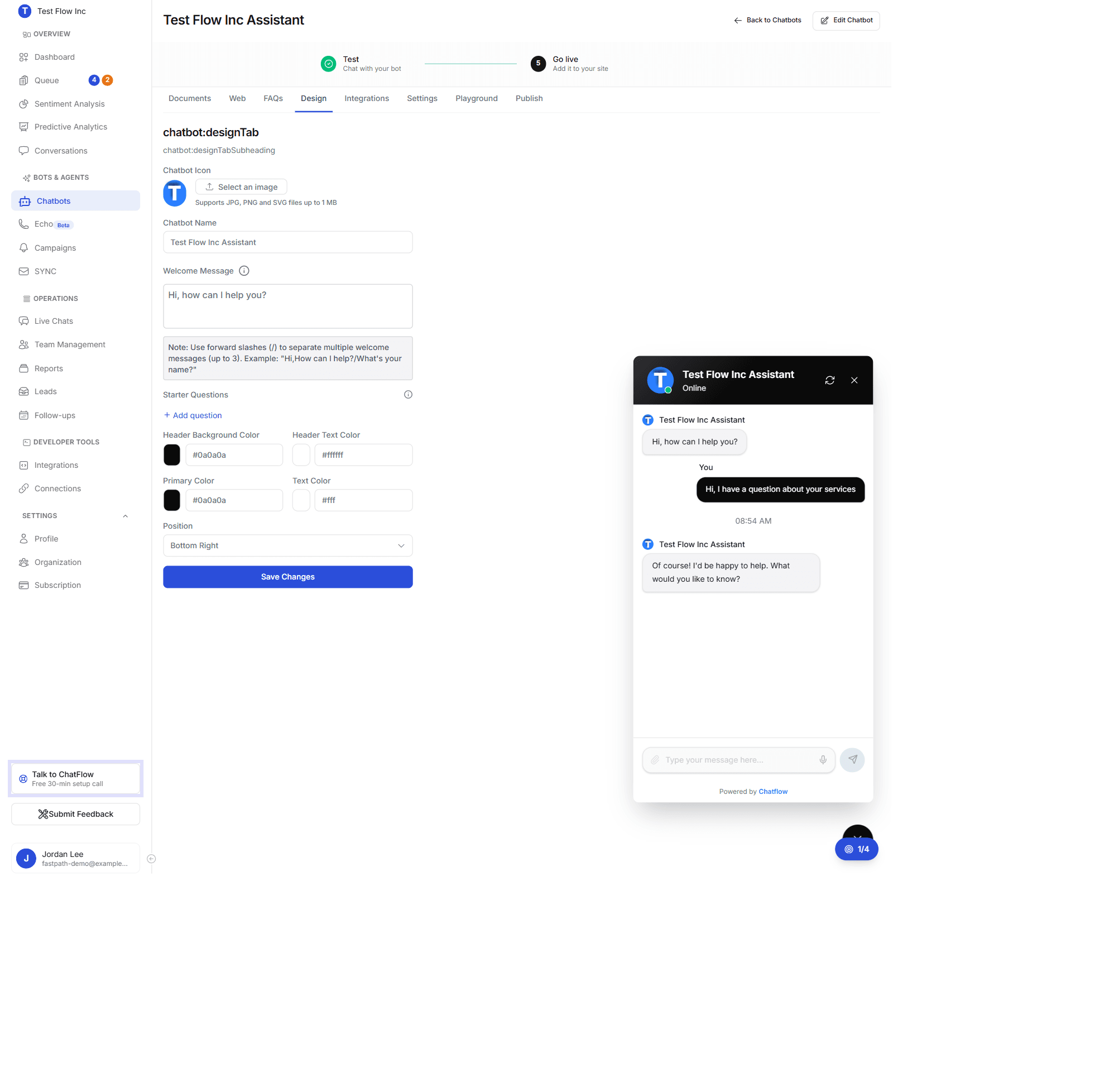
Everything for a chatbot lives behind the tabs near the top: Documents, Web, FAQs, Design, Integrations, Settings, Playground, and Publish. Tabs your plan does not include show a small lock; selecting one opens an upgrade prompt.
Documents
Upload PDFs, Word documents, and spreadsheets to train the chatbot on your own content. ChatFlow reads them and answers from them. See Upload Documents.
Web
Crawl your website so the chatbot learns from your public pages. Add a URL, ChatFlow scrapes it, and the pages become answers. See Train with Websites.
FAQs
Add question-and-answer pairs for your most common questions, the fastest way to get accurate answers for predictable queries. See Add FAQs.
Design
Set your brand: logo and icon, header and primary colors, the welcome message, starter questions, and the widget position. A live preview updates as you edit. See Customize Chatbot Design.
Integrations
Connect the chatbot to social channels, WhatsApp, Instagram, Messenger, and Email, and to knowledge Connectors like Google Drive and SharePoint that keep training content in sync. See Integrations and Connect External Services.
Settings
Seven sub-panels control how the chatbot behaves:
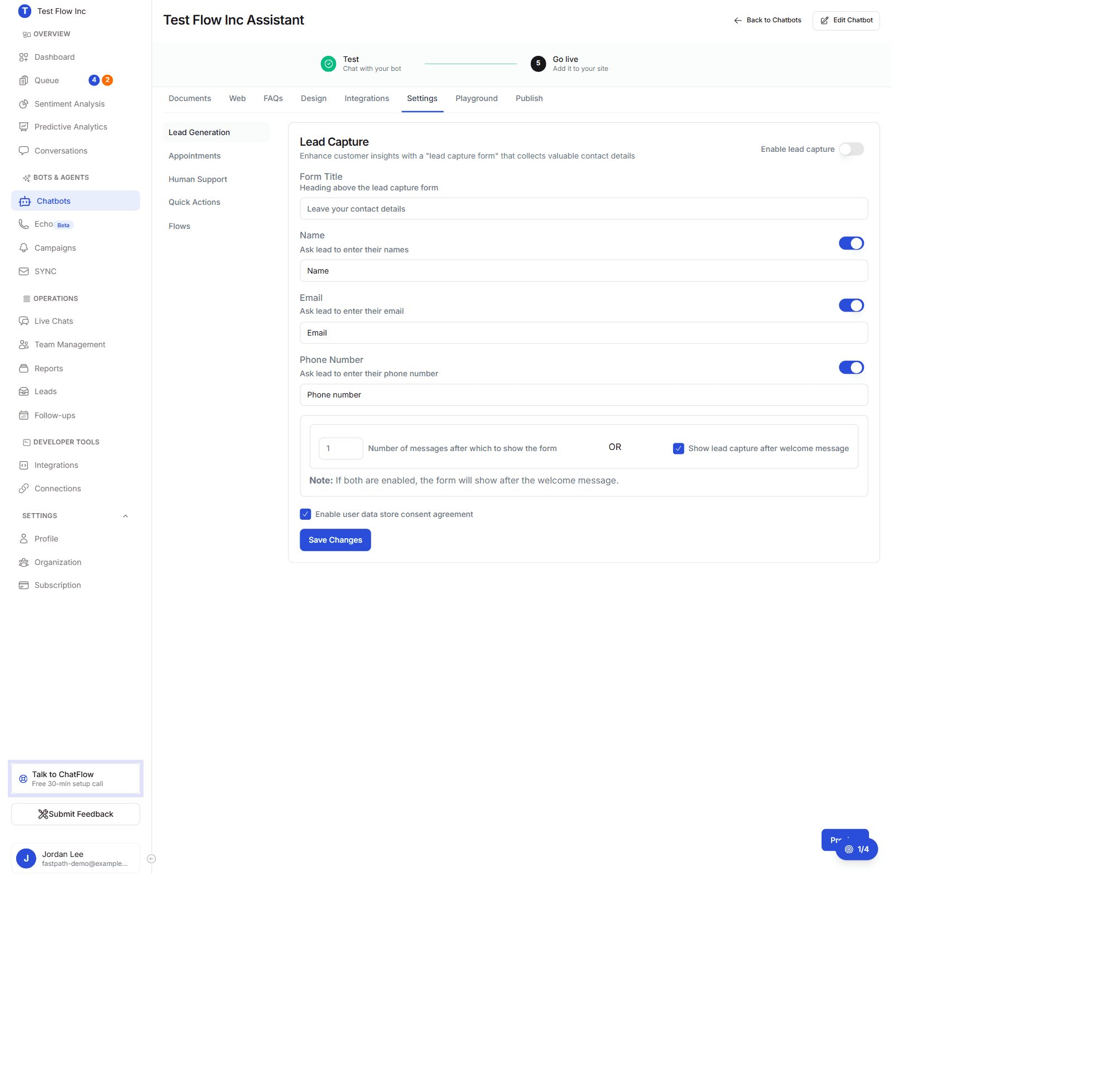
- Lead Generation, collect a visitor's name, email, phone, and custom fields with a lead form. See Configure Lead Capture.
- Appointments, let visitors book meetings on a connected calendar. See Set Up Appointments.
- Human Support, hand a chat off to a live agent when needed. See Enable Human Support.
- Quick Actions, add shortcut buttons inside the widget. See Set Up Quick Actions.
- Flows, build conversation rules and branching logic. See Create Conversation Flows.
- Citations, show the document, section and page behind every answer, and have the assistant decline when your documents do not cover a question. See Citations.
- Chat Timeout, choose how long an idle website chat stays open. See Set the Chat Timeout.
Answer Quality
Appears once Answer Quality is switched on. Shows how answers are landing, the ratings visitors left, and the questions your documents could not answer, so you can work through them and close the loop. See Collect and Review Answer Feedback.
Playground
Chat with the bot exactly as a visitor would, before you publish, so you can check its answers and tone. See Test in the Playground.
Publish
Get the embed snippet to add the widget to your site (with auto-install and manual guides). See Publish Your Chatbot.
Features by plan
Every plan includes the core builder, Documents, FAQs, Design, Playground, and Publish, so you can train, style, test, and ship a chatbot. Higher plans unlock more channels and behavior:
| Tab / feature | Solo | Essential | Growth | Enterprise |
|---|---|---|---|---|
| Documents, FAQs, Design, Playground, Publish | ✅ | ✅ | ✅ | ✅ |
| Web training (crawl your site) | ✅ | — | — | ✅ |
| Settings · Lead Generation | — | — | ✅ | ✅ |
| Settings · Flows | — | — | ✅ | ✅ |
| Settings · Citations, Chat Timeout | — | — | ✅ | ✅ |
| Answer Quality tab (answer ratings and review queue) | — | — | ✅ | ✅ |
| Document versions (current and retired) | — | — | ✅ | ✅ |
| Settings · Appointments, Human Support, Quick Actions | — | — | — | ✅ |
| Integrations (WhatsApp, Instagram, Messenger, Email) | — | — | — | ✅ |
| Connectors (Google Drive, SharePoint) | — | — | — | ✅ |
The free trial unlocks everything
While your trial is active you get Enterprise-level access to every tab, so you can try the full product. The in-app lock icons and upgrade prompts are always the source of truth for what your current plan includes.
Limits by plan
Plans also differ in how much you can store and run:
| Limit | Solo | Essential | Growth | Enterprise |
|---|---|---|---|---|
| Chatbots | 1 | 3 | 10 | Unlimited |
| Total knowledge items | 7 | 25 | 500 | Unlimited |
| — Documents | 4 | 17 | 150 | Unlimited |
| — FAQs | 2 | 8 | 50 | Unlimited |
| Channels per chatbot | 1 (web) | 3 | Unlimited | Unlimited |
| Max file size per document | 25 MB | 250 MB | 250 MB | 250 MB |
| Team seats | 1 | up to 50 | up to 100 | Unlimited |
To change plans, see Manage Your Subscription.
Edit or delete a chatbot
From a chatbot's workspace, use Edit Chatbot to update its name and business details. To remove one you no longer use (which also frees a slot against your chatbot limit), delete it from the chatbot list. Deleting a chatbot removes its training content and conversations, so export anything you need first.
Verify it's working
- Create a chatbot and confirm it opens on the Documents tab.
- Add one training source (a document, a website crawl, or a few FAQs).
- Open the Playground and ask a question, confirm it answers from your content.
- Open Publish and copy the embed snippet.
Troubleshooting
A tab is locked
That tab is not in your current plan. Upgrade to unlock it (see Manage Your Subscription), or, if you are on the trial, confirm the trial has not ended.
I reached my chatbot limit
The number of chatbots depends on your plan (Solo 1, Essential 3, Growth 10, Enterprise unlimited). Upgrade, or delete a chatbot you no longer use, to add another.
The chatbot replies but cannot answer about my business
It has no training content yet. Add a source from Documents, Web, or FAQs, then test again in the Playground.