
Instagram Integration Guide
Connect Instagram Business to ChatFlow so your chatbot answers Direct Messages automatically.
Before you begin
Connect your Instagram Business account so your chatbot answers Direct Messages automatically, 24/7, using the same knowledge base as your web chat.
A Facebook Page is required
Instagram messaging is routed through Facebook. Your Instagram account must be a Business or Creator account and linked to a Facebook Page, this is a Meta requirement that cannot be bypassed. If you see "Instagram Business Account Not Found" after authorizing, the accounts are not linked. If you only have a Facebook Page (no Instagram), use Messenger instead.
Prefer to watch? This short walkthrough shows the whole setup: check your account, connect Instagram from your Integrations tab, log in with Facebook, and test it.
Step 1: Prepare your Instagram account
- Convert to a Business or Creator account: in the Instagram app, go to Settings, Account type and tools → Switch to professional account, and choose Business.
- Link it to a Facebook Page: in your Facebook Page settings, under Linked accounts → Instagram, select Connect Account and confirm.
Step 2: Connect in ChatFlow
Open the Integrations tab
In ChatFlow, open your chatbot, go to the Integrations tab, find Instagram, and select Connect Instagram.
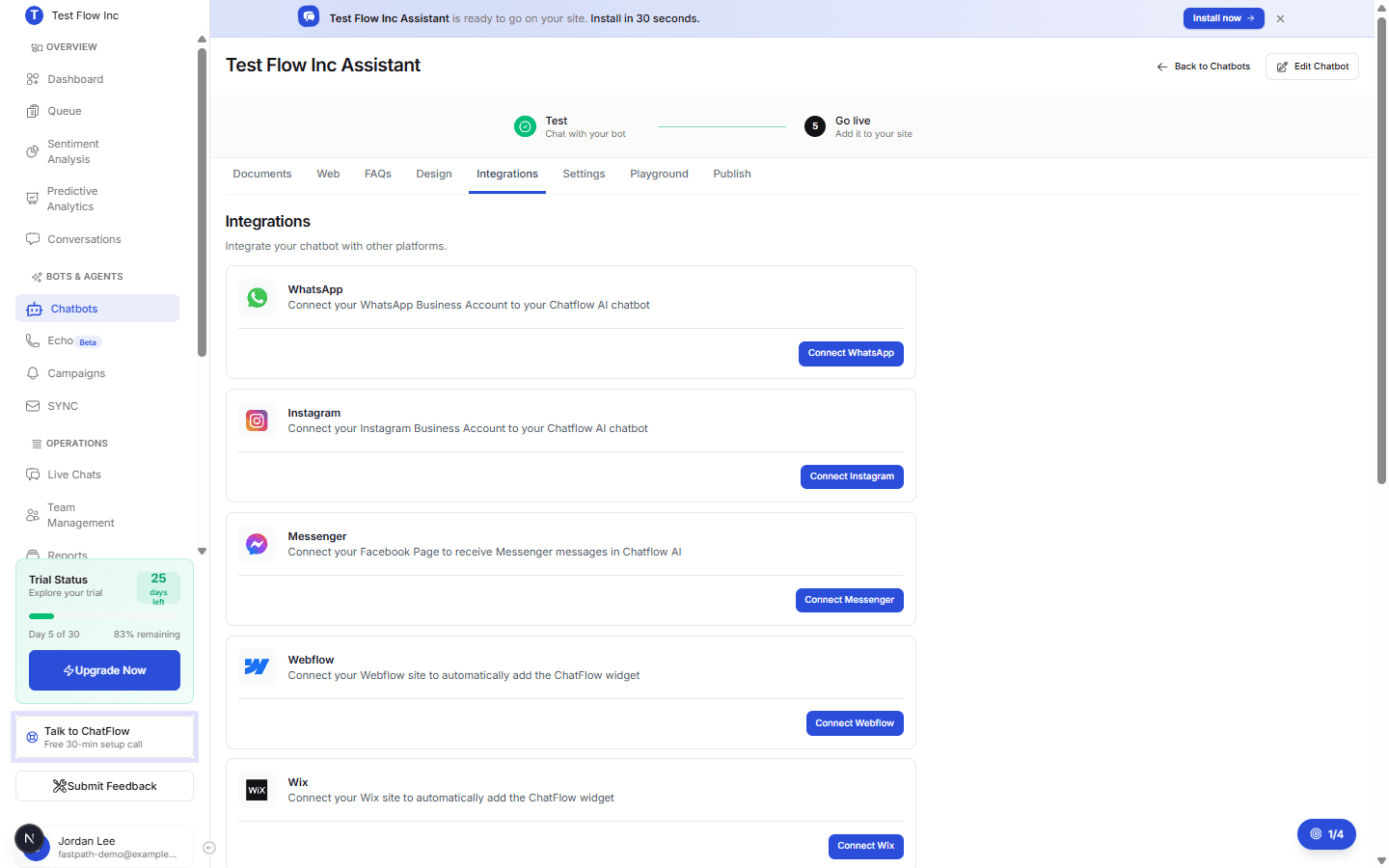
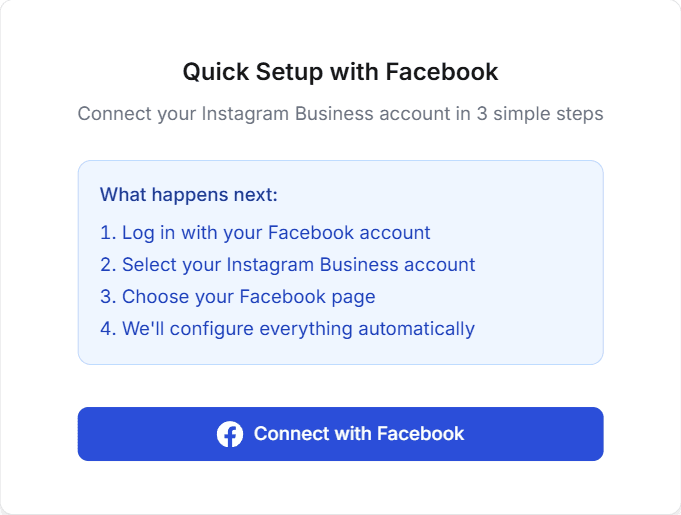
Select Connect with Facebook
The Quick Setup with Facebook window lists what happens next: log in with your Facebook account, select your Instagram Business account, and choose your Facebook Page. Select Connect with Facebook.
Log in and choose your account
In the Facebook popup, log in, select your Instagram Business account, select the Facebook Page it is linked to, and approve the messaging permissions.
Wait for Integration Complete
ChatFlow configures everything automatically: it registers the webhook, sets up the messaging permissions, and saves your credentials securely. When you see Integration Complete! with your Instagram username and an Active status, you are connected. Select Done, or Test Integration to try it in the Playground.
Verify it's working
- From a different Instagram account, send a DM to your Business account.
- Confirm the chatbot replies automatically.
- Open Conversations in ChatFlow and confirm the Instagram message appears.
What's supported
Incoming text DMs and quick replies are supported, with conversation threading. Story mentions, post comments, and voice messages are not handled.
Troubleshooting
My Instagram account does not appear
Make sure it is a Business or Creator account (not personal), that it is linked to a Facebook Page, and that you are logged into the correct Facebook account.
Messages are not coming through
Confirm the integration shows as connected and that your chatbot has training content to answer from. If the popup was blocked, allow popups for chat-flow.app and try again.
"Authorization window closed"
ChatFlow could not confirm the connection because the Facebook popup closed before it finished. Select Connect Instagram and go through the popup again.
Plan and policy
Instagram is available on the Growth and Enterprise plans. Make sure your automated replies follow Instagram's Platform Policy and Community Guidelines.