
Email SYNC Integration Guide
Connect an email account to ChatFlow SYNC so AI drafts replies to incoming mail that you review and approve.
SYNC connects your inbox so ChatFlow drafts AI replies to incoming email, which you review, edit, and approve before they send. For day-to-day use, see Use SYNC for Email. This guide focuses on connecting an account.
Plan availability
Email SYNC is available on the Enterprise plan, and during the free trial.
Prefer to watch? This short walkthrough shows the whole flow: select Connect Email, enter your address and an app password, and review your first AI drafts.
Connect an email account
You can start from either place. Both open the same Connect Any Email window:
- Select SYNC in the sidebar, then Connect Email Account.
- Or open your chatbot's Integrations tab, find Email (SYNC), and select Connect Email.
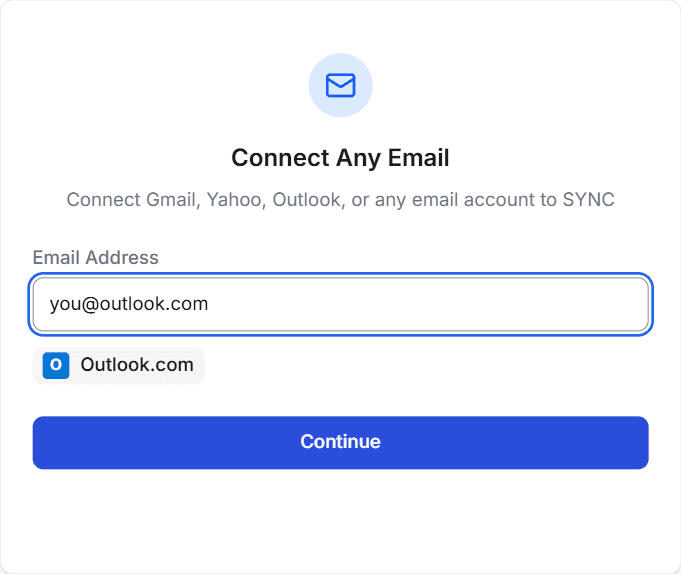
Enter your email address
Type your email address. ChatFlow detects your provider and shows it under the field, for example Outlook.com. Select Continue.
Create an app password
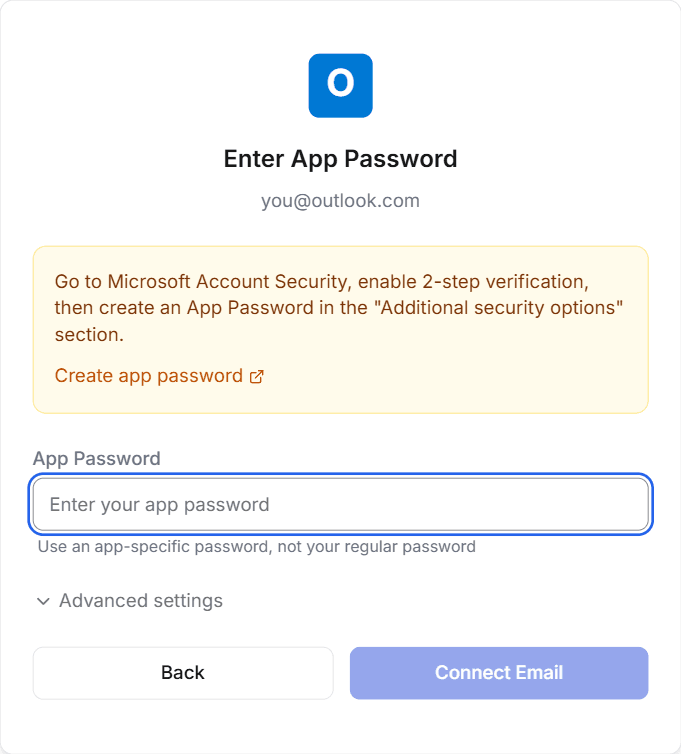
The Enter App Password screen shows the instructions for your provider and a Create app password link that opens the right page. An app password is a separate password your provider generates for one app. Most providers ask you to turn on 2-step verification first.
| Provider | Where to create it |
|---|---|
| Gmail | Turn on 2-Step Verification in your Google account, then create an App Password. It is 16 characters. |
| Outlook.com | In Microsoft Account Security, turn on 2-step verification, then create an App Password under "Additional security options". |
| Yahoo Mail | In Yahoo Account Security, turn on 2-Step Verification, then generate an App Password. |
| iCloud Mail | Sign in at appleid.apple.com, open Security, and generate an app-specific password. |
| AOL Mail | In AOL Account Security, turn on 2-step verification, then generate an App Password. |
| Zoho Mail | In Zoho Account Security, generate an Application-Specific Password. |
Paste it and connect
Paste the app password into App Password and select Connect Email. ChatFlow tests the connection for you: it connects to the IMAP server, verifies your credentials, and tests SMTP.
Choose your folders
Once connected, choose which mailbox folders to sync under Sync Folders. Select Done, or Go to SYNC Inbox to see your email.
Use the app password, not your regular password
Your normal email password will not work here. Use the app-specific password your provider generates.
Other providers and custom mail servers
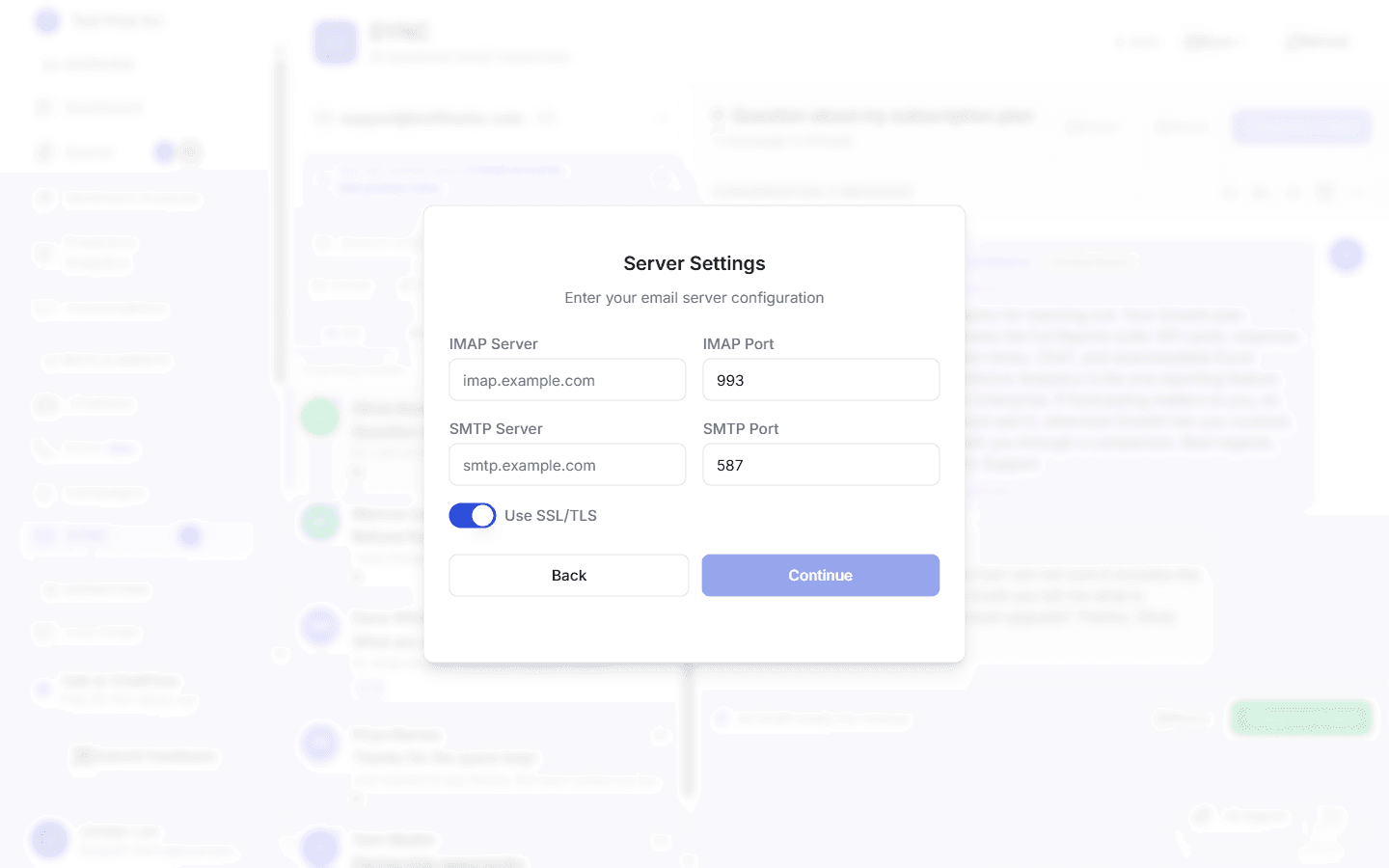
If ChatFlow does not recognize your provider (for example a work address on your own domain), it asks for your Server Settings before the password: IMAP Server and IMAP Port (usually 993), SMTP Server and SMTP Port (usually 587), and Use SSL/TLS. Your email provider or IT administrator can give you these. Select Continue, then enter your app password as above.
How replies work
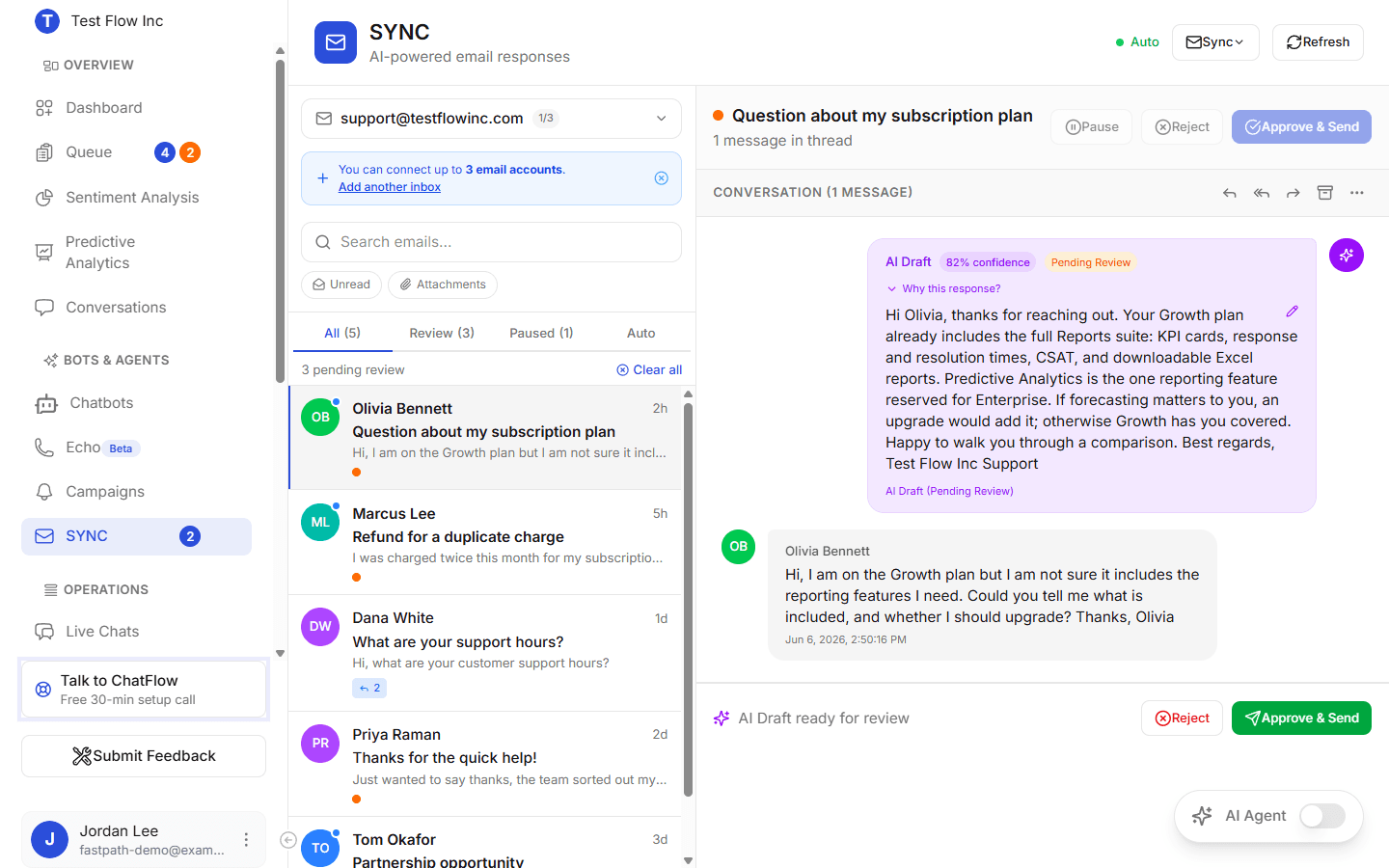
Once connected, SYNC pulls in incoming email and drafts a reply for each one based on your chatbot's training. You review drafts in the Review tab, edit anything you want, and approve to send, nothing goes out without your approval unless you enable automatic handling. See Use SYNC for Email for the day-to-day workflow.
Verify it's working
- After connecting, send a test email to the connected address.
- Select Refresh in SYNC (or wait for the next sync) and confirm the email appears.
- Open its draft, edit if needed, and select Approve & Send, then confirm the reply arrives in your email client.
Troubleshooting
"Connection Failed"
Check that 2-step verification is turned on with your provider and that you pasted the app password, not your regular password. Also verify that IMAP access is enabled in your email settings. Then select Try Again.
I changed my email password
On your chatbot's Integrations tab, open Details on the Email (SYNC) card and select Update password to enter a new app password.
Drafts are not generating
Confirm your chatbot is trained and active, that the email connection is still active, and that automatic drafting has not been turned off.
How your app password is stored
ChatFlow uses your app password only to read and send mail for SYNC. It is encrypted before it is stored and is never displayed again. To change it, use Update password on the Email (SYNC) card. Keep your replies compliant with anti-spam rules (such as CAN-SPAM and GDPR) in your region.