ChatFlow Logo

Facebook Messenger Integration Guide

Step-by-step guide to integrating Facebook Messenger with ChatFlow for automated messaging.

Overview

Connect your Facebook Page to ChatFlow to enable AI-powered automated responses to Messenger conversations. This integration allows your chatbot to handle customer inquiries 24/7 through Facebook Messenger.

Prerequisites

Before you begin, ensure you have:

  1. Facebook Page - A Facebook Page for your business (not a personal profile)
  2. Facebook Business Account - A Meta Business account to manage your assets
  3. Page Admin Access - You must be an admin of the Facebook Page
  4. ChatFlow Account - An active ChatFlow subscription (Pro or Enterprise)
  5. Trained Chatbot - A chatbot already created and trained in ChatFlow

Step 1: Prepare Your Facebook Page

Verify Page Settings

Ensure your Facebook Page is properly configured:

  1. Go to your Facebook Page
  2. Click Settings in the left menu
  3. Navigate to Messaging
  4. Enable Allow people to contact my Page privately
  5. Optionally enable Show a greeting for new conversations

Check Admin Access

Verify you have admin access to the page:

  1. Go to your Facebook Page
  2. Click Settings > Page Roles (or New Pages Experience > Page access)
  3. Confirm your account shows as Admin

Step 2: Connect Messenger to ChatFlow

Access the Integration

  1. Sign in to your ChatFlow dashboard
  2. Navigate to your chatbot
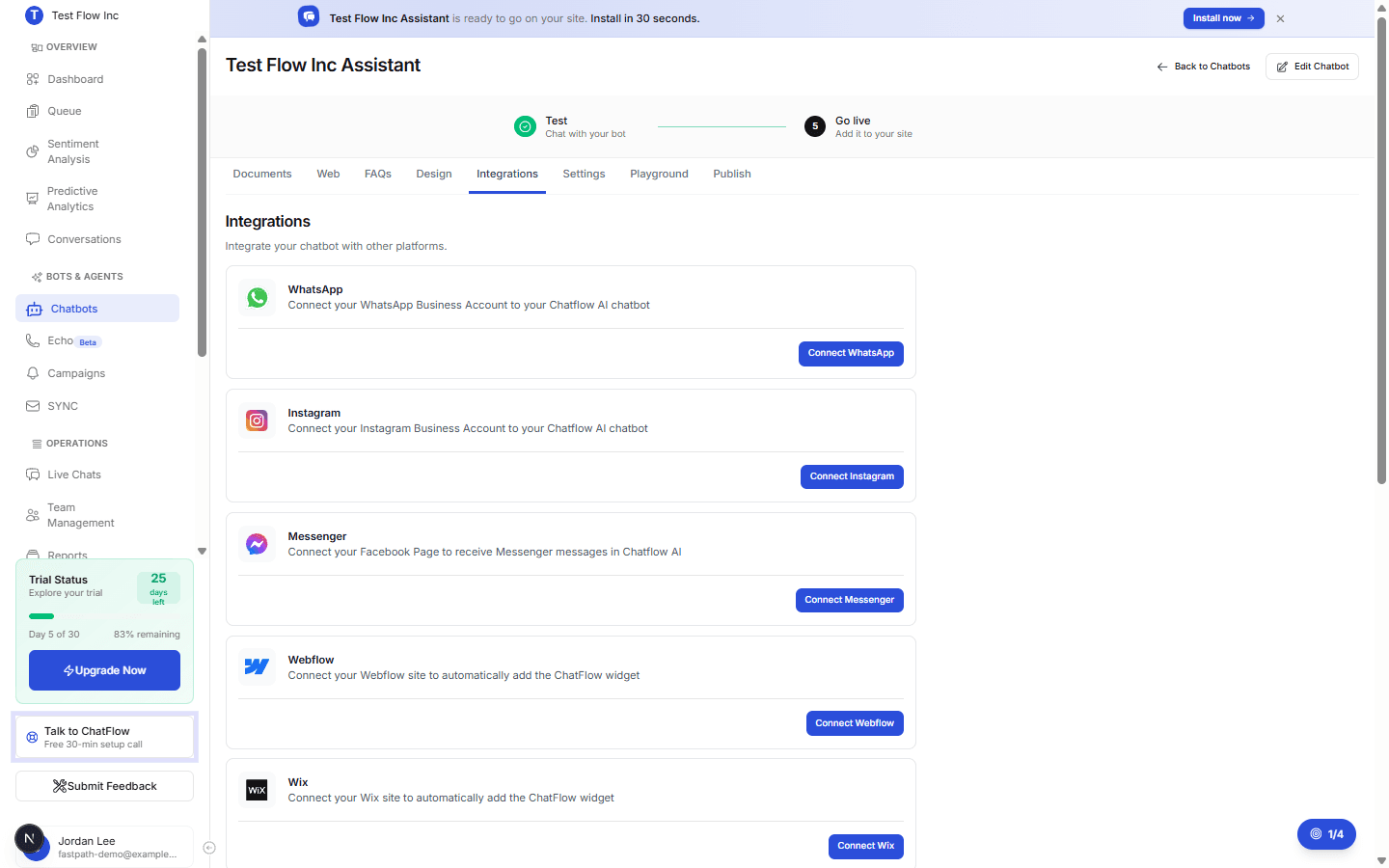
  3. Click on the Integrations tab
  4. Find Messenger and click Connect

Authorize with Facebook

  1. Click Connect with Facebook button
  2. A popup window will open for Meta authorization
  3. Log in with the Facebook account that has admin access to your Page
  4. Select the Facebook Page you want to connect
  5. Review and approve the requested permissions:
    • pages_messaging - Send and receive messages
    • pages_read_engagement - Read page content
    • pages_manage_metadata - Manage page settings
  6. Click Done to complete authorization

Automatic Configuration

ChatFlow will automatically:

  • Register webhook endpoints for message notifications
  • Configure message permissions
  • Save your secure page access token
  • Enable the integration

Step 3: Verify Integration

Once connected, you'll see:

  • Your Facebook Page name displayed
  • Integration status showing Active
  • Option to test the integration

Test Your Integration

  1. Open Facebook Messenger (app or web)
  2. Search for your connected Facebook Page
  3. Send a message to your Page
  4. Your ChatFlow chatbot should respond automatically

Managing Your Integration

View Integration Status

From the Integrations page, you can see:

  • Connection status (Active/Inactive)
  • Connected Facebook Page
  • Last activity timestamp

Edit Integration Settings

  1. Go to Integrations tab in your chatbot settings
  2. Click the Edit button on Messenger integration
  3. Update settings as needed
  4. Save changes

Disable Integration

To temporarily disable the integration:

  1. Go to Integrations tab
  2. Toggle the Messenger integration to Inactive
  3. Messages will no longer be handled by the chatbot

Disconnect Integration

To completely remove the integration:

  1. Go to Integrations tab
  2. Click Delete on the Messenger integration
  3. Confirm the deletion

Troubleshooting

Common Issues

Popup Blocked

  • Allow popups for chat-flow.app in your browser settings
  • Try again after enabling popups

Facebook Page Not Showing

  • Ensure you're logged into the correct Facebook account
  • Verify you have admin access to the Page
  • Try refreshing the authorization

Messages Not Being Received

  • Verify the integration shows as Active
  • Check that your chatbot is trained and active
  • Ensure webhook permissions are properly configured
  • Verify the Page hasn't been unpublished

Authorization Failed

  • Try disconnecting and reconnecting the integration
  • Ensure you have admin access to the Facebook Page
  • Check that your Facebook Business account is verified

Permission Requirements

The integration requires these Meta permissions:

  • pages_messaging - Required for sending and receiving messages
  • pages_read_engagement - Required for reading page interactions
  • pages_manage_metadata - Required for webhook configuration

Best Practices

  1. Response Time - The chatbot responds within seconds, improving customer satisfaction
  2. Fallback to Human - Configure handover triggers for complex inquiries
  3. Welcome Message - Set up a greeting message for new conversations
  4. Ice Breakers - Add suggested questions users can tap to start a conversation
  5. Away Messages - Configure automatic responses for outside business hours
  6. Regular Testing - Periodically test the integration to ensure it's working

Supported Features

  • Incoming Messages - Automatic responses to Messenger conversations
  • Text Messages - Full support for text-based conversations
  • Quick Replies - Send suggested response buttons
  • Persistent Menu - Add a menu of common options
  • Message Threading - Maintain conversation context
  • Read Receipts - Track message delivery status

Messenger Platform Policies

When using this integration, ensure compliance with:

  • Facebook Community Standards
  • Messenger Platform Policy
  • 24-Hour Messaging Window - Standard messaging is limited to 24 hours after user's last message
  • Message Tags - Use approved tags for messages outside the 24-hour window

Limitations

  • Facebook posts and comments are not handled (only Messenger)
  • Reactions to messages are not processed
  • Voice messages require transcription (coming soon)
  • Payment processing through Messenger is not supported

Note: This integration is available to Pro and Enterprise users. Facebook may have rate limits on automated messaging. ChatFlow is not responsible for any Facebook policy violations - ensure your automated responses comply with Facebook's Platform Policy and Community Standards.