
How to Enable Human Support
Let customers hand off from the chatbot to a live agent, with a custom button and control over when it appears.
Before you begin
When the AI cannot fully help, human support lets a customer hand the conversation to a live agent. You control the button text, when it appears, and the keywords that trigger it.
If your customers use industry-specific terms, add them as custom keywords
The built-in trigger list covers generic phrases like "talk to a human", "customer service", "transfer me", and "connect me to". It does not include vertical-specific terms like "claims", "agent", "representative", "adjuster", "underwriter", "billing", or "cancel". If those are words your customers commonly use, you must add them as custom keywords under Your keywords below, otherwise messages that contain only those terms will not surface the handoff button. See Add your own keywords below.
Plan availability
Human support is available on the Enterprise plan, and during the free trial. To answer handed-off chats, you also need team members acting as agents.
Open Human Support settings
- Go to Chatbots in the sidebar and open your chatbot.
- Click the Settings tab, then select Human Support.
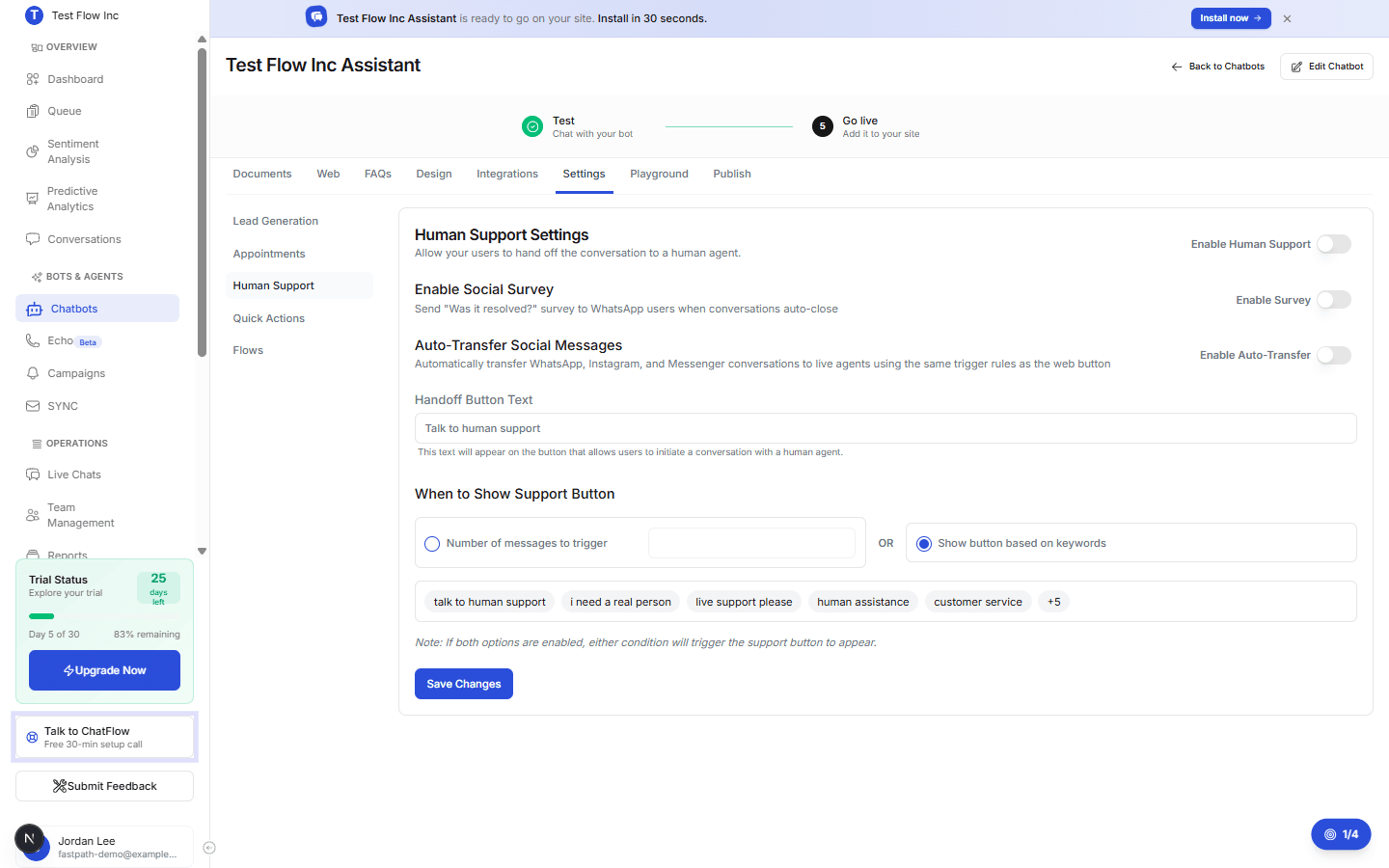
Configure human support
Turn on human support
Switch Enable Human Support on. This activates handoff for this chatbot.
Set the button text
Edit Handoff Button Text to whatever you want customers to see, for example Talk to human support or Chat with an agent. Keep it under 25 characters so it fits the button; a live counter next to the field shows how many you have left.
Choose when the button appears
Under When to Show Support Button, pick one:
- Number of messages to trigger, the button appears after a set number of messages, giving the AI a chance to help first.
- Show button based on keywords, the button appears the moment a customer's message contains one of the trigger phrases, even on their first message. ChatFlow ships a built-in set, and you can add up to 5 of your own. Both the full list and the custom keyword box are below.
Save
Select Save Changes.
Agents must be accepting chats and assigned to this chatbot
A handoff only reaches a person if an agent is ready to receive it. On the Team Management page, select the team member, turn on Accepting Chats, and under Assigned Chatbots choose Select chatbots and add this chatbot. Without both, customers who use the button see "no agents available". For the complete walkthrough, see Set Up to Take Live Chats.
The built-in trigger phrases
With keyword triggering on, the handoff button appears as soon as a customer's message includes any of these phrases. Matching ignores capitalization and still counts when the phrase is part of a longer sentence ("can I please talk to a human?" triggers it):
talk to a human · speak to a human · talk to someone · speak to someone · talk to human support · live support please · human assistance · human agent · live agent · real person · i need a real person · customer service · transfer me · connect me to
The built-in phrases are always on
You cannot edit or remove the built-in phrases, but you can add your own (see below). If you would rather not depend on exact wording, use the number of messages trigger instead, which shows the button after a set number of customer messages no matter what they type.
Add your own keywords
Beyond the built-in phrases, you can add up to 5 custom keywords under Your keywords in the keyword section. They work exactly like the built-in phrases (case-insensitive, matched anywhere in a sentence, and they show the button immediately) and are simply added on top of the built-in list.
- Each keyword can be up to 25 characters, with a live counter on the field.
- Custom keywords apply to the web chat widget.
- They are saved for this chatbot only, and are never shared with your other chatbots or organizations.
Use them for terms specific to your business. Some examples by industry:
- Insurance:
speak to claims,claims agent,claim status,insurance agent,representative - Banking:
talk to billing,cancel my card,dispute charge,loan officer - Retail / e-commerce:
cancel my order,refund request,return question - Telco / utilities:
cancel service,billing dispute,outage report
Without these, a customer who types "can I speak to a claims agent?" will not see the handoff button, because "claims agent" is not in the built-in list. Adding it as a custom keyword fixes that immediately.
What happens when a customer requests an agent
When the button is used, ChatFlow adds the conversation to your agent queue. An available agent picks it up in Live Chats, takes over from the AI, and resolves the issue. Make sure you have team members set to available so requests get answered.
Verify it's working
- Open the Playground tab.
- Trigger the button: send enough messages if you set a message count, or type a keyword, either a built-in like
I need a real personor one of your own custom keywords. - Confirm the handoff button appears with your text.
Troubleshooting
The button is not appearing
Confirm human support is enabled and that you selected Save Changes. Then meet the trigger you chose, the right number of messages, or one of the keyword phrases.
Customers see "no agents available"
No agent is currently available. On Team Management, make sure at least one agent is set to Accepting Chats, has this chatbot in their Assigned Chatbots, and is not at their maximum number of active chats. See add team members to set agents up.