
How to Monitor Negative Themes and Set Up Alerts
Track recurring negative themes in your conversations, see when one spikes, and get notified through a webhook.
Before you begin
ChatFlow groups the negative things customers raise into themes (for example "gift card not working" or "slow refunds") and tracks how often each one comes up over time. When a theme suddenly spikes above its normal level, ChatFlow flags it and can notify your team, so you catch a growing problem early instead of finding out from a pile of angry chats.
Who can use this
This lives in Reports, so it is available on Growth and above (and during the free trial), to Account Managers, Supervisors, Admins, and Owners. Theme data is recalculated once a day.
Find the Negative Theme Trends card
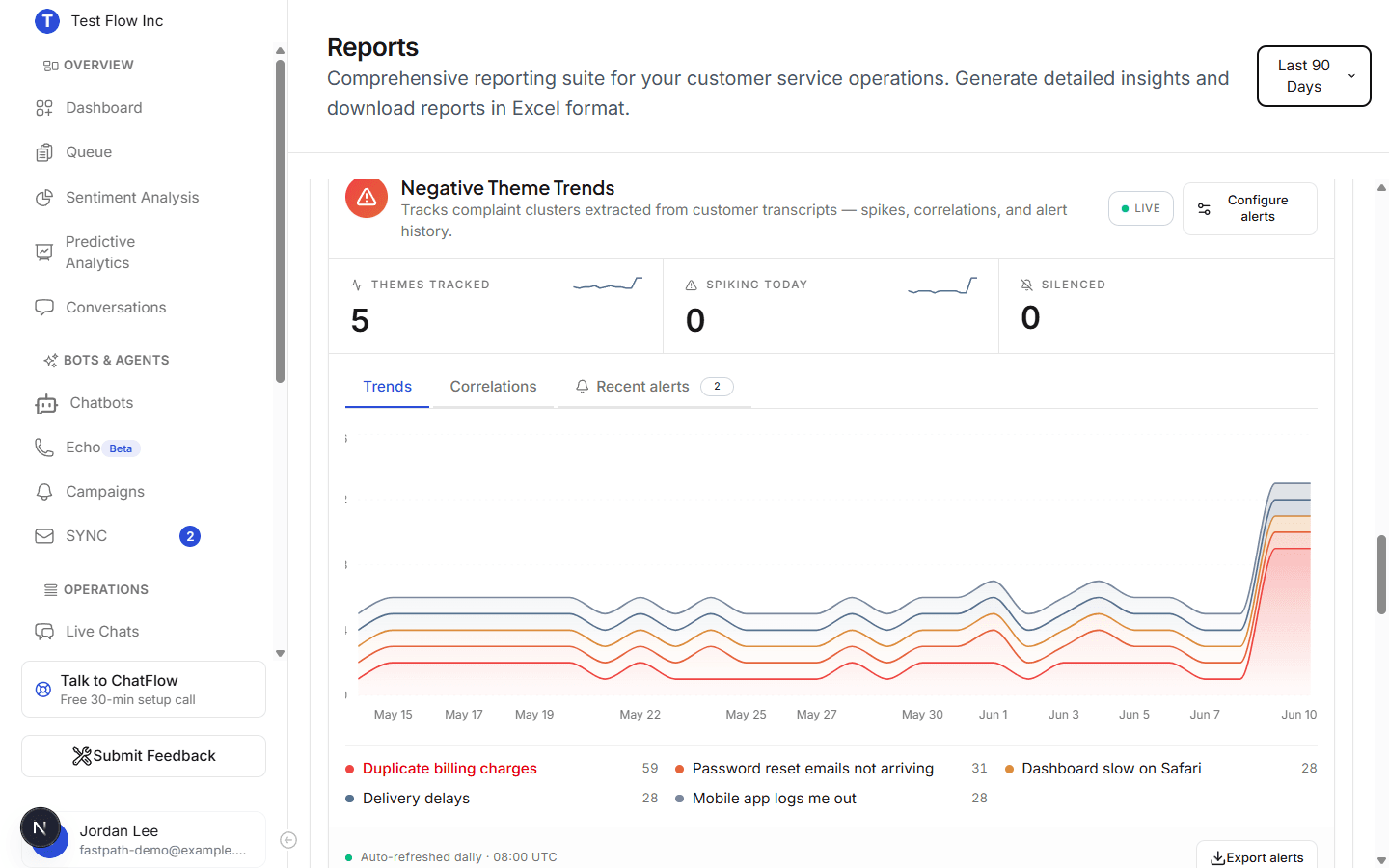
Select Reports in the sidebar (under OPERATIONS) and scroll to the Negative Theme Trends card. It refreshes once a day (the footer shows Auto-refreshed daily), and Export alerts downloads the data as a spreadsheet.
Read the trends
Three stats sit across the top of the card:
| Stat | What it shows |
|---|---|
| Themes tracked | How many negative themes ChatFlow is currently following. |
| Spiking today | How many of them are above their normal level right now. |
| Silenced | How many you have muted so they never alert. |
Below the stats, three tabs break the data down:
- Trends, a chart of each theme's daily volume so you can see what is rising.
- Correlations, which themes tend to show up together.
- Recent alerts, the themes that have spiked recently, with the day's count against the theme's usual baseline.
Configure alerts
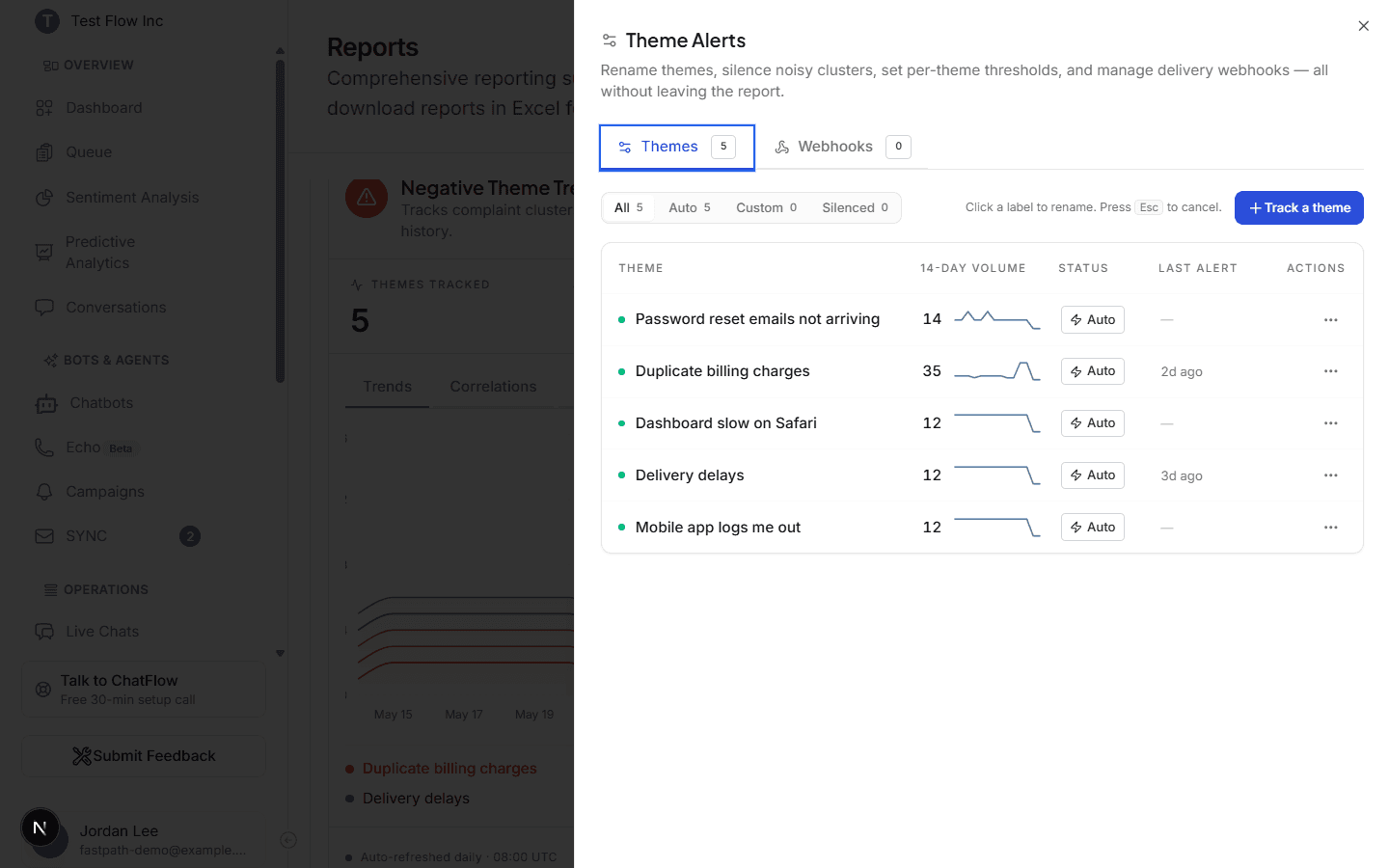
Select Configure alerts to open the Theme Alerts panel. It has two tabs: Themes and Webhooks.
Tune your themes
On the Themes tab, click a theme's label to rename it, silence a noisy one from its ... actions menu so it stops alerting, or track a new one with + Track a theme. When you track a theme, give it a short name (for example Gift card not working) and describe it in the customer's own words so ChatFlow can match it. Each row shows the theme's 14-day volume and a status (Auto by default).
Set a spike threshold
Each theme has a threshold that decides when it counts as spiking. By default ChatFlow uses the theme's own baseline plus normal variation, so a theme only alerts when it climbs clearly above its usual level. Adjust it per theme if you want to be more or less sensitive, then select Save threshold.
Add a webhook
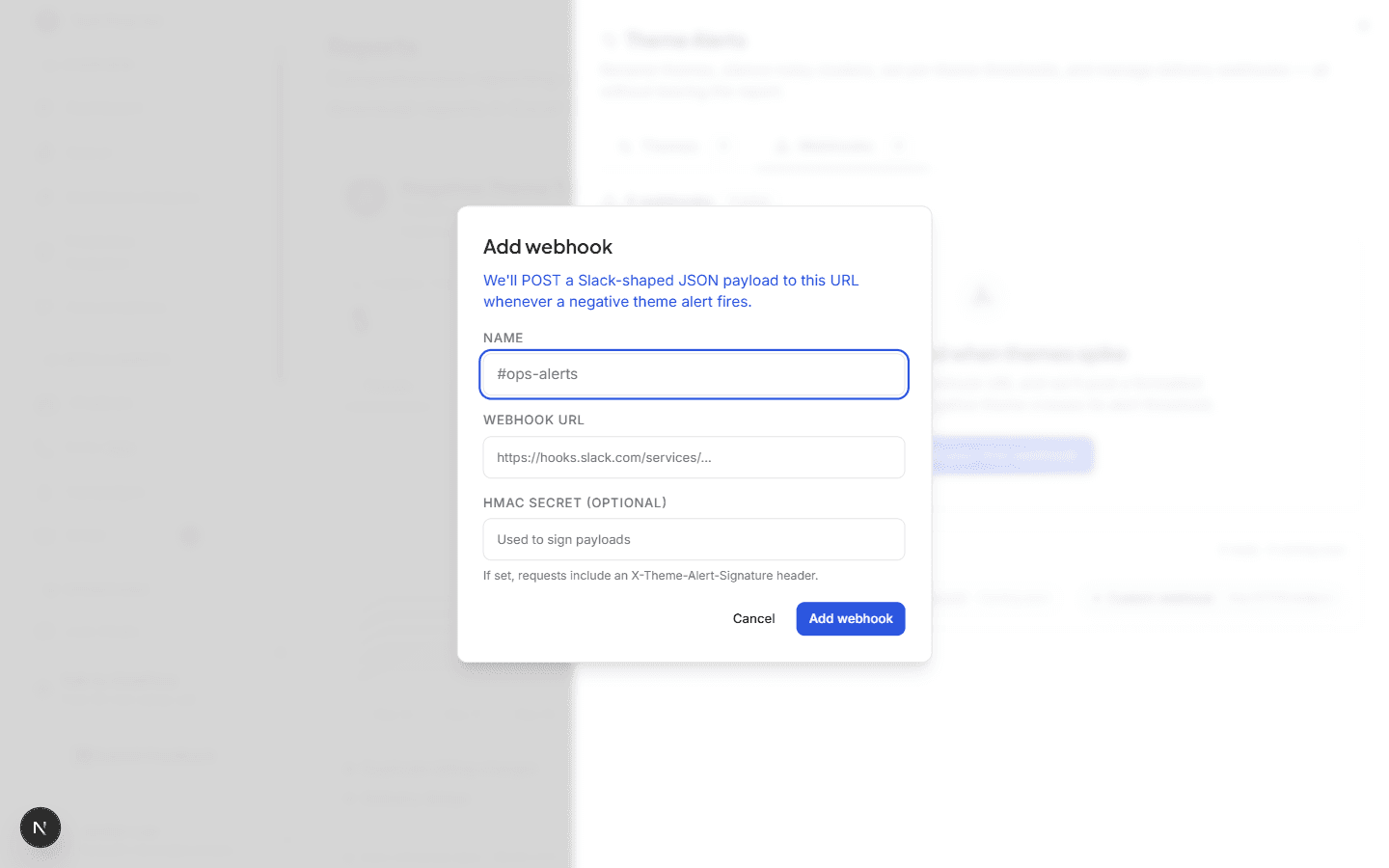
On the Webhooks tab, select Add your first webhook to get notified when a theme spikes. ChatFlow posts a Slack-shaped JSON payload to the URL you give it. Set a Name (for example #ops-alerts), paste the Webhook URL (such as a Slack incoming webhook), and optionally add an HMAC secret to sign the payload (requests then include an X-Theme-Alert-Signature header). Once it is saved, send a test alert to confirm it arrives.
Where alerts come from
Themes are derived from your conversation sentiment, so the more chats you handle, the sharper the themes get. To read the actual conversations behind a theme, open Conversations and Sentiment Analysis.
Verify it's working
- Open Reports and confirm the Negative Theme Trends card lists themes and shows the three stats.
- Open Configure alerts, add a webhook, and send a test alert. Confirm it arrives at your destination.
- After a theme spikes, confirm it appears under Recent alerts and that your webhook fired.
Troubleshooting
The card has no themes yet
Themes are built from conversation sentiment and are recalculated once a day. A new or low-volume account has nothing to group yet. Once customers start chatting, themes fill in.
I'm not getting webhook alerts
Confirm the webhook URL is correct and reachable, that the destination accepts incoming webhooks, and that the theme is not silenced. Use the test action on the Webhooks tab to check delivery.
A theme alerts too often or not enough
Adjust that theme's threshold on the Themes tab. Raise it to alert only on bigger spikes, or lower it to catch smaller ones. Silence a theme entirely if it is noise.