
How to Manage Your Profile
Update your name and photo, change your email or password, set up multi-factor authentication, and see your role.
Your Profile settings are your personal account: your name and photo, the email and password you sign in with, and your security options. These apply to you as a user, separate from your organization settings.
Open Profile settings
In the sidebar, open Settings and select Profile.
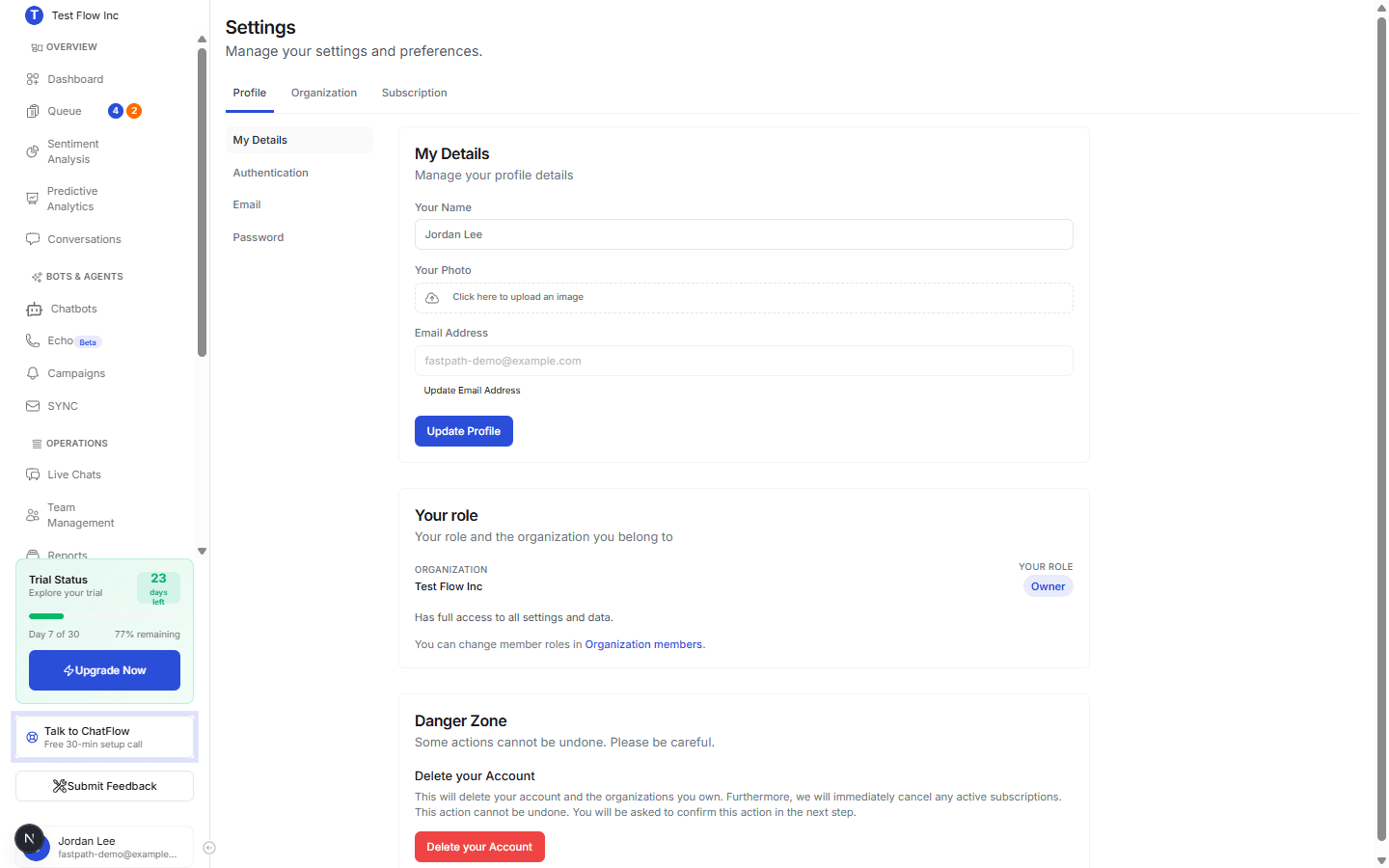
The Profile tabs
| Tab | What you do there |
|---|---|
| My Details | Edit Your Name and upload Your Photo, then select Update Profile. |
| Authentication | Set up multi-factor authentication and manage how you sign in. |
| Change the email address you sign in with. | |
| Password | Set a new password. |
My Details
Update your name and photo
On My Details, edit Your Name and select the photo area to upload a picture, then select Update Profile.
Change your email
Your sign-in email is shown but locked here. Select Update Email Address (the Email tab) to change it.
Your role
The Your role panel shows which Organization you are viewing and your role in it (for example, Owner). Owners and Admins can change other members' roles in Organization members.
Danger Zone
Deleting your account is permanent
Delete your Account removes your account and the organizations you own, and cancels active subscriptions. It cannot be undone. You will be asked to confirm before anything happens.
Verify it's working
- Change Your Name and select Update Profile.
- Confirm the new name appears in the sidebar profile menu.
Troubleshooting
I can't change my email in My Details
The field is locked there on purpose. Use the Email tab (or Update Email Address) to change it; you may need to confirm via a verification email.
I don't see some organization settings
Those depend on your role. Members see fewer options than Owners and Admins. See Manage Your Organization.