
How to Manage the Support Queue
Monitor customers waiting for an agent, agent availability, callbacks, and SLA performance in real time, and manage everything from one page.
Before you begin
The Queue gives you a live, single-screen view of your support load: who is waiting for a human, which agents are free, pending callbacks, and how you are tracking against your SLAs. It updates in real time so you can keep wait times down and make sure nothing slips through.
Plan and access
The Queue is available on the Enterprise plan, and during the free trial. You also need human support enabled so conversations can enter the queue. Who can open it: Account Managers, Supervisors, Admins, and Owners. Regular Agents and Support Agents do not see the Queue (they work chats from Live Chats).
Open the Queue
Select Queue in the sidebar (under OVERVIEW).
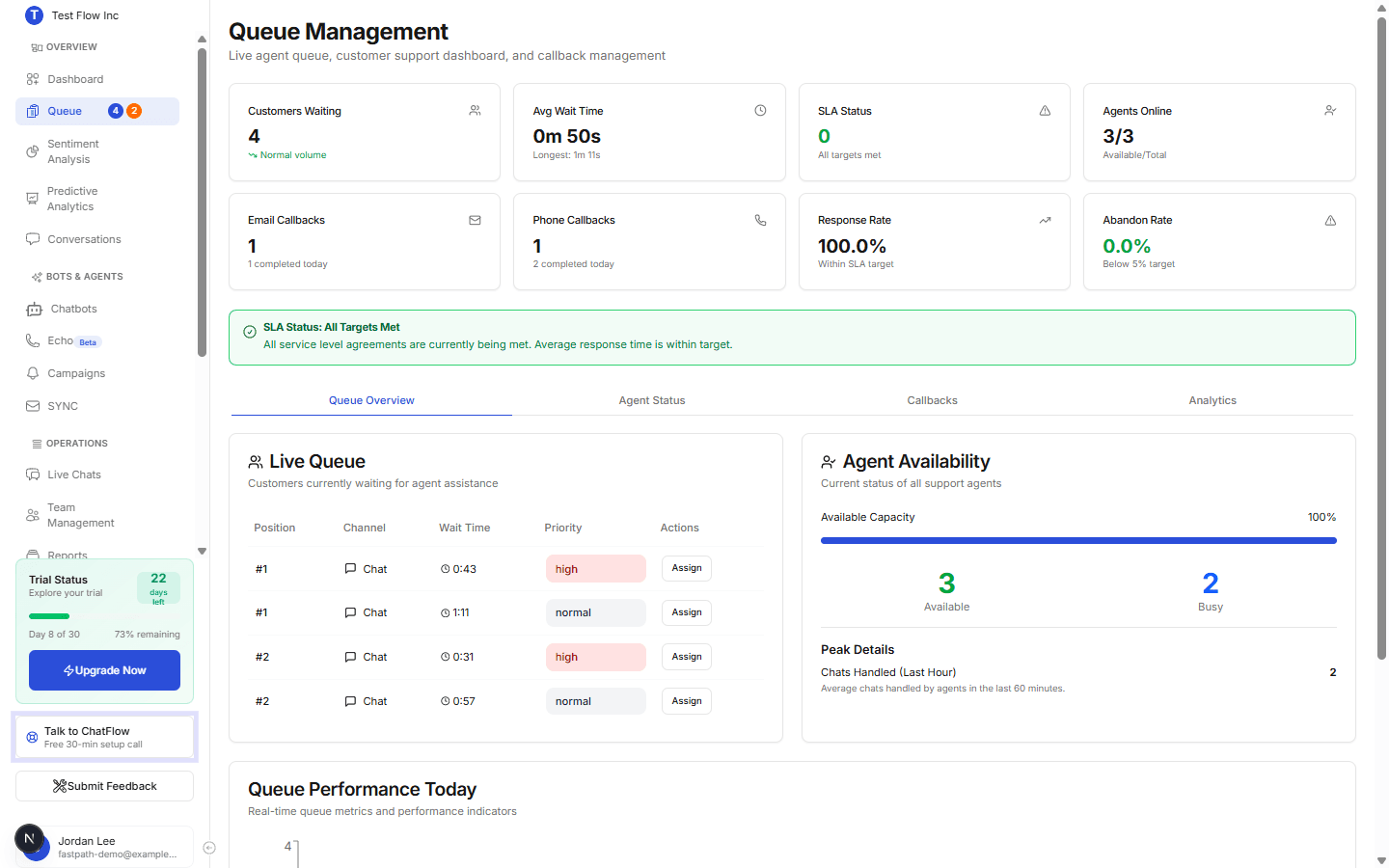
The metric cards
Eight cards across the top refresh in real time (roughly every 10 seconds, plus live updates).
| Card | What it shows |
|---|---|
| Customers Waiting | How many customers are in the queue right now. |
| Avg Wait Time | Average time customers have waited, with the longest wait beneath it. |
| SLA Status | How many customers have exceeded the wait-time target (turns red above zero). |
| Agents Online | Available agents over total agents who can handle chats (for example 3/3). |
| Email Callbacks | Pending email callbacks, with how many were completed today. |
| Phone Callbacks | Pending phone callbacks, with how many were completed today. |
| Response Rate | Share of interactions answered within target. |
| Abandon Rate | Share of customers who left before being helped (lower is better). |
SLA alert and Notify Supervisor
Below the cards is an SLA banner. When everything is on target it reads "SLA Status: All Targets Met." When customers breach the wait-time threshold it turns into an SLA Breach Alert with the count, and a Notify Supervisor button that emails your Supervisor so they can step in.
The four tabs
The Queue is one page with four tabs. Each has its own guide:
- Queue Overview — the live queue of waiting customers, assigning them to agents, and current availability.
- Agent Status — each agent's live status, workload, and on-the-fly capacity.
- Callbacks — pending, completed, and all callback requests, and assigning them.
- Analytics — SLA performance and queue trends.
For how the queue decides who is served first and what customers see when no agent is free, read How the Callback Queue Works.
Who can do what
| Action | Who can do it |
|---|---|
| Open the Queue page | Account Manager, Supervisor, Admin, Owner. |
| Assign a waiting customer or callback to an available agent | Account Manager and above. |
| Force-assign past an agent's chat limit, or reassign an already-assigned chat | Supervisor and above (a confirmation appears). |
| Notify Supervisor (SLA breach) | Anyone who can see the page; it emails the Supervisor. |
| Set an agent's durable capacity, working hours, and availability | Managed in Team Management. |
Verify it's working
- From your widget or the Playground, start a chat and request a human.
- Confirm it appears on Queue Overview and that Customers Waiting goes up.
- Assign it to an agent and confirm the count drops.
Troubleshooting
The queue is empty when it should not be
Confirm human support is enabled on the chatbot and that customers are actually requesting an agent. Only conversations that ask for a human enter the queue.
I can't see the Queue in the sidebar
The Queue needs the Enterprise plan (or an active trial) and an Account Manager role or above. Check your subscription and ask an Owner about your role in Team Management.
Queue Overview
See customers waiting for an agent, assign them to someone available, and read live agent availability.
Agent Status
See each agent's live status and workload, adjust their chat capacity on the fly, and assign callbacks.
Callbacks
Track pending, completed, and all callback requests, and assign a pending callback to an agent.
Analytics
Track SLA performance and queue trends, and set your response and resolution targets.