
How to View Conversations
Review your complete chat history, filter by date, status, and platform, and open any conversation to read the thread and its Information, Sentiment, Audit, and Profile tabs.
Conversations is your complete record of every chat customers have had with your chatbots, across every channel. Reviewing them shows what people actually ask, where the AI does well, and where to add training. Each conversation also carries a full detail panel: the customer's satisfaction survey, an AI sentiment read, a source-attributed audit trail, and the visitor's history.
Plan and access
Who can open it: Account Managers, Supervisors, Admins, and Owners (regular Agents do not see this page). Everyone on any plan sees the list and the Information tab. The richer detail tabs are plan-gated: Sentiment on Growth and Enterprise, and Audit and Profile on Enterprise (all available during the free trial).
Open Conversations
Select Conversations in the sidebar (under OVERVIEW).
Find the conversations you want
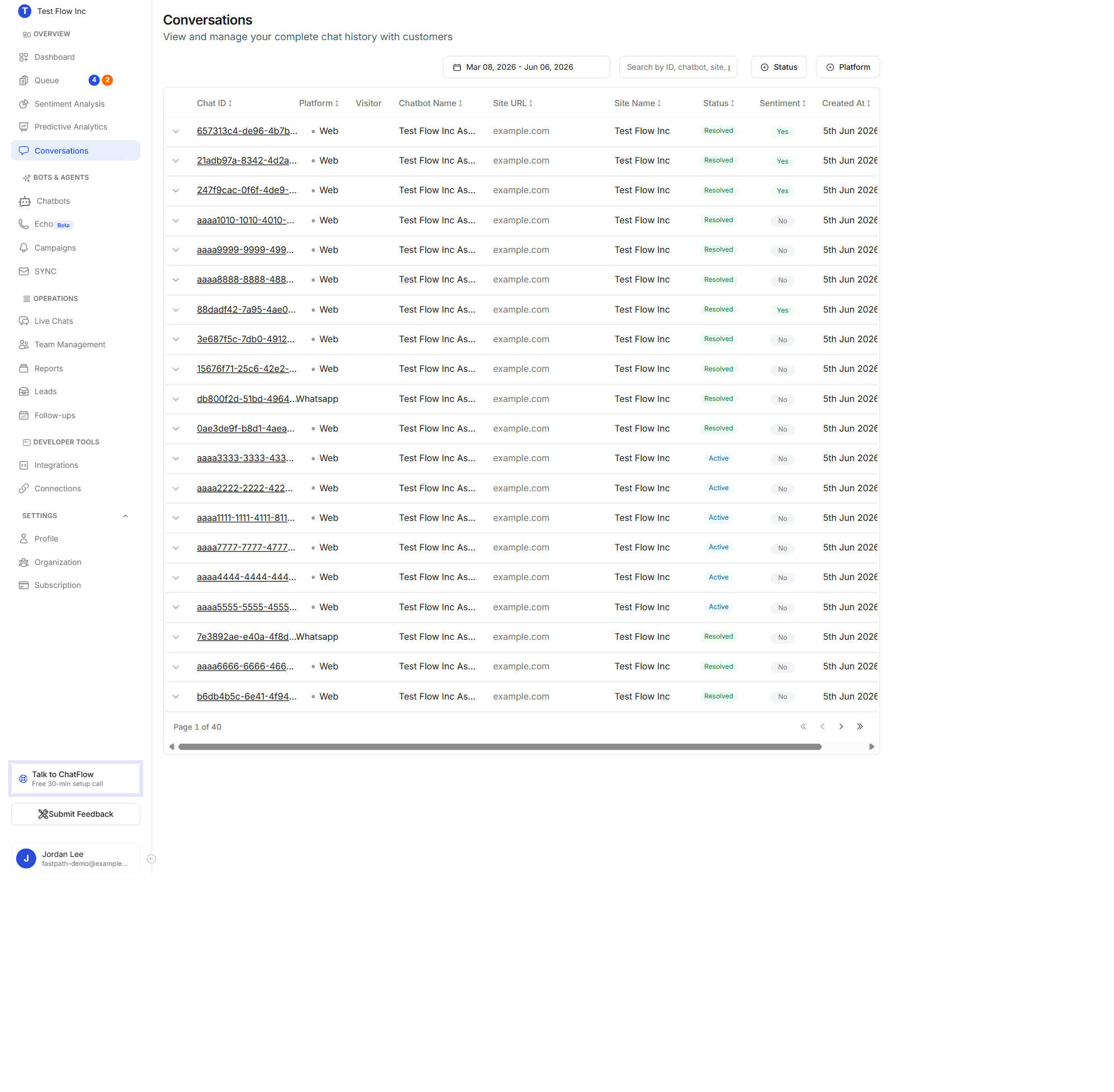
Use the controls at the top to narrow the list. They combine, so you can stack a date range, a status, and a platform together.
| Control | What it does |
|---|---|
| Date Range | Limit to a period. The default covers the last 90 days. |
| Search | Find by ID, chatbot, site, platform, or email. |
| Status | Multi-select: Active, Resolved, Closed, Abandoned, Auto-Closed, Pending, Unknown. |
| Platform | Multi-select by channel: Web, WhatsApp, Instagram, Messenger. |
The table
Each row is one conversation. Columns include Chat ID (a link to open it), Platform, Visitor (a badge showing how many other chats are linked to the same person, Enterprise only), Chatbot Name, Site URL, Site Name, Status (a color-coded badge), Sentiment (Yes/No, whether it has been analyzed), and Created At. Select the chevron at the start of a row to expand a quick summary in place, or select the Chat ID to open the full conversation. The list pages 20 at a time, and new chats and status changes stream in live.
Read a conversation
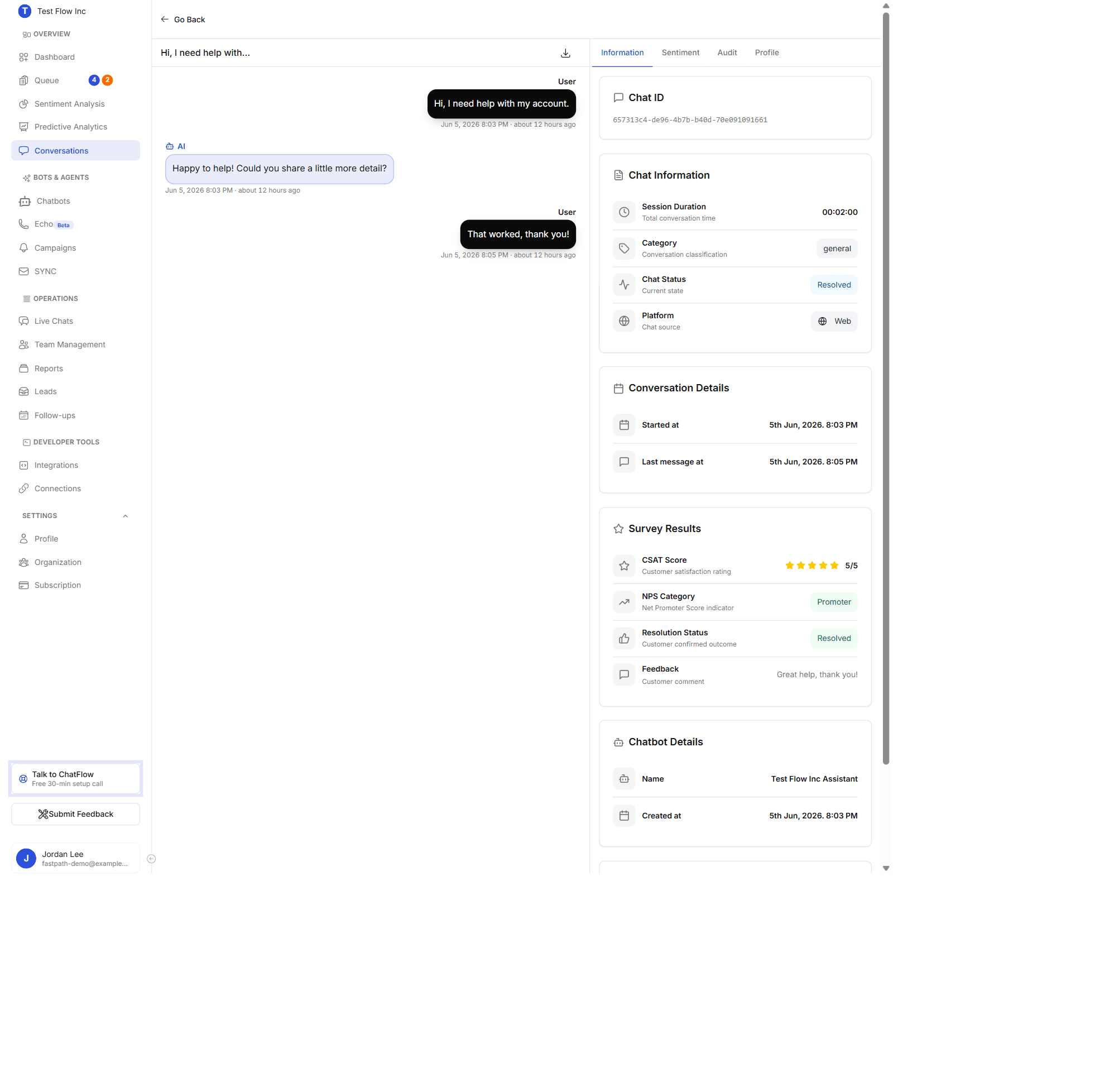
Open a conversation to see the full thread on the left and a detail panel on the right. Messages are labelled by who sent them, User, AI, Support Agent (when someone took over), and System, with timestamps. The download icon in the header exports the transcript, and Go Back returns you to the list.
Voice notes in the thread
Customers on WhatsApp, Instagram, and Messenger can send a voice note instead of typing. ChatFlow transcribes it, so the thread shows the words and the chatbot answers them like any other message. The message is marked Voice Message (transcribed) and, where the audio was stored, carries a player so you can listen to the original tone for yourself.
Two states mean there is no audio to play. The transcript, if one was made, still stands.
| What you see | What it means |
|---|---|
| Audio unavailable | The audio never reached us. The download from the channel failed at the time it was sent. |
| Audio no longer available | The audio was stored, then removed by the scheduled retention cleanup. This is expected on older conversations, not a fault. |
Audio does not stay forever
Voice note audio is deleted on a retention schedule, while the transcript stays with the conversation. If you need the recording itself for a dispute, download it while the conversation is recent.
The detail panel has four tabs: Information, Sentiment, Audit, and Profile. Here is every item in each, top to bottom.
Information tab
Always available, on every plan. It gathers everything captured for the chat:
- Security banner (only when relevant): a red Security Alert ("blocked") or an amber Suspicious Activity warning if the visitor attempted prompt injection. Repeat offenders are blocked automatically.
- Chat ID: the conversation's unique ID, with a copy button (it confirms "Copied!").
- Chat Information:
- Session Duration, total time from the first to the last message.
- Category, how the chat was classified (for example "Handled by AI" or a department like "general").
- Chat Status, the current state (Active, Resolved, Closed, Abandoned). Admins also get a Resolve & Close / Reopen button here.
- Platform, the channel the chat came in on, with its icon.
- Conversation Details: the Started at and Last message at timestamps.
- Survey Results (shown when the customer left post-chat feedback):
- CSAT Score, a 1 to 5 star rating.
- NPS Category, Promoter, Passive, or Detractor.
- Resolution Status, whether the customer confirmed it was resolved.
- Feedback, any comment they wrote.
- Chatbot Details: the chatbot Name and when the chat was Created.
- Visitor Information (Enterprise): IP address, country / city / region, timezone, device / OS / browser, the page they came from, and their profile name where known.
Sentiment tab
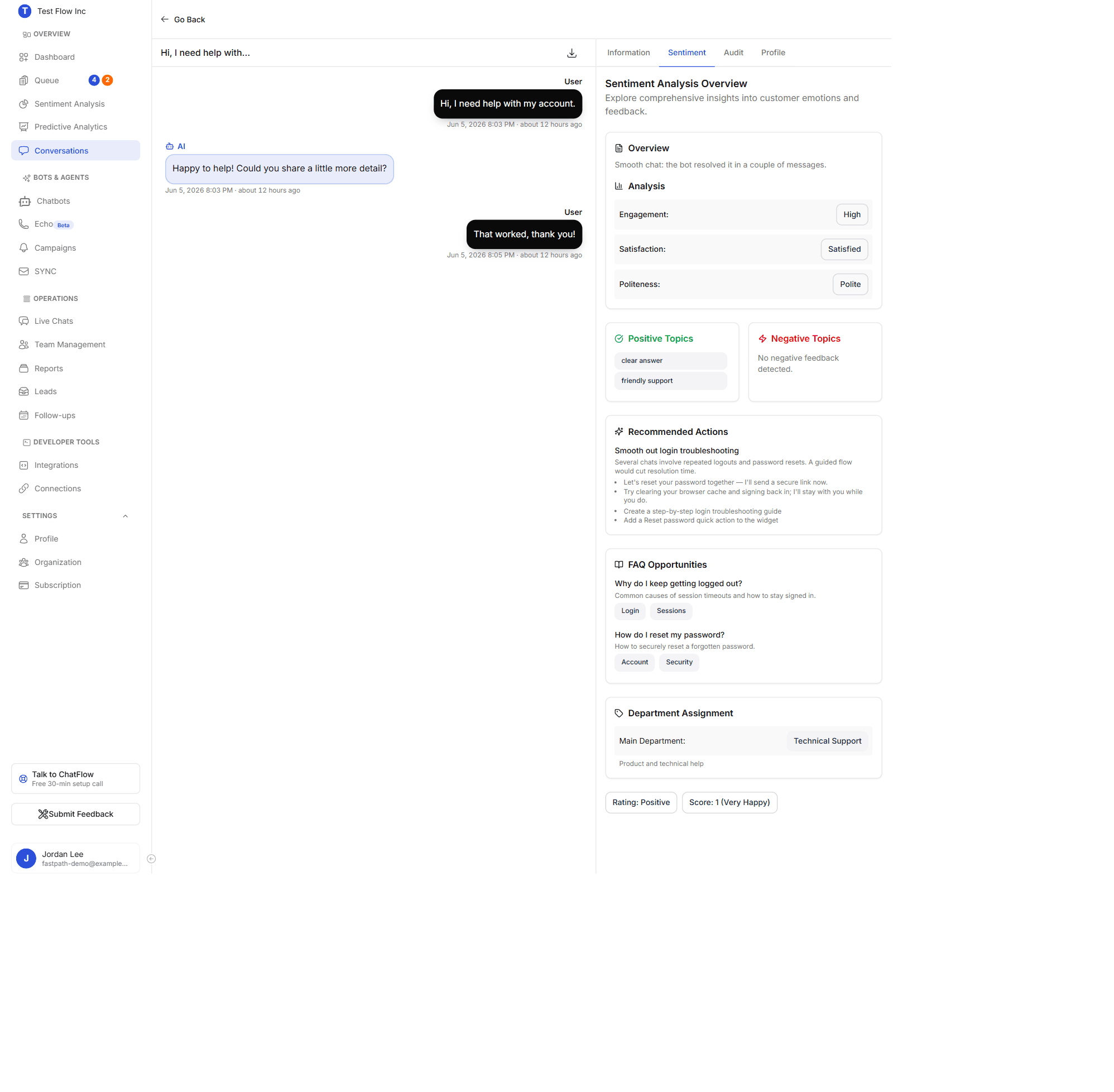
An AI read of how the chat went, on Growth and Enterprise. If a chat has not been analyzed yet, select Start Analysis (enabled once the chat has ended) and watch the progress animation. Once analyzed, it shows, in order:
- Overview, a one or two line summary of the conversation.
- Analysis: the Engagement, Satisfaction, and Politeness read from the exchange, plus the AI customer signals: Emotion (the dominant emotion, for example grateful, confused, frustrated), Intent (what the customer wanted, in plain language), and Peak frustration (the highest frustration reached, as a percentage).
- Positive Topics and Negative Topics, the themes the customer reacted well or badly to (each says "No ... detected" when there are none).
- Extracted entities, the kinds of specific detail the customer mentioned (for example order number, email, organization), shown by type with a count. The actual values are encrypted and not shown; these signals are internal and never reach the customer.
- Recommended Actions, each with a title, a description, better responses (wording your agents can reuse), and business actions (concrete changes to make).
- FAQ Opportunities, questions worth turning into FAQs, each with suggested topics so you can deflect them next time.
- Department Assignment, the main department (and sub-department) the AI routed the chat to.
- A footer with the overall Rating (Positive / Neutral / Negative) and Score (1 to 5, labelled Very Happy through Very Unhappy).
This is the same per-conversation analysis that rolls up into the Sentiment Analysis dashboard, where you can also escalate or schedule a follow-up from it.
Audit tab
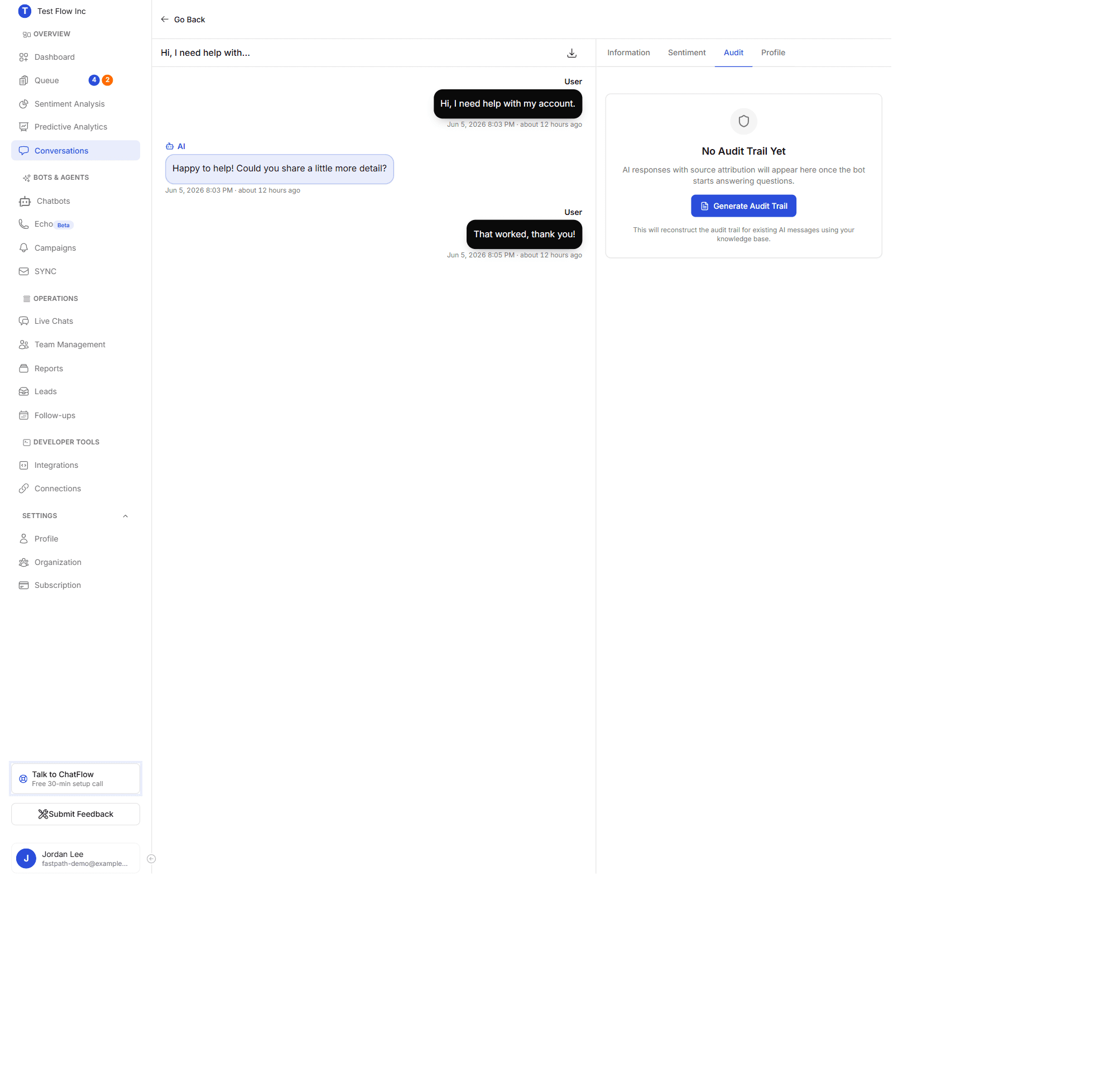
The Liability Shield trail (Enterprise), for compliance and transparency. For each AI answer it records:
- the Sources it drew from, grouped by document: the title, the exact passage quoted, the page number, relevance and confidence scores, and the source type (PDF, URL, note, or upload),
- the model version (for example CFE-4.5 PRO) and a confidence score,
- a Jump to message link to find that answer in the thread.
A Liability Shield Active note sits at the bottom. If a chat predates the trail, Generate Audit Trail reconstructs it from your knowledge base (the empty state above shows this).
Profile tab
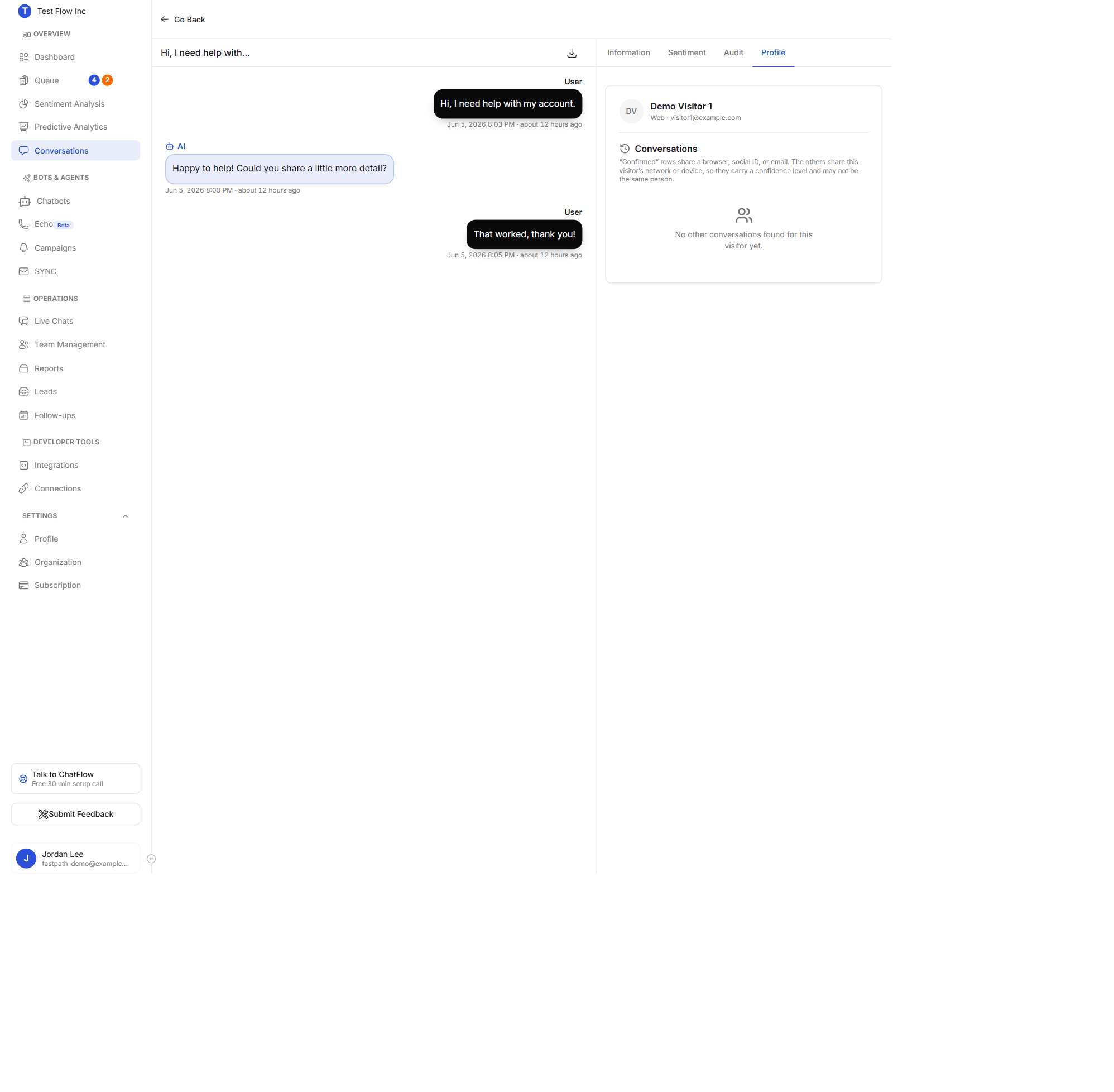
The visitor behind the chat (Enterprise) and their other conversations:
- A header with the visitor's name (or "Anonymous visitor"), avatar, channel, and location or email.
- A Conversations list of their other chats, split into Confirmed (same browser, social ID, or email) and possible matches (same network or device, each tagged High, Medium, or Low confidence). Each row shows the date, status, platform, chatbot, and a short ID.
- Select any row to open a preview drawer with that conversation, so you can follow one customer across multiple chats. When nothing links yet, it explains why (for example an anonymous web visitor on a new device looks like a new person).
Use what you learn
Reading real conversations is one of the best ways to improve your chatbot:
- Turn questions the bot handled well, or got wrong, into FAQs.
- Notice topics the bot could not answer and upload a document or crawl the relevant pages.
- For trends across many conversations, use Reports and Sentiment Analysis.
Troubleshooting
No conversations are showing
If you see "No conversations yet", make sure your chatbot is published and that customers have started chatting. If you do have conversations but the list looks empty, widen the Date Range and clear the Status and Platform filters.
A detail tab shows an upgrade prompt
Sentiment, Audit, and Profile are plan-gated (Sentiment on Growth+, Audit and Profile on Enterprise). Upgrade your plan (see Subscription) to unlock them. The Information tab is always available.
I cannot find a specific conversation
Use the Search box with the conversation ID, chatbot, or email, and make sure the Date Range covers when it happened.