
Callbacks Tab
Track pending, completed, and all callback requests, and assign a pending callback to an agent.
Before you begin
The Callbacks tab is where you manage customers who left their details instead of waiting. For how callbacks are created and prioritised, see How the Callback Queue Works; this page covers the tab itself.
The four sub-tabs
| Sub-tab | What it shows |
|---|---|
| Pending | New callback requests waiting to be handled, with an Assign action. |
| My Tasks | Callbacks an agent is actively working. |
| Completed | Callbacks that have been handled, with who completed them and when. |
| All Callbacks | Every callback request and its status, for a full view. |
Each row shows the customer's name, the contact method (phone or email), the contact value, the preferred time, and a priority badge.
Pending: assign a callback
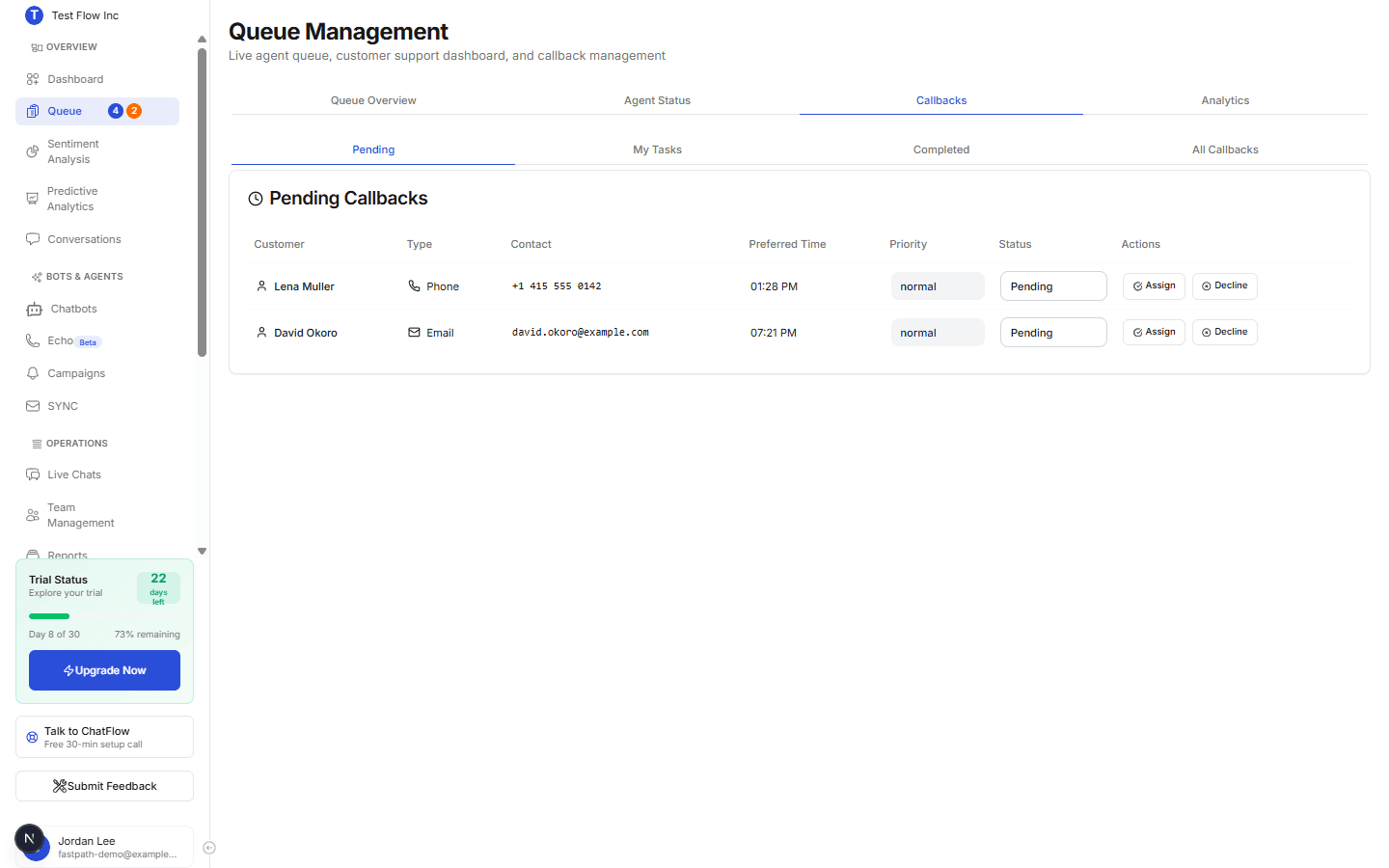
Select Assign
On a pending callback, select Assign. A window lists agents who can take it.
Pick an agent
Choose an available agent and confirm. The callback moves out of Pending and the agent is set to handle it.
Who can assign
Assigning callbacks is available to Account Managers and above. You can also assign a callback straight to a specific person from the Agent Status tab.
Completed and All
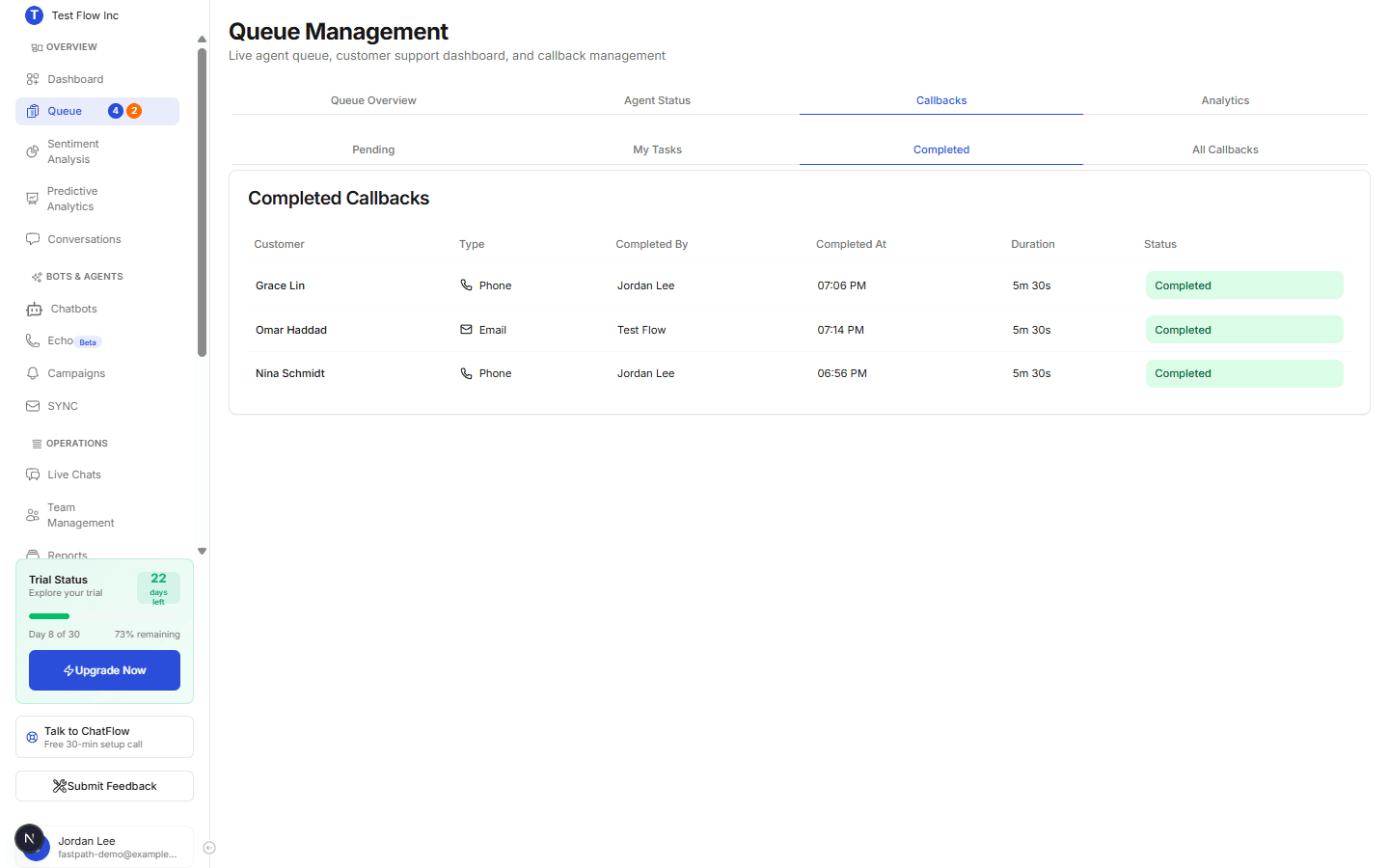
The Completed sub-tab is your record of handled callbacks (customer, type, and when it was completed). All Callbacks lists everything regardless of status, which is the quickest way to confirm a specific request came through.
Good to know
The Decline button (on Pending) and the Complete / Decline buttons (on My Tasks) are part of the interface but are not active yet. My Tasks lists the callbacks assigned to you that are in progress. Assign callbacks from Pending (or from the Agent Status tab), and use Completed and All Callbacks to track them.
Verify it's working
- From the widget or Playground, request a human with no agent free and choose an email or phone callback.
- Open the Callbacks tab and confirm it appears under Pending.
- Select Assign, pick an agent, and confirm it leaves Pending.
Troubleshooting
A callback isn't listed
Only callbacks tied to this organization's queue appear here. Confirm the request was submitted (check All Callbacks), and that human support is enabled on the chatbot.