
How to Connect WhatsApp
Connect your chatbot to WhatsApp Business so customers can message you on WhatsApp and get automatic AI answers.
Before you begin
Connecting WhatsApp lets your chatbot answer messages sent to your WhatsApp Business number automatically, around the clock, with handoff to a human agent when you need it. With Quick Setup you log in with Facebook, pick your account and phone number, and ChatFlow configures the rest.
What you need
A WhatsApp Business account with a phone number (set up in Meta Business Suite) and the Facebook login that manages it. WhatsApp is available on the Growth and Enterprise plans.
Start in ChatFlow
- Go to Chatbots in the sidebar and open your chatbot.
- Click the Integrations tab.
- Find WhatsApp and select Connect WhatsApp.
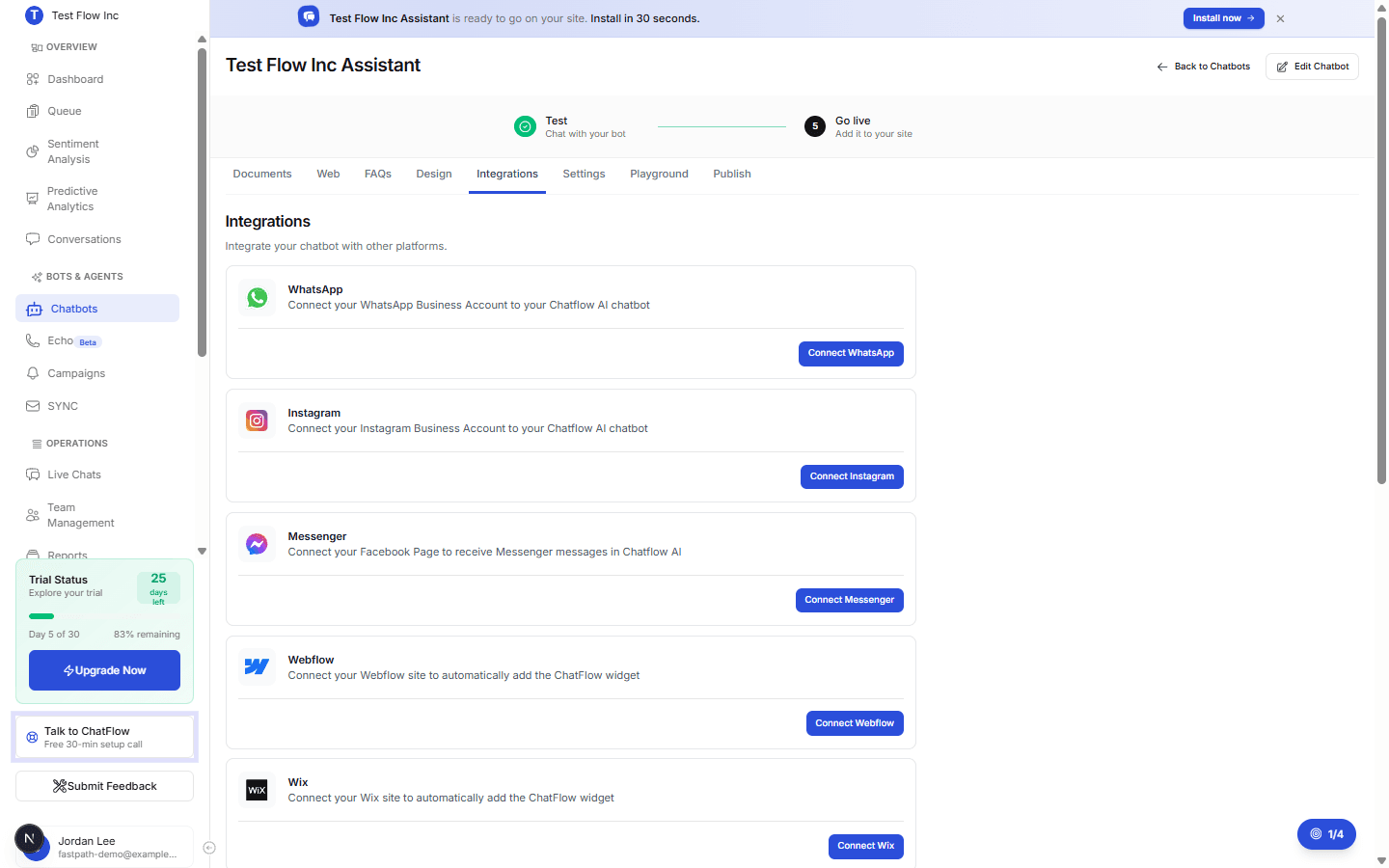
Connect with Quick Setup
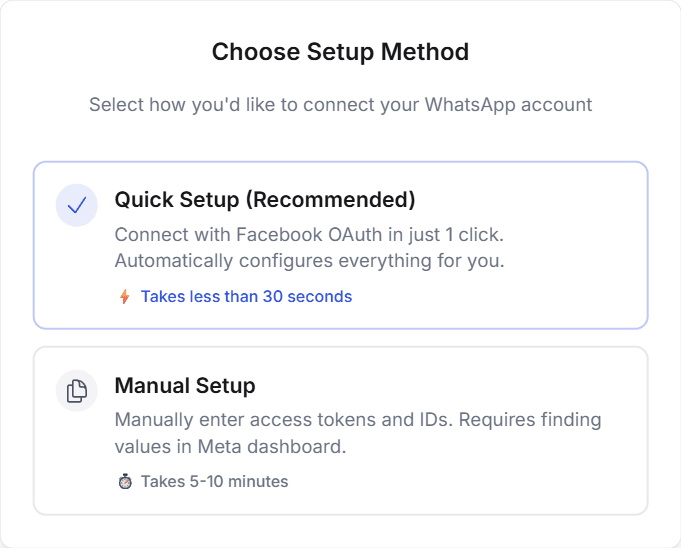
Choose Quick Setup
In the Choose Setup Method window, select Quick Setup (Recommended).
Connect with Facebook
Select Connect with Facebook and log in with the Facebook account that manages your WhatsApp Business account.
Select your business account and phone number
Under Select Business Account, choose your WhatsApp Business Account and select Next. Under Select Phone Number, choose the number to connect to this chatbot and select Next.
Complete the integration
Review your selections under Confirm Integration and select Complete Integration. ChatFlow sets up the webhook and saves the connection for you.
Video and Manual Setup
The WhatsApp integration guide has a short video of Quick Setup. It also covers Manual Setup, for when you would rather create your own Meta app and enter the access token and IDs yourself.
Verify it's working
- From a different phone, send a message to your connected WhatsApp Business number.
- Confirm the chatbot replies automatically.
- Open Conversations in ChatFlow and confirm the WhatsApp conversation appears.
Troubleshooting
"No Business Accounts Found"
Quick Setup could not find a WhatsApp Business Account on the Facebook login you used. Create one in Meta Business Suite first, or log in with the account that manages it, then connect again.
"No Phone Numbers Found"
The business account you selected has no phone number yet. Add one in Meta Business Suite, then connect again.
Messages are not coming through
Confirm the WhatsApp card on the Integrations tab shows as Active and that your chatbot has training content to answer from.