
How to Use Quick Responses
Create saved replies your agents can insert in one click during live chats, organized by category with built-in character limits.
Before you begin
Quick Responses are saved replies your agents can drop into a live chat in one click, so they answer common questions faster and with consistent wording. You manage them from Team Management, and agents insert them from the message composer in Live Chats.
Who can use this
Any agent can create their own quick responses. Turn on Share with team to make a response available to everyone in the organization. Responses are saved to your organization only and are never shared with other organizations.
Open the Quick Responses manager
- Go to Team Management in the sidebar (under OPERATIONS).
- Select Quick Responses.
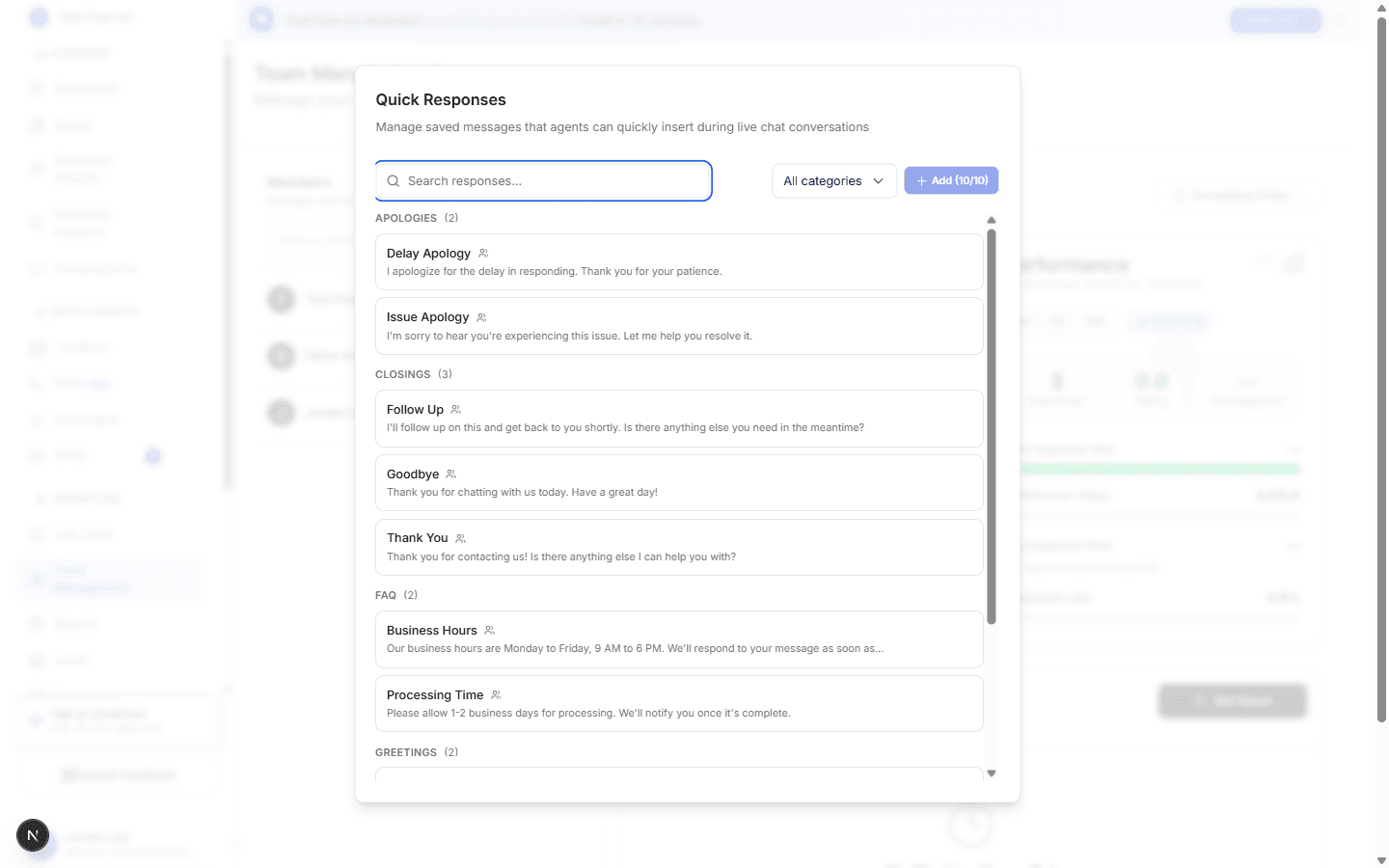
The manager lists your responses grouped by category, with a search box and a category filter at the top.
Add or edit a response
Start a new response or edit one
Select Add to create a new response, or the pencil icon on an existing one to edit it. You can keep up to 10 quick responses per organization; the Add button is disabled once you reach the limit.
Set the name and content
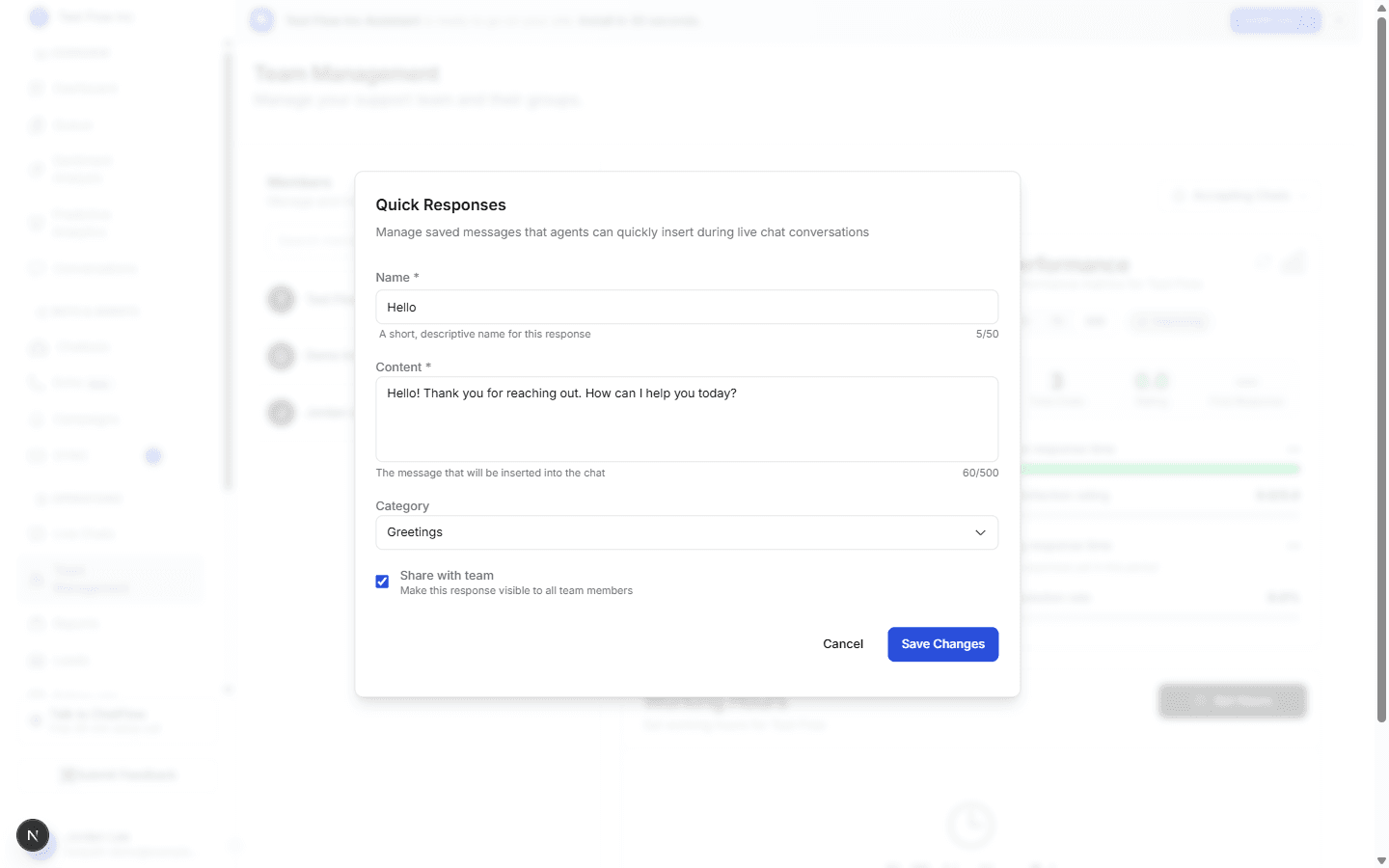
Give the response a short Name (up to 50 characters) and the Content that gets inserted into the chat (up to 500 characters). A live counter next to each field shows how many characters you have left.
Pick a category and sharing
Choose a Category (such as Greetings, Closings, FAQ, or Troubleshooting) to keep the list organized, and turn on Share with team if every agent should see it.
Save
Select Save Changes. The response appears in its category and is ready to use in Live Chats.
Limits at a glance
Each organization can save 10 quick responses. A Name can be up to 50 characters and Content up to 500 characters, enforced on both the create and edit forms and on the server.
Use a quick response in a live chat
While you have a conversation open in Live Chats:
Open the picker
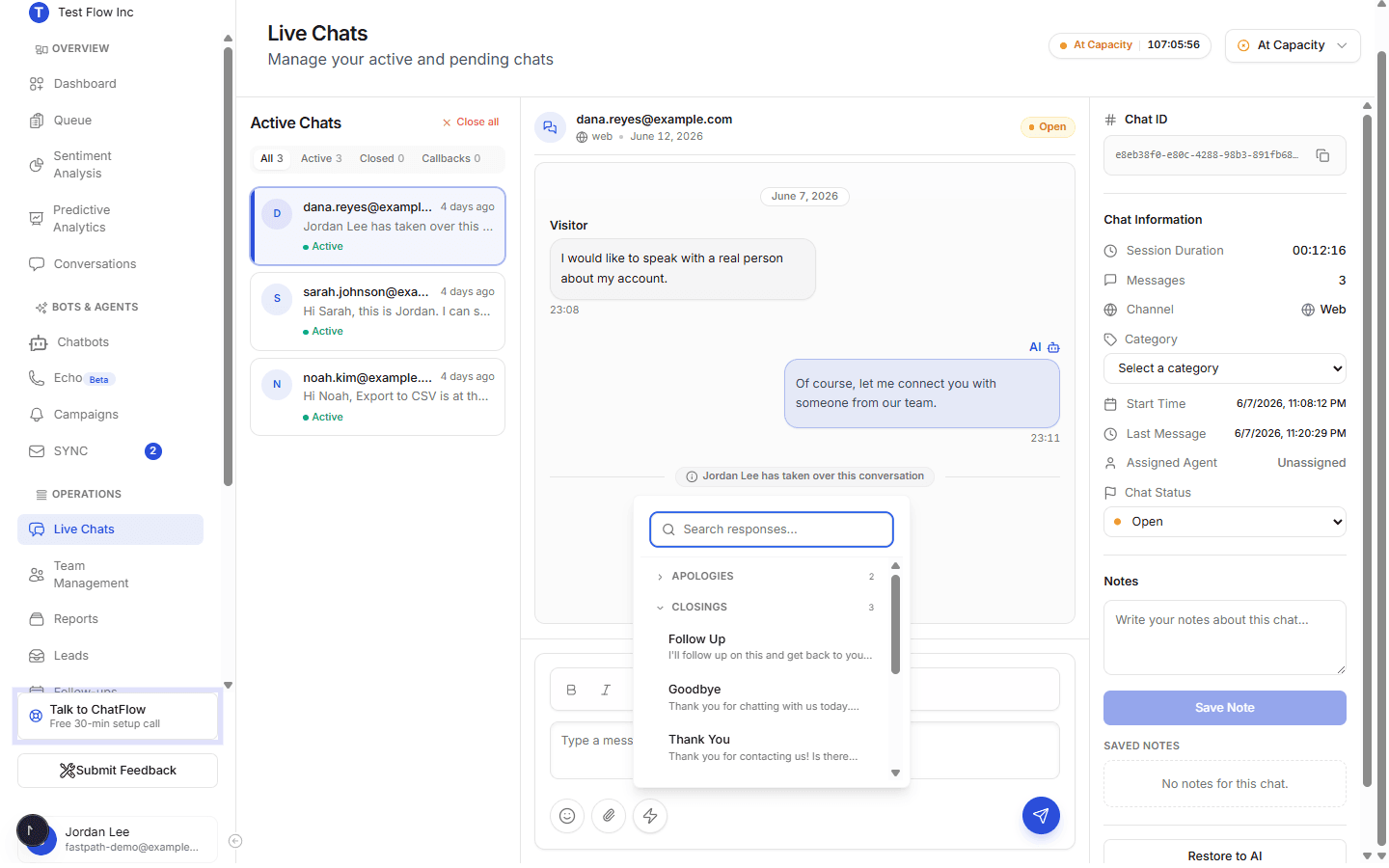
In the message composer, select the lightning icon, or type a forward slash (/) in an empty composer. The Quick Responses picker opens above the composer.
Find a response
Browse by category or type in the search box to filter by name or content.
Insert it
Select a response and its content is inserted into the composer at your cursor. Edit it if you need to, then send as usual. Press Escape to close the picker without inserting.
Verify it's working
- On Team Management, open Quick Responses and add one with Share with team on.
- Open a conversation in Live Chats.
- Select the lightning icon (or type
/), pick your response, and confirm its text drops into the composer.
Troubleshooting
I cannot add another response
You have reached the 10 per organization limit, so the Add button is disabled. Delete one you no longer use, or edit an existing response instead.
The lightning icon is greyed out
The composer is only active when a conversation is open. Select a chat from the list first. See Use Live Chats.
A teammate cannot see my response
A response is private unless you turn on Share with team. Edit it and enable sharing so the rest of the organization can use it.