
How to Collect and Review Answer Feedback
Let visitors rate each answer, then review what went wrong on the Answer Quality tab and close the loop with an approved answer.
Before you begin
Ratings tell you which answers are actually landing. A visitor rates an answer in one click, says what went wrong if it missed, and the item lands in a queue your team works through on the Quality tab.
Plan availability
Answer feedback and the Answer Quality tab are available on the Growth and Enterprise plans, and during the free trial. Ratings are off by default, so nothing appears to visitors until you switch them on.
Turn on ratings
- Go to Chatbots, open your chatbot, click Settings, then Citations.
- Switch on Show Helpful / Not helpful on each answer.
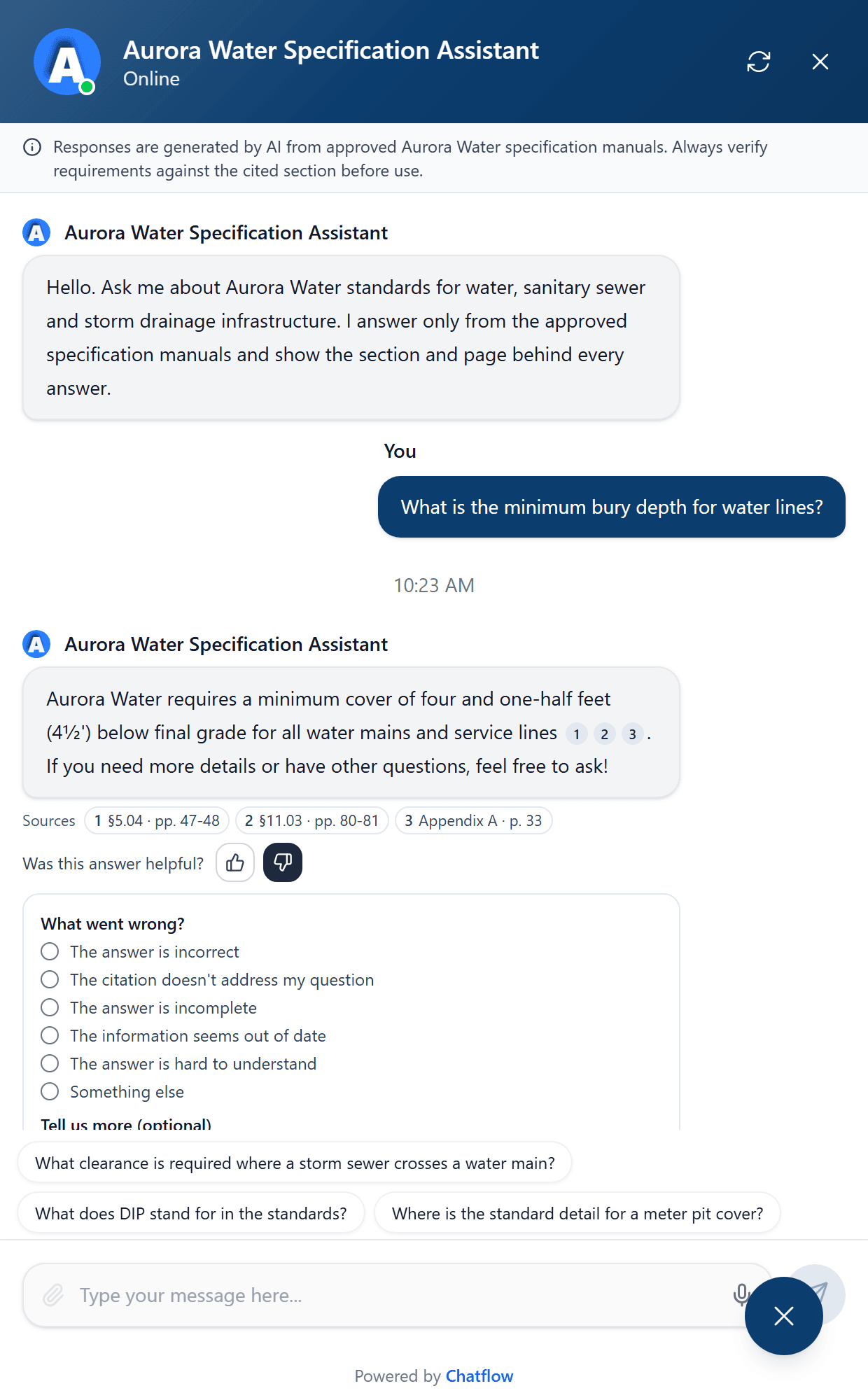
Visitors then see two small buttons under each answer. Helpful is recorded immediately. Not helpful opens a short form asking what went wrong.
| Reason a visitor can pick | Typically means |
|---|---|
| The answer is incorrect | The content is wrong, or the assistant misread it. |
| The citation doesn't address my question | The right document, the wrong section. |
| The answer is incomplete | Partly right, missing a condition or a step. |
| The answer is out of date | The document behind it needs a new version. |
| Something else | Anything the list does not cover. |
Review what comes in
Open the Quality tab on the chatbot. It covers this chatbot only, never the whole organization.
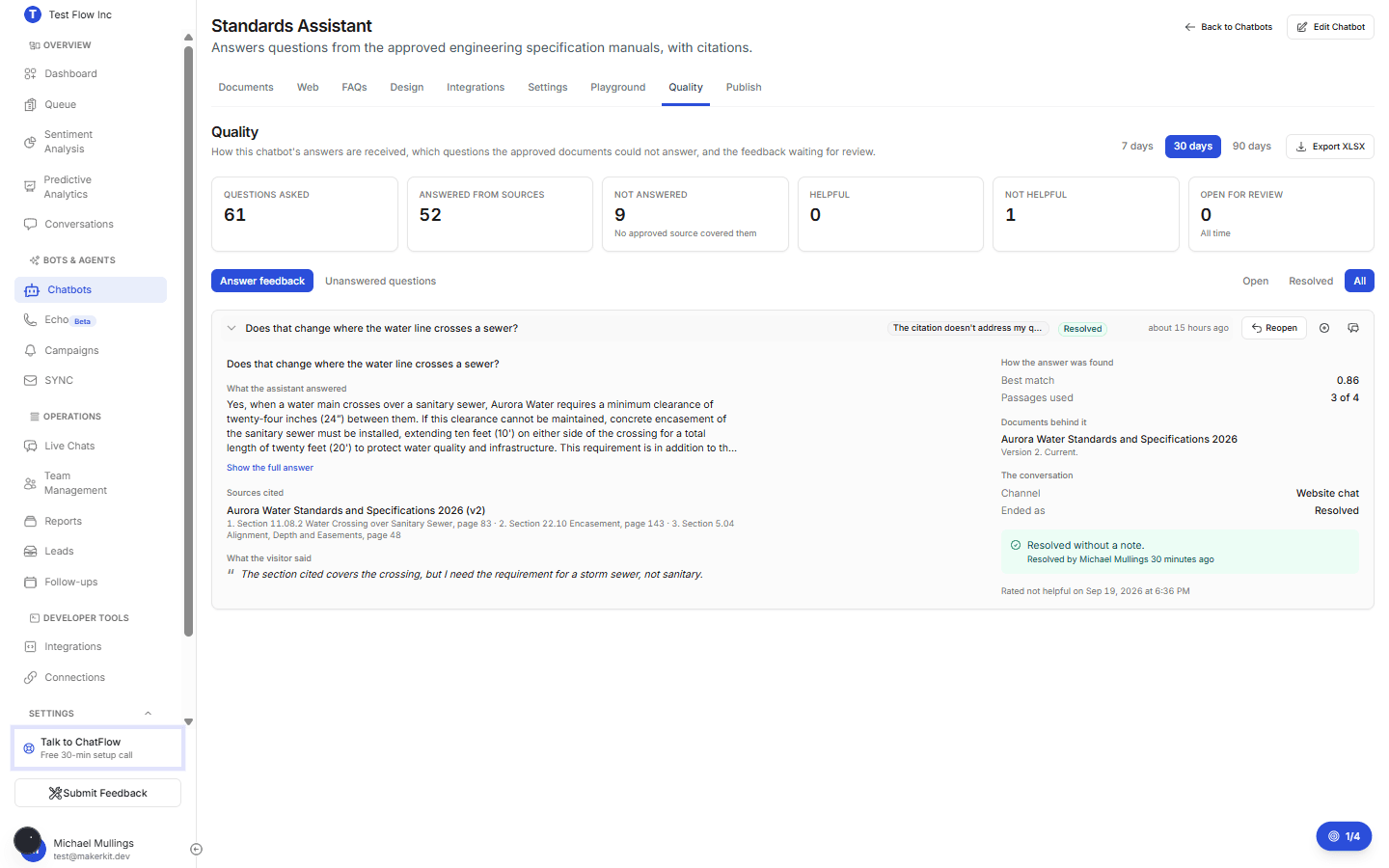
The header counts questions asked, how many were answered from your sources, how many nobody could answer, the helpful and not helpful totals, and how many items are still open. Below that are two lists: Answer feedback and Unanswered questions.
Read the item in full
Each card shows the question, the answer the assistant gave, the sources it used, and the visitor's reason and comment. That is usually enough to tell whether the content, the wording or the retrieval was at fault.
Resolve it with a note
Select Resolve, write what you did about it, and mark it resolved. The note stays on the item, so the next person can see why it was closed. Reopen puts it back on the queue.
Add an approved answer
When the fix is a better answer rather than a better document, select Add approved answer. The question and a corrected answer go into your reference library, so the next person asking gets the approved wording.
Work the unanswered list
Unanswered questions are the ones your documents could not cover. Read it as a standing list of gaps: each entry is either content you should add, or a question you are happy to keep declining.
Select Export XLSX to take the whole picture into a spreadsheet for reporting.
Verify it's working
- Open the Playground tab or your live chatbot and ask a question.
- Rate the answer Not helpful, pick a reason and submit.
- Open the Quality tab: the item appears under Answer feedback as Open, with your reason and comment.
- Resolve it with a note, then reload: it now shows under Resolved with the note attached.
Troubleshooting
Visitors see no rating buttons
Ratings are off until you switch them on, and they never appear on an answer the assistant declined to give. Check Show Helpful / Not helpful on each answer on the Citations tab, then reload the page the widget is on.
The Answer Quality tab is not there
The tab appears once the chatbot has an Answer Quality feature switched on. On plans below Growth it stays visible but locked, with an upgrade prompt.
Ratings stopped being accepted
If the organization's plan no longer includes Answer Quality, the widget stops showing the buttons and the server stops accepting ratings. Your settings are kept, so ratings resume when the plan does.
Numbers look lower than expected
The metrics count this chatbot only, and the date filter at the top defaults to a recent window. Widen it before comparing totals.