
How to Publish Your Chatbot
Get your install snippet and add the chatbot to your website, with live detection that confirms when it goes live.
Before you begin
Publishing puts your chatbot on your website with a single line of code. The Publish tab gives you a guided, three-step install and watches for the widget so it can confirm the moment your chatbot goes live.
Prefer to watch? This short walkthrough shows the whole install: open the Publish tab, copy your install code, paste it into your site, and confirm it is live.
Open the Publish tab
- Go to Chatbots in the sidebar and open your chatbot.
- Click the Publish tab.
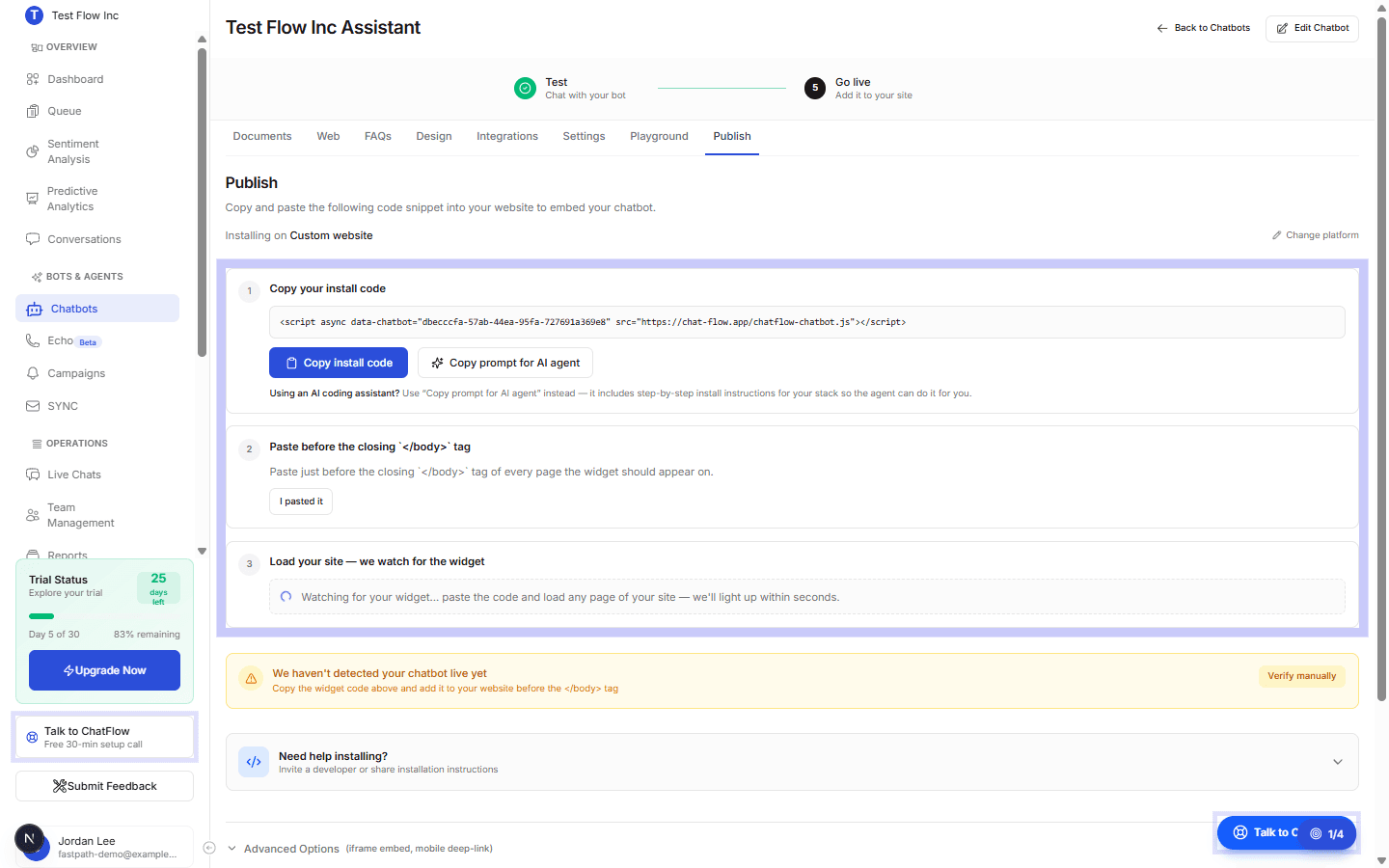
Get your install code
Copy your install code
Select Copy install code. The snippet looks like this, with your own chatbot's ID:
<script async data-chatbot="YOUR_CHATBOT_ID" src="https://chat-flow.app/chatflow-chatbot.js"></script>Using an AI coding assistant?
Select Copy prompt for AI agent instead. It copies the snippet along with step-by-step install instructions, so an assistant like Claude or Cursor can add it to your site for you.
Paste it before the closing </body> tag
Add the snippet just before the closing </body> tag on every page where the widget should appear. For most sites, adding it to your theme or site-wide footer covers every page at once.
Load your site and let ChatFlow detect it
Open any page of your site. ChatFlow watches for the widget and confirms within seconds when it goes live. You can also select Verify manually to recheck.
Install on your specific platform
Select Change platform to get instructions tailored to where your site is built. For full, screenshot-by-screenshot steps, use the platform guide:
| Platform | Guide |
|---|---|
| WordPress | WordPress integration |
| Wix | Wix integration |
| Webflow | Webflow integration |
| Shopify | Shopify integration |
| Magento | Magento integration |
| Custom site / framework | Paste the snippet before </body> in your HTML or layout |
Prefer not to install it yourself?
The Publish tab includes a free option to have a ChatFlow expert install the widget for you over a screen share, or you can invite a developer and share the instructions with them.
Verify it's working
- Open your website in a new tab (an incognito window avoids cached results).
- Confirm the chat widget appears in the corner you chose in Design.
- Open it and send a test message.
- Back in ChatFlow, open Conversations, your test should appear, which confirms the widget is connected.
Troubleshooting
The widget is not appearing
- Make sure the snippet is placed just before the closing
</body>tag and saved. - Hard-refresh the page (Ctrl+Shift+R) or open it in an incognito window to bypass cache.
- Temporarily disable ad/script blockers, which can hide third-party widgets.
- Confirm the
data-chatbotID in the snippet matches your chatbot.
The widget appears but does not respond
Test the chatbot in the Playground first to confirm it works in the dashboard. If it works there but not on your site, check your browser console for blocked or failed network requests.
I cannot edit my site's code
Use Change platform for your CMS's no-code option (most have a footer or custom-code area), or use the Publish tab's option to invite a developer or book a free install session.