
How to Upload Documents
Train your chatbot on PDFs, Word docs, spreadsheets, markdown, and text files. Upload one at a time or in bulk, see regulatory documents auto-detected, and preview the extracted text.
Before you begin
Uploading documents is the fastest way to teach your chatbot about content that already lives in files: product manuals, policy documents, spreadsheets, or guides. ChatFlow reads each file, extracts the text, and indexes it so the chatbot can answer from it. You can upload one file or many at once, and ChatFlow automatically recognizes regulatory documents so it can cite them precisely.
Open the Documents tab
- Go to Chatbots in the sidebar and open your chatbot.
- Select the Documents tab.
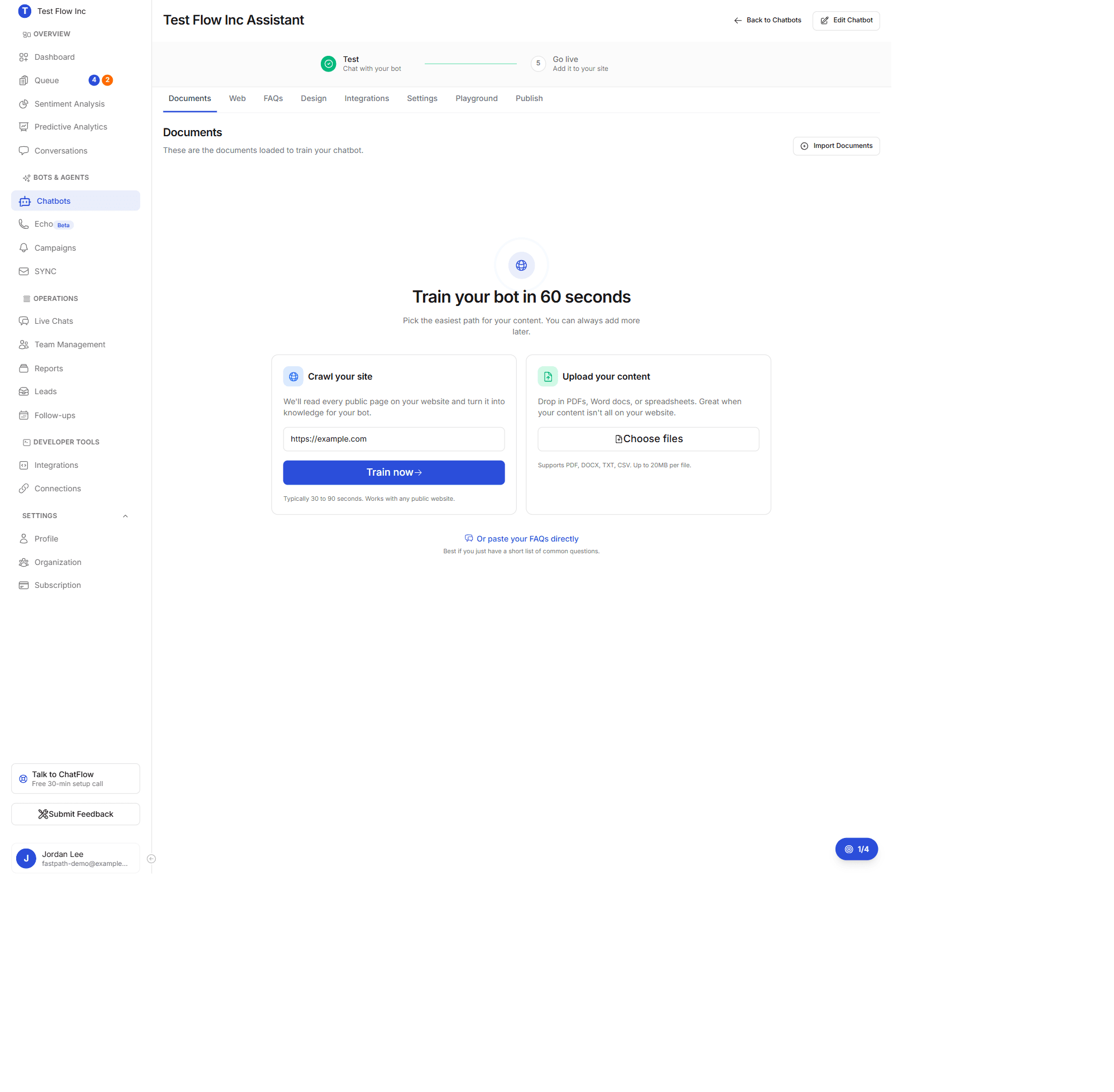
If you have not added any training content yet, the tab shows a quick-start screen with two paths: Crawl your site or Upload your content.
Supported files
| Format | Extension |
|---|---|
.pdf | |
| Word | .docx |
| Markdown | .md |
| Text | .txt |
| Spreadsheet | .csv |
One topic per file
One focused document per topic gives better answers than a single large mixed file, because the chatbot retrieves the passages closest to a question.
Scanned PDFs are read automatically
A scanned PDF is a picture of a page, so it has no selectable text to extract. ChatFlow detects this on upload and falls back to OCR, reading the pages visually and turning them into text the chatbot can use. You do not need to do anything, and you do not need to re-export the file.
- Detection is automatic. If a PDF comes back with little or no usable text, OCR runs on it.
- The upload summary tells you when it happened, for example "2 via OCR".
- OCR handles files up to 32 MB and 100 pages. A larger or longer scan needs splitting first.
A clean scan still reads better
OCR is good, not magic. A straight, high-contrast scan reads more accurately than a skewed photo of a page, handwriting, or a low-resolution fax. Where you have the option, a text-based export is still the most reliable.
Upload documents
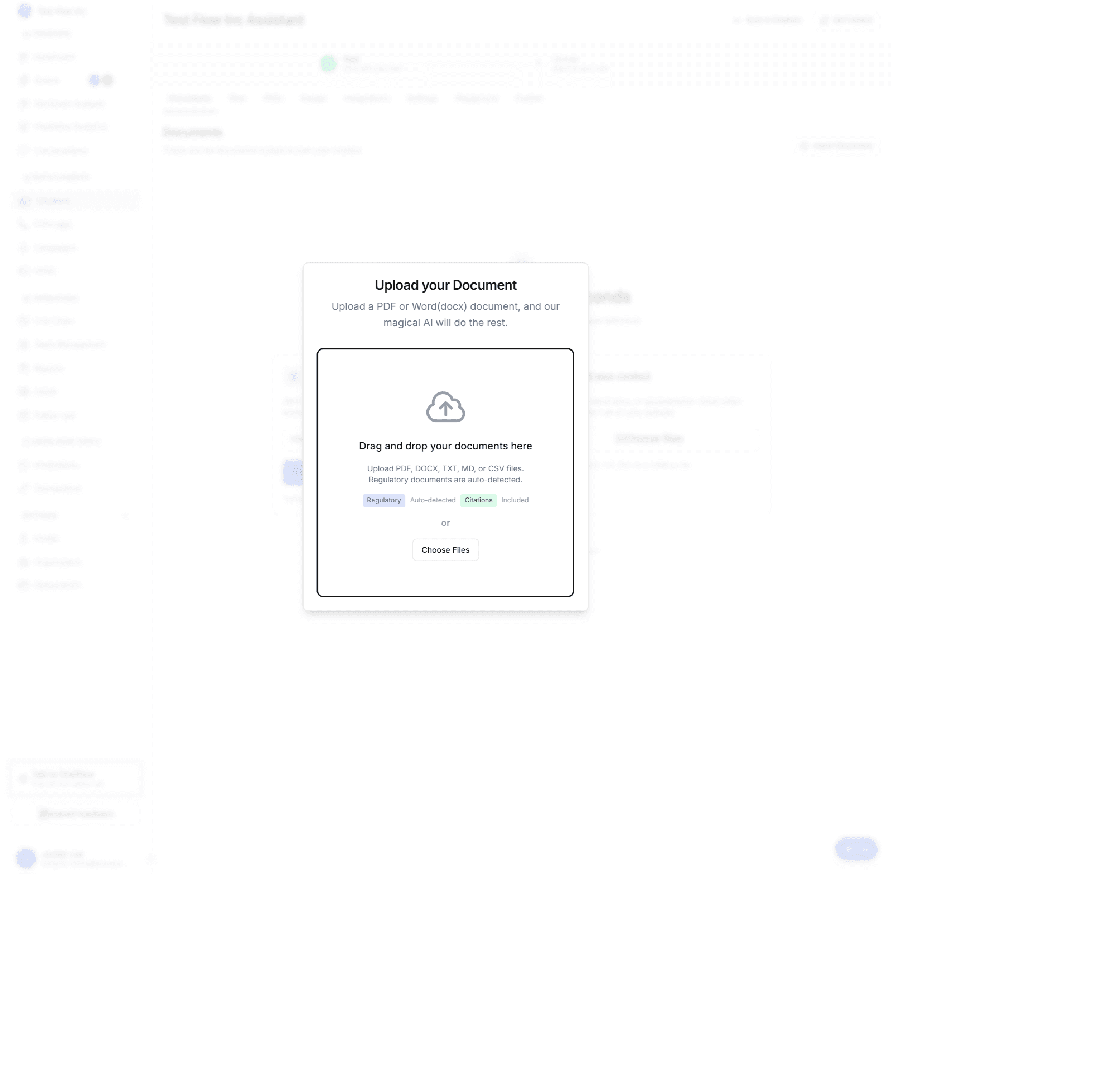
Select Import Documents in the top right (or Choose files on the quick-start screen) to open the upload dialog. You can drag and drop files onto it or select Choose Files.
Upload in bulk
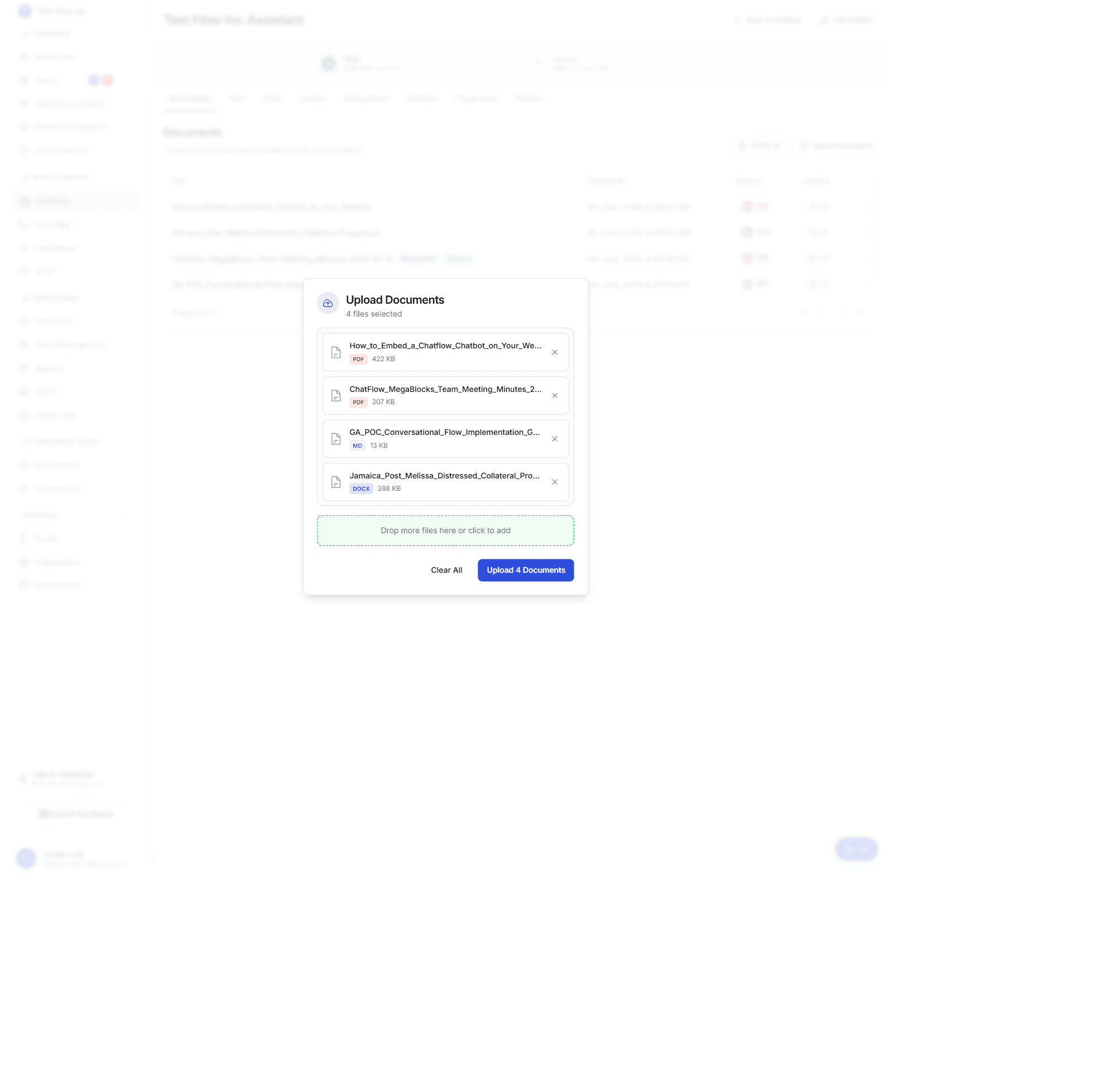
You can select many files at once (or drag a whole group in). They appear in a list, each with its type and size, and a Drop more files here or click to add zone so you can keep adding before you commit. Remove any file with its ✕, or Clear All to start over. When you are ready, select Upload N Documents.
ChatFlow processes the files (several in parallel), extracting and indexing each one. Processing usually takes well under a minute per file, longer for large or complex PDFs. Each row shows its status as it goes, and you get a summary when it finishes.
Regulatory documents are auto-detected
You do not mark documents as regulatory yourself. As ChatFlow reads each file, it looks for the structure and language of formal documents (numbered sections, articles, clauses, legal phrasing). When it finds them, it tags the document with a blue Regulatory badge and a green Citations badge.
Why it matters
A regulatory document is split along its own section boundaries instead of into fixed-size chunks, and answers drawn from it carry precise citations (document, section, and page). That powers the source-attributed Audit trail (Liability Shield), so every answer from that document is traceable. Detection is based on content, so a plain guide stays a normal document while a policy or regulation is flagged automatically.
See your documents
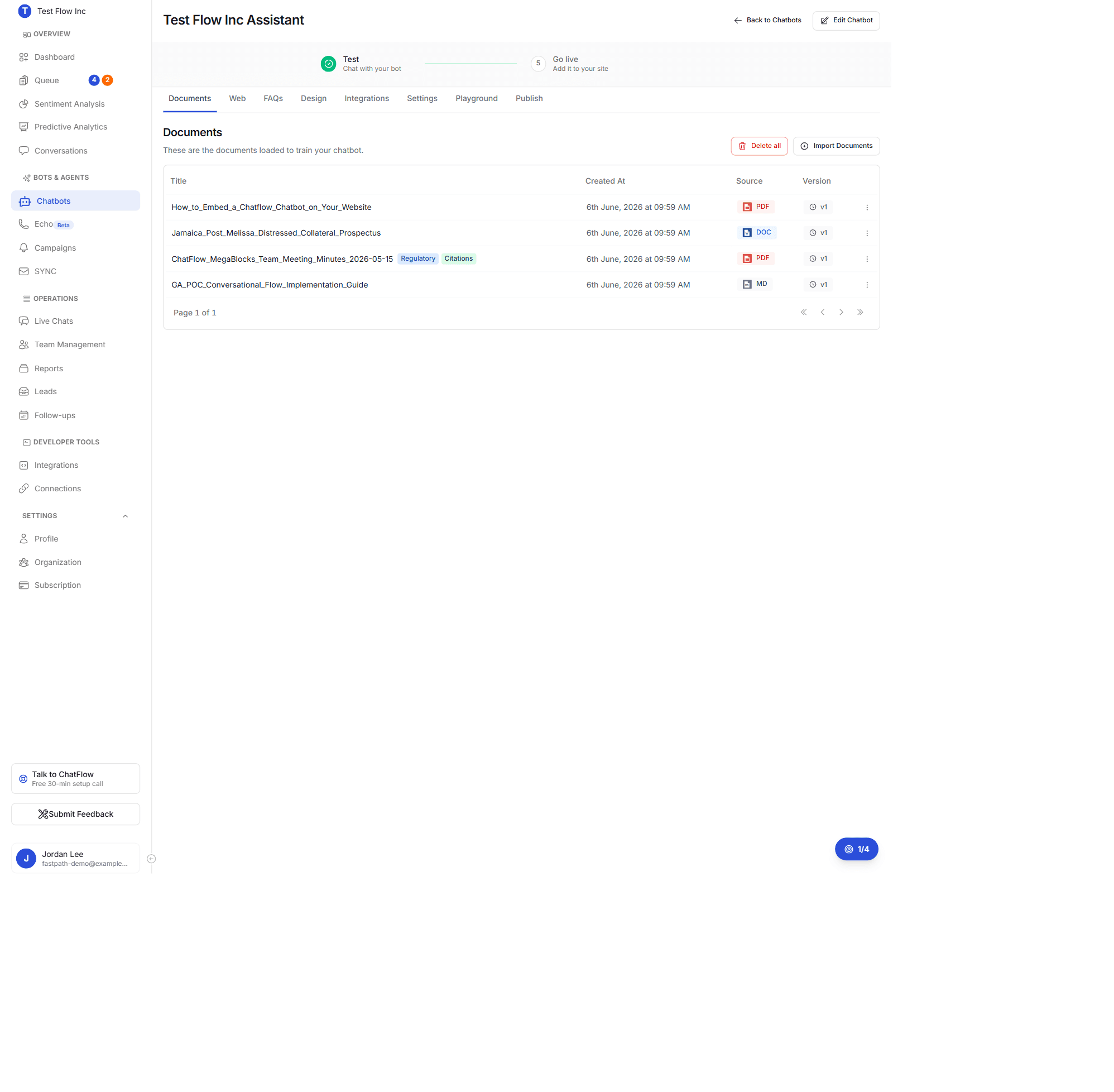
Uploaded documents appear in a table:
| Column | What it shows |
|---|---|
| Title | The document name, with Regulatory / Citations badges when detected. |
| Created At | When it was uploaded. |
| Source | A badge for the file type (PDF, DOC, MD, CSV, and so on). |
| Version | The version number, which increments if you re-upload a document with the same name. |
| Actions | A per-row menu to view or delete the document. |
Preview the extracted text
Select a document's title to open a side panel showing the extracted text, rendered as markdown exactly as the chatbot reads it (headings, lists, tables, and code preserved). This is the best way to confirm a file was read correctly, especially for PDFs.
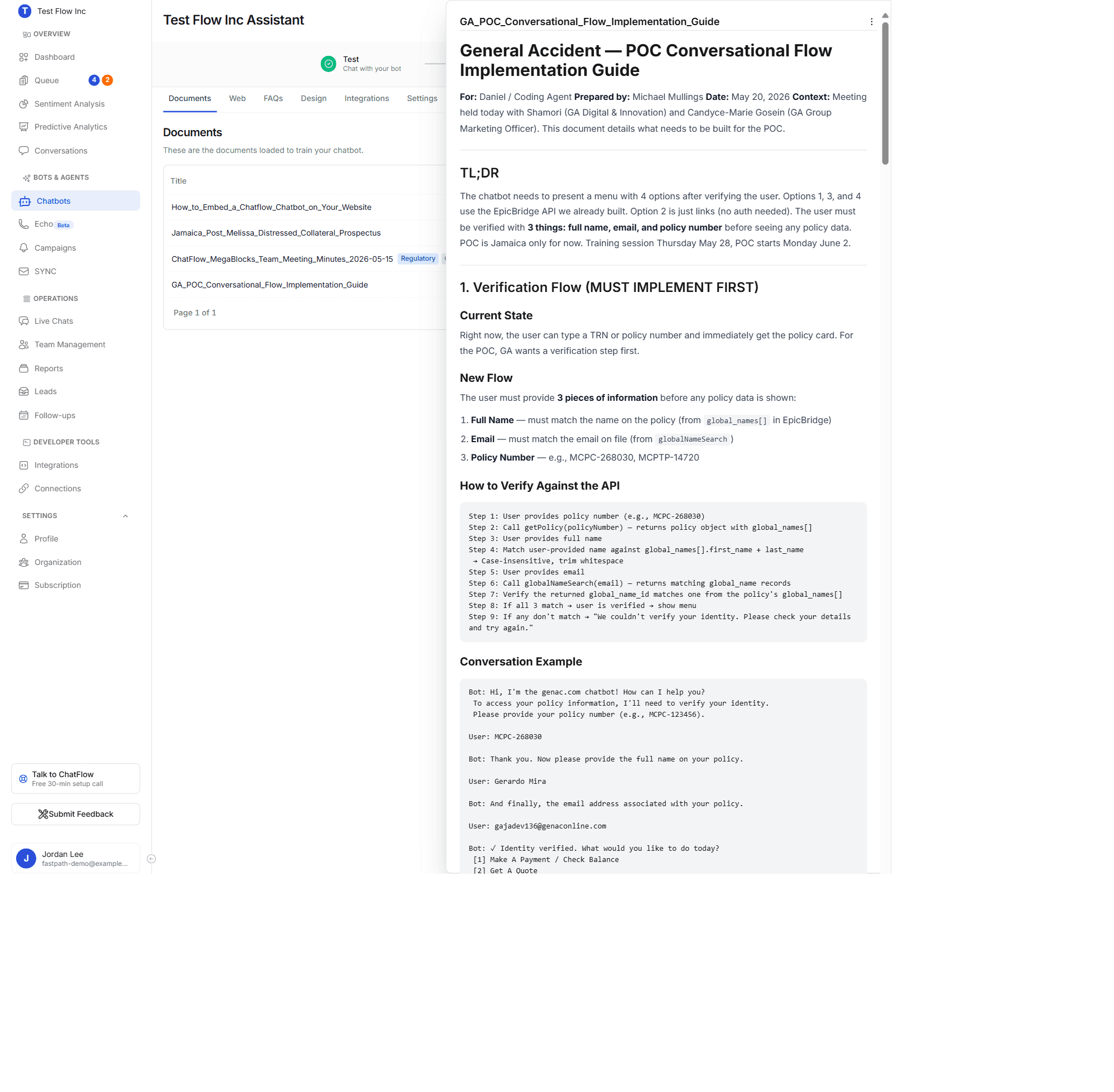
If the preview looks empty or garbled
Scanned PDFs are put through OCR automatically, so an empty preview usually means the scan itself was too poor to read (skewed pages, very low resolution, or handwriting), or the PDF is a non-standard export. Re-scan it straighter and at a higher resolution, replace it with a text-based export, or add the key points as FAQs.
Manage documents
- Delete one: open a document's row menu and select Delete, then confirm. Removing a document also removes its content from what the chatbot can answer.
- Delete all: select Delete all (top right). To prevent accidents, you must type DELETE ALL to confirm. This removes every document and its embeddings for the chatbot and cannot be undone.
Limits by plan
How much you can store grows with your plan. Documents also count toward a combined knowledge total (documents, FAQs, web links).
| Limit | Solo | Essential | Growth | Enterprise |
|---|---|---|---|---|
| Documents | 4 | 17 | 150 | Unlimited |
| Total knowledge items | 7 | 25 | 500 | Unlimited |
| Max file size | 25 MB | 250 MB | 250 MB | 250 MB |
When you reach a limit, the upload is blocked with a prompt to upgrade (see Manage Your Subscription). During the free trial you get Enterprise-level capacity.
Verify it's working
- Open a document and confirm the preview shows its extracted text.
- Open the Playground and ask a question whose answer is in the document, using wording from it.
- Confirm the chatbot answers from the uploaded content.
Troubleshooting
The upload failed
Check the file is a supported type (PDF, DOCX, TXT, MD, or CSV). If it still fails, try a smaller or re-exported version, or split a very large file into focused parts.
The chatbot is not using the document
Make sure the document finished processing and appears in the list, then ask using terms that appear in it. If the preview was empty, the file was probably scanned images; replace it with a text-based version or add the key points as FAQs.
A document I expected to be flagged as regulatory was not (or vice versa)
Detection is based on the document's structure and language. Formal documents with numbered sections and legal phrasing are flagged; narrative content is not. The chatbot still uses both either way; the badge only changes how the content is chunked and cited.