
How to Set Up Appointment Booking
Let your chatbot share your booking link so customers can schedule meetings, demos, or calls right from the chat.
Before you begin
If you take meetings, demos, or calls, your chatbot can hand customers straight to your booking page. You add a booking link you already use, and the chatbot shares it when someone wants to schedule time.
Open Appointments settings
- Go to Chatbots in the sidebar and open your chatbot.
- Click the Settings tab, then select Appointments.
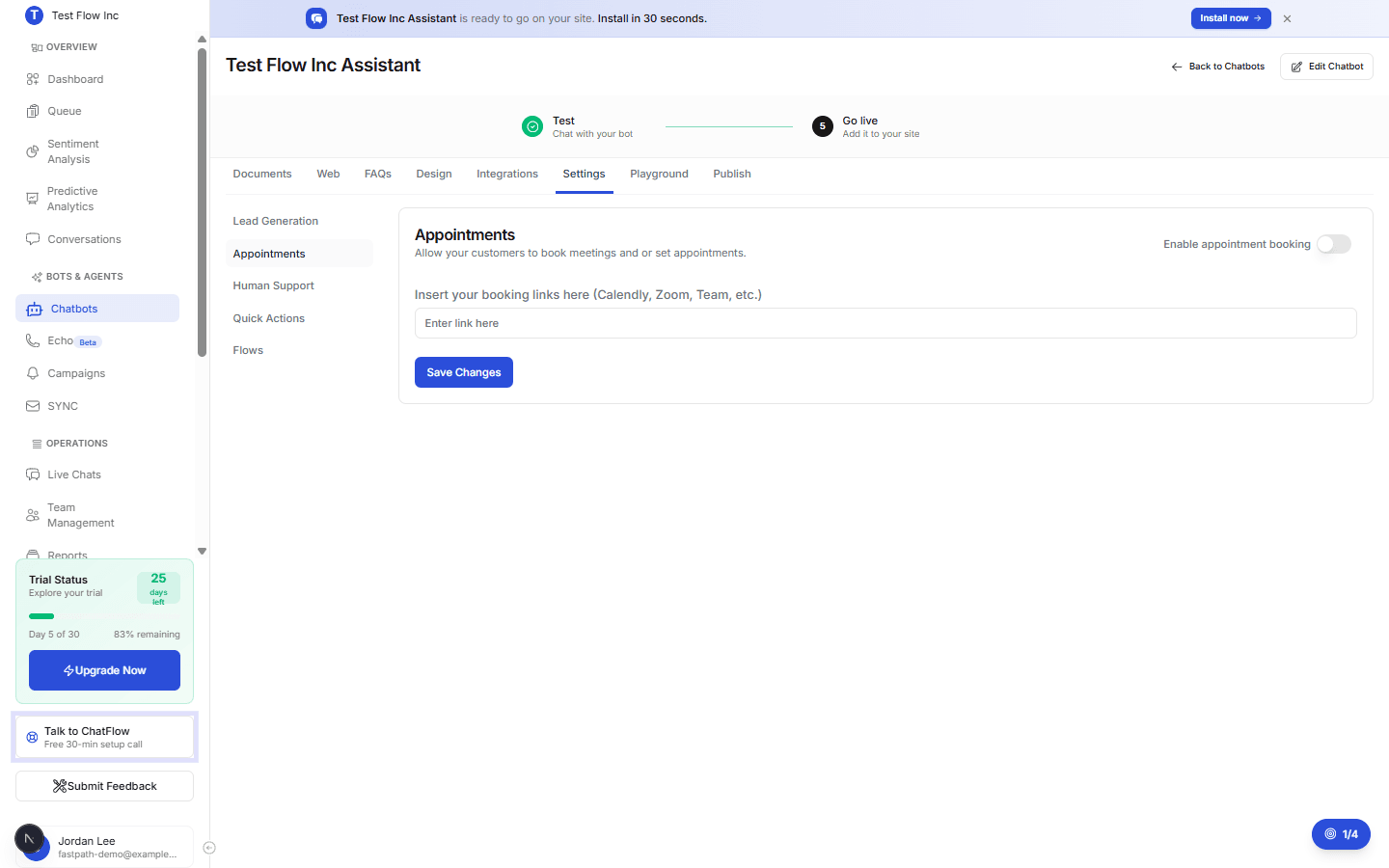
Turn it on and add your link
Enable appointment booking
Switch Enable appointment booking on.
Add your booking link
Paste your booking link into the field. Any service that gives you a shareable booking URL works, for example Calendly, Cal.com, Zoom, Microsoft Bookings, Acuity, or a HubSpot meeting link.
Save
Select Save Changes.
Keep your availability in your booking tool
ChatFlow shares the link you provide, your real-time availability, time zones, reminders, and confirmations are handled by your booking service. Keep that calendar up to date so customers only see times you can actually take.
How it works
Once it is on, when a customer asks to book a meeting or schedule a call, the chatbot offers your booking link so they can pick a time. The booking itself happens in your scheduling tool, which sends the confirmations and reminders.
Verify it's working
- Open the Playground tab.
- Ask to book, for example
Can I schedule a demo?. - Confirm the chatbot offers your booking link, and that the link opens your scheduling page.
Troubleshooting
The chatbot is not offering the booking link
Confirm Enable appointment booking is on, that you pasted a valid link, and that you selected Save Changes. Then ask clearly to book a time when testing.
The link does not open my scheduling page
Open the link in your browser to make sure it is the correct, public booking URL. Copy it again directly from your scheduling tool and re-save.