
How to Add Team Members
Invite people to your ChatFlow organization, assign their role, and manage members and pending invites.
Add people to your organization so they can help manage chatbots, handle live chats, and review analytics. Each person gets a role that controls what they can see and do.
Who can invite
Only Owners and Admins can invite members and change roles. Any plan can have a team, though the number of members allowed depends on your plan.
Open Members
- Go to Settings in the sidebar, then the Organization tab.
- Select Members.
The Members page lists everyone in your organization with their role, and shows any pending invites.
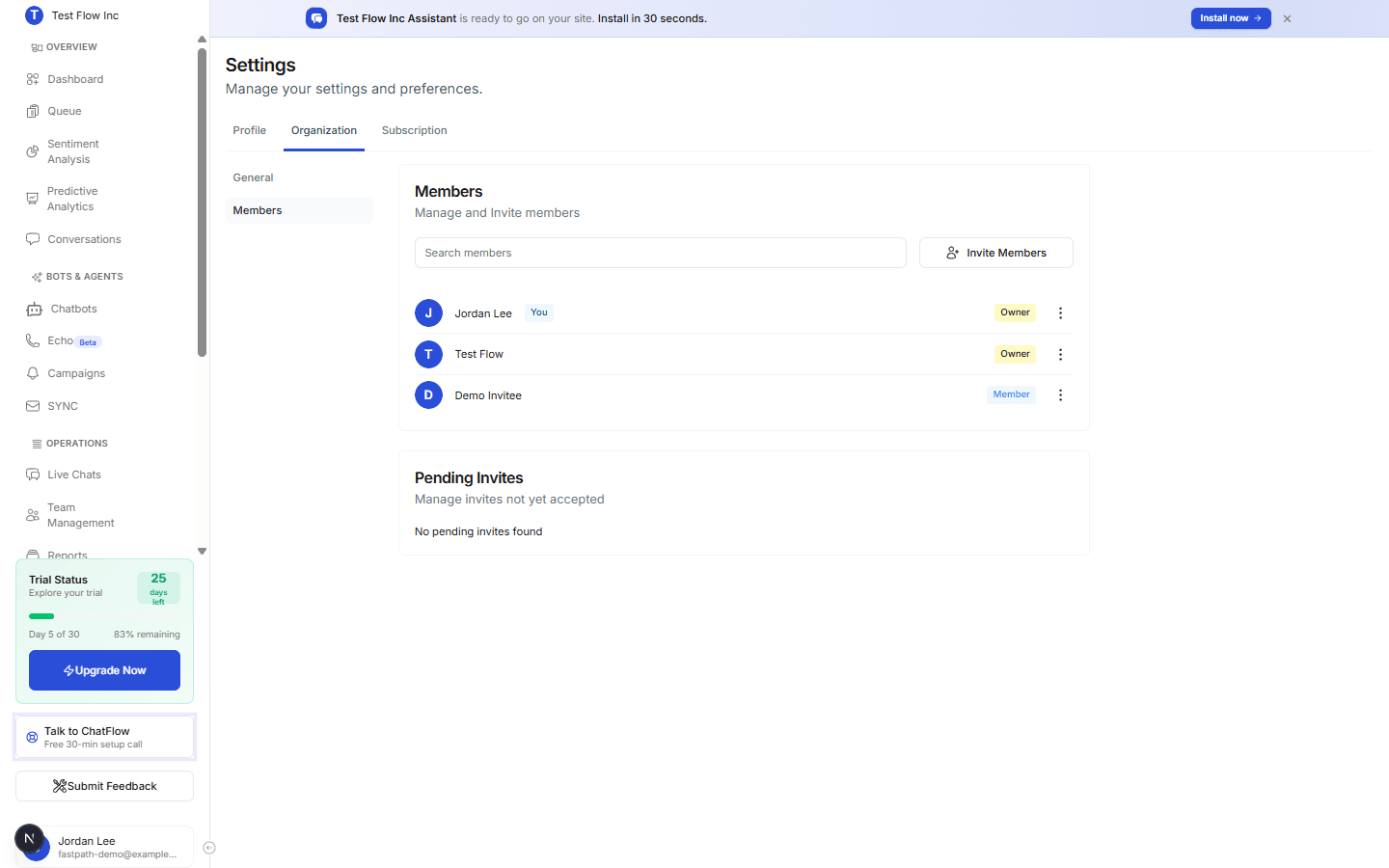
Invite a member
Open the invite form
Select Invite Members.
Enter the email and role
Enter the person's email and pick a role from the dropdown. To invite several people at once, select Add another one and add more rows.
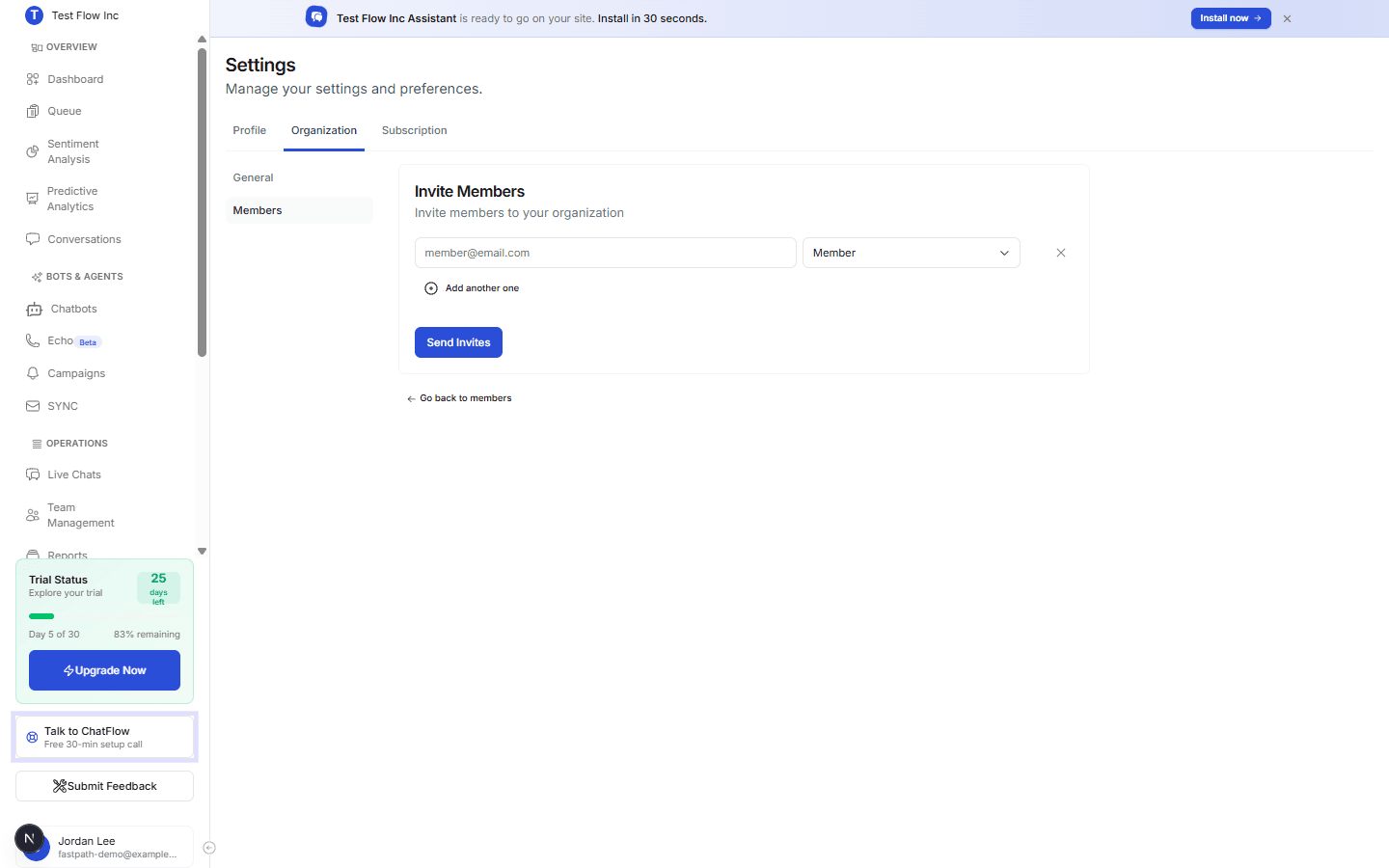
Send the invites
Select Send Invites. Each person receives an email with a link to join. They appear under Pending Invites until they accept, then move into the members list.
Roles
| Role | What they can do |
|---|---|
| Owner | Full access to all settings and data, including billing. |
| Admin | Manage settings and users. |
| Supervisor | Oversee operations and performance. |
| Account Manager | Manage customer accounts and settings. |
| Member | Standard user access. |
| Support Agent | Handle customer support. |
| Agent | Handle assigned tasks and communication. |
| Readonly | View data but cannot make changes. |
Give the least access needed
Start people with the lowest role that lets them do their job, and raise it later if needed. You can change a member's role any time from the actions menu next to their name.
Manage members
On the Members page, use the actions menu next to a member to change their role or remove them. Removed members lose access immediately. For agents who handle live chat, set their chat capacity, working hours, and assigned chatbots in Team Management.
Verify it's working
- After sending, confirm the person appears under Pending Invites.
- Once they accept, confirm they move into the members list with the role you chose.
- Ask them to sign in and confirm they can see what their role allows.
Troubleshooting
The invite did not arrive
Ask the person to check spam, and confirm the email address is correct. If needed, remove the pending invite and send a new one.
I cannot invite or change roles
Only Owners and Admins can manage members. Check your own role on the Members page, or ask an Owner.