
How the Callback Queue Works
Understand what customers see when no agent is free, how the queue is ordered, and how chats are handed to an agent the moment one becomes available.
Before you begin
When a customer asks for a human and an agent is free, they connect right away. When everyone is busy, the callback queue takes over so no request is lost: the customer can wait, or leave their details for a callback, and ChatFlow connects them as soon as an agent is Available.
Plan availability
The queue and callbacks are available on the Enterprise plan, and during the free trial. You also need human support enabled so conversations can reach an agent.
What the customer sees when no agent is free
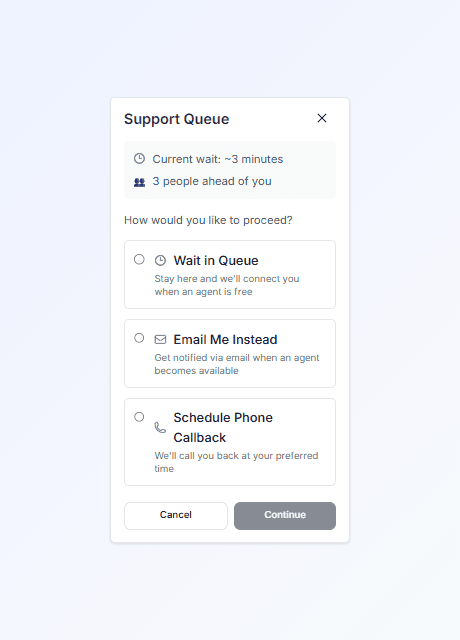
If the customer requests a human while every agent is busy, the widget shows the Support Queue with the current wait estimate and how many people are ahead, then offers three choices.
| Option | What happens |
|---|---|
| Wait in Queue | The customer stays in the chat and connects when an agent is free. |
| Email Me Instead | The customer leaves their name and email and is notified when an agent becomes available. |
| Schedule Phone Callback | The customer leaves their name and number and picks a preferred date and time for a call back. |
While a customer is waiting or has requested a callback, the AI is paused for that conversation so a person handles it from there.
How the queue is ordered
ChatFlow serves the queue in the order requests arrive (first come, first served), with one rule on top: callback requests are given priority over plain waiters. That way customers who left their details are looked after first, and no one keeps an open chat window longer than they need to.
What happens when an agent becomes available
The moment an agent sets themselves Available (or finishes a chat and drops back under their limit), ChatFlow takes the next request from the queue and assigns it to them automatically. The match respects each agent's availability, chat limit, and which chatbots they are assigned to. The customer sees a short "connected to an agent" message, and the conversation appears in the agent's Live Chats.
If no agent is available, the request simply stays in the queue and waits. Requests that sit unanswered for a long time are cleared automatically so the queue stays accurate.
Where you manage callbacks
Agents and supervisors track and assign waiting customers and callbacks from the Queue page.
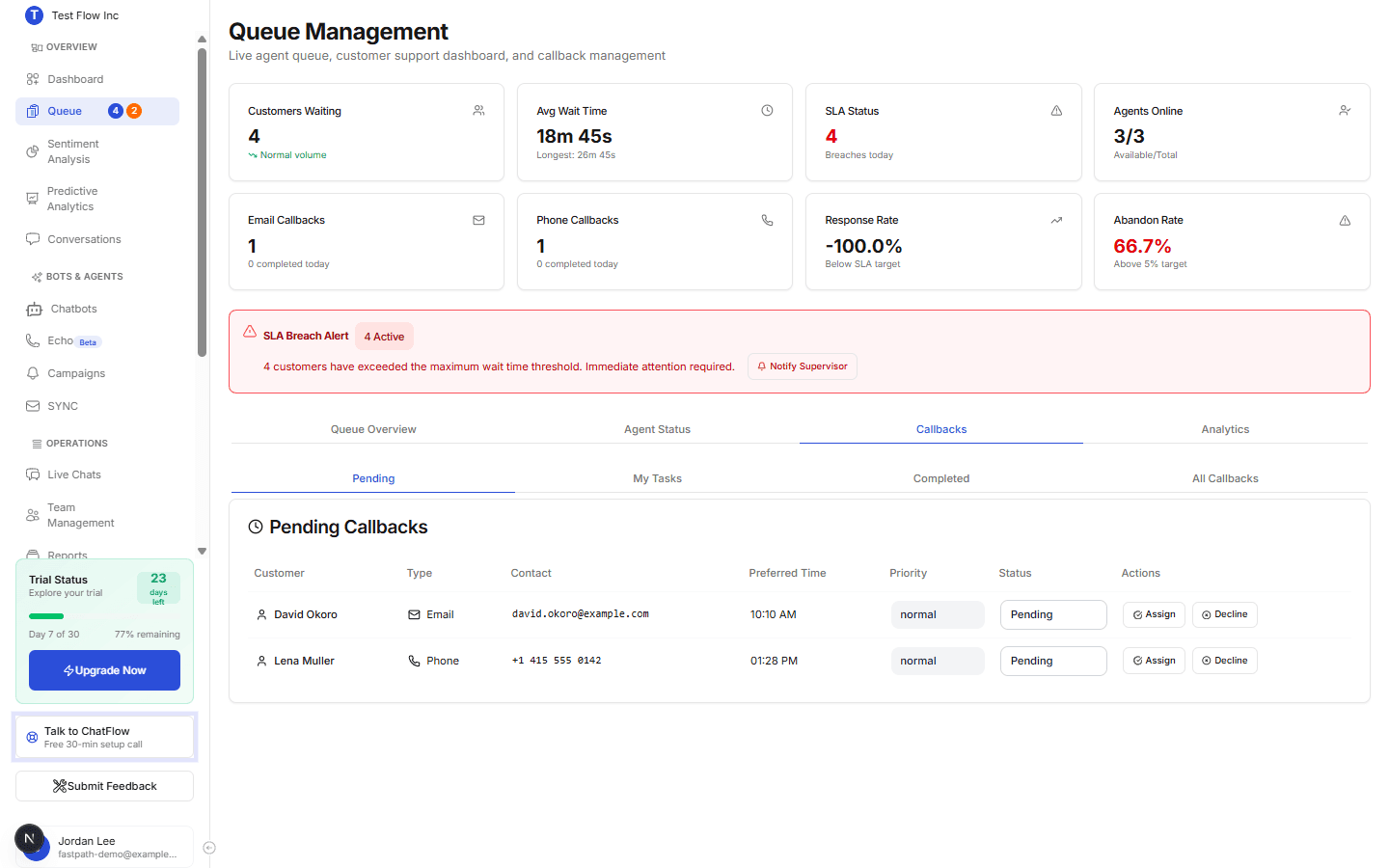
- The Queue Overview tab shows customers currently waiting.
- The Callbacks tab lists pending callback requests with the customer's name, contact method, and preferred time, and lets you assign each to an agent and mark it complete.
For the full walkthrough of these tabs, see Manage the Support Queue.
Verify it's working
- Make sure every agent is set to something other than Available so there is no one free.
- From the Playground or your live widget, request a human and confirm the Support Queue prompt appears with its three options.
- Choose a callback option and submit, then open the Callbacks tab on the Queue page and confirm the request is listed.
- Set an agent to Available and confirm the waiting conversation is assigned to them.
Troubleshooting
Customers never see the queue options
The options only appear when a human is requested and no agent is available. Confirm human support is enabled, and test with all agents set to a non-available status.
A callback was submitted but no agent picked it up
Callbacks wait until an agent is free. Check the Agent Status tab on the Queue, set someone Available, or assign the callback manually from the Callbacks tab.