
How to Assign a Chat to Yourself or Another Agent
Take a conversation off the AI and onto a person, yourself or a specific teammate, from the conversation view, then hand it back when you're done.
Before you begin
When a customer needs a person, you can take the conversation yourself or pass it to the right teammate without leaving the chat. Assigning a chat takes it off the AI: the chatbot stops replying automatically, and the assigned person handles it in Live Chats until someone hands it back. Both actions live behind one control in the conversation header.
Who can assign, and plan
Assigning is part of human takeover, on the Enterprise plan and during the free trial, with human support enabled and the chat still active. Both Assign to me and Assign to another agent are for Account Managers and above. Regular Agents and Support Agents do not assign from this menu, they receive chats that route to them automatically (see Use Live Chats).
Open the assign menu
Open a conversation from Conversations or Live Chats. In the chat header, select the assign icon (the queue/list icon) to open the menu.
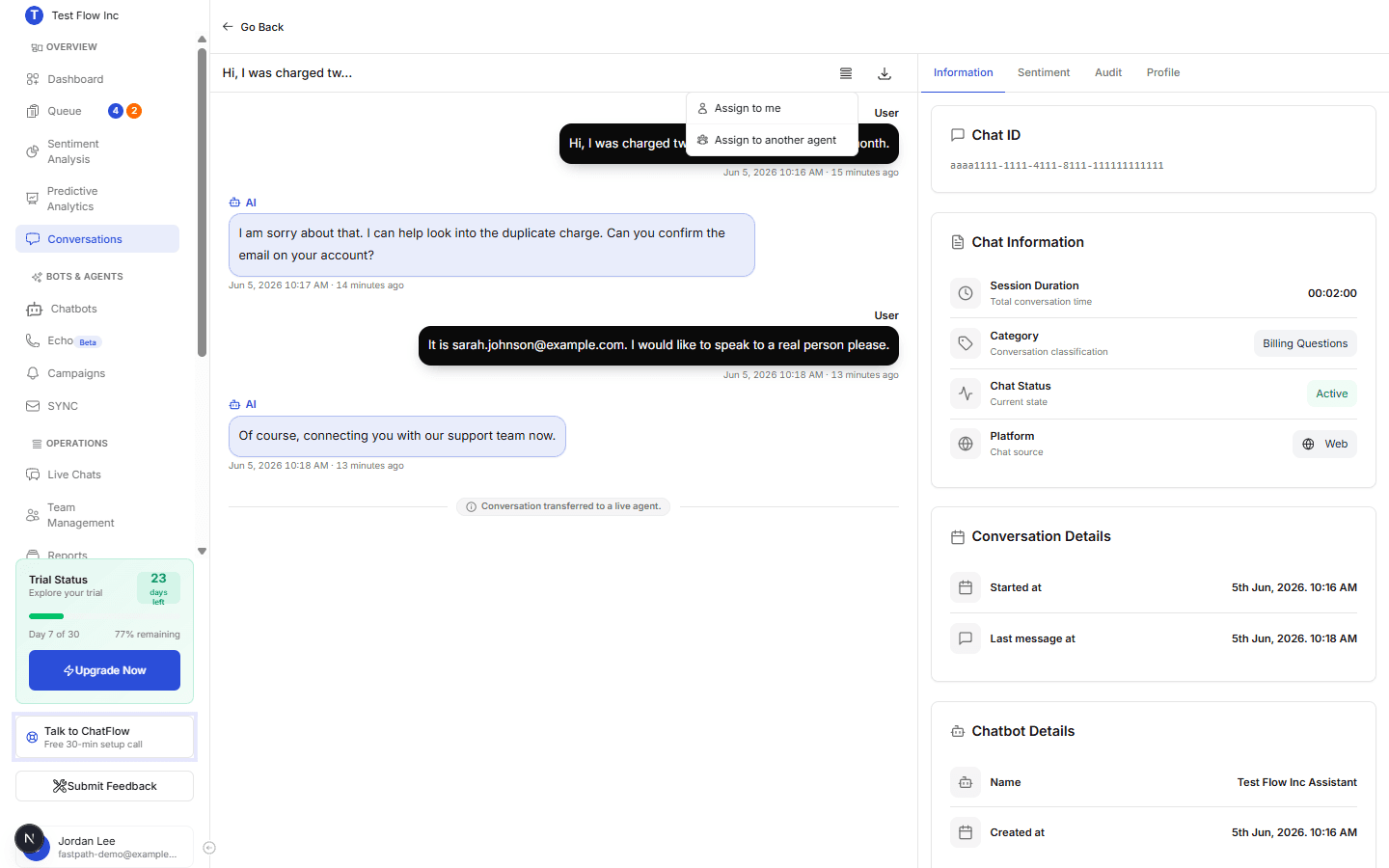
The menu has two choices:
- Assign to me, take the conversation yourself.
- Assign to another agent, hand it to a specific teammate.
Assign a chat to yourself
Choose Assign to me
Select Assign to me. ChatFlow takes the chat off the AI, assigns it to you, and opens it in Live Chats so you can reply.
Pick up where the AI left off
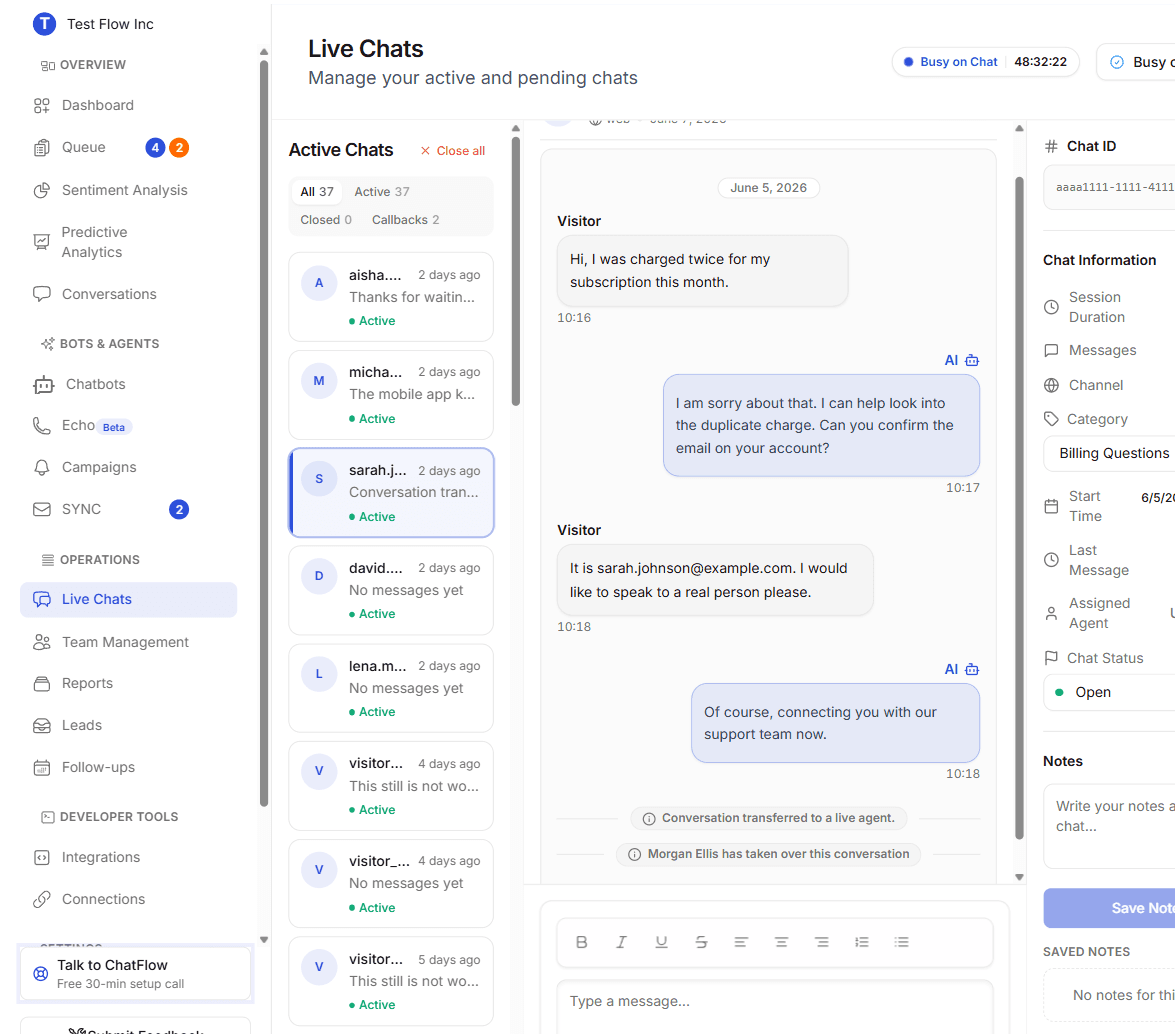
A system note, "[Your name] has taken over this conversation", is added to the thread so everyone can see the handoff. Read the earlier exchange, then reply in the composer.
You land in Live Chats with the conversation open, and the system note "[Your name] has taken over this conversation" appears in the thread to mark the handoff. The screen shows the Active Chats list on the left, the customer and AI messages with the composer in the middle, and the Chat Information panel (channel, assigned agent, chat status) on the right.
Requirements
To take a chat yourself you must be an Account Manager or above, set to Available, and under your chat limit. Set your status from Live Chats; your limit is in Manage Agent Settings. Supervisors can take a chat even when at capacity.
Assign a chat to another agent
Choose Assign to another agent
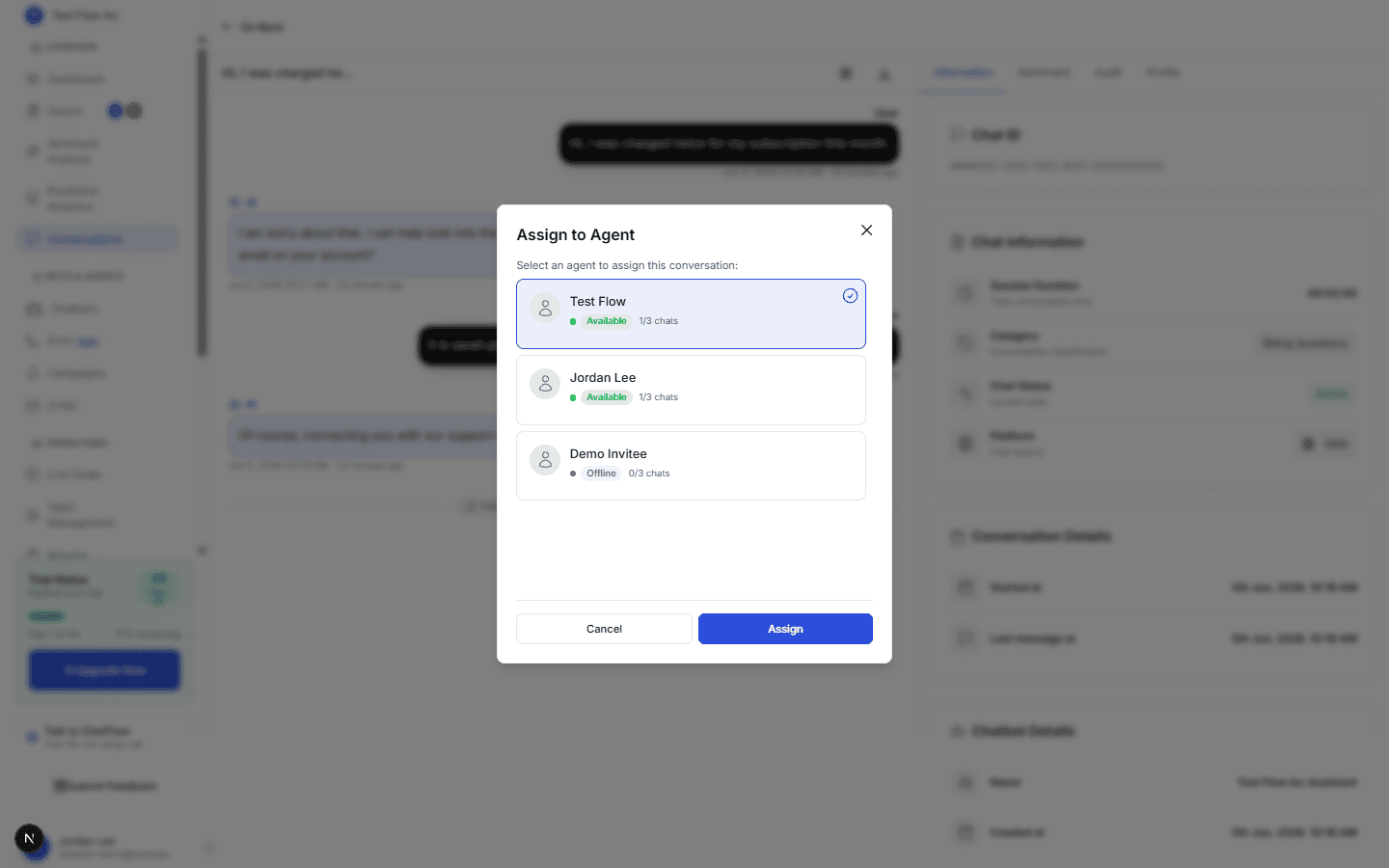
Select Assign to another agent. ChatFlow loads your team and opens the Assign to Agent window.
Pick a teammate
Each agent card shows their name, status (Available, Busy, or Offline), and current workload, for example 1/3 chats. The agent already on the conversation is tagged Current. Agents who are offline or at capacity show a short note and cannot be selected. Select an available agent.
Assign
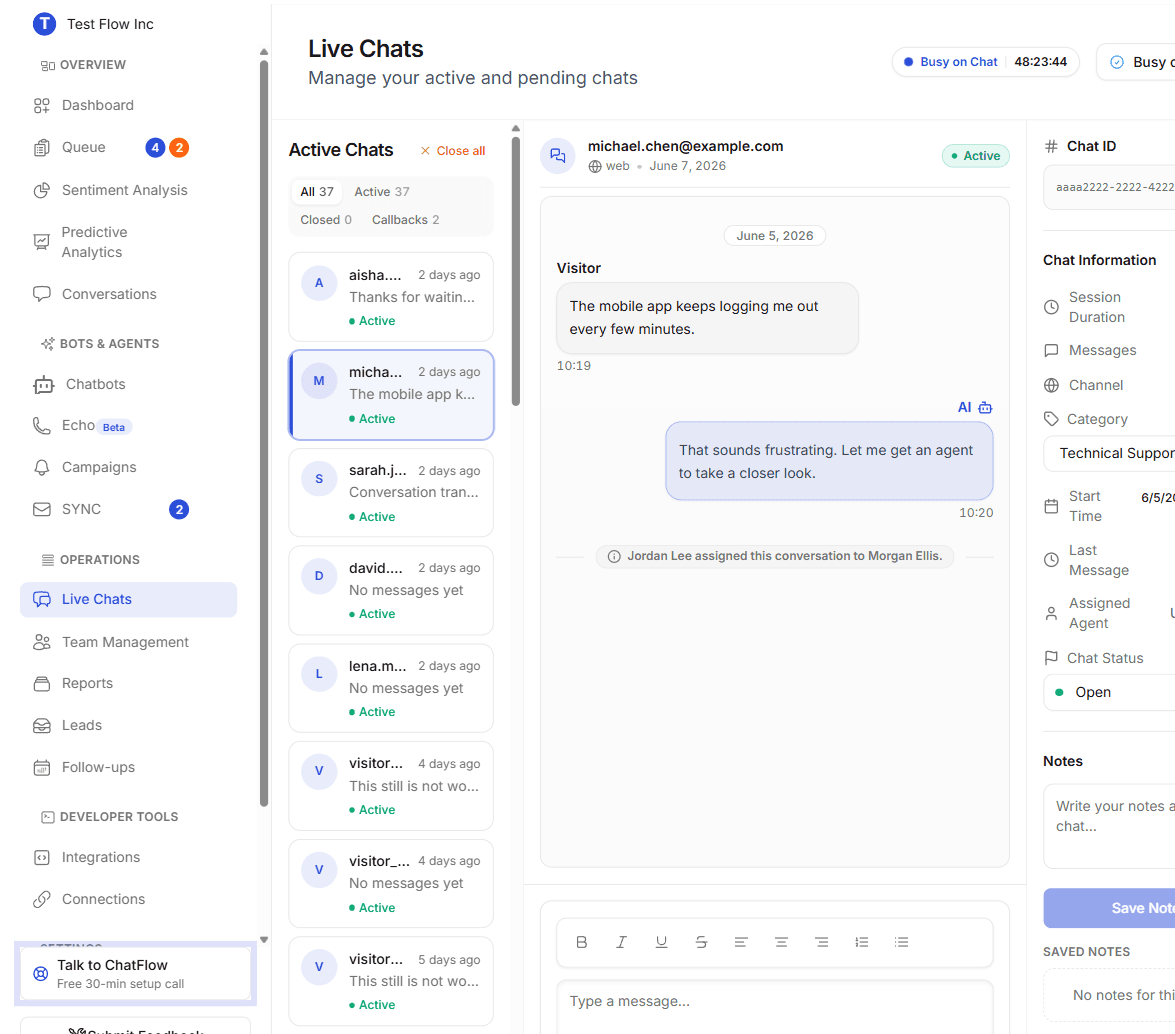
Select Assign. The window closes, you stay on the conversation, and a system note, "[Your name] assigned this conversation to [agent's name]", is added to the thread, so everyone can see who handed it over and to whom.
The thread then carries a system note naming who handed it over and to whom, for example "Jordan Lee assigned this conversation to Morgan Ellis":
Supervisor capacity override and reassign
If you are a Supervisor (or above) and pick an agent who is at capacity, ChatFlow asks you to confirm before force assigning, and you can reassign a chat that is already with someone else. Account Managers can only assign to teammates who are available and under their limit, and cannot take over a chat that already has an agent.
What the agent you assigned sees
When you assign a chat to a teammate, it reaches them right away in the Live Chats view shown above, they do not have to do anything to receive it:
- It appears in their Live Chats Active Chats list.
- The system note ("you assigned this conversation to them") sits in the thread, so they know it was handed over and by whom.
- They see the full earlier exchange with the AI and reply from the composer, exactly like any other live chat.
For the agent's side of the workflow, see Use Live Chats.
Hand the chat back to the AI
When the customer is taken care of, return the conversation to the chatbot so it resumes automatic replies. In Live Chats, open the chat and select Restore to AI in the Chat Information panel on the right (the same panel shown in Use Live Chats). Only the assigned agent or a Supervisor (or above) can restore a chat. If the conversation is finished instead, close it.
Verify it's working
- Open an active conversation and select the assign icon.
- Choose Assign to me and confirm you land in Live Chats with the conversation open, the takeover note in the thread, and the AI no longer replying.
- From another conversation, choose Assign to another agent, pick a teammate, and confirm the system note names them and the chat shows in their Live Chats.
- Select Restore to AI and confirm the chatbot resumes the conversation.
Troubleshooting
I do not see the assign icon
The control is hidden when a chat is closed or no longer active, or when your role cannot assign chats. Confirm the conversation is active and that your role is Account Manager or above. Regular agents receive routed chats rather than assigning them.
"This conversation is already assigned to another agent"
A conversation can be assigned to one agent at a time. Only a Supervisor (or above) can reassign a chat that is already with someone else.
The agent I want is greyed out
They are offline or at their chat limit. Ask them to set themselves Available, raise their limit in Manage Agent Settings, or, as a supervisor, confirm the capacity override.