
How to Test Your Chatbot in the Playground
Chat with your bot in a safe sandbox to check its answers, tone, and edge cases before you publish it to your site.
Before you begin
The Playground is a private sandbox that behaves exactly like the live chat widget, but only you can see it. It is where you confirm your chatbot answers correctly, sounds right for your brand, and handles unexpected questions gracefully, all before a single visitor sees it.
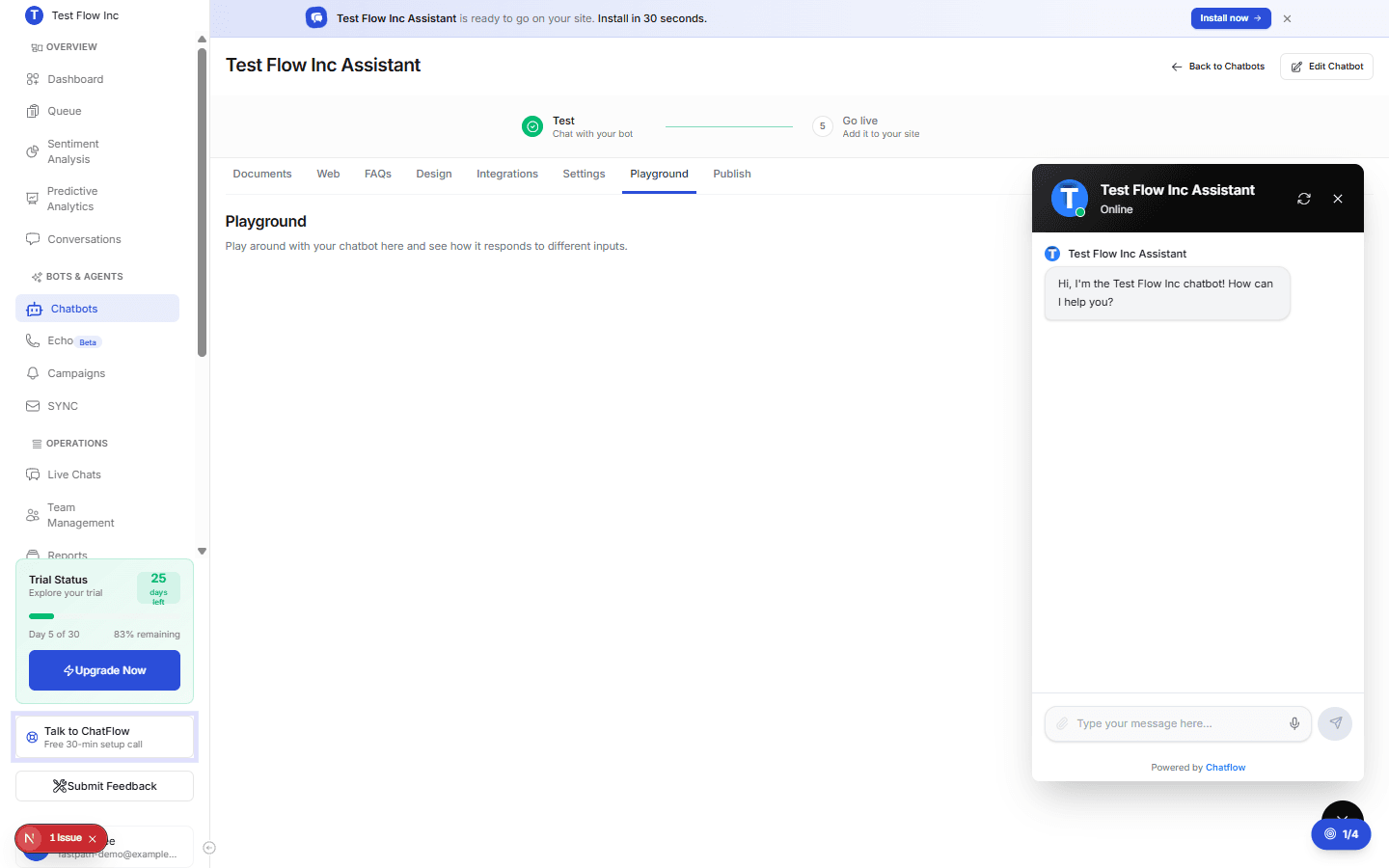
Open the Playground tab
- Go to Chatbots in the sidebar and open your chatbot.
- Click the Playground tab.
The chatbot greets you with your welcome message, and you can start typing in the message box at the bottom.
Run a test
Ask a question
Type a question in the message box and press Enter or select the send button. Phrase it the way a real customer would, not the way you wrote your FAQ.
Check the answer
Confirm the reply is accurate, relevant, on-brand in tone, and complete. If the chatbot pulled from an FAQ or document, the answer should reflect your content.
Try variations and edge cases
Reword the same question a few ways and try the situations below to see how the chatbot copes.
| Try this | What good looks like |
|---|---|
A greeting (Hi, Hello) | A friendly greeting back |
| The same question in different words | The same correct answer each time |
| A question with a typo | It still understands and answers |
| Something off-topic | A polite "I can't help with that" rather than a made-up answer |
Talk to a human | A handoff, if you have human support enabled |
Improve based on what you see
If an answer is not right, fix the source and test again:
- Wrong or missing answer: add or edit an FAQ, or upload a document that covers it.
- Generic answer: add more specific FAQs or documents so the chatbot has detail to draw on.
- Off-brand tone: adjust your FAQ answers and welcome message in Design.
Test the way customers ask
Real visitors are vague, brief, and make typos. Testing with messy, real-world phrasing surfaces gaps far better than asking your questions perfectly.
Verify it's working
Your chatbot is ready to publish when your common questions get accurate answers across different phrasings, off-topic and unknown questions are handled gracefully, and the tone matches your brand throughout.
Troubleshooting
The chatbot is not responding
Confirm the chatbot has training content (at least one FAQ, document, or a crawled site). A bot with nothing to answer from cannot give useful replies. Refresh the page if a single message seems stuck.
It cannot answer a question it should know
The relevant content may be missing or hard to match. Add an FAQ phrased the way customers ask, or upload a document that covers the topic, then retest. See Add FAQs.
Answers are slow
The chatbot takes a few seconds to generate each reply, and longer, multi-part questions take a little more. This is normal.