
How to Connect External Services
Sync files from Google Drive or Microsoft OneDrive and SharePoint straight into your chatbot's knowledge base.
Before you begin
Connectors pull files straight from your cloud storage into the chatbot's knowledge base and keep them in sync, so you do not have to re-upload documents every time they change.
Plan availability
Connectors are available on the Enterprise plan, and during the free trial.
Available connectors
| Source | What it syncs |
|---|---|
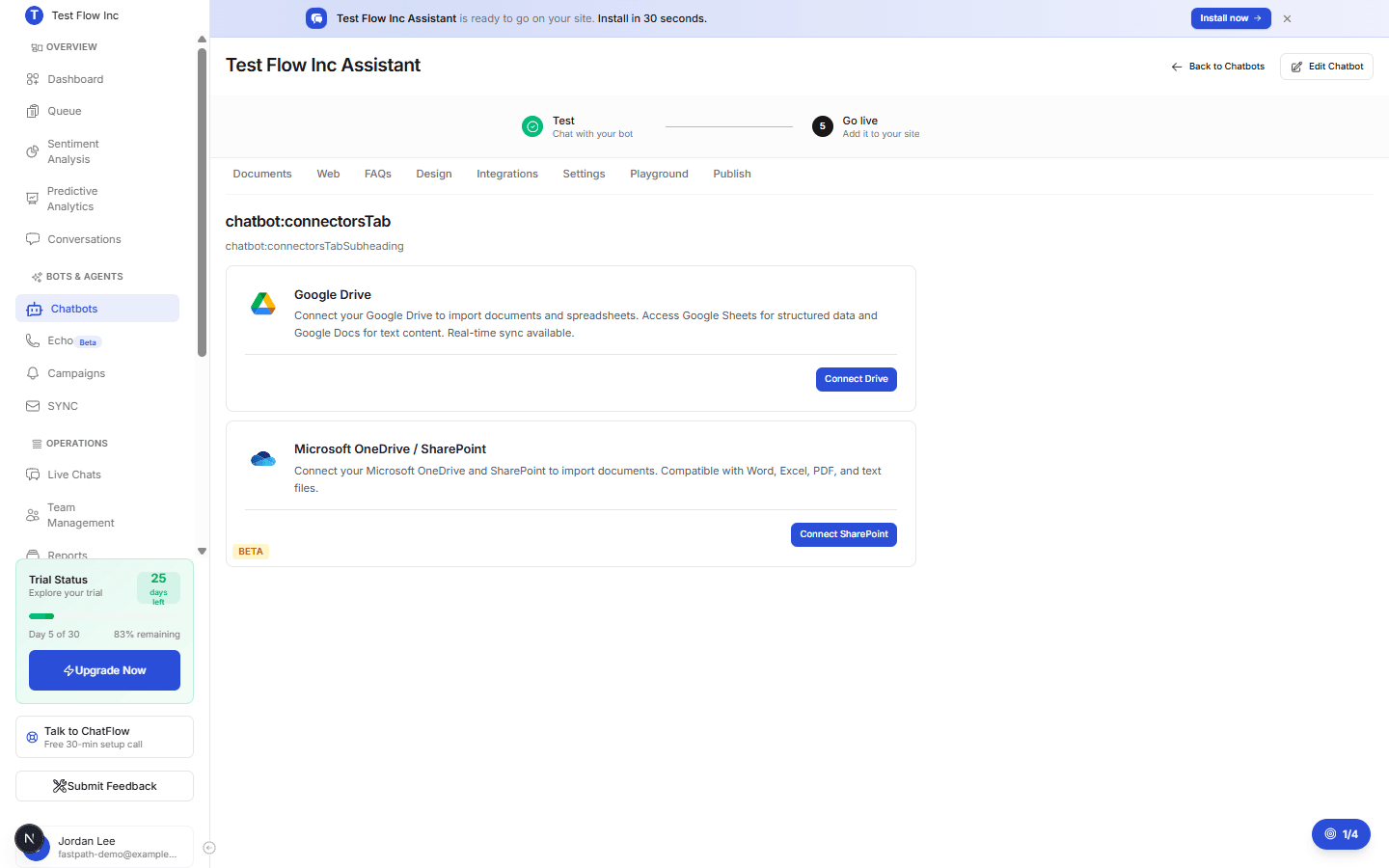
| Google Drive | Documents and spreadsheets, Google Docs for text and Google Sheets for structured data. Real-time sync is available. |
| Microsoft OneDrive / SharePoint (beta) | Word, Excel, PDF, and text files from OneDrive and SharePoint. |
Open Connectors
Open your chatbot and go to its Connectors section.
Connect a source
Start the connection
Select Connect Drive for Google Drive, or Connect SharePoint for Microsoft OneDrive / SharePoint.
Authorize ChatFlow
Sign in and authorize ChatFlow in the popup, using the Google or Microsoft account that holds the files.
Choose what to sync
Select the folders or files you want the chatbot to use. ChatFlow imports them and keeps them in sync as they change.
Connectors vs uploads
Use a connector when your content lives in Drive or SharePoint and changes over time, ChatFlow keeps it current automatically. For one-off files, uploading a document is simpler.
Verify it's working
- Confirm the connector shows as connected.
- Open the Documents tab and confirm the synced files appear in the knowledge base.
- Ask the chatbot a question that one of those files answers.
Troubleshooting
The connector shows a lock or an upgrade prompt
Connectors require the Enterprise plan (or trial). Confirm your plan, or ask an Owner to enable it.
Files are not appearing
Reopen the connector and confirm the right folders are selected. Large libraries can take a few minutes to finish their first sync, then check the Documents tab again.