
How to Manage Document Versions
Upload a new edition of a document, retire the old one so it can never answer again, and bring it back if you need to.
Before you begin
When a policy, price list or specification is replaced, the old edition has to stop answering. Deleting it loses your history, and leaving it in place means the assistant can quote a rule that no longer applies.
Versions solve that: the new edition becomes Current, the old one becomes Retired, and the retired edition is removed from the answering index, so it cannot supply an answer again.
Plan availability
Document versions are part of Answer Quality, available on the Growth and Enterprise plans, and during the free trial.
Upload a new version
Open the document's menu
Go to Chatbots, open your chatbot, and click the Documents tab. Open the menu at the end of the row for the document being replaced.
Choose Upload new version
Select Upload new version and choose the new file. Give it the title you want readers to see in citations, for example the edition year.
Wait for processing
The file is read, split into sections and indexed. A large manual takes longer than a short policy. When it finishes, the new edition shows Current and the one it replaced shows Retired, with the date and what replaced it.
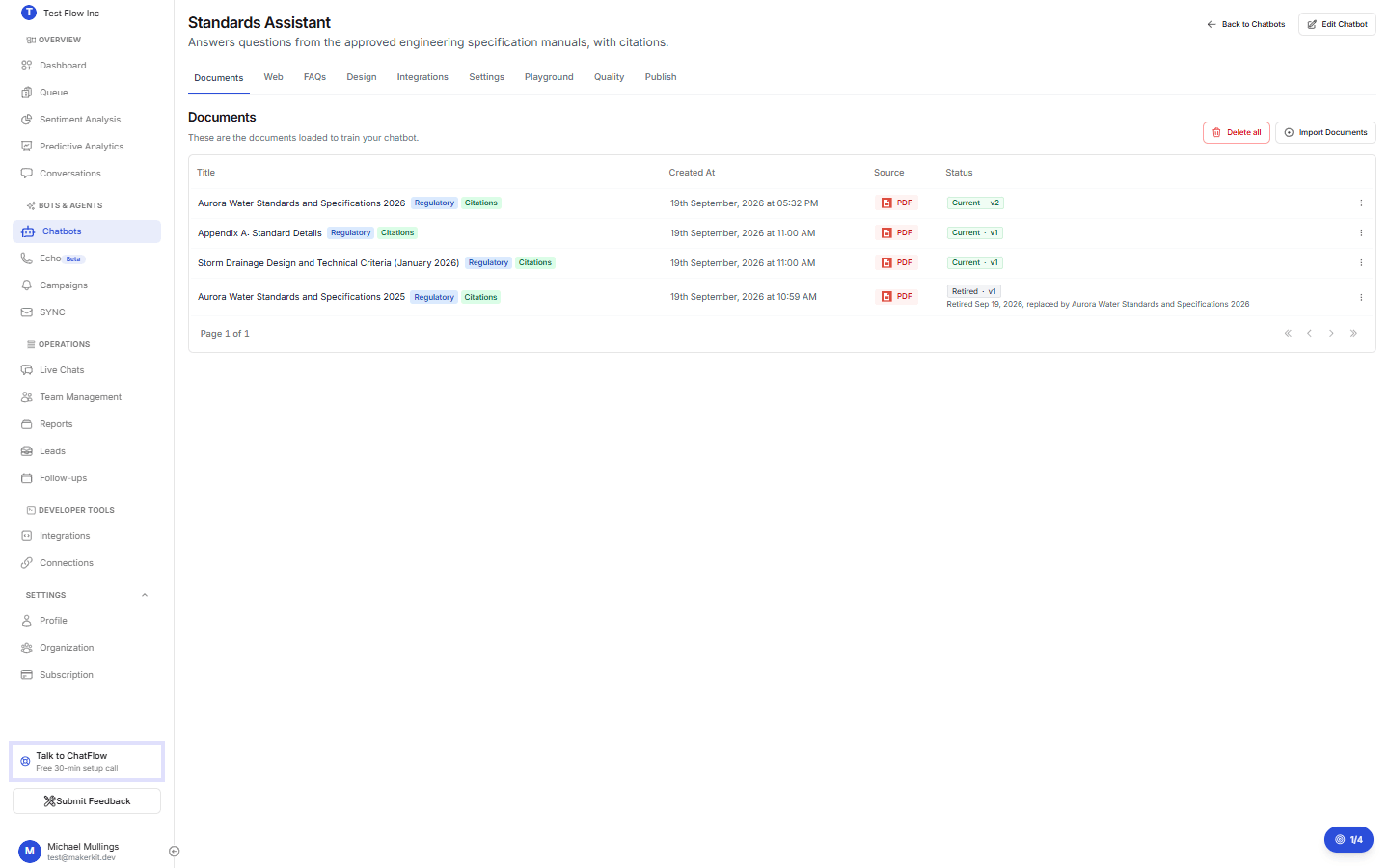
To see retired editions, use the Show retired versions control on the Documents tab. They are kept, listed and auditable, simply not answerable.
Retire or reactivate by hand
You do not need a replacement file to retire something. Open the row menu and select Retire to take a document out of answering, for example a policy that was withdrawn and not replaced.
Reactivate puts a retired document back into answering. It is refused when a newer version of the same document is current, because two editions of the same thing answering at once is exactly the problem versions exist to prevent.
Retiring is not deleting
Retiring removes a document from answering and from citation links. It keeps the file and its history. Deleting removes it entirely, including any stored copy of the original PDF.
Retire the previous version automatically
On the Citations tab, switching on Retire the previous version automatically means that uploading a file with the same title retires the older one for you. Leave it off if you deliberately keep several editions answering at once.
Verify it's working
- Ask your chatbot a question whose answer changed between editions.
- The answer should reflect the new edition, and its citation should name the current document.
- Open the citation: it opens the current edition at the cited page. A retired document cannot be opened at all.
Troubleshooting
The old edition is still being quoted
Check the Documents tab: the old edition must read Retired, not just be older. If it still reads Current, retire it from the row menu. If a new upload landed as a separate document instead of a new version, retire the old one by hand.
Reactivate is refused
A newer version of the same document is current. Retire that one first if you really want the older edition answering.
The new version answers with the old page numbers
Page numbers come from the file that was uploaded. If the new edition has different pagination, confirm you uploaded the right file, and re-upload if the pages in the citation do not match the document you expect.
I cannot see the version actions
They appear on chatbots with Answer Quality switched on, and the feature is Growth and Enterprise. On lower plans the document list still works as before, without versions.