
How to Set Your Agent Status (Availability)
Mark yourself available for chat from Live Chats, understand each status, and control when conversations route to you.
Before you begin
Your agent status tells ChatFlow whether you are ready to take live conversations. New chats only route to agents who are set to Available, so this is the first thing to set at the start of a shift, and to change when you step away.
Where this lives
You set your own status from the Live Chats screen. To set another agent's capacity, working hours, and whether they are accepting chats as an administrator, use Manage Agent Settings.
Open the status control
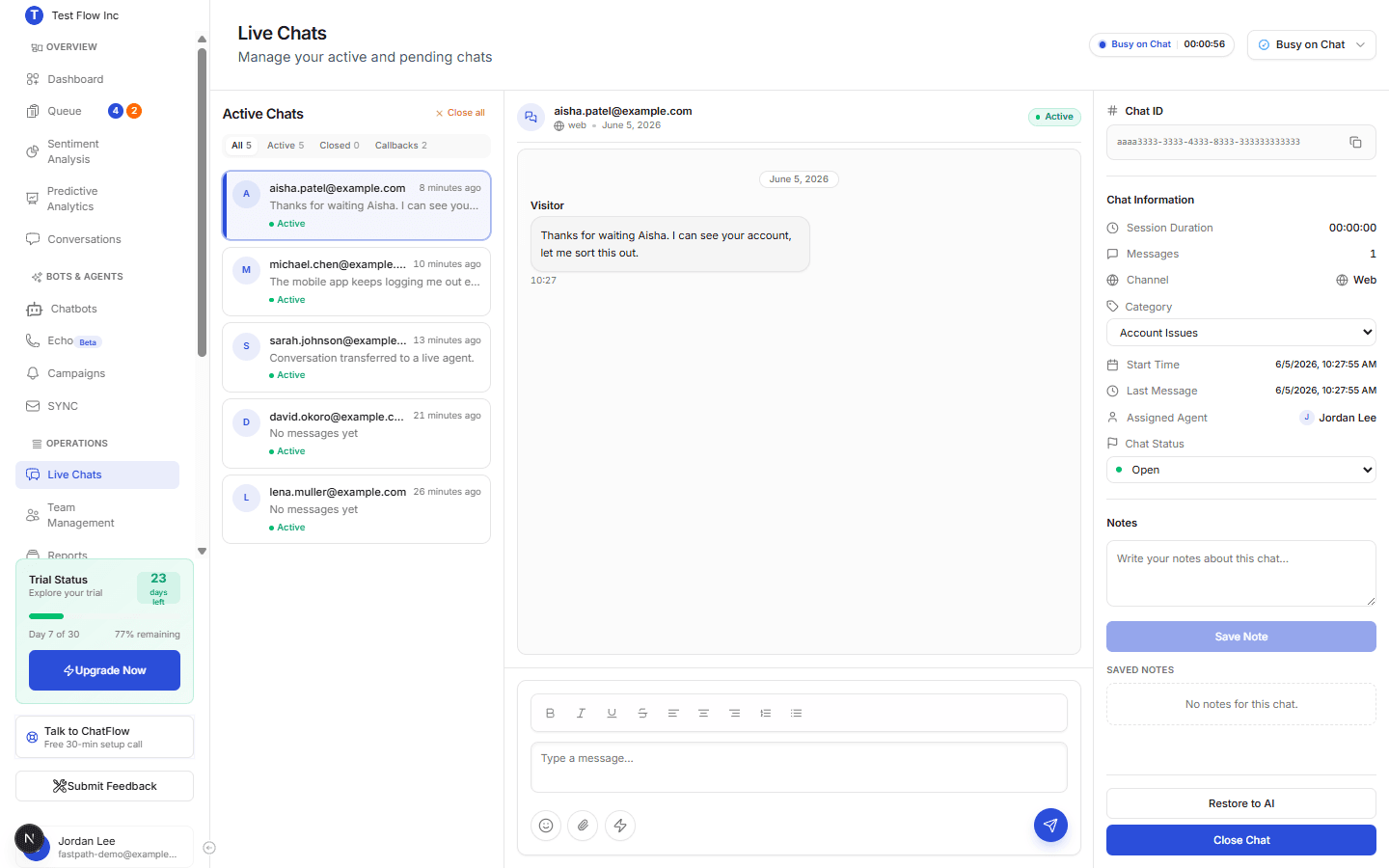
Select Live Chats in the sidebar (under OPERATIONS). Your status control is the button at the top right showing your current status and a small arrow.
Choose your status
Select the status button to open the menu, then pick a status. Your selection saves immediately and stays set even if you refresh the page.
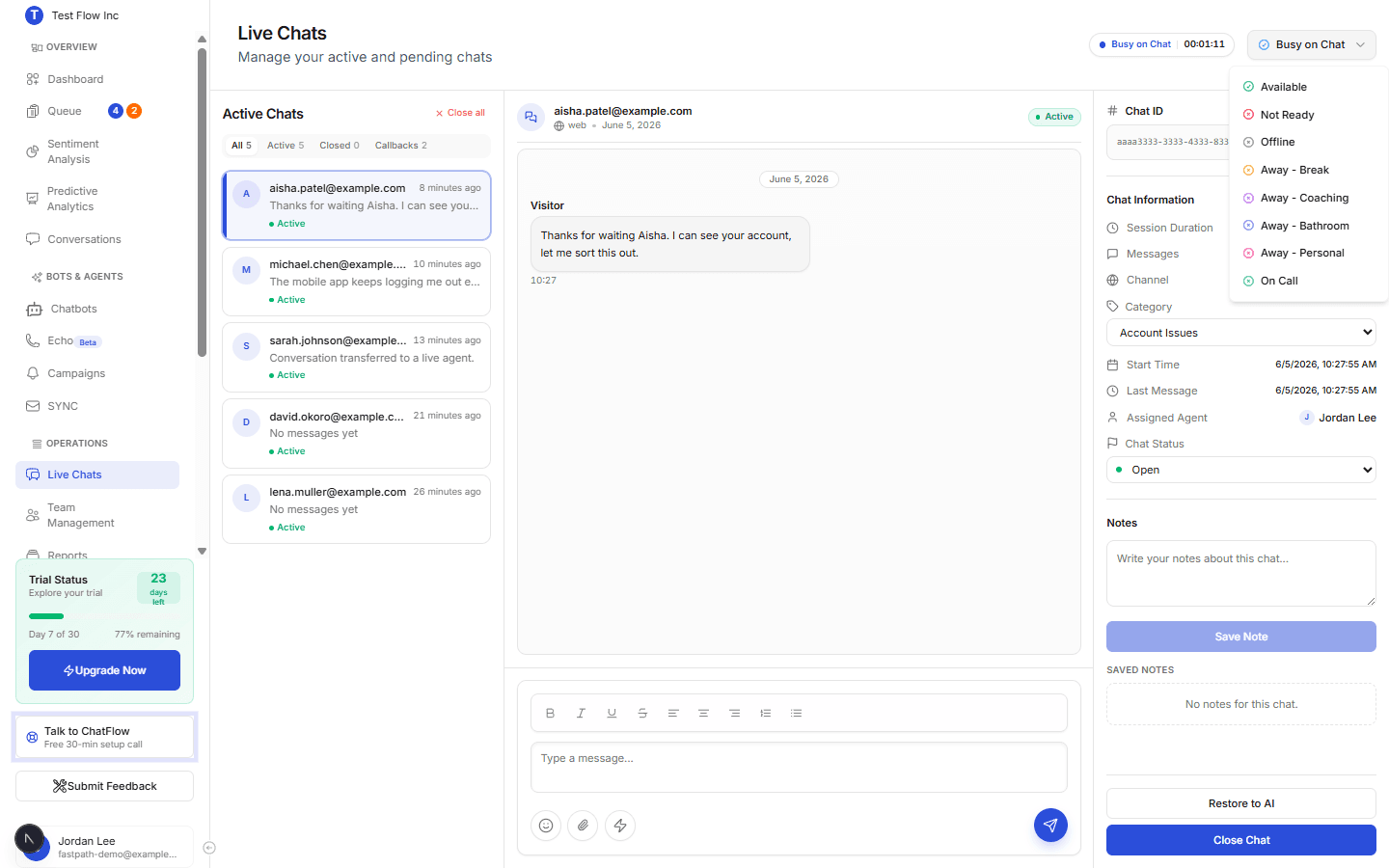
This is every status ChatFlow uses. The ones you choose from the menu are marked You; the two marked Automatic are set for you based on your live workload and do not appear as choices.
| Status | Set by | Can receive chats? |
|---|---|---|
| Available | You | Yes. New and queued conversations route to you, and selecting it pulls in anyone already waiting in the queue. |
| Busy on Chat | Automatic | Yes. You are handling chats but still under your limit, so more can still route to you. |
| At Capacity | Automatic | No. You have hit your chat limit, so no new chats route until one frees up. |
| Not Ready | You | No. You are signed in but not taking new chats. |
| Offline | You | No. The default until you set yourself Available. Also set for you after a period of inactivity. |
| Away - Break / Coaching / Bathroom / Personal | You | No. You are temporarily away. Pick the reason that fits so your team and reports have context. |
| On Call | You | No. You are on a call and not taking new chats. |
Only Available and Busy on Chat receive chats
Of all the statuses, only Available and Busy on Chat keep conversations routing to you. Every other status takes you off the rota until you set yourself Available again.
How your status affects routing
To receive a conversation you need to be Available, within your working hours, under your chat limit, and assigned to the chatbot the request came from. Priority and chat limit are set per agent in Manage Agent Settings. If no agent is Available, the conversation waits in the queue until someone frees up.
If you go idle for a while, ChatFlow sets you to Offline automatically so chats are not routed to a session that is no longer active. Set yourself back to Available when you return.
Verify it's working
- Set yourself to Available and confirm you are assigned to the chatbot you are testing in agent settings.
- From that chatbot, request a human in the Playground or on your site.
- Confirm the chat reaches you in Live Chats.
Troubleshooting
My status keeps switching to Offline
That happens after a period of inactivity, which protects customers from being routed to an agent who has stepped away. Reopen Live Chats and set yourself Available again.
I am Available but not getting chats
Confirm human support is enabled on the chatbot, that you are assigned to it, and that you are not already at your chat limit. See Manage Agent Settings.