
Analytics Tab
Track SLA performance and queue trends, and set your response and resolution targets.
Before you begin
The Analytics tab turns queue activity into performance you can track: whether you are meeting your service targets, and how the queue trends over time.
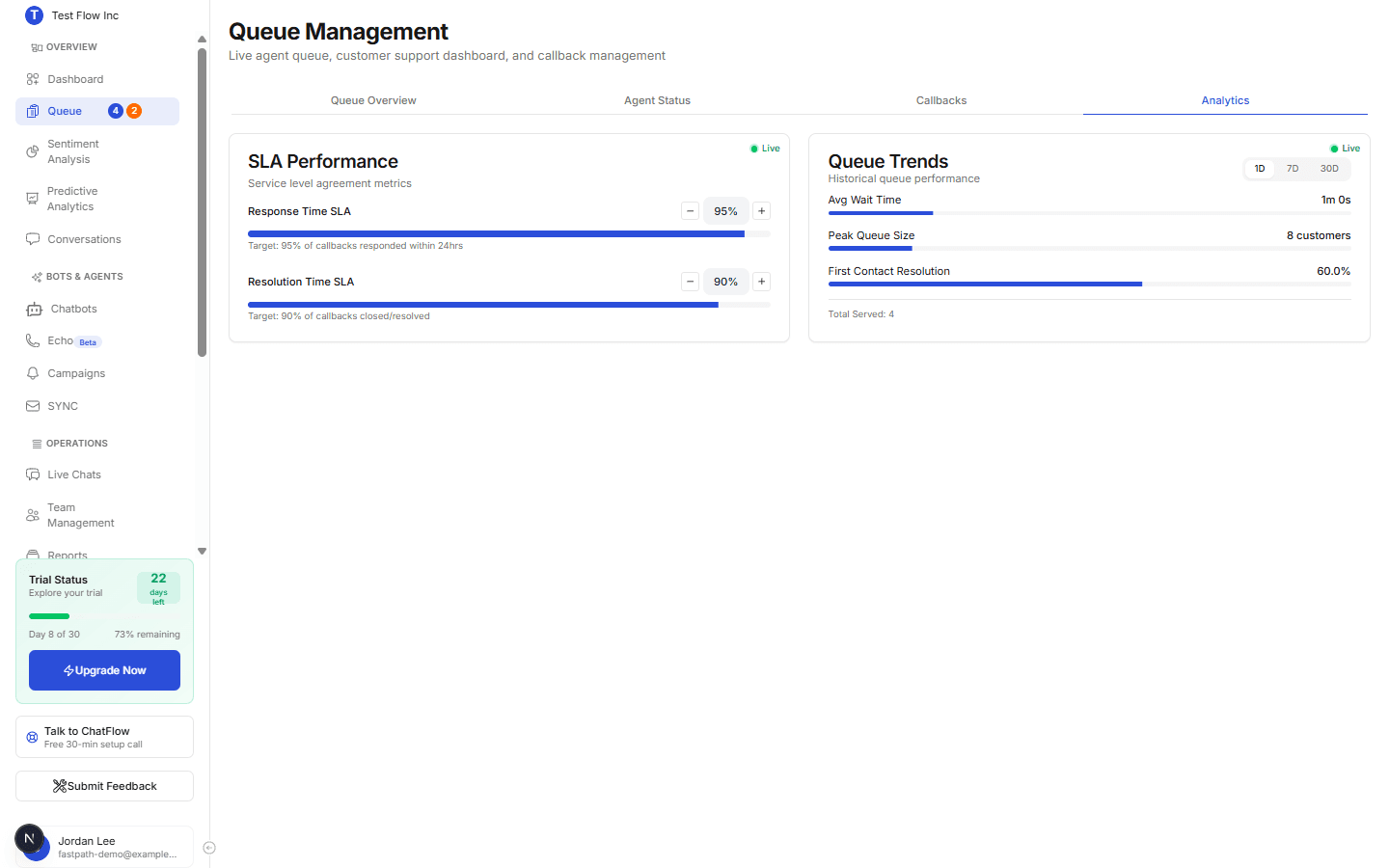
SLA Performance
This card tracks two targets, each with a live percentage and a progress bar:
- Response Time SLA — the share of customers answered within the target window.
- Resolution Time SLA — the share of callbacks resolved within target.
Use the − and + controls beside each one to set your own target percentage. The badge turns green when you are meeting the target and red when you are not. Targets are remembered on your device.
Queue Trends
The Queue Trends card shows historical performance over a period you choose with the 1D / 7D / 30D buttons:
| Metric | What it tells you |
|---|---|
| Avg Wait Time | Typical time customers waited in the period. |
| Peak Queue Size | The busiest the queue got. |
| First Contact Resolution | Share resolved on first contact (higher is better). |
| Total Served | How many customers were served. |
Both cards show a Live indicator and refresh on their own.
Verify it's working
- Open Analytics and confirm the SLA percentages and trend metrics reflect recent activity.
- Switch the 1D / 7D / 30D buttons and confirm the Queue Trends figures update.
Troubleshooting
The numbers look low or empty
Analytics is built from real queue and callback activity. New workspaces with little traffic will show small numbers until customers start using the queue. For broader reporting, see Reports and Predictive Analytics.
My SLA target reset
Targets are stored per browser/device. If you switch device or clear site data, set them again with the − / + controls.