
How to Train Your Chatbot on Your Website
Crawl your website so your chatbot learns from your existing pages, with include and exclude rules, a sitemap analysis step, and a jobs table that tracks progress.
Before you begin
Crawling your website is the fastest way to give your chatbot broad knowledge of your business. ChatFlow reads your public pages, extracts the text, and turns it into knowledge the chatbot can answer from, with no copying and pasting. Each crawl runs in the background and shows up in a jobs table you can track.
Plan and access
Website training is available on the Solo and Enterprise plans, and during the free trial. If your plan does not include it, the Web tab is hidden. How many pages a single crawl reads also depends on your plan (see Limits).
Open the Web tab
- Go to Chatbots in the sidebar and open your chatbot.
- Select the Web tab.
This tab lists your past crawls with their status and progress, and lets you start a new one with Crawl Website.
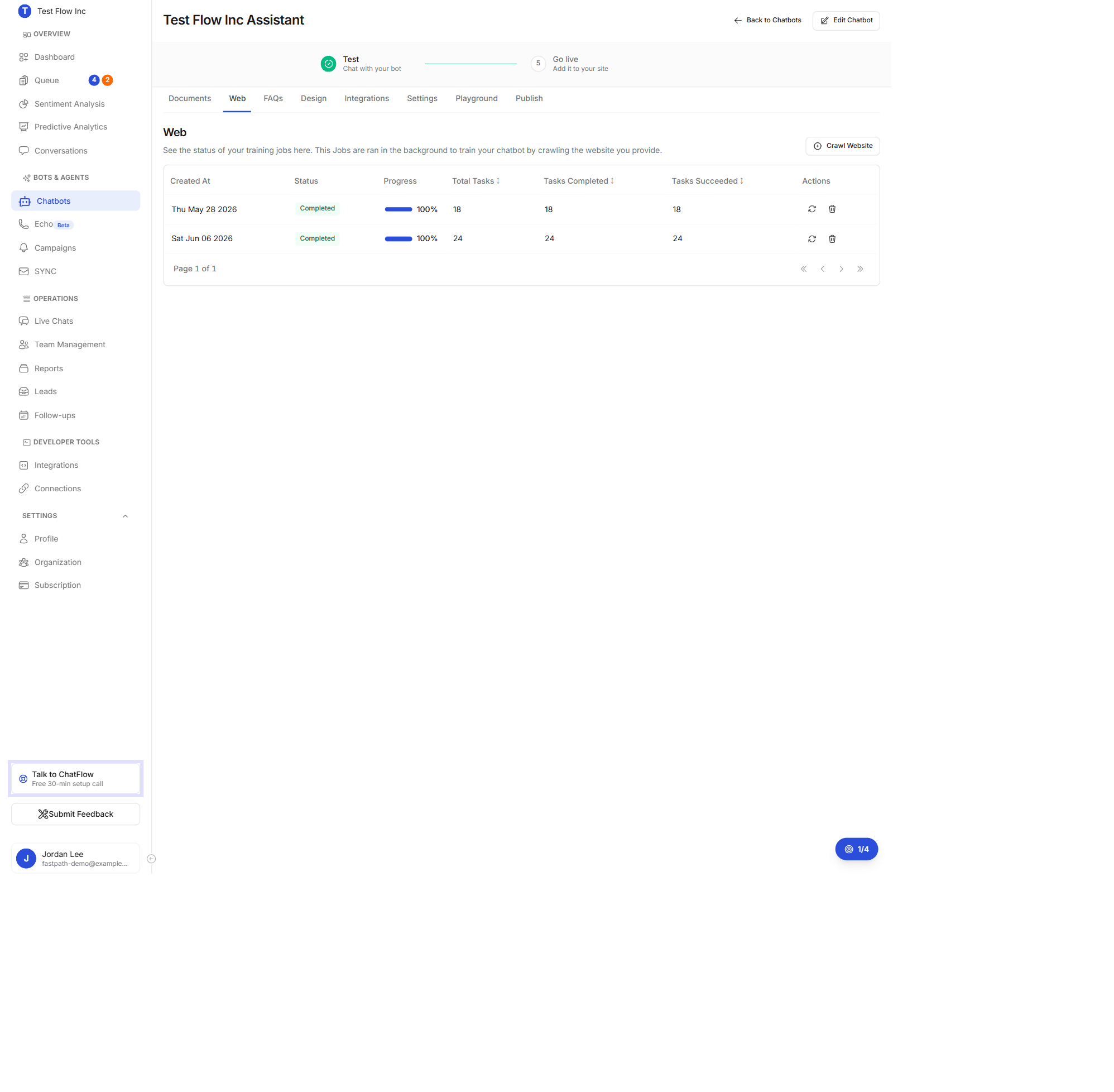
Crawl your website
Select Crawl Website. A panel opens with three steps: Website, Analyze, and Finish.
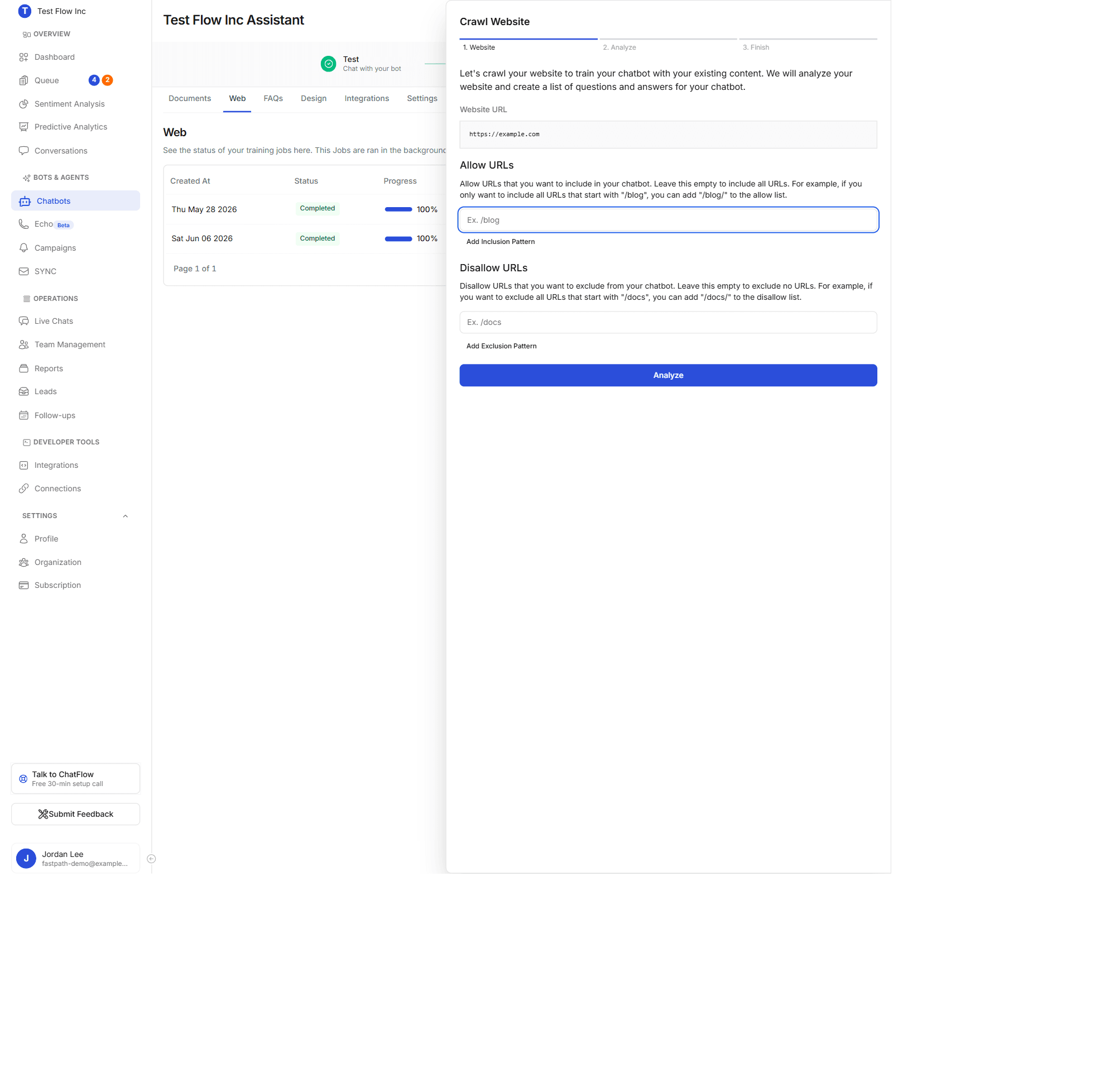
Step 1: Website
The panel shows the Website URL it will crawl (the address on your chatbot). Optionally narrow what gets read:
| Setting | What it does |
|---|---|
| Allow URLs | Include only pages whose path starts with a pattern you add, for example /blog/. Leave empty to include every page. Use Add Inclusion Pattern for more than one. |
| Disallow URLs | Exclude pages whose path starts with a pattern you add, for example /cart/. Leave empty to exclude nothing. Use Add Exclusion Pattern for more than one. |
When you are ready, select Analyze.
Exclude pages that add noise
Use Disallow URLs to skip pages that will not help answers, such as cart, checkout, login, and account pages. Cleaner input means more relevant answers.
Step 2: Analyze
ChatFlow scans your site's sitemap and reports what it found, for example: "The sitemap contains a total of 42 pages. We found 18 after applying the filters." Review the counts, then select Yes, Start Crawling (or Go Back to adjust your patterns).
Step 3: Finish
ChatFlow queues the crawl and the panel closes with a "Crawling started" confirmation. The crawl runs in the background, so you can leave the page.
Monitor and manage crawls
Each crawl is a row in the jobs table, which refreshes itself while a crawl is running:
| Column | What it shows |
|---|---|
| Created At | When the crawl started. |
| Status | In Progress, Completed (green), or Failed (red). |
| Progress | A bar and percentage of tasks finished. |
| Total Tasks | How many pages the crawl covers. |
| Tasks Completed | Pages processed so far. |
| Tasks Succeeded | Pages read successfully. |
| Actions | Re-run crawl (start a fresh crawl) and Delete (remove the job). |
Re-run a crawl whenever you make significant changes to your site so the chatbot stays current.
What a crawl produces
Every page read successfully becomes a document on the Documents tab, marked with the website source. It counts toward your knowledge total alongside uploaded files and FAQs, and you can open any crawled page to preview its extracted text. Together, crawling plus a few targeted FAQs gives the most reliable answers.
Limits
| Solo | Enterprise | Free trial | |
|---|---|---|---|
| Web sources | 1 | Unlimited | 1 |
| Pages per crawl | 5 | 1000 | 2 |
When you reach a limit, the crawl step shows an Upgrade Plan note. See Manage Your Subscription to unlock more.
Verify it's working
- Wait for the crawl to show Completed in the jobs table.
- Open the Playground tab.
- Ask about something only your website covers, for example
What services do you offer?orWhere are you located?, and confirm the chatbot answers from your pages.
Troubleshooting
The crawl failed
Check that the site is publicly reachable (a page behind a login cannot be crawled) and that the URL on your chatbot is correct. Use Re-run crawl to retry. If only some pages fail, they may be slow, blocked by the site, or have no readable text.
Analyze could not find pages
If the site has no sitemap or the filters excluded everything, the analyze step reports zero pages. Loosen your Allow URLs patterns, remove over-broad Disallow URLs, and try again.
The chatbot is not using my site content
Confirm the crawl finished successfully in the jobs table. Pages that are mostly images or built entirely with scripts may have little text to extract, so add the key facts as FAQs or upload a document to fill the gap.
Answers include outdated information
Your site changed since the last crawl. Use Re-run crawl to refresh what the chatbot knows.