
How to Customize Your Chatbot's Design
Brand your chatbot with an icon, colors, a welcome message, and starter questions, and preview it live before you publish.
Before you begin
The Design tab controls how your chatbot looks on your website: its icon, colors, the first message visitors see, and the suggested questions they can click. A live preview on the right updates as you make changes, so you can get the look right before anyone sees it.
Open the Design tab
- Go to Chatbots in the sidebar and open your chatbot.
- Click the Design tab.
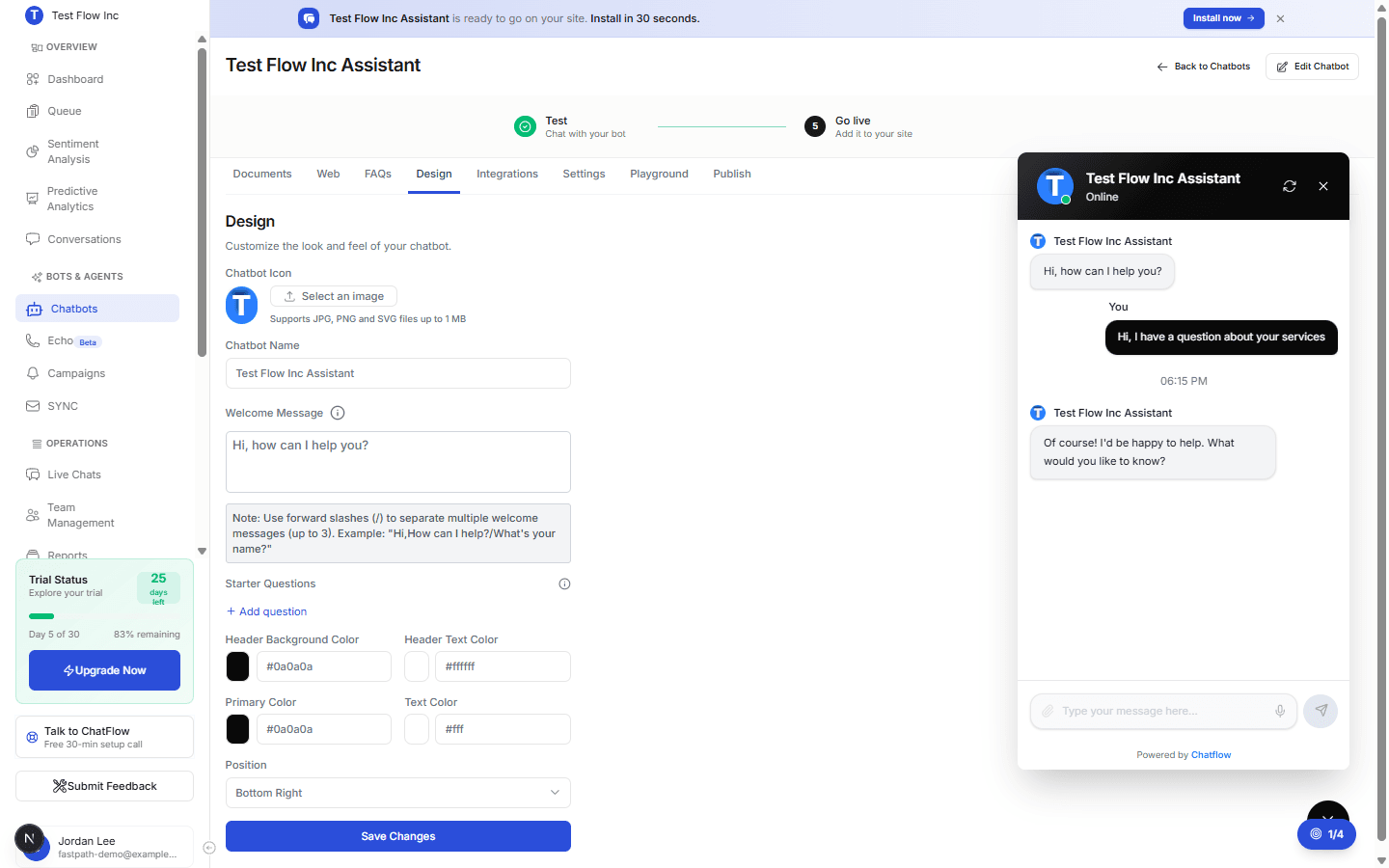
Design options
Adjust any of the following. The preview on the right reflects each change immediately.
| Option | What it controls | Notes |
|---|---|---|
| Chatbot Icon | The avatar in the chat header and on the launcher button | JPG, PNG, or SVG up to 1 MB. A square image looks best. |
| Chatbot Name | The name shown in the chat header | |
| Welcome Message | The first message a visitor sees when the chat opens | Up to 140 characters. Separate up to 3 messages with forward slashes (/) to rotate them, for example Hi, how can I help?/What's your name? |
| Starter Questions | Clickable suggested questions shown before the visitor types | Up to 6 questions, 100 characters each. Select Add question to add one. |
| Header Background Color | The background of the chat header | Hex value, for example #0a0a0a |
| Header Text Color | The header title and icons | Hex value, for example #ffffff |
| Primary Color | Buttons and accents, such as the launcher and the send button | Hex value |
| Text Color | Message text | Hex value |
| Position | Which corner the launcher sits in on your site | For example, Bottom Right |
| AI Disclaimer | A short line under the chat header telling visitors the answers are AI generated | Up to 300 characters. Growth and Enterprise. Leave it empty to show nothing. |
Say that it is AI
The AI Disclaimer is the plainest way to set expectations, and regulated industries increasingly expect it. Something like "Responses are generated by AI. Always check important details against the cited source." works well, and it pairs naturally with cited answers.
Match your brand
Use your brand's main color for Primary Color, and keep the Header Text Color high-contrast against the Header Background Color so the title stays readable.
Save your changes
Select Save Changes at the bottom of the form. Your updates apply to the live chatbot, and you can confirm the result in the preview or the Playground tab.
Verify it's working
- Open the Playground tab, or your live site if the chatbot is already published.
- Open the chat and confirm your icon, colors, and welcome message appear as expected.
- Check that your starter questions show before you type.
Troubleshooting
The icon will not upload
Use a JPG, PNG, or SVG file under 1 MB. If a large image is rejected, resize it or export a smaller version, and prefer a square image.
My welcome message is cut off
Each welcome message is limited to 140 characters. If you want more than one message, keep each under the limit and separate them with forward slashes (/), up to three total.
My changes are not showing
Make sure you selected Save Changes. The preview updates live, but a published widget can take a moment to reflect new settings, refresh the page where the chatbot is embedded.