
How to Show Cited Answers and Answer Only from Approved Sources
Show the document, section and page behind every answer, and have your chatbot say so instead of guessing when your documents do not cover a question.
Before you begin
Answer Quality turns your chatbot from something that sounds right into something that shows its work. Every answer can carry the document, section and page it came from, and the assistant can be held to your uploaded documents so that a question they do not cover gets an honest "I could not find that" instead of a confident guess.
This matters most for policy, specification and compliance content, where a plausible but unsourced answer is worse than no answer.
Plan availability
Answer Quality is available on the Growth and Enterprise plans, and during the free trial. Building and managing chatbots is available to Account Managers, Supervisors, Admins, and Owners.
Open Citations
- Go to Chatbots in the sidebar and open your chatbot.
- Click the Settings tab, then select Citations.
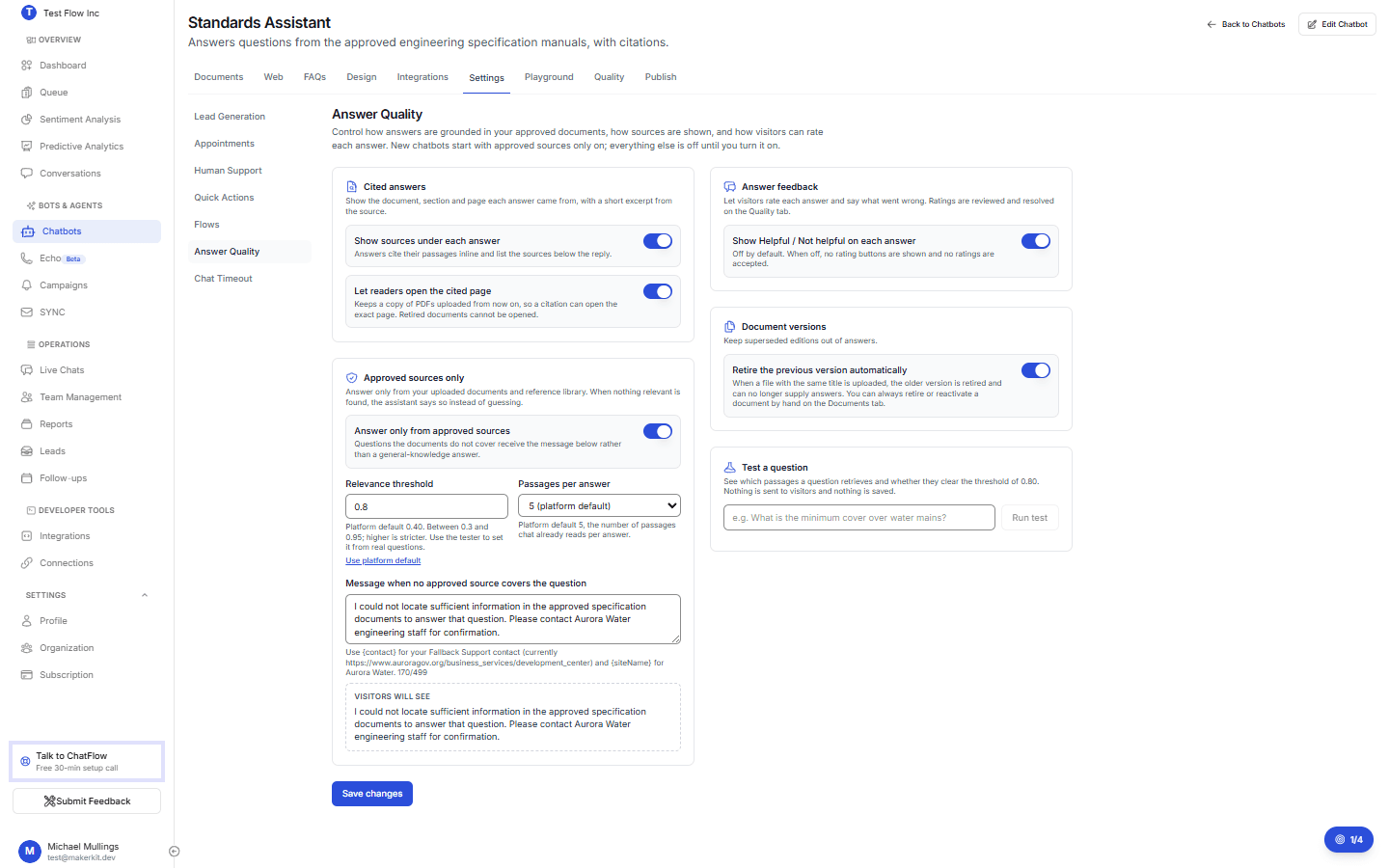
Turn on cited answers
Show sources under each answer
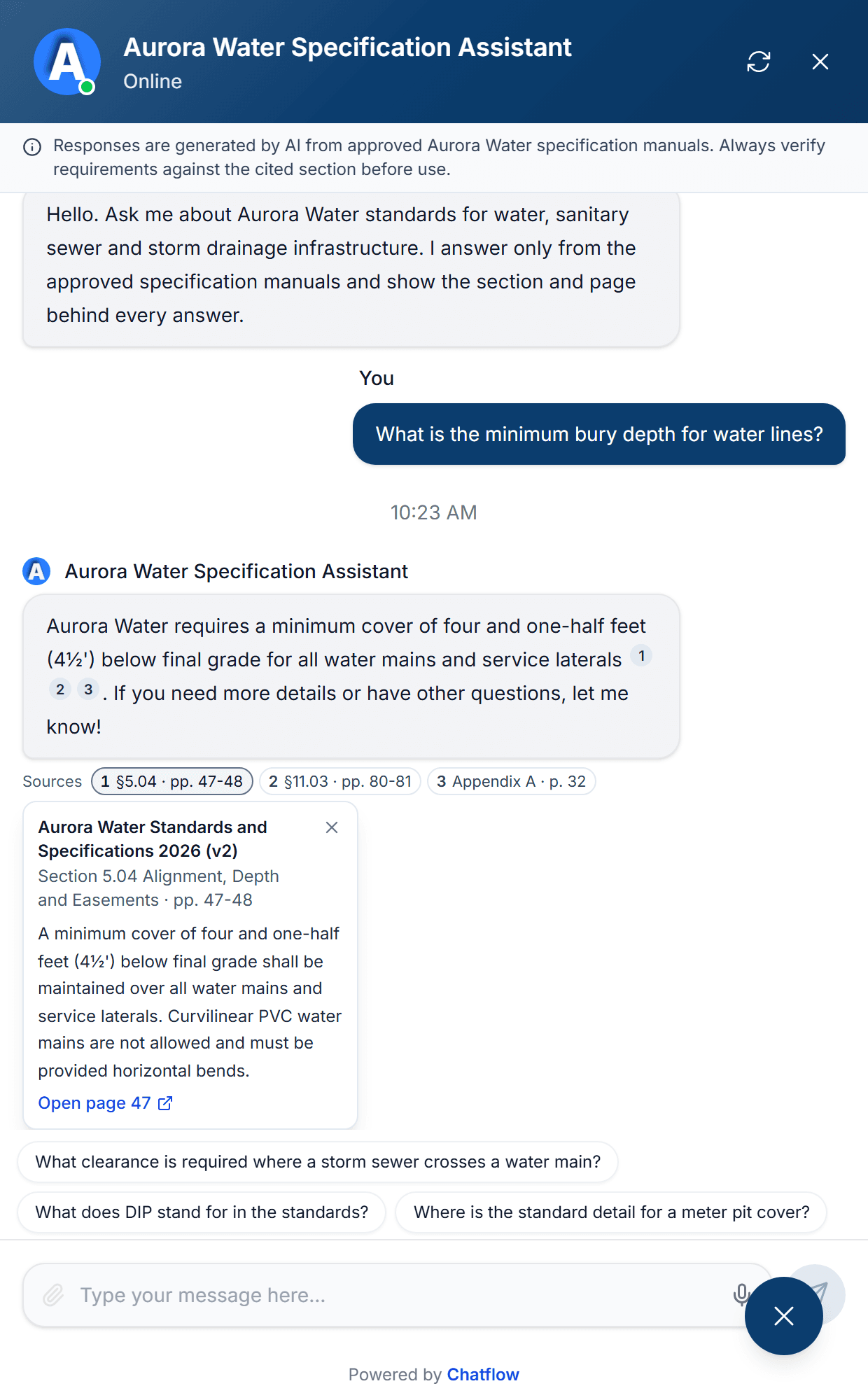
Switch on Show sources under each answer. Answers then cite their passages inline, and a short row of sources appears under the reply. Opening a source shows the document name, the section and page, and the exact sentence the answer came from.
Let readers open the cited page
Switch on Let readers open the cited page so a citation can open the original PDF at the exact page. This keeps a copy of PDFs uploaded from that point on, so re-upload anything you want readers to be able to open. Retired documents can never be opened.
Decide which files can be opened
The chatbot setting above allows the link at all. Each document then decides for itself, so a published standard can be openable while a contract in the same knowledge base is not. You choose the level when you upload, under Can readers open these files?, and you can change it later from the row menu on the Documents tab.
| Level | What is stored | What a reader gets |
|---|---|---|
| Openable | The original file | The citation, plus a link straight to the cited page |
| Internal | The original file | The citation only. Your team can still read the file here |
| No copy kept | Nothing | The citation only, and no file exists to open |
New uploads are kept Internal unless they are detected as regulatory, because published standards are already public and opening the cited page is most of their value. Every level answers questions the same way, and every citation still names the document, the section, the page and the sentence the answer came from.
No copy kept cannot be undone
Choosing No copy kept, or changing a document to it later, deletes the stored file. Making that document openable again means uploading it a second time.
Answer only from approved sources
Switch on Answer only from approved sources. Questions your documents do not cover then receive your abstention message rather than a general-knowledge answer.
Two settings control how strict that is.
| Setting | What it does |
|---|---|
| Relevance threshold | How closely a passage must match the question before it can be used. Higher is stricter. Start at the platform default and adjust with the tester below. |
| Passages per answer | How many passages inform one answer. More passages give fuller answers on broad questions, fewer keep answers tightly sourced. |
Write the message visitors see when nothing in your documents covers the question. Use {contact} to insert your Fallback Support contact and {siteName} for your site name. A live preview shows exactly what a visitor will read.
Say where to go next
An abstention is more useful when it points somewhere. Set Fallback Support on the chatbot, then include {contact} in the message so the visitor is handed to a person instead of a dead end.
Calibrate with the retrieval tester
The tester shows what your knowledge base returns for a question, with a score for each passage and whether it clears the threshold.
Test questions you expect to work
Enter real questions customers ask and select Run test. Each result shows the score, the document, the section and page, and the matching excerpt. In-scope questions should return passages that pass.
Test questions you expect to fail
Enter questions your documents genuinely do not cover. Nothing should pass. If something does, the threshold is too low.
Adjust and retest
Raise the threshold if unrelated passages pass, lower it if good questions come back empty. Around ten in-scope and ten out-of-scope questions is enough to settle on a value.
Verify it's working
- Open the Playground tab, or your live chatbot, and ask a question your documents answer.
- Check that the answer carries citations, and open one: it should name the document, section and page, and quote the sentence behind the answer.
- Ask something your documents do not cover. The assistant should return your abstention message with no sources attached.
Troubleshooting
Answers have no sources
Sources only appear on chatbots with Show sources under each answer switched on, and only for answers drawn from your documents. Small talk and greetings carry no citations by design.
"Open page" is missing on a source
Check the document's level on the Documents tab first: only Openable offers the link. Beyond that, the original PDF is only kept for documents uploaded after Let readers open the cited page was switched on, so re-upload the document to store a copy. Retired documents never offer the link.
The assistant declines questions it should answer
The threshold is too strict, or the content is not in the knowledge base. Run the question through the tester: if passages come back but none pass, lower the threshold. If nothing comes back at all, the document is missing, is still processing, or was retired.
The assistant answers questions it should decline
Check that Answer only from approved sources is on for this chatbot, then raise the threshold until out-of-scope questions stop matching.
The tab is locked
Answer Quality is a Growth and Enterprise feature. On a lower plan the tab stays visible and opens an upgrade prompt, and any settings you saved earlier are kept for when you upgrade.