
How to Set Up to Take Live Chats
The full setup for getting a team member ready to receive live chats, which roles can take them, and how every piece connects.
Before you begin
Getting a team member to actually receive live chats takes a few connected settings, spread across human support, team management, and the agent's own status. This page brings the whole flow together in order, shows which roles are allowed to take a chat, and explains how each piece depends on the others. The individual settings each have their own detailed guide, linked at every step.
Who does what
Steps 1 to 4 are one-time admin setup (Owners and Admins). Step 5 is done by the agent themselves, every shift. Human support is available on the Enterprise plan and during the free trial.
What has to be true before a chat reaches an agent
A live chat only reaches a person when all of these are in place. The rest of this page sets each one up.
- The chatbot has human support enabled.
- The team member has an eligible role (Agent or above).
- The member is set to Accepting Chats.
- The member is assigned to that chatbot (an empty list means all chatbots).
- The agent is logged in and Available, within their working hours, and under their chat limit.
Which roles can take live chats
Roles run from Member (lowest) to Owner (highest). Taking a live chat does not require a senior role: every role from Agent and up qualifies, all the way to Owner. Only the two lowest roles cannot.
| Role | Can take live chats? |
|---|---|
| Owner | Yes |
| Admin | Yes |
| Supervisor | Yes. Can also override capacity and force-assign. |
| Account Manager | Yes. Lowest role that can assign chats to other agents. |
| Support Agent | Yes |
| Agent | Yes |
| Readonly | No |
| Member | No |
Taking a chat vs. assigning a chat
Anyone Agent or above can take the chats routed to them. Handing a chat to a specific agent is a separate, manager-level action that needs Account Manager or above and is an Enterprise feature. See Assign Chats.
Set up an agent, step by step
Enable human support on the chatbot (admin)
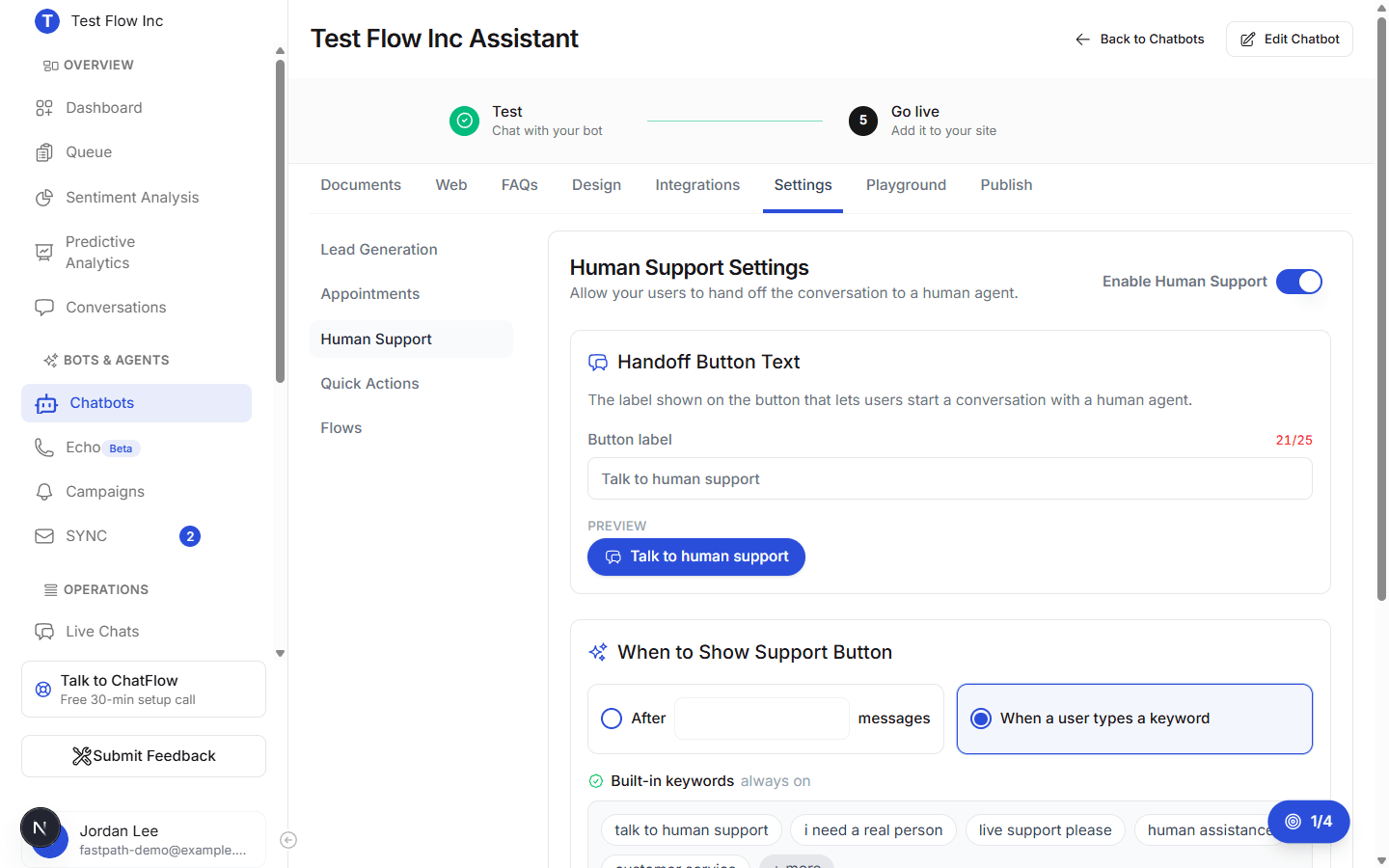
Open the chatbot, go to the Settings tab, then Human Support. Switch Enable Human Support on, set the Handoff Button Text, and choose when the button appears (a message count, or keyword phrases). Add any custom trigger keywords your customers are likely to type, then select Save Changes. Full detail is in Enable Human Support.
Give the person an eligible role (admin)
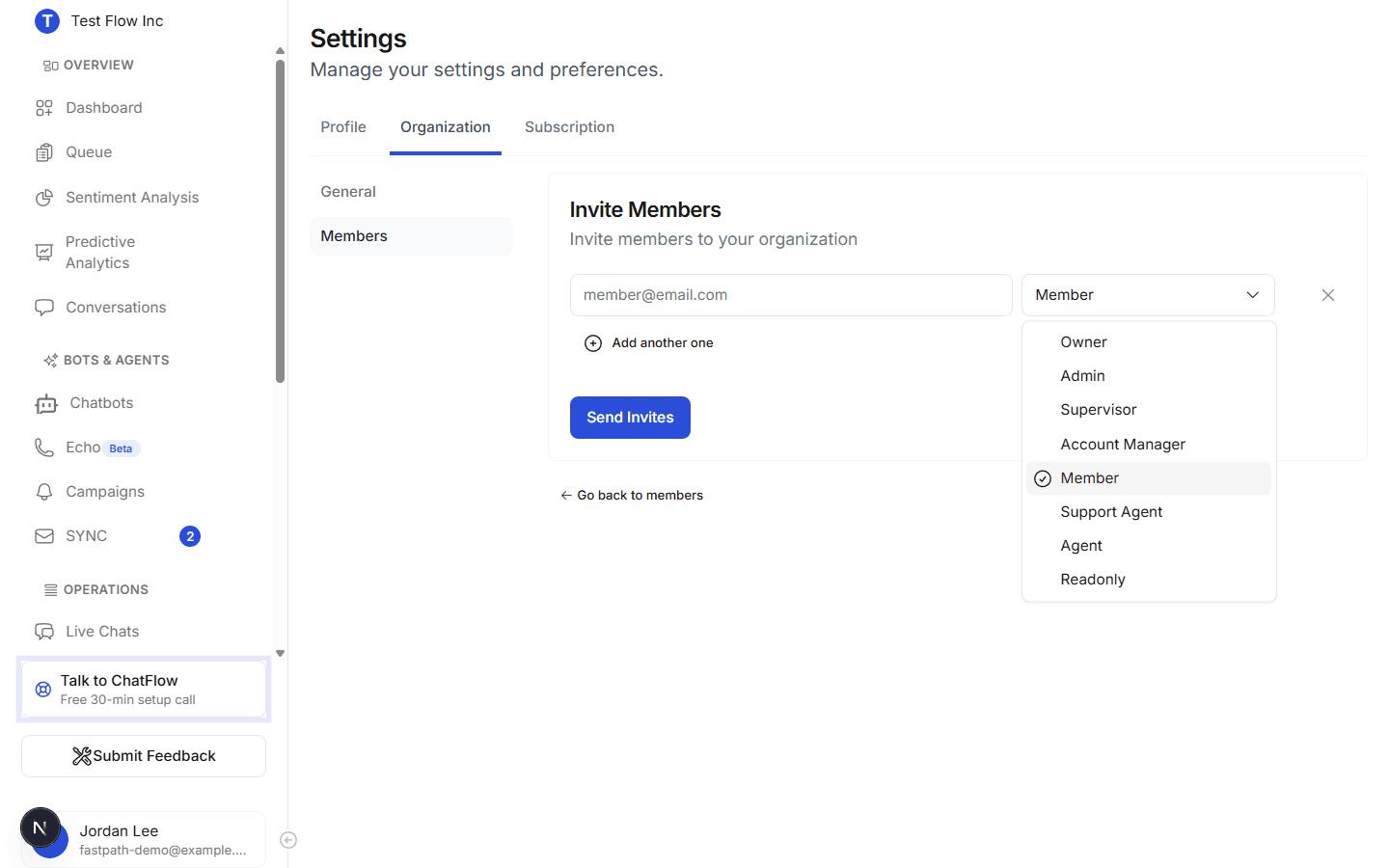
A member needs the Agent role or higher to take live chats. Set the role when you invite them, or change it later from the actions menu next to their name on the Members page. See Add Team Members.
Turn on Accepting Chats (admin)
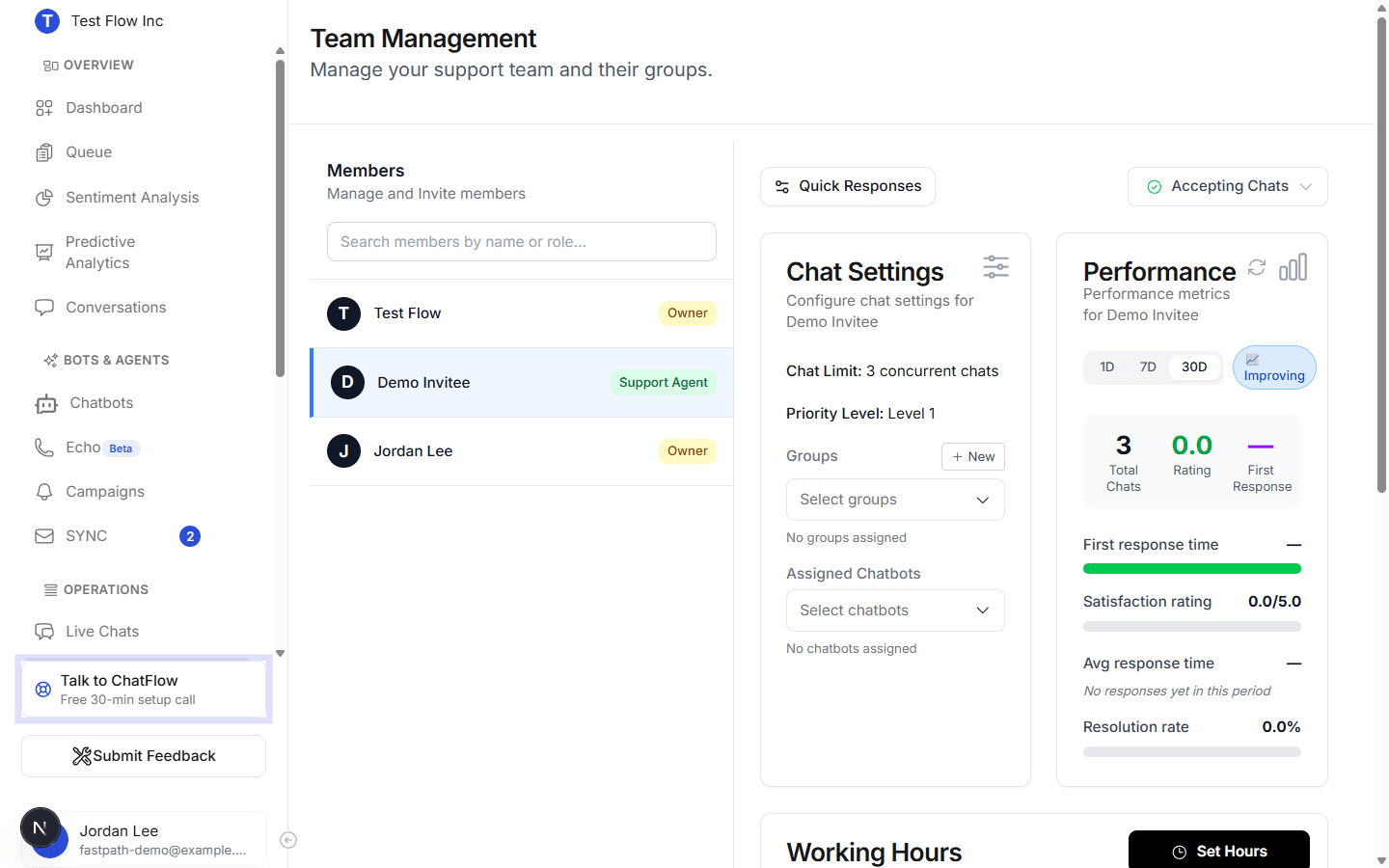
Go to Team Management in the sidebar (under OPERATIONS) and select the member. Set their status at the top right to Accepting Chats. While set to Not Accepting Chats, they are off the routing rota even if everything else is in place. You can also set their Chat Limit, Priority Level, and Working Hours here. See Manage Agent Settings.
Assign the chatbot (admin)
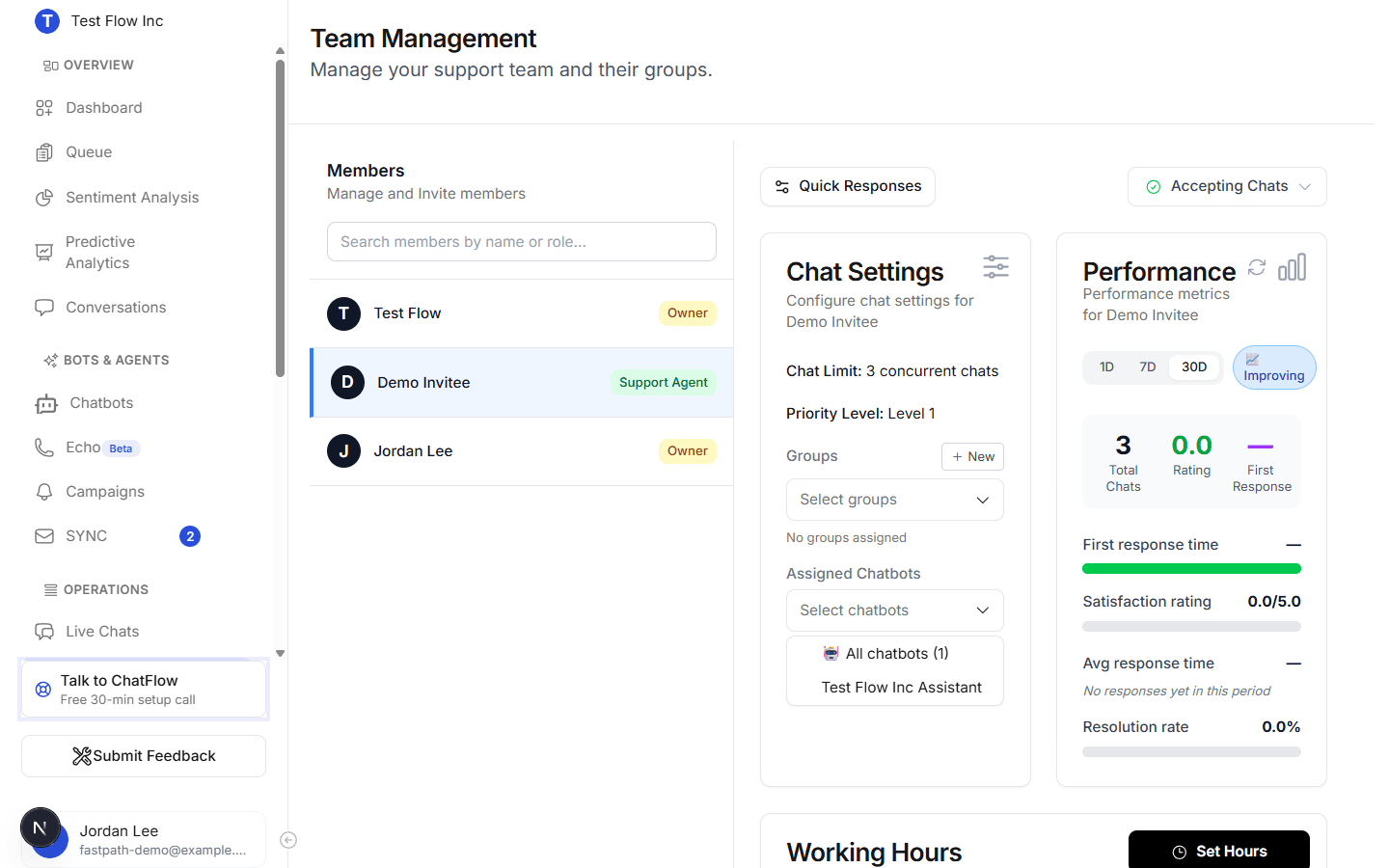
Still on the member's settings, under Assigned Chatbots select Select chatbots and add the chatbot they should cover. Leaving the list empty means they handle every chatbot; adding specific ones restricts them to only those. The member only receives chats from chatbots they cover.
Log in and go Available (agent)
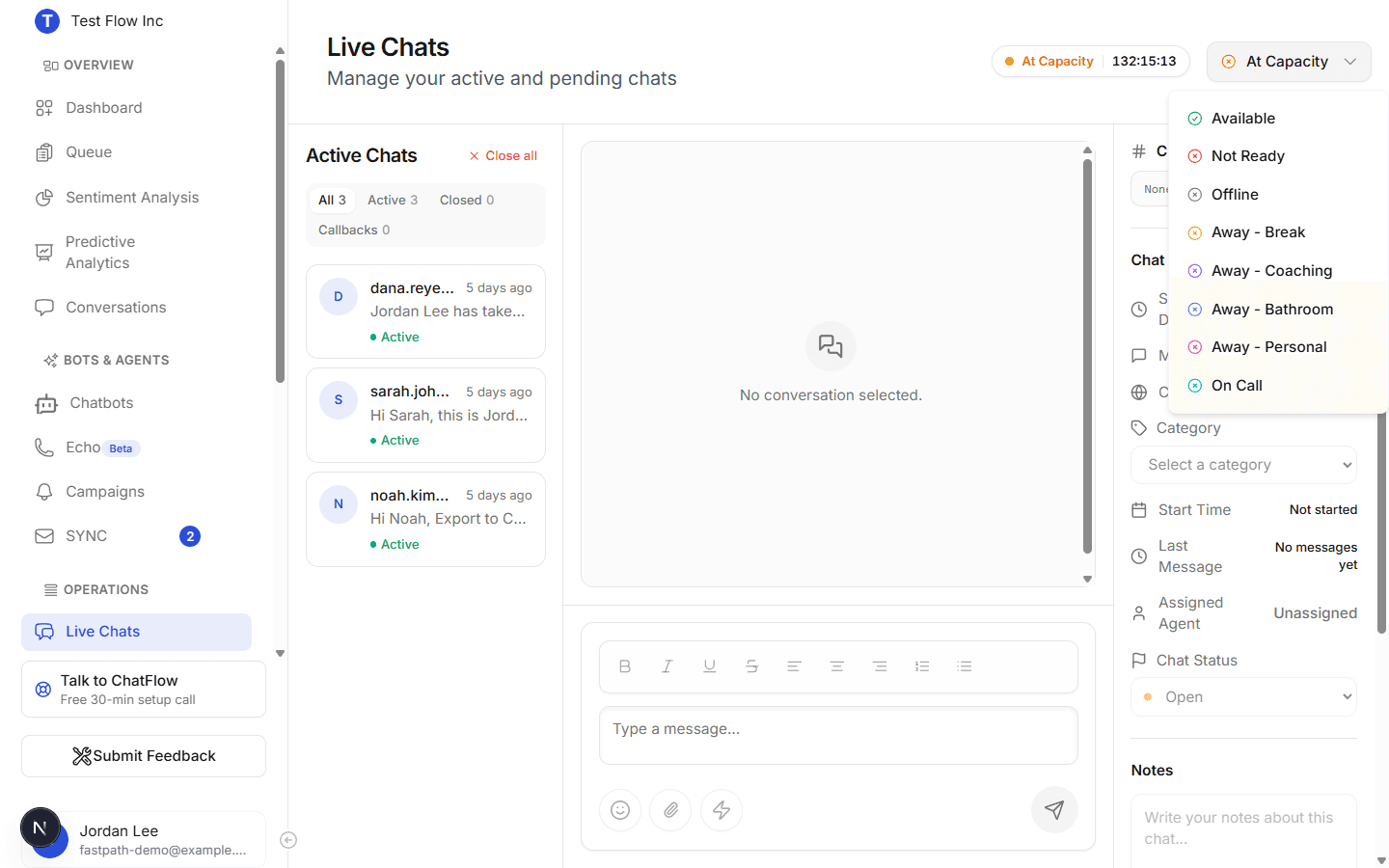
The agent signs in, opens Live Chats, and sets their status to Available using the control at the top right. Chats route only to agents who are logged in and Available, so this is the agent's job at the start of every shift. See Set Your Agent Status for what each status means.
How it all connects
Each setting depends on the others, which is why a chat that "should" arrive sometimes does not. Use this checklist when something is not routing:
- Human support enabled on the chatbot, with a trigger the customer can hit. Set in Enable Human Support.
- Role is Agent or above. Member and Readonly are never offered chats. Set in Add Team Members.
- Accepting Chats is on, and the member is within their working hours and under their chat limit. Set in Manage Agent Settings.
- Assigned to the chatbot the request came from (or an empty list, which covers all). Set in Manage Agent Settings.
- Logged in and Available in Live Chats.
If every box is checked and no agent is free, the request waits in the Queue until someone opens up.
Verify it's working
- Complete steps 1 to 4 for one member, and have that agent set themselves Available in Live Chats.
- Open the chatbot's Playground, or your live site, and request a human by typing a trigger keyword or sending enough messages.
- Confirm the chat reaches the agent in Live Chats and that their replies reach the customer.
Troubleshooting
Customers see "no agents available"
Work down the checklist above. The usual causes are: the member is set to Not Accepting Chats, the chatbot is not in their Assigned Chatbots, they are at their chat limit, their role is below Agent, or human support is off on the chatbot.
The agent is Available but gets nothing
Confirm they are assigned to the chatbot the request came from (an empty Assigned Chatbots list covers all bots), are within their working hours, and are not already at capacity. Higher-priority agents are also picked first. See Manage Agent Settings.
A member has no Accepting Chats control
That control only appears for roles that can take chats. Confirm the member is Agent or above in Add Team Members.