
How to Set Up API Connections
Link ChatFlow to external services with API connections and webhooks, then keep their data in sync and monitor health.
Before you begin
API Connections let ChatFlow talk to your other systems, pulling in details like product information, prices, or account data, and receiving real-time events through webhooks. Everything is managed in one place, with health monitoring, sync status, and logs.
Plan and role
Connections are available on the Enterprise plan, and during the free trial, to Admins and Owners. You also need the API credentials for the service you want to connect.
Open Connections
Select Connections in the sidebar (under DEVELOPER TOOLS). The page has four tabs:
| Tab | What it is for |
|---|---|
| Webhooks | Receive real-time events from external services. |
| API Connections | Connect to a service's API to retrieve or sync data. |
| AI Agent | Build an agent that uses those connections as tools. See Configure AI Agents. |
| Tasks | Give an agent a job to run on demand or on a schedule. See Manage Agent Tasks. |
The first two tabs are covered below. The last two build on top of them: a connection you add here becomes a tool an AI agent can use, which is why the order matters. Connect the service first, then grant it to an agent.
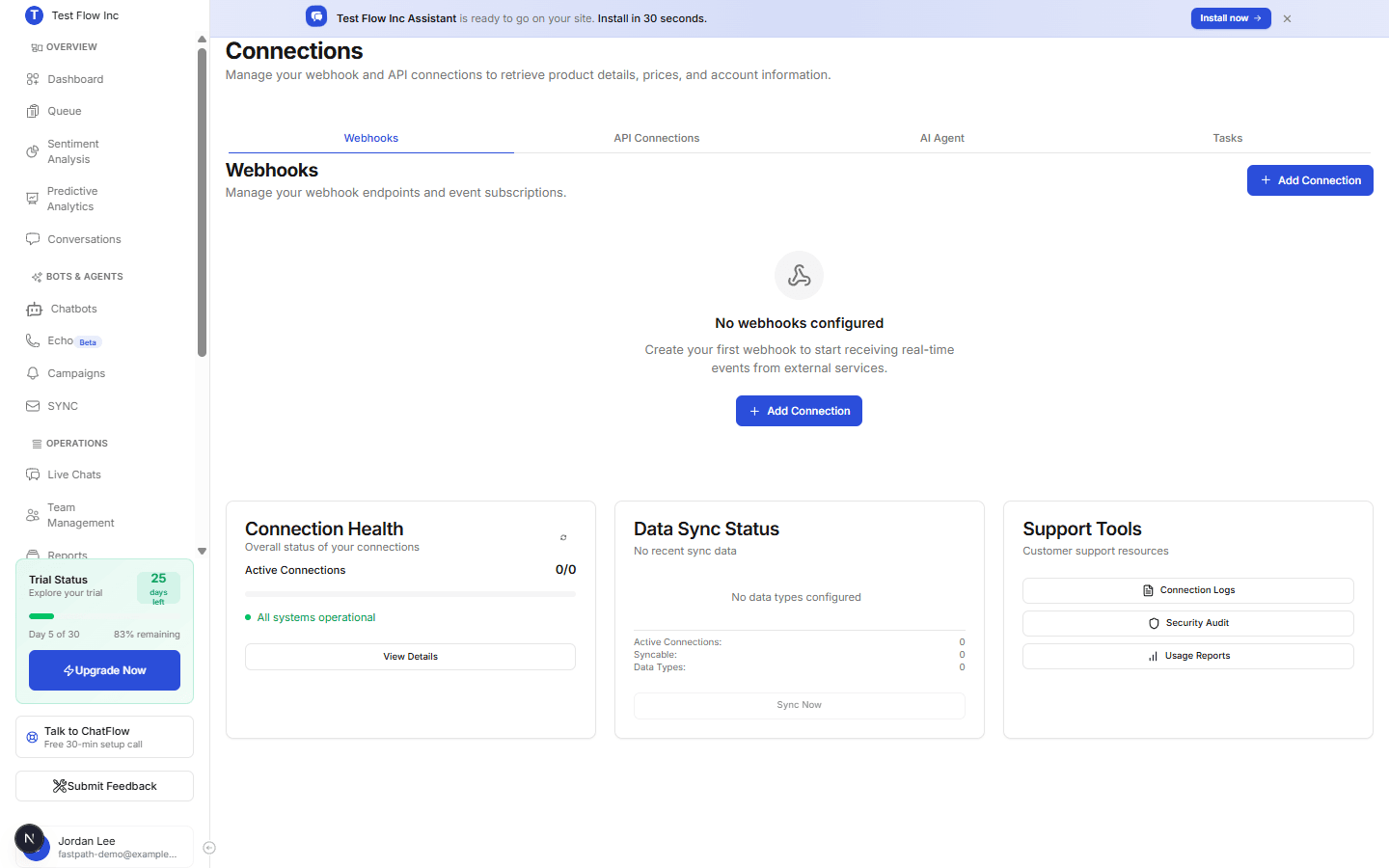
Add a connection
Open the right tab
Use API Connections to connect to a service's API, or Webhooks to receive events from one.
Select Add Connection
Select Add Connection and choose the service or connection type.
Enter the service details
Provide what the service needs, typically a connection name, its API URL, and an API key, and choose which data ChatFlow should sync and how often. Save the connection.
Manage and monitor connections
The Connections page gives you everything you need to keep integrations healthy:
- Connection Health shows how many connections are active and whether all systems are operational.
- Data Sync Status shows recent syncs. Use Sync Now to trigger one and watch its progress.
- Support Tools gives you Connection Logs, a Security Audit, and Usage Reports.
Verify it's working
- After saving, confirm the connection appears in the list and its status is healthy.
- Run Sync Now and confirm it completes and the sync status updates.
- Open Connection Logs under Support Tools to confirm requests are being recorded.
Troubleshooting
A connection shows an error
Open the connection and recheck its API URL and key, then run a sync again. The Connection Logs show the exact request and response to help you pinpoint the problem.
Nothing is syncing
Make sure the connection is enabled and that you selected at least one data type to sync. Then trigger Sync Now and watch the Data Sync Status card.
I do not see Connections in the sidebar
Connections require the Enterprise plan (or trial) and an Owner or Admin role. Ask an Owner or Admin if it is not visible for your account.