
How to Use SYNC for Email
Connect an email inbox so SYNC drafts AI replies you review and approve, or let the AI Agent answer high-confidence emails automatically.
SYNC is an AI email assistant. Connect an inbox and, for each incoming email, SYNC writes a draft reply with a confidence score for you to review, edit, and approve. Turn on the AI Agent and SYNC can answer the emails it is confident about on its own, while still leaving the rest for you. It is the same idea as your chatbot, applied to email.
Plan availability
SYNC is available on the Enterprise plan, and during the free trial. It is available to Account Managers, Supervisors, Admins, and Owners.
Open SYNC
Select SYNC in the sidebar (under BOTS & AGENTS). The screen is a two-pane inbox: your email threads on the left, the selected thread and its AI draft on the right.
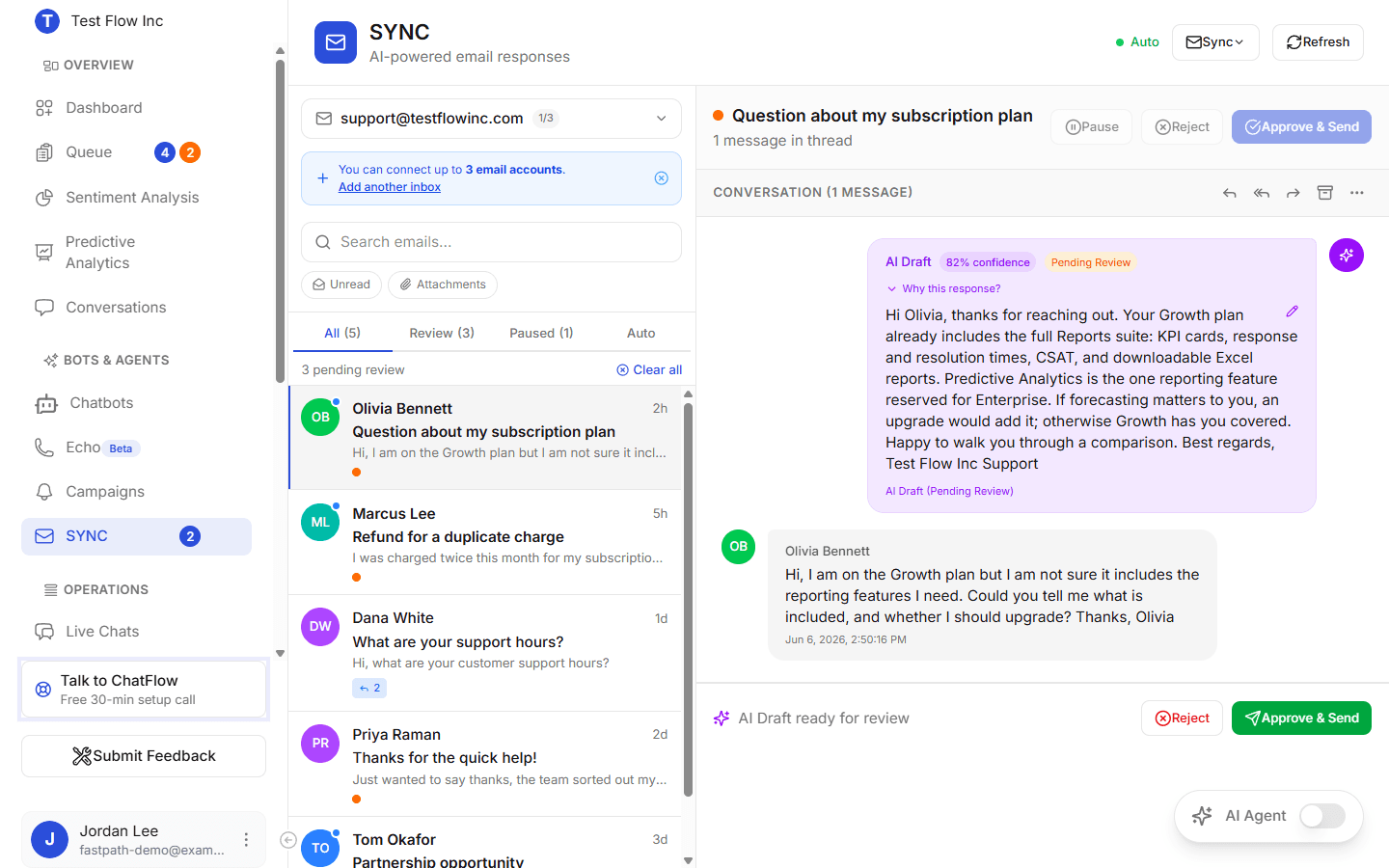
Across the top of the list are four tabs:
| Tab | What it shows |
|---|---|
| All | Every thread in the inbox. |
| Review | Threads with an AI draft waiting for your approval. |
| Paused | Threads you have paused, so the AI leaves them alone. |
| Auto | Threads the AI Agent answered automatically. |
The top bar has Sync and Refresh to pull new mail, the connected-account selector, search, and Unread / Attachments filters. The AI Agent toggle sits at the bottom right.
Connect your email
Select Connect Email Account (or Add another inbox). SYNC connects over IMAP/SMTP, so it works with Gmail, Outlook, Yahoo, or any provider.
Enter your email address
Type the address you want to connect. SYNC detects common providers and fills in their server settings for you.
Add your password and server settings
Enter the account password, and confirm the IMAP and SMTP servers and ports. SYNC tests the connection before saving it.
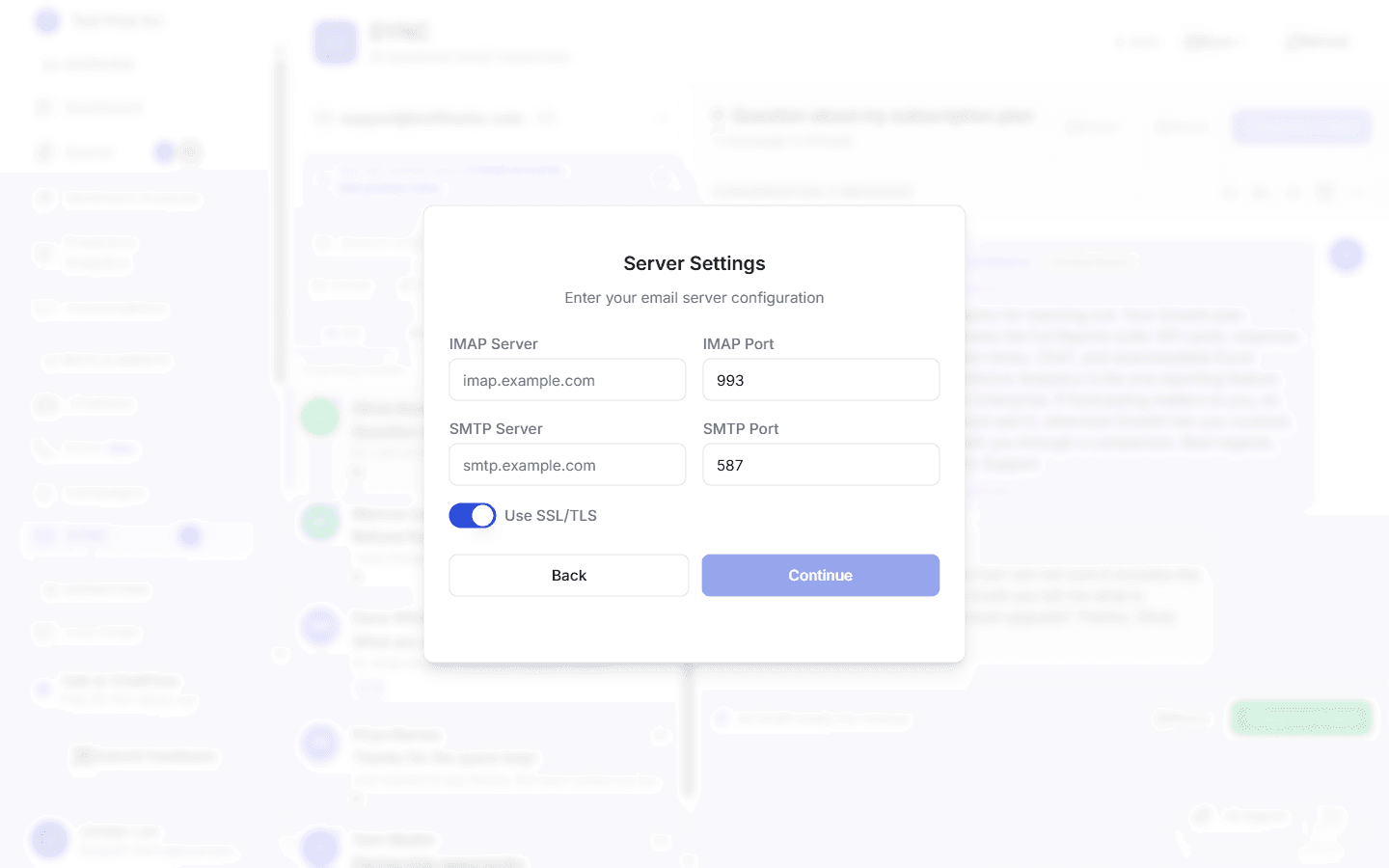
Use an app password
If your provider uses two-factor authentication (Gmail and Outlook do), generate an app-specific password and use that for the connection, not your normal login password. Make sure IMAP access is enabled in your email settings.
Up to three inboxes
You can connect up to three email accounts. Switch between them with the account selector at the top of the list, and add more with Add another inbox.
Review and send drafts
When an email arrives, SYNC drafts a reply. Open the thread to see it.
Read the draft and its confidence
Each draft shows a confidence score (for example, 82%) and a Why this response? link that explains the AI's reasoning. Higher confidence means the AI found a clear answer.
Edit if you want
Select Edit draft to change the wording before it goes out. Your edits are kept.
Approve, or reject
Select Approve & Send to send the reply, or Reject to discard the draft. You can also Pause the thread to stop the AI from acting on it.
The Review tab collects every thread with a draft awaiting you, and the SYNC item in the sidebar shows a badge with the count. Use Clear all to dismiss the pending drafts at once.
Let the AI Agent reply automatically
The AI Agent toggle (bottom right) decides how much SYNC does on its own. It is off by default.
| AI Agent | Behaviour |
|---|---|
| Off | SYNC drafts a reply for every email and waits. Nothing sends until you approve it. |
| On | SYNC sends the replies it is highly confident about automatically, and leaves the less certain ones as drafts in Review. |
With the AI Agent on, some replies send without you
When the AI Agent is on, high-confidence replies go out automatically, without waiting for a click. Lower-confidence emails still wait for your review. Anything the AI sent on its own appears in the Auto tab, so you can always see what went out.
When you first turn the AI Agent on, SYNC offers to catch up on recent unanswered emails (from the last day) so nothing is missed.
Keep the AI off certain emails
You stay in control of what the AI touches:
- Pause a thread to stop the AI from drafting or sending on it. Paused threads collect under the Paused tab.
- Block senders or domains so the AI never auto-replies to them (for example, newsletters or internal addresses).
SYNC also skips automated mail (out-of-office replies, mailing lists) and will not reply to itself, to avoid loops.
Verify it's working
- After connecting, confirm the account shows at the top of the list and there is no sync error.
- Send a test email to the connected address, then select Refresh (or wait for the next sync) and confirm it appears in the list.
- Open the thread, read the AI draft, edit if needed, and Approve & Send. Confirm the reply arrives in your email client.
Troubleshooting
The connection failed
Double-check the IMAP and SMTP servers, ports, and credentials. If your provider uses two-factor authentication, use an app-specific password and make sure IMAP access is turned on in your email settings. The connect wizard reports the specific reason (bad credentials, TLS, timeout) so you can correct it.
Emails are not coming in
Select Sync or Refresh to pull the latest, and confirm the account still shows as connected. If you see a sync error banner, use Retry, Update password, or Reconnect.
A draft is not what I want
Drafts are starting points. Edit them freely before approving, or Reject to discard. If the AI keeps replying to a thread you would rather handle yourself, Pause it.
The AI replied when I did not want it to
Turn the AI Agent off to review every reply yourself, Pause specific threads, or add the sender or their domain to your blocked list. With the AI Agent off, nothing sends without your approval.