
How to View and Export Leads
Find every contact your chatbots have captured, filter by chatbot and date, and export them to Excel or CSV.
Before you begin
The Leads page is where every contact your chatbots collect lands. When a visitor fills in the lead capture form or leaves their details for a callback, their name, email, and phone number show up here, ready to follow up or hand to your CRM.
Who can use this
Leads are available on the Enterprise plan (and during the free trial), to Account Managers, Supervisors, Admins, and Owners.
Open Leads
Select Leads in the sidebar (under OPERATIONS).
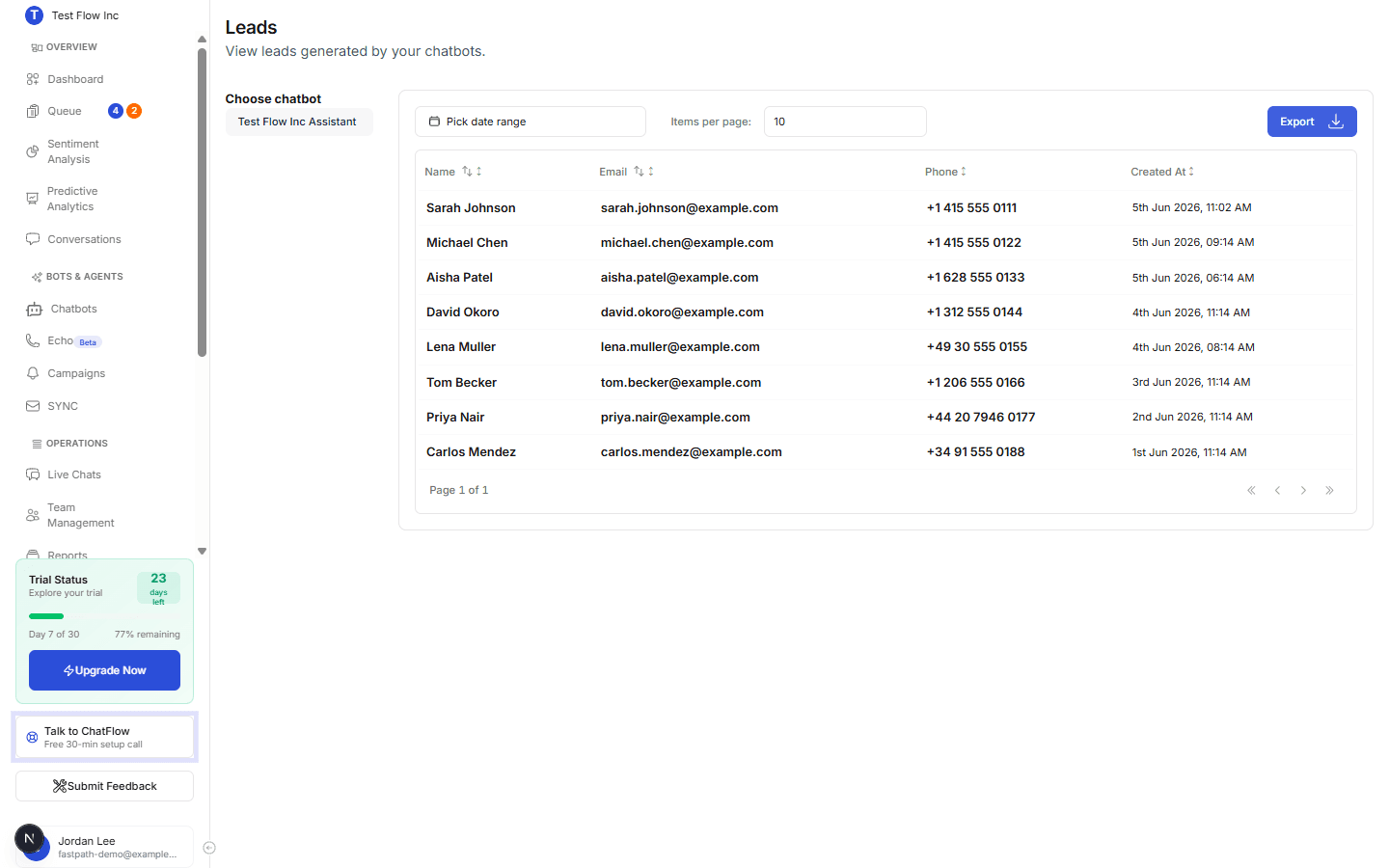
Find the leads you want
| Control | What it does |
|---|---|
| Choose chatbot | Switch between your chatbots to see only the leads each one captured. |
| Pick date range | Limit the list to leads captured in a period. |
| Items per page | Set how many leads show per page. |
| Column headers | Select Name or Email to sort the table. |
Each row shows the lead's Name, Email, Phone, and when it was Created. Use the pager at the bottom of the table to move through pages.
Export your leads
Select Export, then choose To Excel sheet or To CSV, to download the current list (respecting your chatbot and date filters) so you can import it into a spreadsheet, email tool, or CRM. Pair this with Campaigns to follow up at scale.
Verify it's working
- Make sure lead capture is enabled on the chatbot you are testing.
- From the Playground or your live widget, complete the lead form.
- Open Leads, select that chatbot, and confirm the new contact appears at the top.
Troubleshooting
No leads are showing
Confirm lead capture is enabled on the chatbot, that you have selected the right chatbot tab, and that the date range covers when the leads came in.
A lead is missing a phone or email
Visitors only fill in the fields you ask for. Check which fields are required in lead capture settings; optional fields can come through blank.