
How to Configure Lead Capture
Collect visitor names, emails, and phone numbers in the chat with a lead capture form, and choose when it appears.
Before you begin
Lead capture turns chats into contacts. When it is on, your chatbot shows a short form asking for the visitor's details, and every submission is saved to your Leads list so you can follow up.
Open Lead Generation settings
- Go to Chatbots in the sidebar and open your chatbot.
- Click the Settings tab, then select Lead Generation.
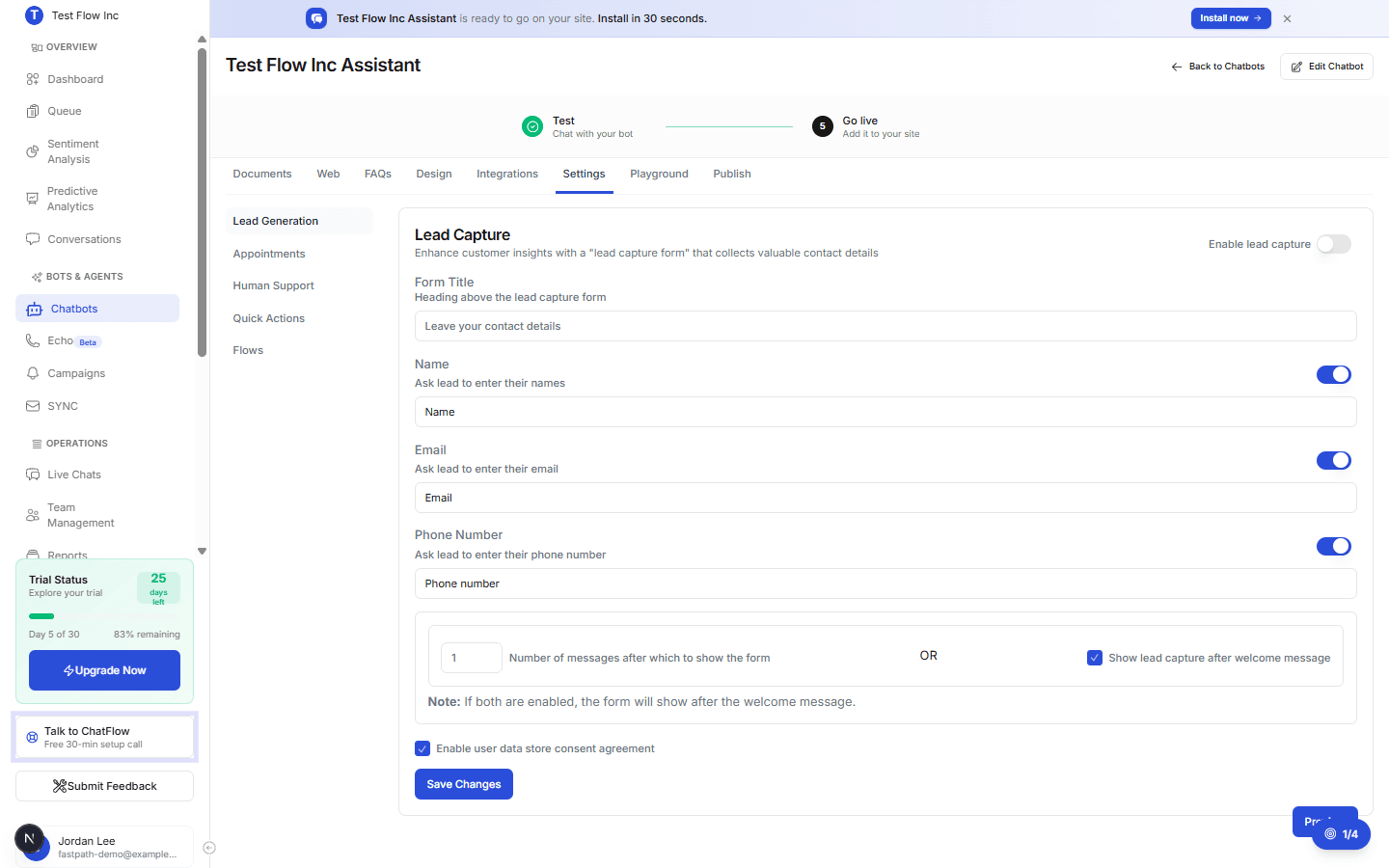
Turn on lead capture
Switch Enable lead capture on. The rest of the settings below become active.
Choose what to collect
| Setting | What it does |
|---|---|
| Form Title | The heading shown above the form, for example Leave your contact details. |
| Name | Toggle the name field on or off. You can customize its label. |
| Toggle the email field on or off, and customize its label. | |
| Phone Number | Toggle the phone number field on or off, and customize its label. |
| User data store consent agreement | When enabled, the form includes a consent agreement before details are stored. |
Ask for less to get more
Email alone is enough to follow up with most leads. Every extra required field lowers the number of people who complete the form, so only turn on the fields you truly need.
Choose when the form appears
You can set either trigger, or both:
- Number of messages after which to show the form (for example, after
1message). - Show lead capture after the welcome message.
If both are enabled, the form shows after the welcome message.
Save your changes
Select Save Changes. Use Preview to see how the form will look before you save.
See your leads
Open Leads in the sidebar (under OPERATIONS) to view everyone the chatbot has captured, including their details, the source chatbot, and the date. You can filter and export the list from there.
Verify it's working
- Open the Playground tab and start a conversation.
- Continue until the trigger you set is met (send a message, or wait past the welcome message).
- Submit test details, then open Leads in the sidebar and confirm the entry appears.
Troubleshooting
The form is not appearing
Confirm Enable lead capture is on and that you selected Save Changes. Then make sure your test meets the trigger, if it is set to show after one message, send at least one message.
A lead did not save
The visitor may have closed the form without submitting, or left a required field blank. Test again in the Playground and complete every shown field with a valid email format.
Completion is low on the live site
Reduce the number of fields, show the form a little later in the conversation, or soften the form title so it feels like an offer to help rather than a demand.