
How to Upload Regulatory Documents
Upload regulations, policies, and standards, ChatFlow detects their structure, chunks by section, and cites exact sections in answers.
Before you begin
When you upload a formal document, a regulation, compliance manual, policy, or standard, ChatFlow recognizes its structure and processes it differently from an ordinary file. It keeps sections intact and records where each piece of text came from, so the chatbot can cite the exact section and page in its answers.
What ChatFlow does automatically
On upload, ChatFlow:
- Detects the document type, regulatory, standard, or scanned.
- Chunks by section for regulatory documents, keeping the Part, Chapter, Section, and Subsection hierarchy together instead of splitting at arbitrary points.
- Generates citation metadata, section numbers, titles, and page references.
- Tracks the source, so answers show exactly where they came from.
A regulatory document is one with formal structure, headings like PART 4, CHAPTER 1, Section 4.2.1, or ARTICLE II. Documents need at least a few such section patterns to be detected as regulatory.
Upload a regulatory document
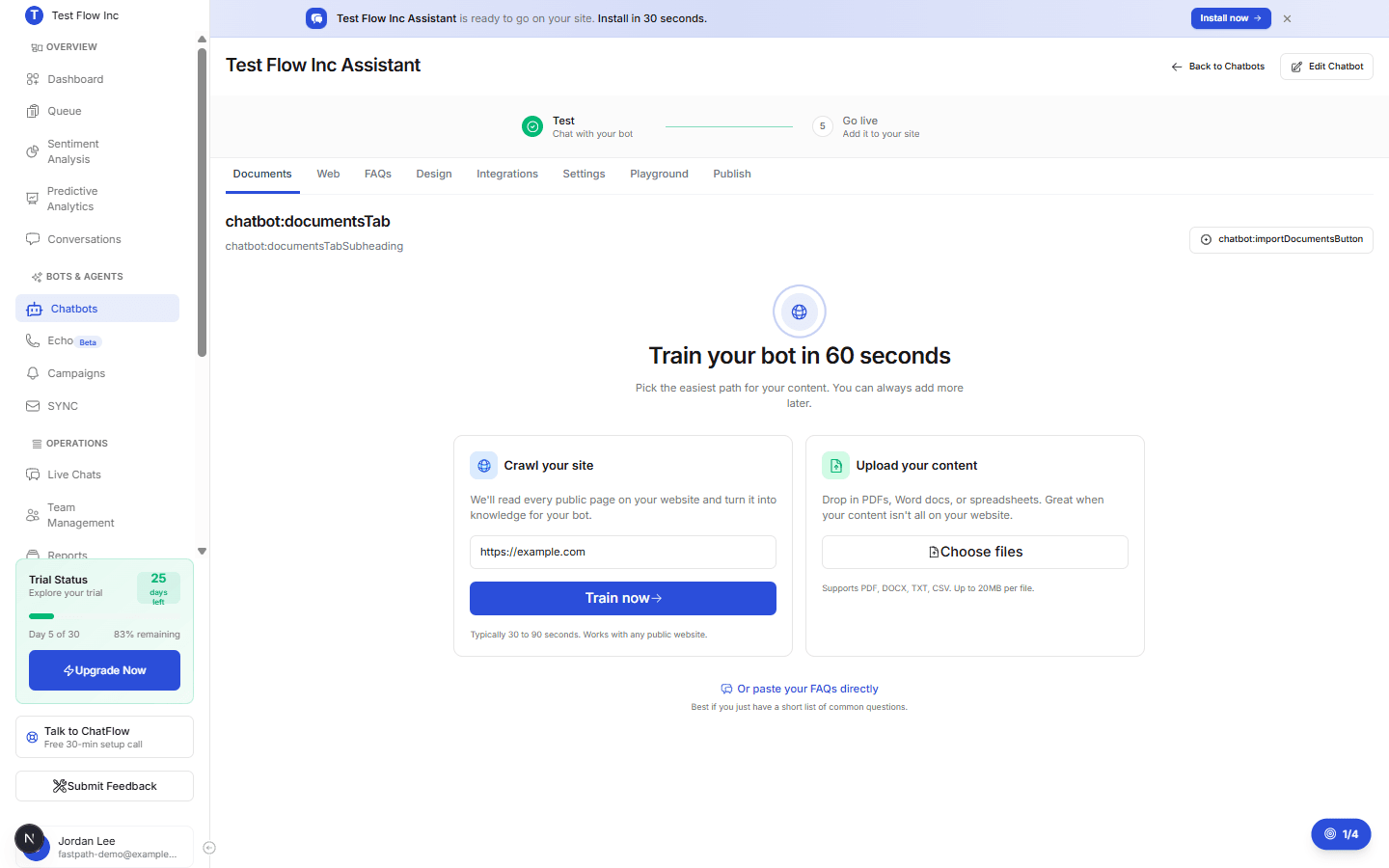
Open the Documents tab
Go to Chatbots in the sidebar, open your chatbot, and click the Documents tab.
Import the file
Select Choose files (or Import Documents) and upload a text-based PDF or Word file. Let it finish processing.
Check the detection result
After processing, the document is marked Regulatory (with section-aware chunking and citations), Standard (ordinary chunking), or Scanned (limited text, see below).
Use text-based files for the best results
Detection and citations rely on real, selectable text and clear headings on their own lines. A scanned, image-only PDF cannot be read accurately, re-export a text-based version from the original source.
How citations appear
When the chatbot answers from a regulatory document, the answer shows which document it came from, the section number and title, the page range, and how relevant the source is, for example: [Source: Aviation Regulations Manual, Section 4.2.1, Pages 12-13].
Verify it's working
- Open the Playground tab.
- Ask about a specific section of the document, by number where you can.
- Confirm the answer includes a section citation.
Troubleshooting
The document was marked "Standard" instead of "Regulatory"
Detection needs clear section headings on their own lines using patterns like Section 1.1 or CHAPTER 1. If your headings are inline or unusual, the document is processed with standard chunking.
Citations are not appearing
Confirm processing finished and that your question relates to the document's content. Asking about a specific section by number is the most reliable way to surface a citation.
I see a "Scanned" warning
The file is mostly images with little readable text. Re-export it as a text-based PDF from the original source and upload again.