
How to Manage Your Organization
Rename your organization, set its logo and language, and manage members and their roles.
Your Organization settings cover the workspace your whole team shares: its name, logo, language, and who belongs to it. These are different from your personal Profile settings.
Who can change this
The General settings (name, logo, language) can only be changed by the Owner; Admins and other roles see an access-denied notice there. Inviting and managing Members is available to Owners and Admins.
Open Organization settings
In the sidebar, open Settings and select Organization.
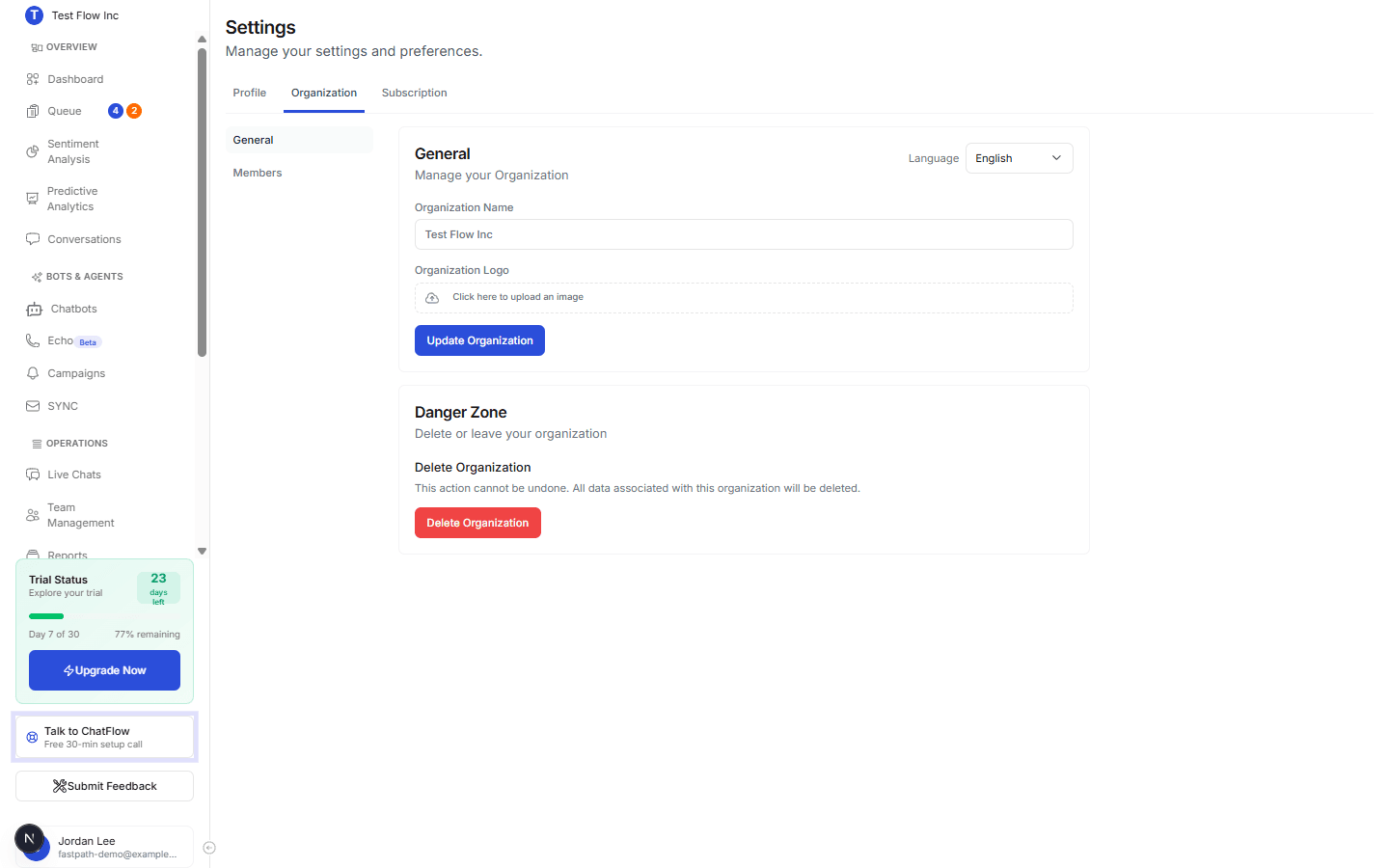
The Organization tabs
| Tab | What you do there |
|---|---|
| General | Set the organization Name, Logo, and Language. |
| Members | Invite people, see who is in the organization, and change roles. |
General
Update name, logo, and language
On General, edit Organization Name, upload an Organization Logo, and pick a Language, then select Update Organization.
The name and logo are what your team sees in the sidebar and across the app.
Members
The Members tab is where you manage your team: invite new people, review who has access, and set each person's role. For the full walkthrough, see Add Team Members. To set an agent's chat capacity and availability, see Manage Agent Settings.
Danger Zone
Deleting an organization is permanent
Delete Organization removes the organization and all of its data. It cannot be undone.
Verify it's working
- Change the Organization Name and select Update Organization.
- Confirm the new name appears at the top of the sidebar.
Troubleshooting
I can't edit these settings
Changing the General settings requires the Owner role. Ask your Owner to make the change, or to update your role from the Members tab. See Add Team Members.
Changes aren't saving
Make sure you select Update Organization after editing. If a logo upload fails, try a smaller image file.