
How to Set Up Echo (Voice AI)
Give your chatbot a phone line. Echo answers calls 24/7 using your chatbot's knowledge base.
Before you begin
Echo is ChatFlow's voice agent. It answers phone calls using the same knowledge base as your chatbot, so callers get the same answers your chat customers do, around the clock.
Enterprise feature with telephony costs
Echo is an Enterprise feature in early access. Because it uses live phone calls, it has its own setup fee, subscription, and per-minute calling credits. The exact pricing is shown in the app before you commit.
Open Echo
Select Echo in the sidebar (under BOTS & AGENTS). If early access is not enabled for your account yet, you will see an activation screen here describing what Echo does and what it costs.
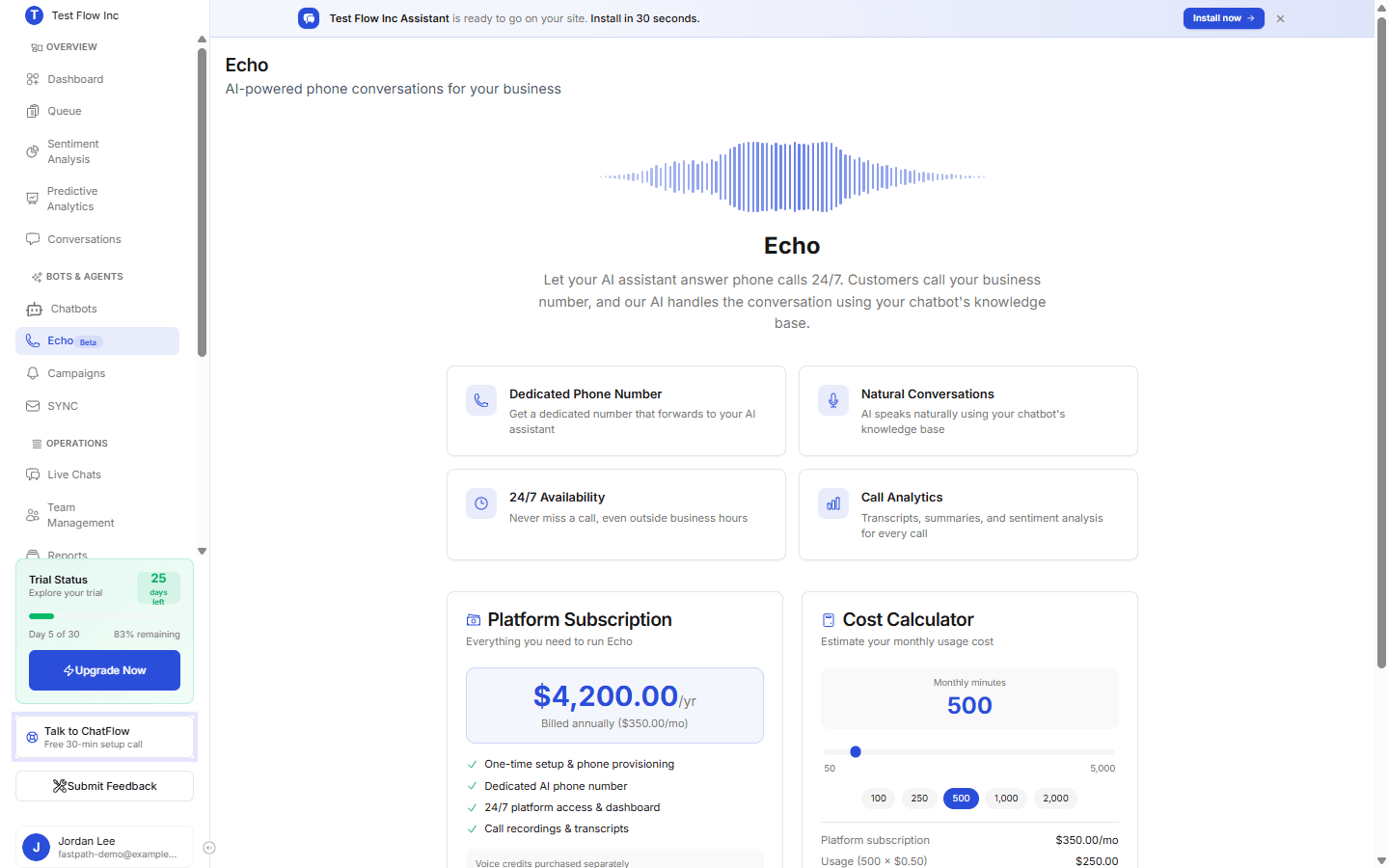
Set up Echo
Activate Echo
Complete the one-time setup fee and subscription from the Echo screen. Checkout is handled securely in-app, and activating unlocks phone-number provisioning.
Provision a phone number
Select Provision Phone Number. ChatFlow creates a dedicated number and a voice agent for you. You can run up to three numbers, each linked to a different chatbot.
Connect your knowledge base
In the setup checklist, choose the chatbot Echo should use for its answers. Echo draws on that chatbot's FAQs, documents, and training.
Configure voice settings
Open Echo → Settings to set the agent name, company name, greeting and goodbye, voice and language, business hours, and your call-transfer and recording-consent options.
Forward your business line (optional)
Set up call forwarding so calls to your existing business number are answered by Echo.
Test it
- A browser test call is free and needs no phone, it runs right from the dashboard.
- A phone test call places a real call to your number and is marked as a test, so it is excluded from your stats.
Credits and usage
Calls draw down per-minute credits. You can top up credit packages and optionally enable auto-recharge so the line never runs dry. Your balance and a low-balance alert appear on the Echo dashboard.
What's next
- Review call transcripts, summaries, and sentiment under Echo → Calls.
- Run outbound calling under Echo → Campaigns.