
How to Set Up Quick Actions
Add one-tap buttons to your chat widget that point customers at a specific topic, each backed by a document so the answer is accurate.
Before you begin
Quick Actions are clickable buttons that appear in your chat widget. Each one has a label the customer taps and a document the AI answers from, so they are a fast, reliable way to point people at your most common topics. You can add up to 3.
Plan availability
Quick Actions are available on the Enterprise plan, and you can try them during the free trial.
Open Quick Actions
- Go to Chatbots in the sidebar and open your chatbot.
- Click the Settings tab, then select Quick Actions.
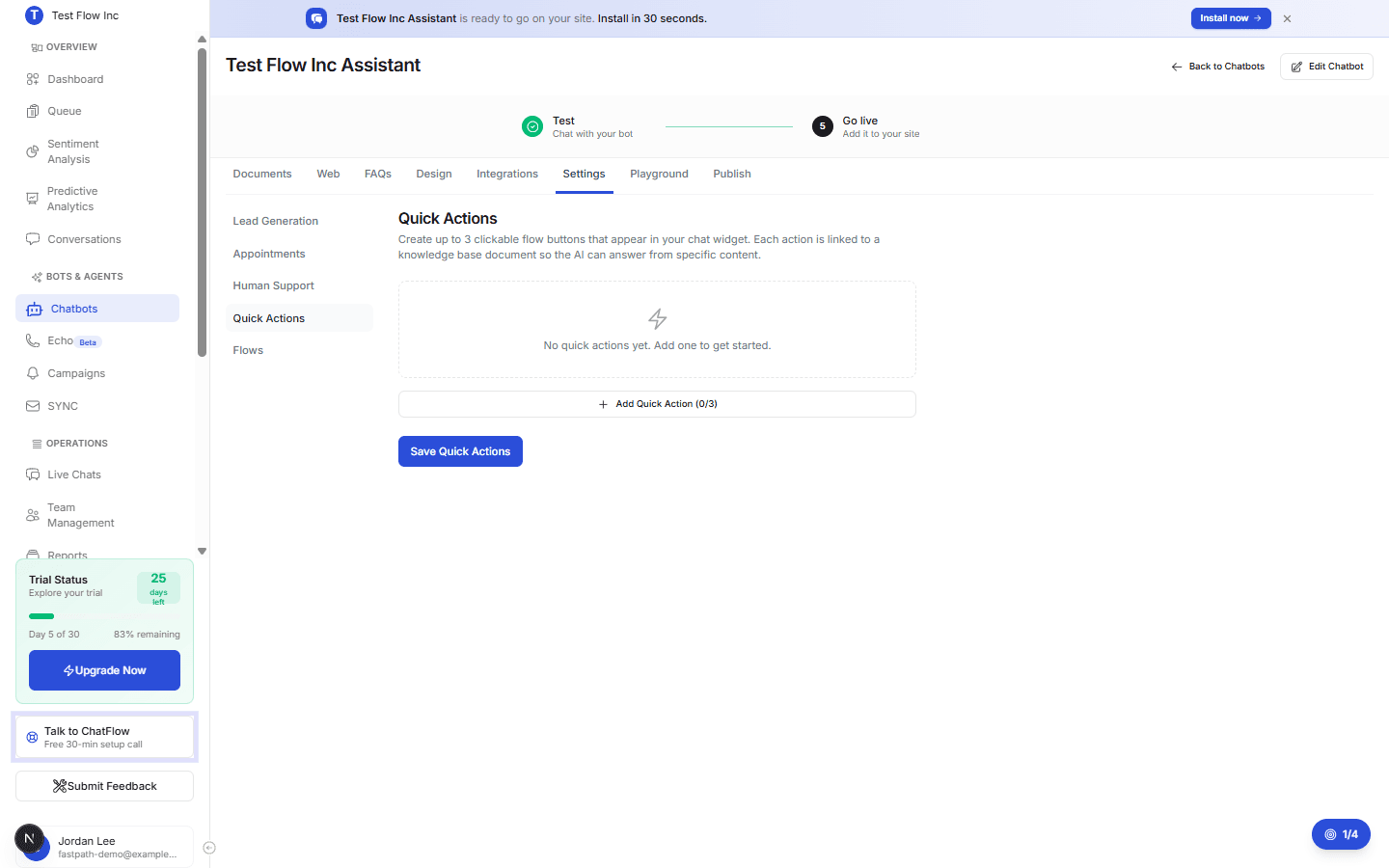
Add a quick action
Add an action
Select Add Quick Action. The button shows your count, for example Add Quick Action (0/3).
Set the label and linked document
Enter a Button Label (up to 60 characters) that customers will tap, for example How do I sign up?. Then choose a Linked Document from your knowledge base, the AI uses that document to answer when the button is tapped.
Add more, then save
Repeat for up to three actions, or use the trash icon to remove one. Select Save Quick Actions when you are done.
Pick your top three topics
Quick Actions work best for the questions customers ask most, like pricing, getting started, or contacting support. Tie each button to the document that answers that topic well.
Verify it's working
- Open the Playground tab, or your live site.
- Confirm the quick-action buttons appear in the widget.
- Tap one and confirm the chatbot answers using the linked document.
Troubleshooting
The buttons are not showing
Make sure you selected Save Quick Actions, and that every action has both a label and a linked document. An action missing either one will not appear.
A document warning appears
The document linked to an action was deleted. Open the action, choose a different document, and save again.