
How to Schedule and Track Follow-ups
Keep escalations and scheduled follow-ups from your conversations in one place so nothing slips through the cracks.
Before you begin
Follow-ups is where escalations and scheduled follow-ups live, each one linked back to its conversation, with an assignee and a status. It is how you make sure the conversations that need a human touch actually get one.
Plan availability
Follow-ups are available on the Growth and Enterprise plans, and during the free trial.
How follow-ups are created
You do not create follow-ups on this page. They come from a conversation, usually from the Sentiment Analysis view:
- Schedule Follow-up creates a normal-priority follow-up with a due date.
- Escalate Issue creates a high-priority escalation that is open right away.
Both notify the assignee (or your organization's admins if no one is assigned).
Open Follow-ups
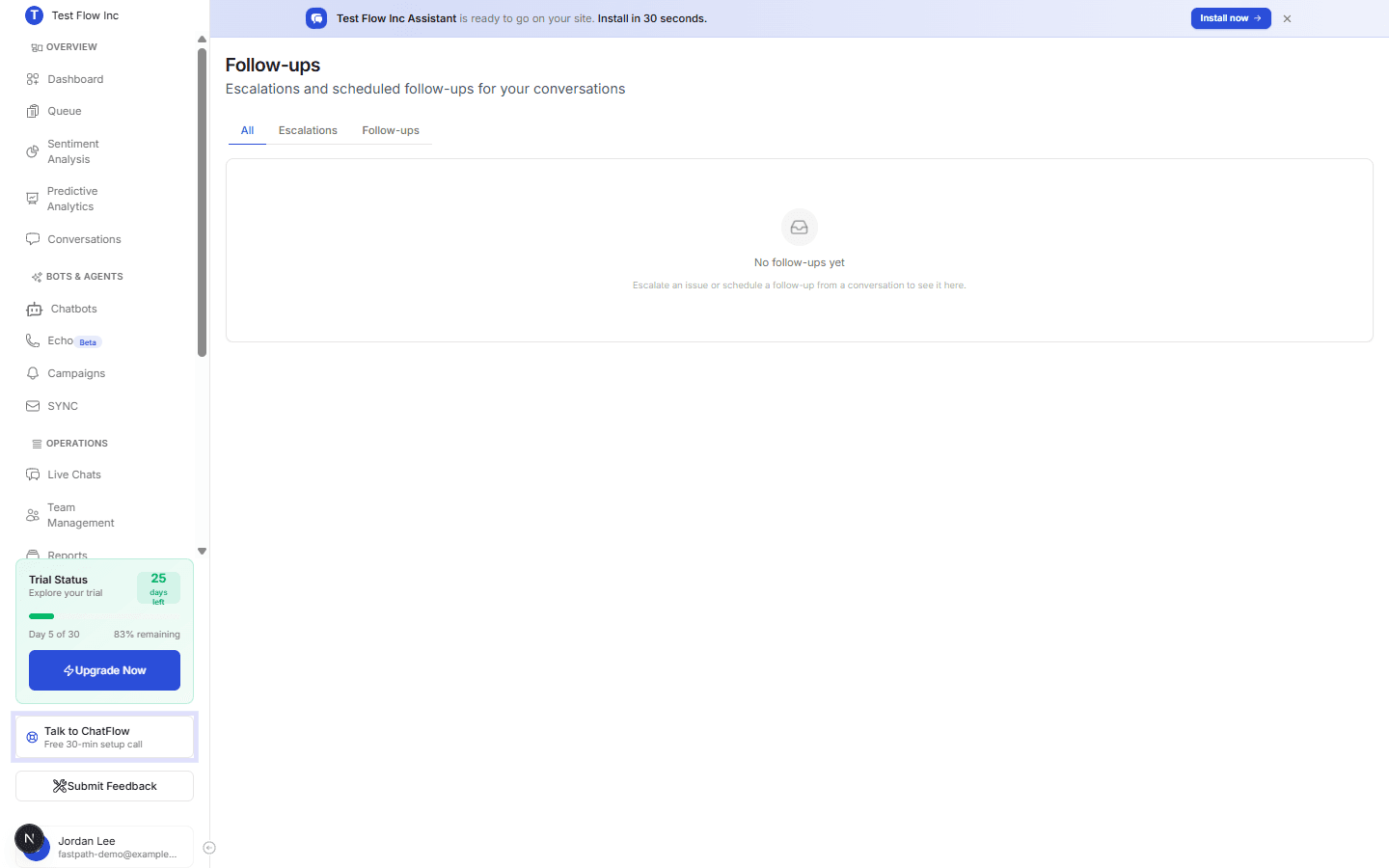
Select Follow-ups in the sidebar (under OPERATIONS). Use the tabs to filter: All, Escalations, or Follow-ups.
Work an item
Each row shows the type, a link to the conversation, the reason or notes, the assignee, the due date, and the status.
Open the conversation
Select the conversation link to read the original chat and understand the context.
Resolve it
Select Mark done once it is handled, or Cancel if it is no longer needed.
Verify it's working
- From the Sentiment Analysis view, schedule a follow-up on a conversation.
- Open the Follow-ups page and confirm it appears under the Follow-ups tab.
- Select Mark done and confirm the status changes.
Troubleshooting
The page is empty
If you see "No follow-ups yet", none have been created. Escalate an issue or schedule a follow-up from a conversation, then it will appear here.
A follow-up went to the wrong person
Follow-ups are assigned when they are created. Add the right people as team members so you can assign each follow-up to the person who should handle it.