
How to Manage the Support Queue
Monitor customers waiting for an agent, agent availability, callbacks, and SLA performance in real time, and assign chats from one place.
Before you begin
The Queue gives you a live, single-screen view of your support load: who is waiting for a human, which agents are free, pending callbacks, and how you are tracking against your SLAs. It updates in real time, so you can keep wait times down and nothing slips through.
Plan availability
The Queue is available on the Enterprise plan, and during the free trial. You also need human support enabled so conversations can enter the queue.
Open the Queue
Select Queue in the sidebar (under OVERVIEW). Live metrics across the top show Customers Waiting, Avg Wait Time, SLA Status, Agents Online, callback counts, response rate, and abandon rate.
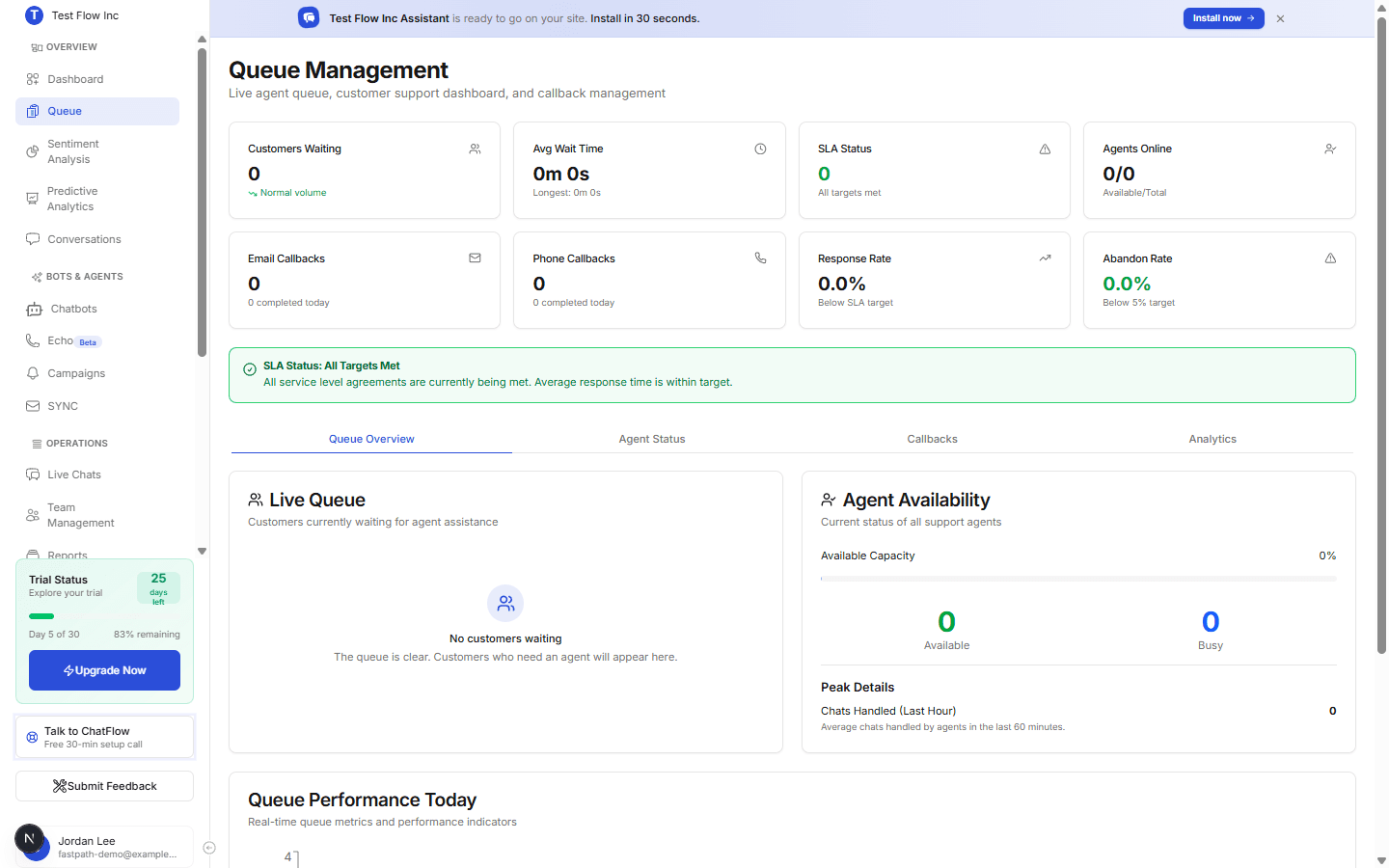
The four tabs
| Tab | What it shows |
|---|---|
| Queue Overview | The live queue of waiting customers, plus current agent availability. |
| Agent Status | Each agent's status and how many active chats they have versus their capacity. |
| Callbacks | Pending callback requests with contact details. |
| Analytics | SLA performance and queue trends over a period you choose. |
Manage the queue
Assign a waiting customer
On Queue Overview, find the customer in the Live Queue and assign them to an available agent. The Customers Waiting count drops as you do.
Handle a callback
Open the Callbacks tab, assign a pending callback to an agent, and mark it complete once it is handled.
Adjust capacity on the fly
On Agent Status, change an agent's chat capacity if your queue is backing up. Capacity and availability are configured in Team Management.
Verify it's working
- From your widget or the Playground, start a chat and request a human.
- Confirm it appears in the Live Queue and that Customers Waiting goes up.
- Assign it to an agent and confirm the count drops.
Troubleshooting
The queue is empty when it should not be
Confirm human support is enabled on the chatbot and that customers are actually requesting an agent. Only conversations that ask for a human enter the queue.
No agents are available to assign
Check Agent Status. Agents must be online and under their chat limit to receive assignments. Set capacity and availability in Team Management.